
Creating a Life OS Dashboard Setup in Obsidian for 2024 (Part 3)
Setting up daily driver task management system
In the previous two articles, we discussed how to set up a gold tracker, and a goal dashboard. We also talked about creating daily and weekly note templates.
In this article, we will focus on creating a daily driver task management system in Obsidian.
A lot of people argue whether Obsidian can work as a task manager or not. Whether it is okay to make Obsidian a Swiss army knife or not.
But the answer is, it's subjective.
If I had to manage large-level projects and team-related tasks, I’d stay away from Obsisidan.
But if it's for personal task management, I would use it.
I’ve been using Obsidian as a task manager for the last 2 years. And it works.
This article will teach you how to create a functional daily driver task management system in Obsidian.
For Task Management, Here are the elements I’ve in my Obsidian Vault:
- Kanban Board View of Tasks
- Today’s Tasks View
- Tasks Calendar
Let’s talk about setting up each of them.
Kanban Board View of Tasks
For this, we’ll use a plugin called Cardboard. It displays markdown tasks in kanban-style boards.
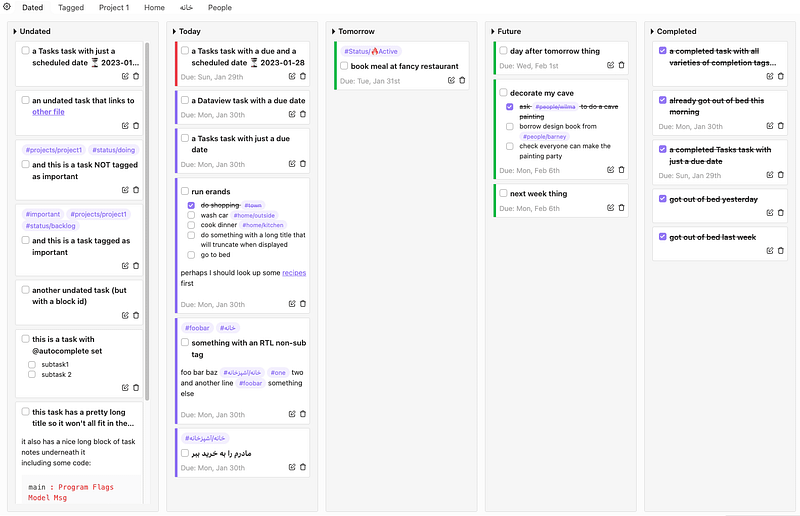
The plugin is straightforward to use.
You have the option to create two types of boards:
- Tag-based board: Uses tags to define the columns
- Date-based board: Uses data like the screenshot above to define columns
I use the date-based board in my vault. To create a board, click on the cardboard icon in the ribbon menu, and configure the board.
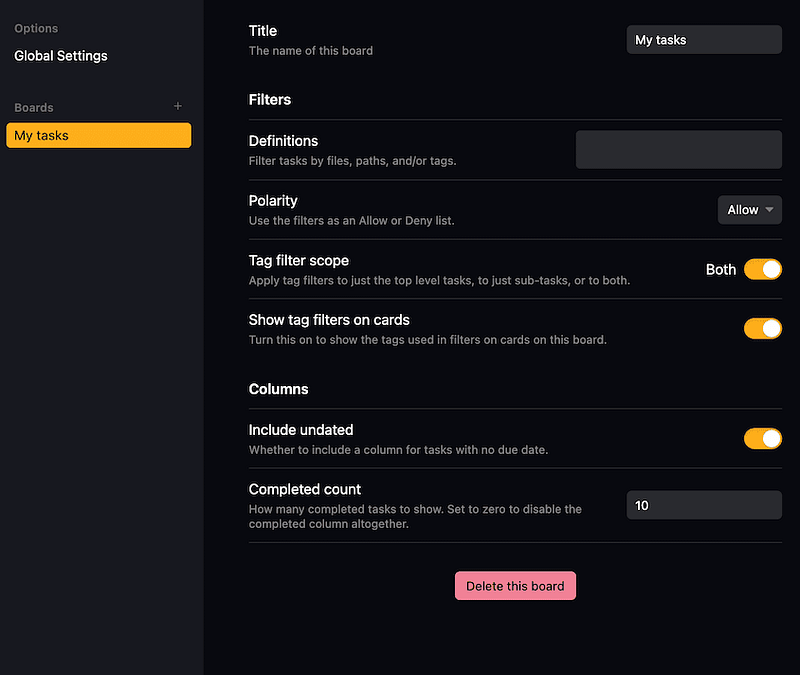
You can use multiple boards as well if you use tags to differentiate between different categories of tasks.
But I prefer this simple style.
Today’s Task View
This is not just a today’s view but a timeline view of your tasks. It gives you a simple dashboard to show today’s tasks and filters overdue and unplanned tasks.
By adding this note view to your sidebar, you can take a glance at your day without opening a note.
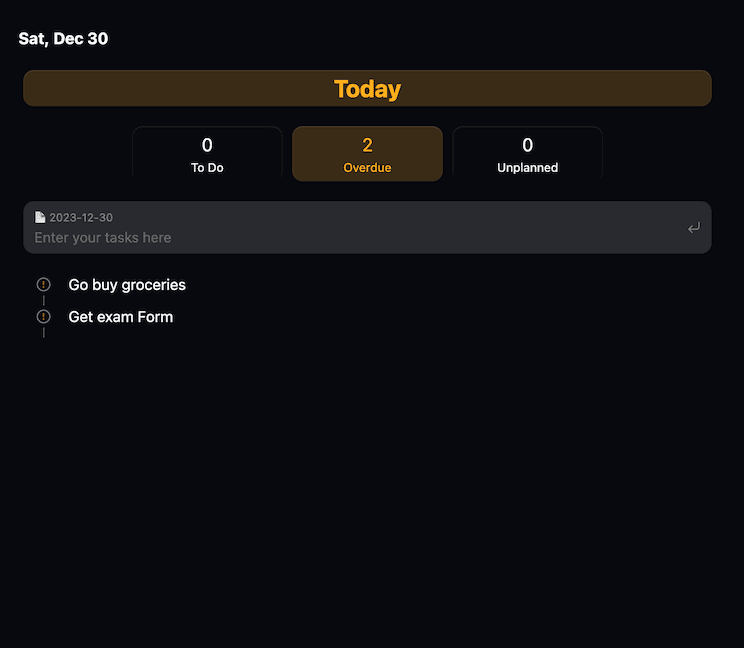
To create this view, follow the instructions from this Obsidian repo.
You need to download the .js and .css files to render this view in your vault.
If you don’t want to do this. This will all be available in the demo vault I share at the end. You can copy the files in the Tasks folder and you are good to go.
To get a view of your tasks on the sidebar, drag this note to the sidebar and pin it. Easy peasy.
Tasks Calendar
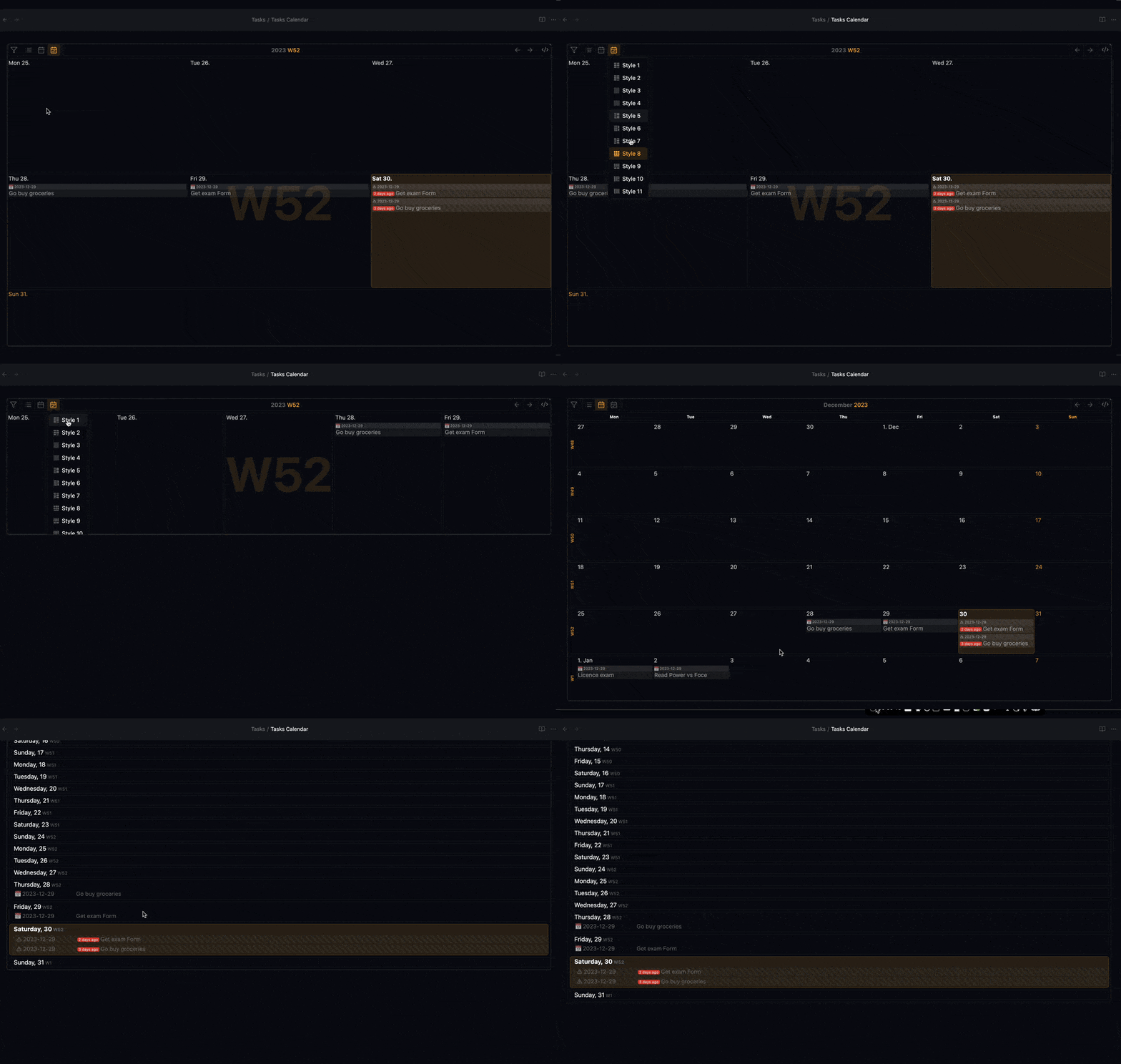
This is also a dataview query like the before one. You download the .js and .css files from this repo. Add it to your vault.
Add this dataview query.
```dataviewjs
await dv.view("Tasks/Calendar", {pages: "", view: "month", firstDayOfWeek: "1", options: "style1"})
```
This will create a calendar view with all of your tasks.
You can also change the style of the calendar.
Here’s the demo.
And I just forgot to tell you the most important thing. To make this all work, you need the Tasks plugin.
If you don’t have it, install it first.
Unlike other task management setups for Obsidian you see online, this doesn’t involve manual task queries.
Install the cardboard plugin, and use the obsidian-tasks-calendar and obsidian-tasks-timeline.
That’s all for task management.
We have completed 3 articles in this series of Obsidian Life OS Dashboard setup.
The next one is going to be amazing. You will love it. Because that’s where we’ll create a homepage that looks like this:


