
Creating a custom scroll bar indicator — React Native, Reanimated, Gesture
If you land here, you are looking on how to customize the scroll bar indicator, but sadly you can’t do a cross-platform stylized indicator by simply setting parameters on the React Native <ScrollView> component.
This works cross-platform on the Android, iOS, and Web.
You can find the code and the Snack demo at the bottom of the article.
This is using React Native Reanimated, and Gesture Handler in order to move the indicator and handle the classic click or touch to scroll gesture.
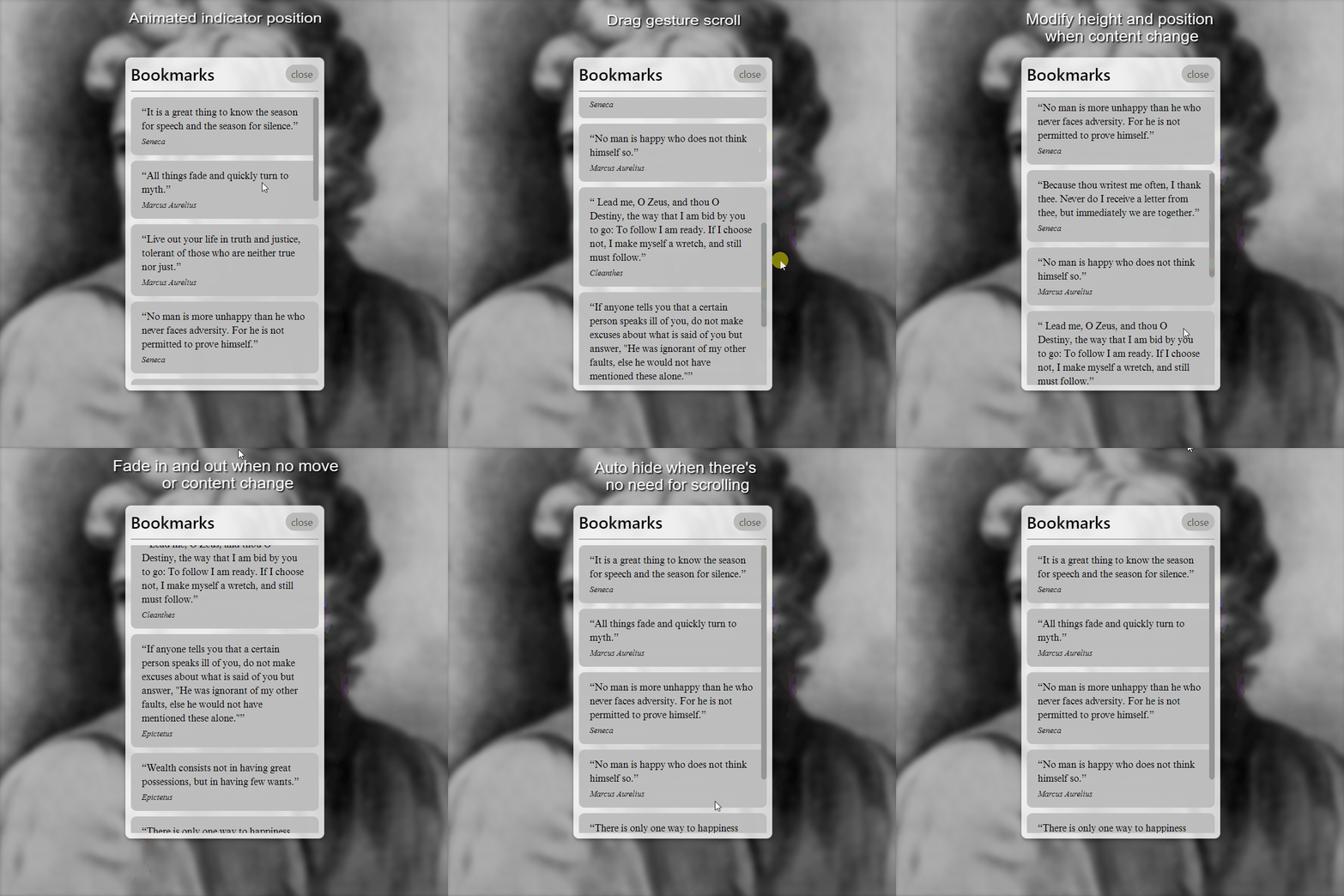
The demonstration above is on the web version, but it works and look the same on the mobile, through Expo. I also use it to create a drop-down menu for the app settings which need scrolling.
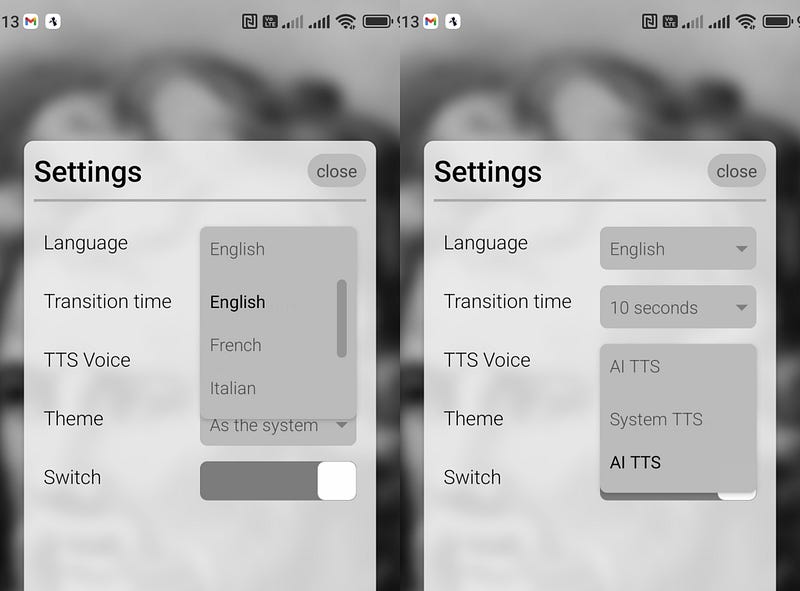
The component is versatile, as you can directly set the height of it, so it gives you control over how the overall scroll component should look like.
Features
There are multiple features integrated into this custom ScrollView component:
- Animated indicator position based on the scrolling percentage
- Automatically hide after timeout
- Don’t show scroll bar when the view height is bigger than content height
- Pan gesture for the indicator
- Automatically modify the position and the height of the indicator when the content height changes
What do you think should be included into the next release features? Let me know in the replay section 😄.
How to use
Wrap your components with:
<CustomScrollView height={SET_HEIGHT_NUMBER}>
Don’t forget to set the height. You might want to adjust the style of the indicator inside the component. Check the indicatorStaticStyle.
Where I can find the code
Don’t forget to wrap your App.js with <GestureHandlerRootView> or the drag gesture will not work on mobile.
You can find the component and code example on this Snack above or on this GitHub Gist.


