avatarReact Dojo

Free AI web copilot to create summaries, insights and extended knowledge, download it at here

8373

Abstract

-params"></span>) { <span class="hljs-keyword">return</span> ( <span class="language-xml"><span class="hljs-tag"><<span class="hljs-name">Fragment</span>></span> <span class="hljs-tag"><<span class="hljs-name">color</span> <span class="hljs-attr">args</span>=<span class="hljs-string">{[</span>'<span class="hljs-attr">white</span>']} <span class="hljs-attr">attach</span>=<span class="hljs-string">"background"</span> /></span> <span class="hljs-tag"><<span class="hljs-name">pointLight</span> <span class="hljs-attr">position</span>=<span class="hljs-string">{[2,</span> <span class="hljs-attr">2</span>, <span class="hljs-attr">2</span>]} /></span> <span class="hljs-tag"><<span class="hljs-name">pointLight</span> <span class="hljs-attr">position</span>=<span class="hljs-string">{[-2,</span> <span class="hljs-attr">2</span>, <span class="hljs-attr">2</span>]} /></span> <span class="hljs-tag"><<span class="hljs-name">ambientLight</span> <span class="hljs-attr">intensity</span>=<span class="hljs-string">{0.3}</span> /></span> <span class="hljs-tag"><<span class="hljs-name">Thing</span> /></span> <span class="hljs-tag"><<span class="hljs-name">EffectComposer</span>></span> <span class="hljs-tag"><<span class="hljs-name">Vignette</span> <span class="hljs-attr">eskil</span>=<span class="hljs-string">{false}</span> <span class="hljs-attr">offset</span>=<span class="hljs-string">{0.2}</span> <span class="hljs-attr">darkness</span>=<span class="hljs-string">{0.8}</span> /></span> <span class="hljs-tag"></<span class="hljs-name">EffectComposer</span>></span> <span class="hljs-tag"></<span class="hljs-name">Fragment</span>></span></span> ); }

<span class="hljs-keyword">export</span> <span class="hljs-keyword">default</span> <span class="hljs-title class_">Scene</span>;</pre></div><p id="5369">Let’s go over this code line by line:</p><ul><li><code><Fragment>...</Fragment></code> creates a fragment component, which allows us to render multiple child components without introducing a new parent element.</li><li><code><color args={['white']} attach="background" /></code> sets the background color of the scene to white.</li><li><code><pointLight position={[2, 2, 2]} /></code> and <code><pointLight position={[-2, 2, 2]} /></code> create two point lights positioned at <code>(2, 2, 2)</code> and <code>(-2, 2, 2)</code>, respectively.</li><li><code><ambientLight intensity={0.3} /></code> creates an ambient light with an intensity of <code>0.3</code>.</li><li><code><Thing /></code> renders the <code>Thing</code> component we created earlier.</li><li><code><EffectComposer>...</EffectComposer></code> creates an effect composer component from the @react-three/postprocessing library, which allows us to apply post-processing effects to our 3D scene.</li><li><code><Vignette eskil={false} offset={0.2} darkness={0.8} /></code> applies a vignette effect to the scene with the <code>eskil</code>, <code>offset</code>, and <code>darkness</code> props used to adjust the appearance of the effect.</li></ul><h1 id="c775">Step 4: Creating the Tooltip Component</h1><p id="deab">The final component we’ll create is the <code>Tooltip</code> component, which will display the current color of the icosahedron when the mouse hovers over it. This component will use the <code>styled-components</code> library to create CSS-in-JS styles for the tooltip, and the <code>useStore</code> hook from the <code>zustand</code> library to get the current color of the icosahedron.</p><p id="489f">Here’s the code for the <code>Tooltip</code> component:</p><div id="93f2"><pre><span class="hljs-keyword">import</span> styled <span class="hljs-keyword">from</span> <span class="hljs-string">'styled-components'</span>; <span class="hljs-keyword">import</span> { useStore } <span class="hljs-keyword">from</span> <span class="hljs-string">'../store'</span>;

<span class="hljs-keyword">const</span> <span class="hljs-title class_">Tooltip</span> = styled.<span class="hljs-property">div</span><span class="hljs-string"> display: flex; align-items: center; background: white; position: fixed; pointer-events: none; z-index: 1; transform: scale(<span class="hljs-subst">${(props) =&gt; (props.active ? <span class="hljs-number">1</span> : <span class="hljs-number">0</span>)}</span>); transition: transform 0.2s; border-radius: 10px; box-shadow: 1px 1px 3px #333; padding: 10px;</span>;

<span class="hljs-keyword">const</span> <span class="hljs-title class_">Swatch</span> = styled.<span class="hljs-property">div</span><span class="hljs-string"> display: inline-block; width: 15px; height: 15px; background: <span class="hljs-subst">${(props) =&gt; props.color}</span>; margin-right: 5px; transition: background-color 0.2s; box-shadow: 0 0 1px lightgray;</span>;

<span class="hljs-keyword">const</span> <span class="hljs-title class_">TooltipLabel</span> = styled.<span class="hljs-property">span</span><span class="hljs-string"> color: #555; font-family: 'Segoe UI', Tahoma, Geneva, Verdana, sans-serif;</span>;

<span class="hljs-keyword">function</span> <span class="hljs-title function_">Tooltip</span>(<span class="hljs-params"></span>) { <span class="hljs-keyword">const</span> tooltip = <span class="hljs-title function_">useRef</span>(); <span class="hljs-keyword">const</span> { color, hover } = <span class="hljs-title function_">useStore</span>();

<span class="hljs-keyword">const</span> <span class="hljs-title function_">onMouseMove</span> = (<span class="hljs-params">e</span>) => { tooltip.<span class="hljs-property">current</span>.<span class="hljs-property">style</span>.<span class="hljs-property">left</span> = e.<span class="hljs-property">pageX</span> + <span class="hljs-number">20</span> + <span class="hljs-string">'px'</span>; tooltip.<span class="hljs-property">current</span>.<span class="hljs-property">style</span>.<span class="hljs-property">top</span> = e.<span class="hljs-property">pageY</span> - <span class="hljs-number">10</span> + <span class="hljs-string">'px'</span>; };

<span class="hljs-keyword">return</span> ( <span class="language-xml"><span class="hljs-tag"><<span class="hljs-name">Tooltip</span> <span class="hljs-attr">active</span>=<span class="hljs-string">{hover}</span> <span class="hljs-attr">ref</span>=<span class="hljs-string">{tooltip}</span>></span> <span class="hljs-tag"><<span class="hljs-name">Swatch</span> <span class="hljs-attr">color</span>=<span class="hljs-string">{color}</span> /></span> <span class="hljs-tag"><<span class="hljs-name">TooltipLabel</span>></span>{color.toUpperCase()}<span class="hljs-tag"></<span class="hljs-name">TooltipLabel</span>></span> <span class="hljs-tag"></<span class="hljs-name">Tooltip</span>></span></span> ); }

<span class="hljs-keyword">export</span> <span class="hljs-keyword">default</span> <span class="hljs-title class_">Tooltip</span>;</pre></div><p id="cda3">Let’s go over this code line by line:</p><ul><li><code>const Tooltip = styled.div</code> creates a styled component with CSS styles for the tooltip.</li><li><code>const { color, hover } = useStore();</code> gets the current color of the icosahedron and the current hover state from the <code>zustand</code> store.</li><li><code>const onMouseMove = (e) => { ... }</code> tracks the mouse movement and updates the position of the tooltip accordingly.</li><li><code><Tooltip active={hover} ref={tooltip}>...</Tooltip></code> renders the tooltip component with the <code>active</code> prop set to the current <code>hover</code> state, and a <code>ref</code> to allow us to update its position with the <code>onMouseMove</code> event handler.</li><li><code><Swatch color={color} /></code> renders a small swatch of the current color next to the color label.</li><li><code><TooltipLabel>{color.toUpperCase()}</TooltipLabel></code> displays the current color of the icosahedron in uppercase.</li></ul><h1 id="aa35">Step 5: Creating the Store</h1><p id="fd49">The <code>useStore</code> hook that we've been using in the <code>Thing</code> and <code>Tooltip</code> component

Options

s references a global store that stores the current color and hover state. We'll create this store using the zustand library.</p><p id="4d5f">Here’s the code for the <code>store.js</code> file:</p><div id="e280"><pre><span class="hljs-keyword">import</span> create <span class="hljs-keyword">from</span> <span class="hljs-string">'zustand'</span>; <span class="hljs-keyword">import</span> colors <span class="hljs-keyword">from</span> <span class="hljs-string">'nice-color-palettes'</span>;

<span class="hljs-keyword">export</span> <span class="hljs-keyword">const</span> useStore = <span class="hljs-title function_">create</span>(<span class="hljs-function">(<span class="hljs-params">set</span>) =></span> ({ <span class="hljs-attr">color</span>: <span class="hljs-title function_">randomColor</span>(), <span class="hljs-attr">setColor</span>: <span class="hljs-function">(<span class="hljs-params">color</span>) =></span> <span class="hljs-title function_">set</span>({ color }), <span class="hljs-attr">hover</span>: <span class="hljs-literal">false</span>, <span class="hljs-attr">setHover</span>: <span class="hljs-function">(<span class="hljs-params">hover</span>) =></span> <span class="hljs-title function_">set</span>({ hover }), }));

<span class="hljs-keyword">function</span> <span class="hljs-title function_">randomColor</span>(<span class="hljs-params"></span>) { <span class="hljs-keyword">const</span> palette = colors[<span class="hljs-title class_">Math</span>.<span class="hljs-title function_">floor</span>(<span class="hljs-title class_">Math</span>.<span class="hljs-title function_">random</span>() * colors.<span class="hljs-property">length</span>)]; <span class="hljs-keyword">return</span> palette[<span class="hljs-title class_">Math</span>.<span class="hljs-title function_">floor</span>(<span class="hljs-title class_">Math</span>.<span class="hljs-title function_">random</span>() * palette.<span class="hljs-property">length</span>)]; }</pre></div><p id="f266">Let’s go over this code line by line:</p><ul><li><code>const useStore = create((set) => { ... })</code> creates a new <code>useStore</code> hook that uses the <code>create</code> function from the <code>zustand</code> library. This hook returns an object with the current color and hover state, as well as functions to update these states.</li><li><code>color: randomColor()</code> sets the initial color of the icosahedron to a random color.</li><li><code>setColor: (color) => set({ color })</code> creates a function that updates the color of the icosahedron.</li><li><code>hover: false</code> sets the initial hover state to <code>false</code>.</li><li><code>setHover: (hover) => set({ hover })</code> creates a function that updates the hover state.</li><li><code>function randomColor() { ... }</code> defines a helper function that returns a random color from a selection of nice color palettes using the <code>nice-color-palettes</code> library.</li></ul><h1 id="b554">Step 6: Rendering the App</h1><p id="2594">The final step is to render the <code>App</code> component, which will include the <code>Canvas</code> component from <code>react-three-fiber</code>, the <code>Scene</code> component, and the <code>Tooltip</code> component.</p><p id="6afa">Here’s the code for the <code>App</code> component:</p><div id="8a39"><pre><span class="hljs-keyword">import</span> { <span class="hljs-title class_">Fragment</span>, useRef } <span class="hljs-keyword">from</span> <span class="hljs-string">'react'</span>; <span class="hljs-keyword">import</span> { <span class="hljs-title class_">Canvas</span> } <span class="hljs-keyword">from</span> <span class="hljs-string">'react-three-fiber'</span>; <span class="hljs-keyword">import</span> { useStore } <span class="hljs-keyword">from</span> <span class="hljs-string">'./store'</span>; <span class="hljs-keyword">import</span> <span class="hljs-title class_">Scene</span> <span class="hljs-keyword">from</span> <span class="hljs-string">'./components/Scene'</span>; <span class="hljs-keyword">import</span> <span class="hljs-title class_">Tooltip</span> <span class="hljs-keyword">from</span> <span class="hljs-string">'./components/Tooltip'</span>; <span class="hljs-keyword">import</span> <span class="hljs-string">'./App.css'</span>;

<span class="hljs-keyword">function</span> <span class="hljs-title function_">App</span>(<span class="hljs-params"></span>) { <span class="hljs-keyword">const</span> tooltip = <span class="hljs-title function_">useRef</span>(); <span class="hljs-keyword">const</span> { hover } = <span class="hljs-title function_">useStore</span>();

<span class="hljs-keyword">const</span> <span class="hljs-title function_">onMouseMove</span> = (<span class="hljs-params">e</span>) => { tooltip.<span class="hljs-property">current</span>.<span class="hljs-property">style</span>.<span class="hljs-property">left</span> = e.<span class="hljs-property">pageX</span> + <span class="hljs-number">20</span> + <span class="hljs-string">'px'</span>; tooltip.<span class="hljs-property">current</span>.<span class="hljs-property">style</span>.<span class="hljs-property">top</span> = e.<span class="hljs-property">pageY</span> - <span class="hljs-number">10</span> + <span class="hljs-string">'px'</span>; };

<span class="hljs-keyword">return</span> ( <span class="language-xml"><span class="hljs-tag"><<span class="hljs-name">Fragment</span>></span> <span class="hljs-tag"><<span class="hljs-name">Tooltip</span> <span class="hljs-attr">hover</span>=<span class="hljs-string">{hover}</span> <span class="hljs-attr">ref</span>=<span class="hljs-string">{tooltip}</span> /></span> <span class="hljs-tag"><<span class="hljs-name">Canvas</span> <span class="hljs-attr">onMouseMove</span>=<span class="hljs-string">{onMouseMove}</span>></span> <span class="hljs-tag"><<span class="hljs-name">Scene</span> /></span> <span class="hljs-tag"></<span class="hljs-name">Canvas</span>></span> <span class="hljs-tag"></<span class="hljs-name">Fragment</span>></span></span> ); }

<span class="hljs-keyword">export</span> <span class="hljs-keyword">default</span> <span class="hljs-title class_">App</span>;</pre></div><p id="2468">Let’s go over this code line by line:</p><ul><li><code>const tooltip = useRef();</code> creates a reference to the tooltip component.</li><li><code>const { hover } = useStore();</code> gets the current hover state from the <code>zustand</code> store.</li><li><code>const onMouseMove = (e) => { ... }</code> tracks the mouse movement and updates the position of the tooltip accordingly.</li><li><code><Tooltip hover={hover} ref={tooltip} /></code> renders the tooltip component with the <code>hover</code> prop set to the current <code>hover</code> state, and a <code>ref</code> to allow us to update its position with the <code>onMouseMove</code> event handler.</li><li><code><Canvas onMouseMove={onMouseMove}>...</Canvas></code> renders the <code>Canvas</code> component with the <code>onMouseMove</code> event handler and the <code>Scene</code> component as a child.</li></ul><h1 id="feeb">Step 7: Running the App</h1><p id="b971">To run the app, navigate to the root directory of the project and run:</p><div id="5f45"><pre>npm <span class="hljs-keyword">start</span></pre></div><p id="0d75">This will start a development server at <code>http://localhost:3000</code> where you can see the app running in your browser.</p><h1 id="8830">Conclusion</h1><p id="ee88">In this tutorial, we’ve built a simple 3D scene using <code>react-three-fiber</code> and added interactivity using <code>react-spring</code> and <code>zustand</code>. We also used <code>@react-three/postprocessing</code> to apply a vignette effect to the scene and <code>styled-components</code> to create a tooltip that displays the current color of the icosahedron when the mouse hovers over it.</p><p id="9749">By combining these libraries, we’ve created an interactive 3D scene that demonstrates how different libraries can be used together to create rich and engaging user experiences. There are many more features and effects that can be added to this scene, so feel free to experiment and build on this code to create your own unique 3D experiences.</p></article></body>

Creating a Colorful 3D Icosahedron with React Three Fiber and React Spring
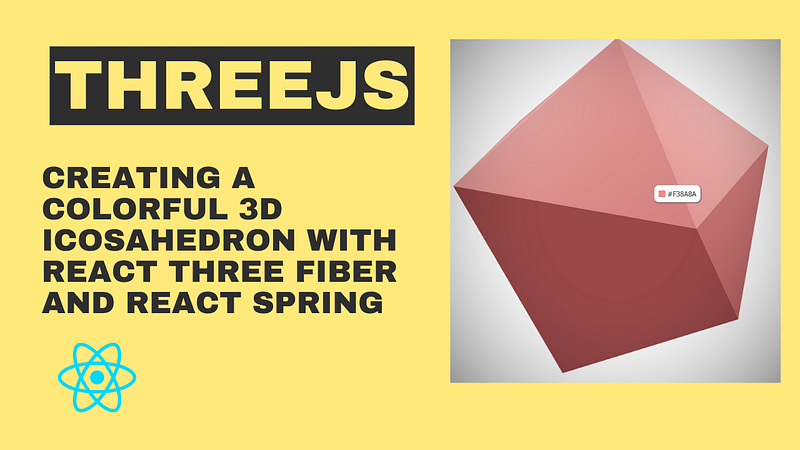
In this tutorial, we’ll be building an interactive 3D scene using React and the Three.js library. Specifically, we’ll be creating a scene with a randomized and changeable color icosahedron, and a tooltip that displays the current color when the mouse hovers over the icosahedron.

Prerequisites

To follow along with this tutorial, you’ll need:

  • Node.js installed on your machine
  • Familiarity with React and JavaScript
  • Basic knowledge of 3D graphics and Three.js

Step 1: Setting up the Project

To start, create a new React project using create-react-app. In your terminal, run:

npx create-react-app my-3d-scene

This will create a new React project in a directory called my-3d-scene.

Next, install the following dependencies:

  • react-three-fiber: A library that makes it easy to use Three.js with React
  • @react-three/postprocessing: A library that provides post-processing effects for Three.js
  • styled-components: A library that allows you to create CSS-in-JS styles for your React components
  • nice-color-palettes: A library that provides a selection of nice color palettes
  • zustand: A library that provides a simple way to manage global state in your React application

You can install these dependencies using npm:

npm install react-three-fiber @react-three/postprocessing styled-components nice-color-palettes zustand

Step 2: Creating the Icosahedron Component

The first component we’ll create is the Thing component, which will render the icosahedron. This component will use the useRef hook to create a reference to the icosahedron mesh, and the useSpring hook from the react-spring/three library to animate the scale and color of the mesh.

Here’s the code for the Thing component:

import { useRef } from 'react';
import { useSpring, a } from 'react-spring/three';
import { useStore } from '../store';

function Thing() {
  const ref = useRef();
  const { color, setColor, hover, setHover } = useStore();
  const { aScale, aColor } = useSpring({
    aScale: hover ? [2.5, 2.5, 2.5] : [2, 2, 2],
    aColor: color,
  });

  return (
    <a.group
      ref={ref}
      scale={aScale}
      onClick={() => {
        setColor(randomColor());
      }}
      onPointerOver={() => setHover(true)}
      onPointerOut={() => setHover(false)}
    >
      <mesh>
        <icosahedronBufferGeometry />
        <a.meshStandardMaterial color={aColor} />
      </mesh>
    </a.group>
  );
}

Let’s go over this code line by line:

  • const ref = useRef(); creates a reference to the icosahedron mesh using the useRef hook.
  • const { color, setColor, hover, setHover } = useStore(); uses the useStore hook from the zustand library to get the current color of the icosahedron, and to set the color and hoverstate.
  • const { aScale, aColor } = useSpring({ ... }) uses the useSpring hook from the react-spring/three library to animate the scale and color of the icosahedron. The aScale and aColor variables are used to store the animated values for the icosahedron's scale and color, respectively. The hover state is used to toggle between two different scale values when the mouse is hovering over the icosahedron.
  • <a.group>...</a.group> creates a group component from the react-three-fiber library, which allows us to apply transformations (such as scaling and rotating) to multiple child components at once. We're using this component to apply the animated scale to the icosahedron mesh.
  • onClick={() => setColor(randomColor())} sets a new random color for the icosahedron when it's clicked.
  • onPointerOver={() => setHover(true)} and onPointerOut={() => setHover(false)} track when the mouse hovers over and leaves the icosahedron, respectively. These events are used to toggle the hover state and animate the scale of the icosahedron.
  • <mesh>...</mesh> creates a mesh component from the react-three-fiber library, which allows us to render 3D geometry with materials. In this case, we're rendering an icosahedronBufferGeometry and using a meshStandardMaterial with the animated color value.

Step 3: Creating the Scene Component

The next component we’ll create is the Scene component, which will define the 3D scene and its contents. This component will use the <Canvas> component from the react-three-fiber library to render the 3D scene, and will include two point lights, an ambient light, and the Thing component.

Here’s the code for the Scene component:

import { Fragment } from 'react';
import { Canvas } from 'react-three-fiber';
import { EffectComposer, Vignette } from '@react-three/postprocessing';
import { useStore } from '../store';
import Thing from './Thing';

function Scene() {
  return (
    <Fragment>
      <color args={['white']} attach="background" />
      <pointLight position={[2, 2, 2]} />
      <pointLight position={[-2, 2, 2]} />
      <ambientLight intensity={0.3} />
      <Thing />
      <EffectComposer>
        <Vignette eskil={false} offset={0.2} darkness={0.8} />
      </EffectComposer>
    </Fragment>
  );
}

export default Scene;

Let’s go over this code line by line:

  • <Fragment>...</Fragment> creates a fragment component, which allows us to render multiple child components without introducing a new parent element.
  • <color args={['white']} attach="background" /> sets the background color of the scene to white.
  • <pointLight position={[2, 2, 2]} /> and <pointLight position={[-2, 2, 2]} /> create two point lights positioned at (2, 2, 2) and (-2, 2, 2), respectively.
  • <ambientLight intensity={0.3} /> creates an ambient light with an intensity of 0.3.
  • <Thing /> renders the Thing component we created earlier.
  • <EffectComposer>...</EffectComposer> creates an effect composer component from the `@react-three/postprocessing` library, which allows us to apply post-processing effects to our 3D scene.
  • <Vignette eskil={false} offset={0.2} darkness={0.8} /> applies a vignette effect to the scene with the eskil, offset, and darkness props used to adjust the appearance of the effect.

Step 4: Creating the Tooltip Component

The final component we’ll create is the Tooltip component, which will display the current color of the icosahedron when the mouse hovers over it. This component will use the styled-components library to create CSS-in-JS styles for the tooltip, and the useStore hook from the zustand library to get the current color of the icosahedron.

Here’s the code for the Tooltip component:

import styled from 'styled-components';
import { useStore } from '../store';

const Tooltip = styled.div`
  display: flex;
  align-items: center;
  background: white;
  position: fixed;
  pointer-events: none;
  z-index: 1;
  transform: scale(${(props) => (props.active ? 1 : 0)});
  transition: transform 0.2s;
  border-radius: 10px;
  box-shadow: 1px 1px 3px #333;
  padding: 10px;
`;

const Swatch = styled.div`
  display: inline-block;
  width: 15px;
  height: 15px;
  background: ${(props) => props.color};
  margin-right: 5px;
  transition: background-color 0.2s;
  box-shadow: 0 0 1px lightgray;
`;

const TooltipLabel = styled.span`
  color: #555;
  font-family: 'Segoe UI', Tahoma, Geneva, Verdana, sans-serif;
`;

function Tooltip() {
  const tooltip = useRef();
  const { color, hover } = useStore();

  const onMouseMove = (e) => {
    tooltip.current.style.left = e.pageX + 20 + 'px';
    tooltip.current.style.top = e.pageY - 10 + 'px';
  };

  return (
    <Tooltip active={hover} ref={tooltip}>
      <Swatch color={color} />
      <TooltipLabel>{color.toUpperCase()}</TooltipLabel>
    </Tooltip>
  );
}

export default Tooltip;

Let’s go over this code line by line:

  • const Tooltip = styled.div creates a styled component with CSS styles for the tooltip.
  • const { color, hover } = useStore(); gets the current color of the icosahedron and the current hover state from the zustand store.
  • const onMouseMove = (e) => { ... } tracks the mouse movement and updates the position of the tooltip accordingly.
  • <Tooltip active={hover} ref={tooltip}>...</Tooltip> renders the tooltip component with the active prop set to the current hover state, and a ref to allow us to update its position with the onMouseMove event handler.
  • <Swatch color={color} /> renders a small swatch of the current color next to the color label.
  • <TooltipLabel>{color.toUpperCase()}</TooltipLabel> displays the current color of the icosahedron in uppercase.

Step 5: Creating the Store

The useStore hook that we've been using in the Thing and Tooltip components references a global store that stores the current color and hover state. We'll create this store using the `zustand` library.

Here’s the code for the store.js file:

import create from 'zustand';
import colors from 'nice-color-palettes';

export const useStore = create((set) => ({
  color: randomColor(),
  setColor: (color) => set({ color }),
  hover: false,
  setHover: (hover) => set({ hover }),
}));

function randomColor() {
  const palette = colors[Math.floor(Math.random() * colors.length)];
  return palette[Math.floor(Math.random() * palette.length)];
}

Let’s go over this code line by line:

  • const useStore = create((set) => { ... }) creates a new useStore hook that uses the create function from the zustand library. This hook returns an object with the current color and hover state, as well as functions to update these states.
  • color: randomColor() sets the initial color of the icosahedron to a random color.
  • setColor: (color) => set({ color }) creates a function that updates the color of the icosahedron.
  • hover: false sets the initial hover state to false.
  • setHover: (hover) => set({ hover }) creates a function that updates the hover state.
  • function randomColor() { ... } defines a helper function that returns a random color from a selection of nice color palettes using the nice-color-palettes library.

Step 6: Rendering the App

The final step is to render the App component, which will include the Canvas component from react-three-fiber, the Scene component, and the Tooltip component.

Here’s the code for the App component:

import { Fragment, useRef } from 'react';
import { Canvas } from 'react-three-fiber';
import { useStore } from './store';
import Scene from './components/Scene';
import Tooltip from './components/Tooltip';
import './App.css';

function App() {
  const tooltip = useRef();
  const { hover } = useStore();

  const onMouseMove = (e) => {
    tooltip.current.style.left = e.pageX + 20 + 'px';
    tooltip.current.style.top = e.pageY - 10 + 'px';
  };

  return (
    <Fragment>
      <Tooltip hover={hover} ref={tooltip} />
      <Canvas onMouseMove={onMouseMove}>
        <Scene />
      </Canvas>
    </Fragment>
  );
}

export default App;

Let’s go over this code line by line:

  • const tooltip = useRef(); creates a reference to the tooltip component.
  • const { hover } = useStore(); gets the current hover state from the zustand store.
  • const onMouseMove = (e) => { ... } tracks the mouse movement and updates the position of the tooltip accordingly.
  • <Tooltip hover={hover} ref={tooltip} /> renders the tooltip component with the hover prop set to the current hover state, and a ref to allow us to update its position with the onMouseMove event handler.
  • <Canvas onMouseMove={onMouseMove}>...</Canvas> renders the Canvas component with the onMouseMove event handler and the Scene component as a child.

Step 7: Running the App

To run the app, navigate to the root directory of the project and run:

npm start

This will start a development server at http://localhost:3000 where you can see the app running in your browser.

Conclusion

In this tutorial, we’ve built a simple 3D scene using react-three-fiber and added interactivity using react-spring and zustand. We also used @react-three/postprocessing to apply a vignette effect to the scene and styled-components to create a tooltip that displays the current color of the icosahedron when the mouse hovers over it.

By combining these libraries, we’ve created an interactive 3D scene that demonstrates how different libraries can be used together to create rich and engaging user experiences. There are many more features and effects that can be added to this scene, so feel free to experiment and build on this code to create your own unique 3D experiences.

React Three Fiber
Threejs
React
JavaScript
Front End Development
Recommended from ReadMedium