
Create HTML webpage using Visual Studio Code without backend
- Install Vscode: Link Download
- Open Visual Studio Code: Launch Visual Studio Code on your computer.
- Create a New HTML File: Click on “File” -> “New File” to create a new file.
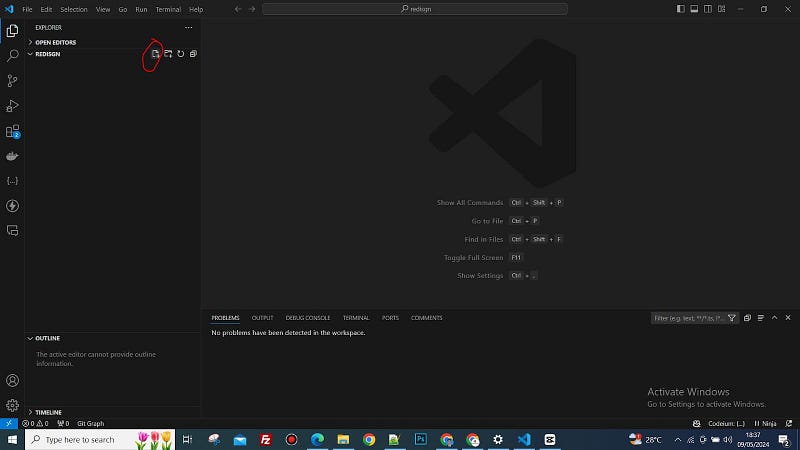
4. Write HTML Code
#Examples:
<!DOCTYPE html>
<html lang="en">
<head>
<meta charset="UTF-8">
<meta name="viewport" content="width=device-width, initial-scale=1.0">
<title>My Re-Designs Web</title>
<link rel="stylesheet" href="style.css">
</head>
<body>
<header>
<h1>Welcome to My Website</h1>
<nav>
<ul>
<li><a href="#home">Home</a></li>
<li><a href="#about">About</a></li>
<li><a href="#contact">Contact</a></li>
</ul>
</nav>
</header>
<main>
<section id="home">
<h2>Home</h2>
<p>Welcome to my simple website. This is the home section.</p>
</section>
<section id="about">
<h2>About</h2>
<p>This is the about section. Learn more about me here.</p>
</section>
<section id="contact">
<h2>Contact</h2>
<p>Contact me at [email protected]</p>
</section>
</main>
<footer>
<p>© 2024 MyWebsite. All rights reserved.</p>
</footer>
</body>
</html>5. Save the HTML File: Save your file with a .html extension, for example, index.html.

6. Create a CSS File (Optional): If you want to add styles to your webpage, create a new file and name it style.css. Write your CSS code in this file.

7. Link CSS File to HTML: If you’ve created a CSS file, link it to your HTML file by adding the following line in the section of your HTML file:
<link rel=”stylesheet” href=”style.css”>

Examples code css:
/* Reset some default browser styles */
body, h1, h2, p, ul, li {
    margin: 0;
    padding: 0;
}

/* Global styles */
body {
    font-family: Arial, sans-serif;
    line-height: 1.6;
}

header {
    background-color: #333;
    color: #fff;
    padding: 20px;
}

nav ul {
    list-style: none;
}

nav ul li {
    display: inline;
    margin-right: 20px;
}

nav ul li a {
    color: #fff;
    text-decoration: none;
}

main {
    padding: 20px;
}

section {
    margin-bottom: 20px;
}

footer {
    background-color: #333;
    color: #fff;
    text-align: center;
    padding: 10px;
    position: fixed;
    bottom: 0;
    width: 100%;
}
Now you have a basic HTML webpage without any backend functionality.


