avatarWagner Franchin

Free AI web copilot to create summaries, insights and extended knowledge, download it at here

2733

Abstract

bc">Step 3: Inputting the scripts</h2><p id="7e28">For this video, I’m going to create a script about my Medium profile. The script will be as follows:</p><p id="46f0"><i>“Welcome to Wagner Franchin’s Medium profile. Here, you can find stories ranging from Tech to Finance, from AI to Career, and more.”</i></p><p id="064a">Now, replace the placeholder text in the “Text Script” text field with the provided script.</p><figure id="33d2"><img src="https://cdn-images-1.readmedium.com/v2/resize:fit:800/1*c_QCHdKErPbAaXZVTGMXKA.png"><figcaption></figcaption></figure><p id="526c">I also changed the voice from “Belle — Natural,” which is a premium voice for members, to “Sara — Cheerful,” which is a free voice available. You can listen to how it sounds and even explore different languages.</p><h2 id="5e04">Step 4: Uploading images, videos, and recording the screen</h2><p id="9cb1">To build the background, I added some screenshots from my Medium Stories and uploaded them. Additionally, I utilized the platform’s screen recorder to create a short video.</p><figure id="203d"><img src="https://cdn-images-1.readmedium.com/v2/resize:fit:800/1*-yG5QedeF3v0PJZVaIDAxw.png"><figcaption></figcaption></figure><h2 id="c72b">Step 5: Adding assets and finalizing the video</h2><p id="dd33">To keep the tutorial concise, I will incorporate some images into the background, which will appear throughout the video.</p><figure id="d7a8"><img src="https://cdn-images-1.readmedium.com/v2/resize:fit:800/1*nyeTQLmODEEUw3z8cjSHXg.png"><figcaption></figcaption></figure><p id="2557">You have the option to set the duration for how long the images will be displayed and apply different transitions, such as fading, moving left, moving right, and more. Simply click on the extremes to explore these options and see how they affect the visuals in the video.</p><figure id="9088"><img src="https://cdn-images-1.readmedium.com/v2/resize:fit:800/1*zFY_9neD6TA303yI-jbmvQ.png"><figcaption></figcaption></figure><p id="64ea">That’s great! The basics you’ve covered provide a solid starting point, and now you can let your imagination take over to create the desired video. When you’re finished, you’ll find options to “Preview” and “Submit” the video at the top right of the screen. Click on “Preview” to review your video before finalizing it, and then click on “Submit” to complete the process.</p><figure id="7b25"><img src="https://cdn-images-1.readmedium.com/v2/resize:fit:800/1*7DOYakyNdfzICvfDDaY2AQ.png"><figcaption></figcaption></figure><h1 id="1c2b">Final version</h1><p id="a617">Thank you for following the tutorial! Check out the final video version and enjoy the rest of the tutorial. I hope it inspires you to create your own video, and I woul

Options

d love to hear about your experience with the process. Let me know in the comments.</p> <figure id="708b"> <div> <div> <img class="ratio" src="http://placehold.it/16x9"> <iframe class="" src="https://cdn.embedly.com/widgets/media.html?src=https%3A%2F%2Fwww.youtube.com%2Fembed%2FXeBLd7U29fA%3Ffeature%3Doembed&amp;display_name=YouTube&amp;url=https%3A%2F%2Fwww.youtube.com%2Fwatch%3Fv%3DXeBLd7U29fA&amp;image=https%3A%2F%2Fi.ytimg.com%2Fvi%2FXeBLd7U29fA%2Fhqdefault.jpg&amp;key=a19fcc184b9711e1b4764040d3dc5c07&amp;type=text%2Fhtml&amp;schema=youtube" allowfullscreen="" frameborder="0" height="480" width="854"> </div> </div> </figure></iframe></div></div></figure><div id="ae9a" class="link-block"> <a href="https://pub.towardsai.net/6-cutting-edge-technologies-shaping-the-future-of-work-738ea12ce3fe"> <div> <div> <h2>6 Cutting-Edge Technologies Shaping the Future of Work</h2> <div><h3>Unveiling the AI Revolution</h3></div> <div><p>pub.towardsai.net</p></div> </div> <div> <div style="background-image: url(https://miro.readmedium.com/v2/resize:fit:320/0*ZOjxn0R-zyC4EpDG)"></div> </div> </div> </a> </div><div id="be4f" class="link-block"> <a href="https://pub.towardsai.net/free-ai-tools-to-start-creating-your-own-images-bb050f610443"> <div> <div> <h2>Free AI Tools To Start Creating Your Own Images</h2> <div><h3>AI allows you to create photorealistic images</h3></div> <div><p>pub.towardsai.net</p></div> </div> <div> <div style="background-image: url(https://miro.readmedium.com/v2/resize:fit:320/1*BDAPCT6_iNKI9vK27GDJ4A.png)"></div> </div> </div> </a> </div><h1 id="ebf7">Thanks for reading</h1><ul><li>👏<i> Please clap for the story (50 claps) to help the article to be spread</i></li><li>🌐 <i>Share the story on Social Media</i></li><li><i>More stories about <a href="https://medium.com/@wagnerjfr/lists">Programming, Career, AI and more</a>.</i></li><li>🔔<i> Follow me: <a href="https://medium.com/@wagnerjfr">Medium</a> | <a href="https://www.linkedin.com/in/wagner-franchin/">LinkedIn</a> | <a href="https://twitter.com/wagnerjfr">Twitter</a></i></li><li>📝 <i>Join the <a href="https://medium.com/@wagnerjfr/membership">Medium Membership Program</a> for only 5$ a month, and support me and other writers to keep on the tremendous work.</i></li></ul></article></body>

Create AI Videos In Seconds With HeyGen

Learn How I Created an Awesome Video to Promote My Medium Profile
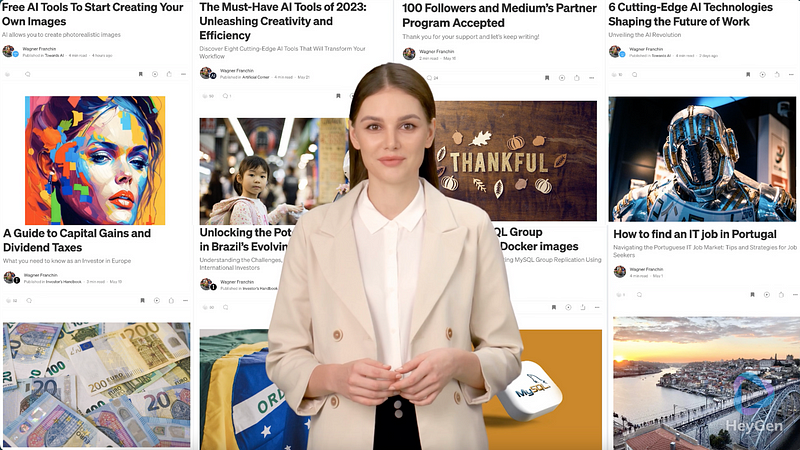
Thumbnail of the final version of the video

In this tutorial, I’m going to demonstrate the use of one of the leading AI video generation platforms designed to simplify the creation of captivating business videos. With its generative AI technology, producing engaging videos becomes as effortless as creating PowerPoint presentations. Simply choose an avatar, type your script, and with a click of a button, receive a flawless spokesperson video within minutes. Without further ado, let’s start creating a video using HeyGen.

Don’t miss the final version at the end of the tutorial! 😃

Step 1: Starting a template

After clicking the link to open the website, select the “Template” option right away and choose any template you prefer.:
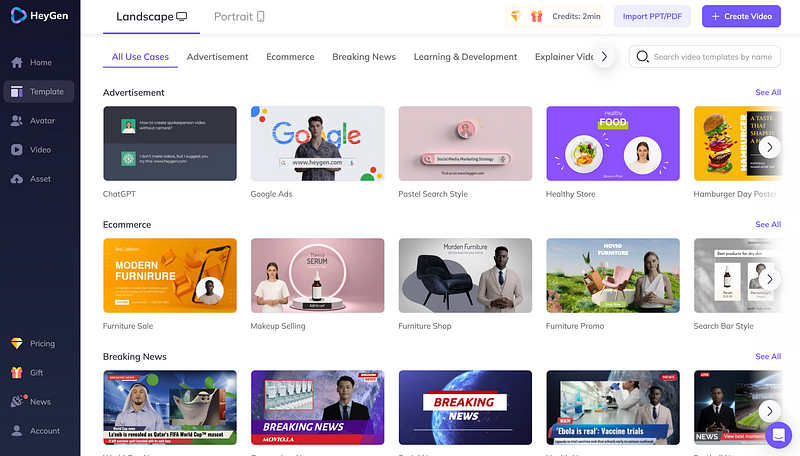
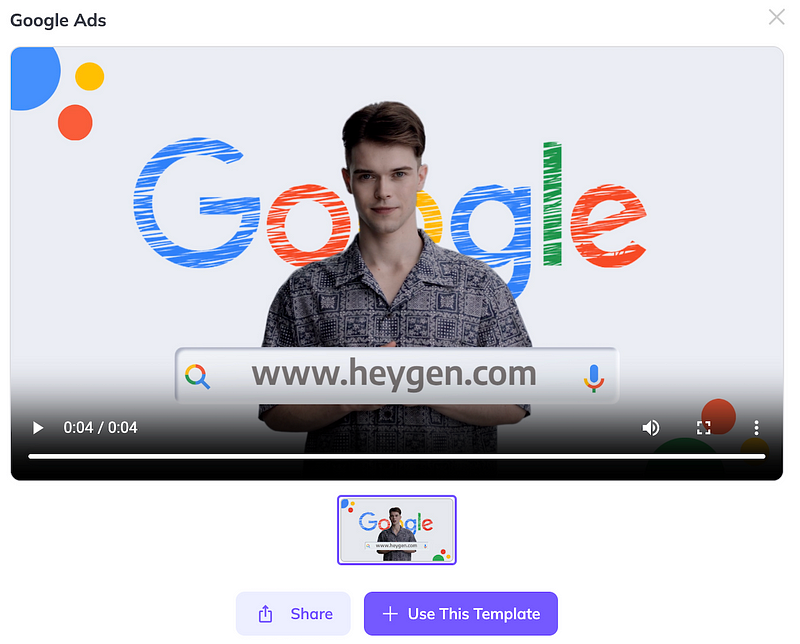
I’m going to select the “Google Ads” one to start:
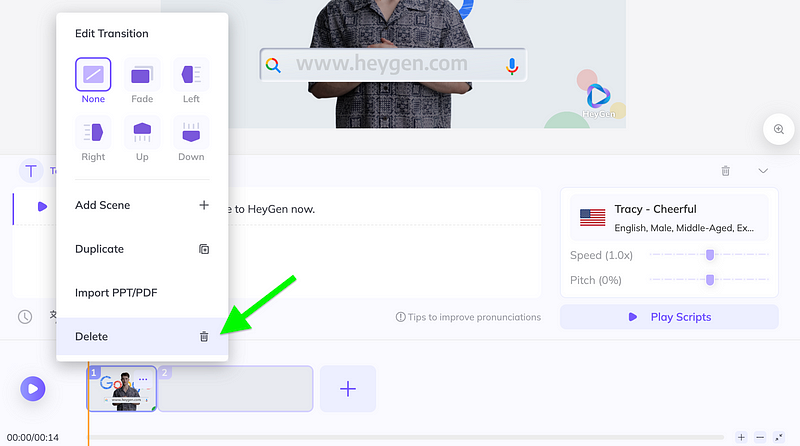
I’m going to add a new blank scene (click the ‘+’ button) and delete the one related to Google Ads.
Step 2: Creating the screenplay

With a blank scene, let’s begin by adding the music:
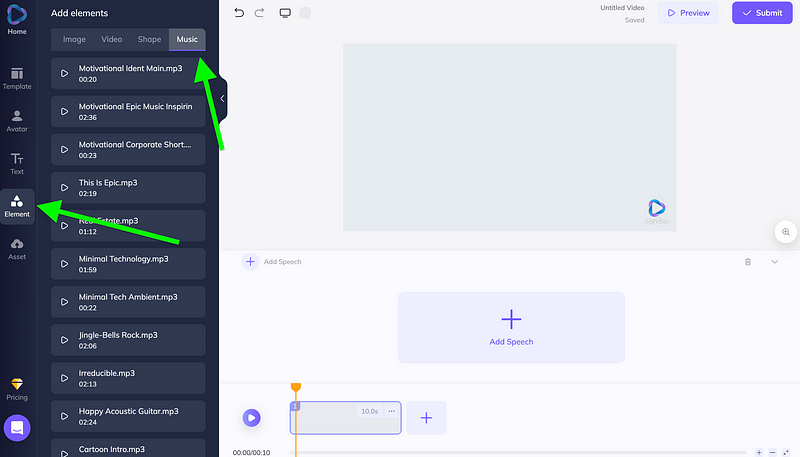
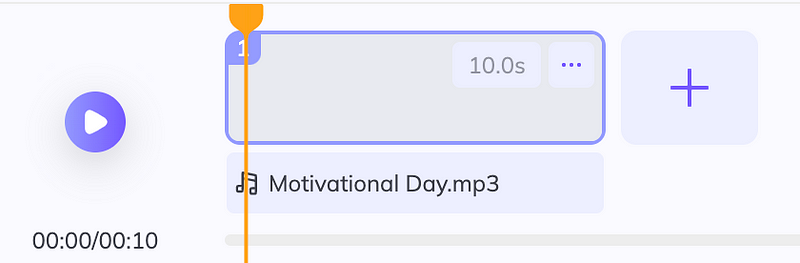
I picked “Motivational Day.mp3” song.
After that, select the avatar.
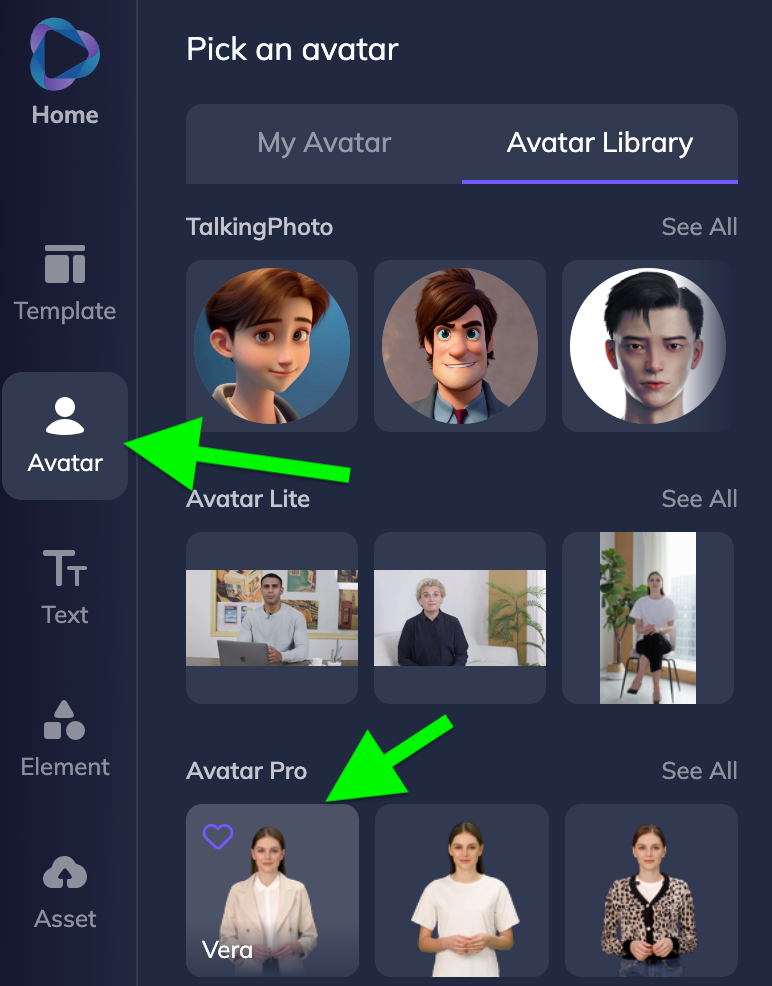
I’m going to choose Vera.
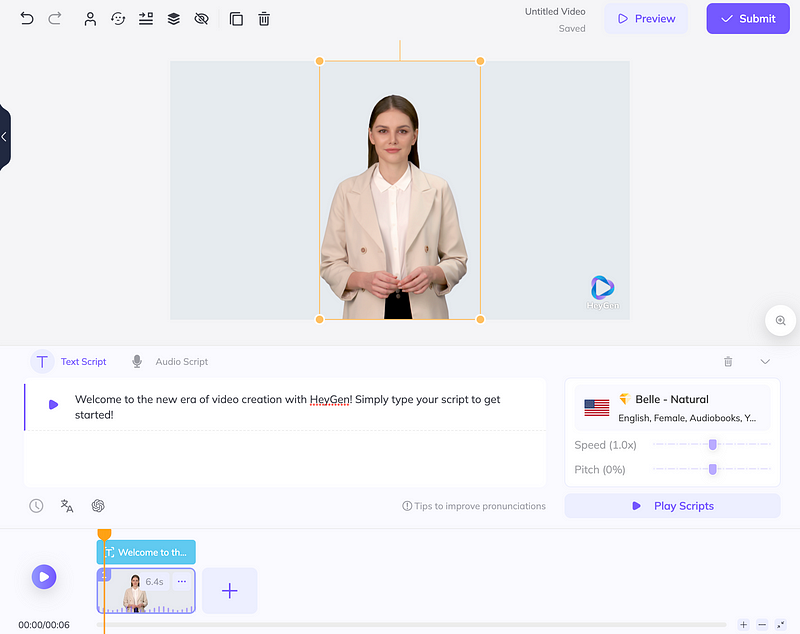
Step 3: Inputting the scripts

For this video, I’m going to create a script about my Medium profile. The script will be as follows:

“Welcome to Wagner Franchin’s Medium profile. Here, you can find stories ranging from Tech to Finance, from AI to Career, and more.”

Now, replace the placeholder text in the “Text Script” text field with the provided script.
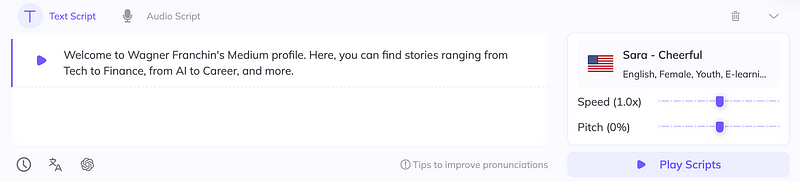
I also changed the voice from “Belle — Natural,” which is a premium voice for members, to “Sara — Cheerful,” which is a free voice available. You can listen to how it sounds and even explore different languages.

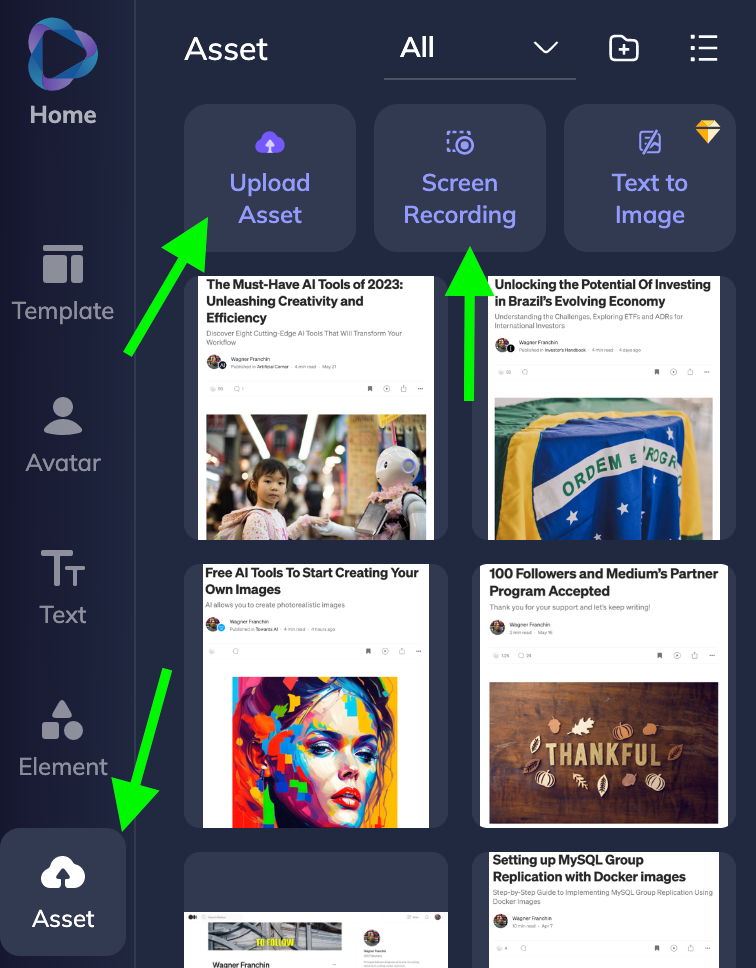
Step 4: Uploading images, videos, and recording the screen

To build the background, I added some screenshots from my Medium Stories and uploaded them. Additionally, I utilized the platform’s screen recorder to create a short video.
Step 5: Adding assets and finalizing the video

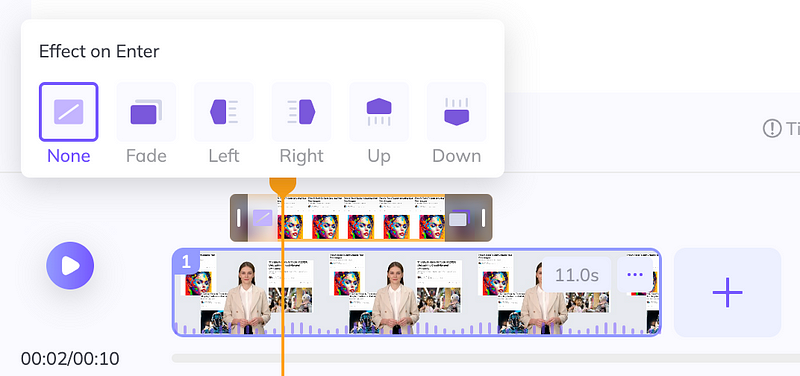
To keep the tutorial concise, I will incorporate some images into the background, which will appear throughout the video.

You have the option to set the duration for how long the images will be displayed and apply different transitions, such as fading, moving left, moving right, and more. Simply click on the extremes to explore these options and see how they affect the visuals in the video.
That’s great! The basics you’ve covered provide a solid starting point, and now you can let your imagination take over to create the desired video. When you’re finished, you’ll find options to “Preview” and “Submit” the video at the top right of the screen. Click on “Preview” to review your video before finalizing it, and then click on “Submit” to complete the process.
Final version

Thank you for following the tutorial! Check out the final video version and enjoy the rest of the tutorial. I hope it inspires you to create your own video, and I would love to hear about your experience with the process. Let me know in the comments.

Thanks for reading

Artificial Intelligence
AI
YouTube
Techonology
Advertising
Recommended from ReadMedium