

Hands-on Tutorial
Create an Impressive GitHub Profile README and Add Your Medium RSS Feed to It Using GitHub Action
Create a Simple Continuous Integration (CI) for Medium RSS Feed in GitHub Profile README
Table of contents (only for web)
1 Why do we need to create a GitHub profile README?
2 What’s the Medium RSS feed? How do we get our Medium RSS site?
3 How to create an impressive GitHub profile README?
4 How to add Medium RSS feed in GitHub profile README?
5 Conclusion
6 References
Why do we need to create a GitHub profile README?
GitHub is actually a platform where anyone who interests in programming can share their codes to collaborate with others. Many open-source companies are using GitHub as their collaboration management system where developers across the world can contribute to project development. Those are Google, Facebook, Microsoft, Twitter, LinkedIn, Netflix, PostgreSQL, Apache, etc. They are using git to boost their project performance.
However, many of us as the programmer or data scientist often use GitHub as the portfolio which means contains all of our previous projects. So, people who want to hire us as their talent can easily look at our projects. That’s the point where GitHub becomes not only for versioning and collaboration tools but also a portfolio. We need to design our GitHub as pretty as possible.
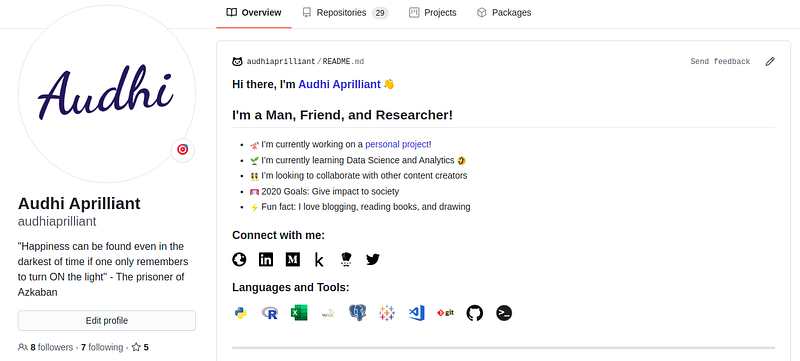
On July, 17th 2020, GitHub just released a new feature: GitHub profile README! It helps us make our GitHub looks impressive and professional. Through this article, I would like to give you an example of how to add our Medium RSS feed on GitHub profile README. So, keep reading and keep focus!
What’s the Medium RSS feed? How do we get our Medium RSS site?
As mentioned in the previous section, we will add the Medium RSS feed in GitHub profile README but what is the RSS feed? RSS which is an abbreviation for RDF Site Summary or Really Simple Syndication is a summary of the web information. The RSS feed is created using XML in a standardized format.
Medium provides RSS feeds for user profiles, publications, and topic pages. Using an RSS feed URL, we can:
- Add a feed of our favorite author, publication, or topic we like to read about to our RSS feed reader
- Integrate the feed of our own profile or publication on Medium with our own website to show our latest stories
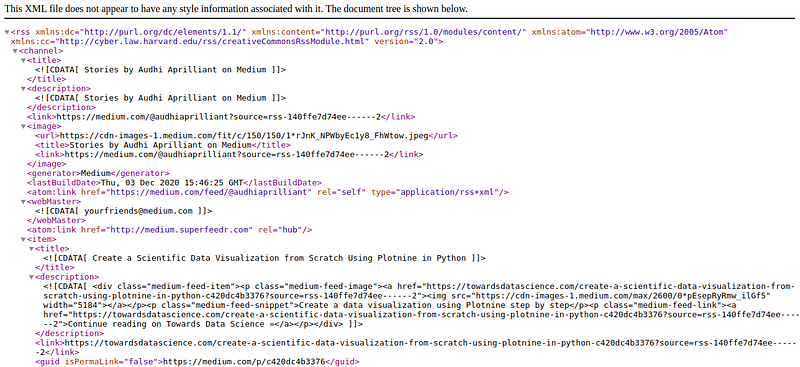
We are able to look at our Medium RSS feed using a custom URL as follows. Fill the [username] with our own username and look at the result as our Medium RSS feed. Read the detailed explanation of the Medium RSS feed HERE.
# URL to get Medium RSS feed
http://medium.com/feed/@[username]
# Sample URL
http://medium.com/feed/@audhiaprilliantIt shows the top ten latest articles that are written by us. It will let our readers know our up-to-date articles. That is the mechanism of the RSS feed.
How to create an impressive GitHub profile README?
Finally, we are in the important section of this article. We will create an impressive GitHub profile README as our portfolio resume. It will allow our followers to know better about us regarding our projects, contributions on open source projects in GitHub, our activity in other platforms such as Medium, WordPress, etc. It sounds great! Those will be covered in our portfolio that contains information as follows.
- Profile identity — the brief description of ourselves. It can be our current company, projects, goals, interests, hobby, etc
- Social media — let people connect with us to share about a relevant subject related to our interests, projects, tools, tech information
- Hard skills — our abilities related to our projects in GitHub, our professional works, educational degree
- Professional tools — any software we are good at especially related to our day to day works, for instance as a Data Scientist, I usually use Python, R programming, shell scripting, and other tools
- Medium latest article — it will list our latest articles on Medium, so people can easily read those
- GitHub activity — the statistic of our activity in GitHub, such as total stars, total commits, total pull request, etc
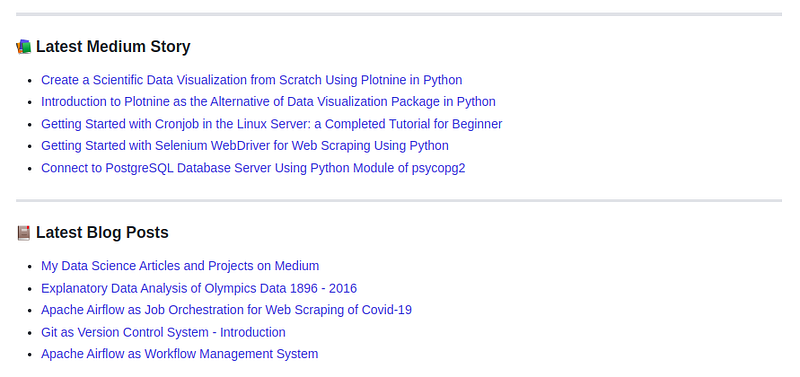
The following picture is an example of Medium and WordPress's latest article created by me in my GitHub profile README. That’s wonderful, right? Wanna try? Let’s go!
How to add Medium RSS feed in GitHub profile README?
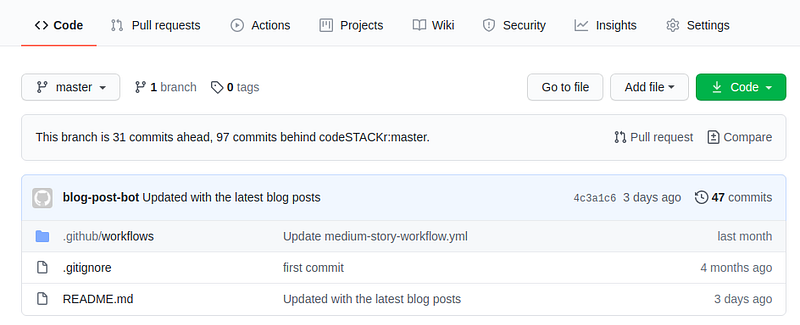
First, to create a GitHub profile README, create files and a custom directory in GitHub that is displayed on the picture.
.github/workflows— will contain the configuration for our Medium RSS feed workflow and others workflow.gitignore—can be ignored because we will not have an untracked file that git should ignoreREADME.md— file to write our profile or portfolio
Edit our README.md file using the following markdown template to create a GitHub profile README. You are able to modify the script as you like your preferences. However, there are several notes in order to modify the README.md script as follows.
- To embed a social media icon, you can easily use the template provided by GitHub using https://raw.githubusercontent.com/iconic/open-iconic/master/svg/[icon].svg. Replace the
[icon]with the icon name you are looking for - To embed a tool's icon, you can use the template provided by GitHub using https://raw.githubusercontent.com/github/explore/80688e429a7d4ef2fca1e82350fe8e3517d3494d/topics/python/[tool].png. Replace the
[tool]with the icon name you are looking for - For the
Latest Medium Storysection, you can replace theMEDIUM-STORY-LISTwith your preference but important to remember that it will connect to the workflow
For the section of GitHub Stat, it is as simple as replace my username (audhiaprilliant) with your own. It will show our GitHub statistics about the total of stars from our repo, total commits, total pull request, total issues, number of contributions to the open-source project, and the GitHub grade. Furthermore, the GitHub Stats has two settings: to show the icons and to show the image border which helps us to custom the image.
Read more about GitHub stats HERE.
https://github-readme-stats.vercel.app/api?username=audhiaprilliant&show_icons=true&hide_border=true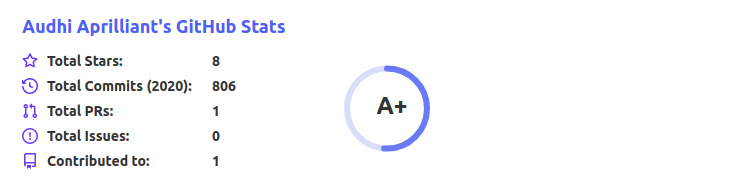
Next, we need to interact with GitHub action in order to update the Medium RSS feed in GitHub. Previously, create a YAML file inside the .github/workflow named medium-story-workflow.yml or with your own filename. Further, this YAML file is created to define our workflow configuration.
Read more about GitHub workflow HERE.
Notes related to the Medium YAML file
- The workflow will run every hour for 60 days. After 60 days, we need to rerun the workflow manually
- It will update the
README.mdespecially theMEDIUM-STORY-LISTsection - Replace the
feed_listwith your Medium RSS feed
The YAML file will automatically check the Medium RSS feed and update the README.md file if there are an up-to-date article
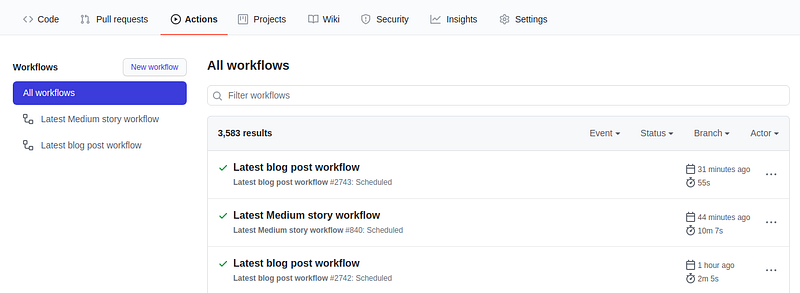
After making a YAML file, go over the GitHub Actions menu and we will find out the list of our workflow, namely Latest Medium story workflow. In order to run this workflow, left-click on Latest Medium story workflow and select the Run workflow menu on the right corner and left-click the green button.
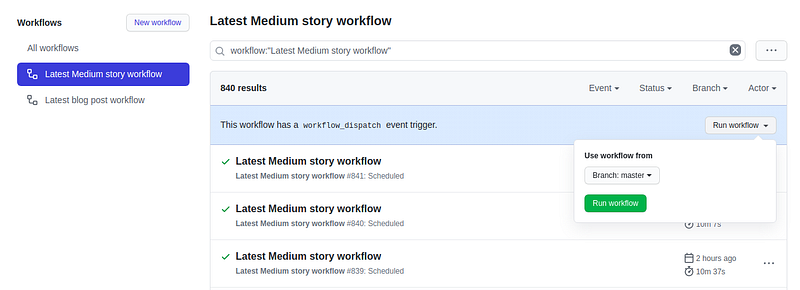
Slowly, the workflow will in the queue stage and a run stage. The output will display whether our workflow is done successfully or not. The green checklist indicates that the workflow is successful.
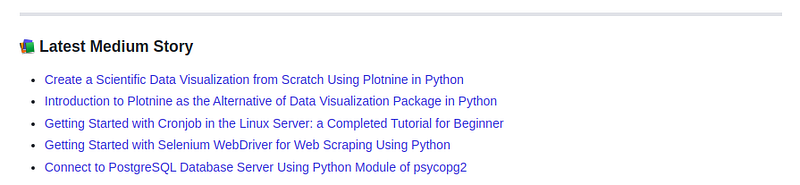
Please direct to our GitHub profile README page and look at the Medium section. It should show the list of our latest Medium articles based on the Medium RSS feed.
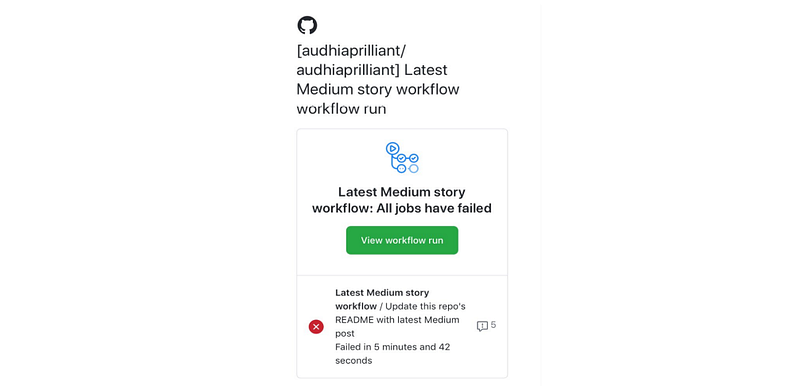
Unluckily, sometimes there will be an error regarding our workflow. Don't be worry! Further, GitHub will send us an email as a notification so we can rerun the workflow manually.
Lastly, I want to thank Jesse for the tutorial he gave via 𝚌𝚘𝚍𝚎𝚂𝚃𝙰𝙲𝙺𝚛 YouTube channel. For a detailed explanation, you can easily click the following video created by Jesse. Thank you!
Conclusion
GitHub is such a wonderful platform, not only for collaboration and versioning but also to keep our projects. Luckily, on July, 17th 2020, GitHub just released a new feature: GitHub profile README and it adds the new function of GitHub, portfolio. Using GitHub profile README, we can describe our projects, tools, articles, etc over the world and let people connect with us.
References
[1] Anonim. Using RSS feeds of profiles and publications, 2020. https://help.medium.com/.
[2] GitHub Team. GitHub Actions, 2020. https://docs.github.com/en/.


