
Create a FREE online interactive “non-streaming” worship experience during the Coronavirus crisis
Update: Here’s the second week’s presentation. (Things are getting even better.)
In light of the need to stress social distancing (I’m preferring to say physical distancing because humans need social interaction to survive), at this moment in time, nearly every church I am aware of has taken up the challenge of streaming their services, primarily through FaceBook Live or YouTube. For me, however, the pastor of a small church with limited resources and regularly intimate worship services, I was interested in a bit more.
I believe our congregation needed to maintain our Sunday morning “vibe;” an experience of participatory community, conversation, and connection. I didn’t feel that simply streaming me talking would be enough. I wanted to capture the intimacy and connection we have in-person, in lieu of the unavoidable, state-mandated, physical separation.
I confess it is a challenge to provide what is essentially a “rough cut” version of my experience. I don’t really like to provide the rough, unrefined, nitty-gritty, but for the sake of being vulnerable and potentially helping someone else, here is my experience of preparing for our first “online interactive worship non-streaming experience.”
Please note that I am not getting any kickbacks for any of the software I am using. These recommendations are completely from my experience.
T-Minus 24 hours: Preparing for Sunday
I could have simply sent an email, but I was interested in tracking who would actually open my message and given the amount of content I had to share, I wanted to present it in an aesthetically pleasing format that would show on whatever device people were using. MailChimp was the tool I chose to use. You could use another mail tool if you like (Constant Contact, etc.), but in all my years of creating content I like MailChimp the best and their free plan allows for emails and newsletters for up to 2,000 contacts.
Preparing the email
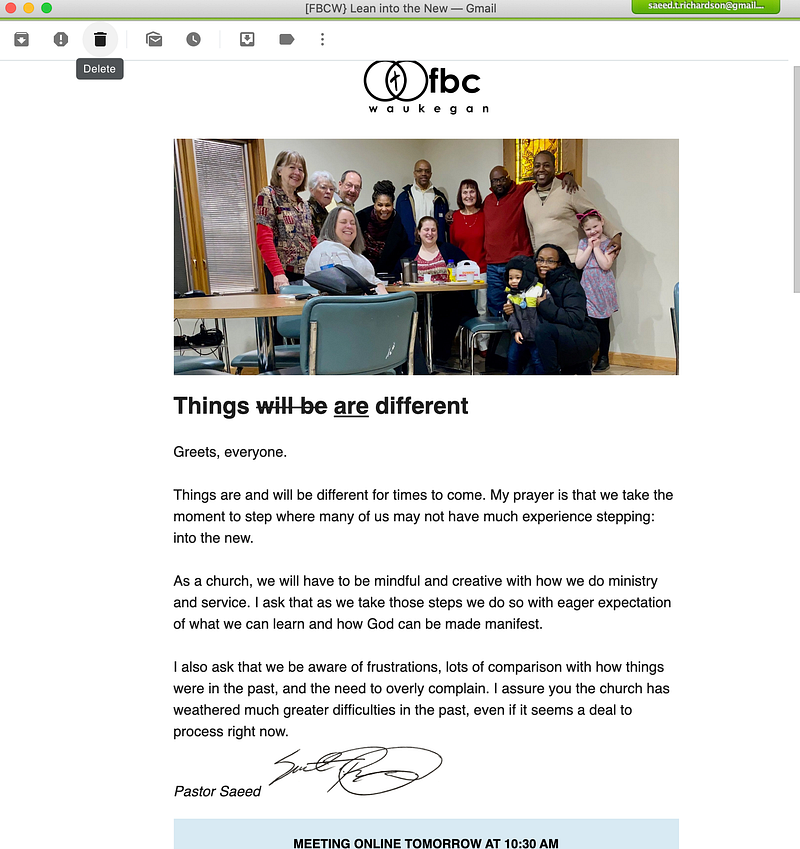

I wanted to set clear expectations for the members. I intend no disrespect in saying so, but for many of our “life veterans” in church, the prospect of “new” comes with resistance and dissonance. I wanted to acknowledge three things:
- potential frustration with trying something new,
- comparing the online/tech “stuff” to how things can/used to/should be, and
- the general need to complain.
I meet challenges with grace and honesty in our congregation and wanted to face this issue upfront. I also knew I’d have several potential communications to reiterate these expectations with a few instructions. This was the first.
Email Service: MailChimp (free plan), $0.00
Setting up the Givelify for online giving
March 15 was the last time we officially gathered in person. There was much buzz about social distancing, reducing gatherings to groups of no more than 50 (here in Illinois), and I’d already begun telling our most vulnerable members to not come to church at risk of infection —this directly impacted our attendance and our giving. I engaged in deeply concerned conversations at receiving a total offering of $200 for that day. (Pains of being transparent.)
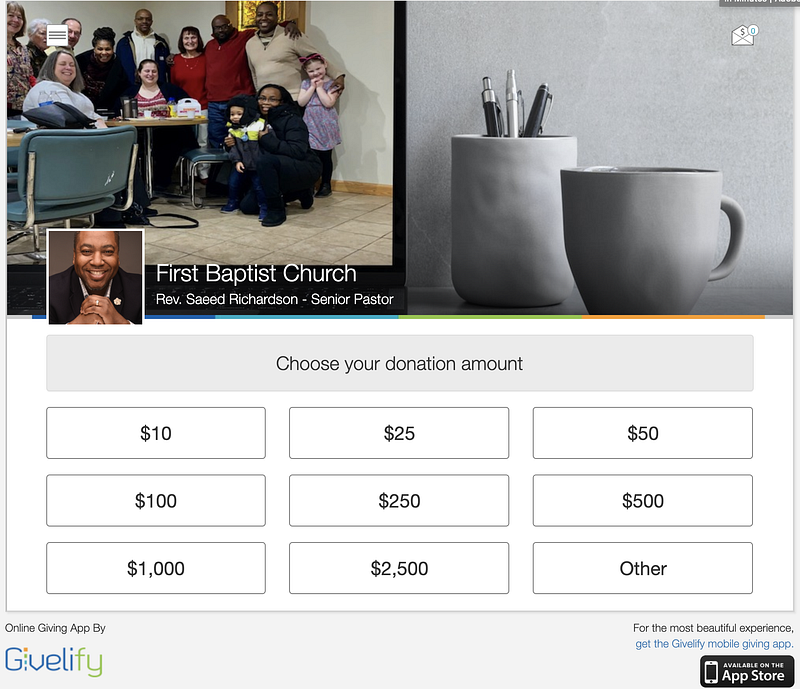
After Governor Pritzker issued the Shelter in Place mandate in Illinois we had to further cancel our services but still like so many others, needed to maintain giving. I’ve used many services before for online payment processing but ultimately decided to go with Givelify. There is no cost to use the service, and the only service fees are 2.9% + $0.30 per transaction. They also make deposits immediately the day after giving. (They are bit delayed now due to the current situation, but still, that’s quick.) It also took less than two hours on a Saturday evening to have the services complete and configured for our church.
While someone might complain that this is technically not free, as a software programmer (the other side of my life), I think the fee fits the service being provided and Givelify offers one of the lowest price points in the online giving scene.
Online Giving: Givelify, $0.00 (OK, 2.9% + $0.30 per transaction, but are we really going to quibble?)
Creating my PowerPoint Presentation
I wanted to present an engaging experience as opposed to presenting faces on the screen just talking for an hour. I didn’t want it to feel like a meeting. So I chose to frame this in a PowerPoint presentation. I should say that I have strong feelings about how 85% of people misuse PowerPoint. It’s a prop that aids in the delivery of messages, and not simply a notepad to shove as much content on a screen as possible. (I’ll have to write about that another day.)
I organized my PowerPoint to provide the main components during a typical worship service: Call to Worship, Welcome, Worship, Opening Prayer, Offering, Sermon, Prayers and Thanksgivings, and Closing Song.
I normally lead music with our Praise and Worship Team, but given we weren’t going to be in the same place I wanted to provide a musical experience of listening to one song. I decided to use the song Holy Water after a prayer walk through my neighborhood the following morning.
SPECIAL NOTE: If you play videos from YouTube, never stream them live! You risk the videos lagging, ending too soon, or other internet horrors that severely impact your worship experience. Do always download it first to your computer. I have a copy of Pulltube on my machine that I use (which you don’t have to buy, but if you are looking for a low cost $15 investment, it’s worth it). In this case, I took the video and embedded it into a slide in the PowerPoint, which automatically added a play button for the presentation. Allow also me to say that I’m not condoning stealing content and, you should respect the rights of the video owners.
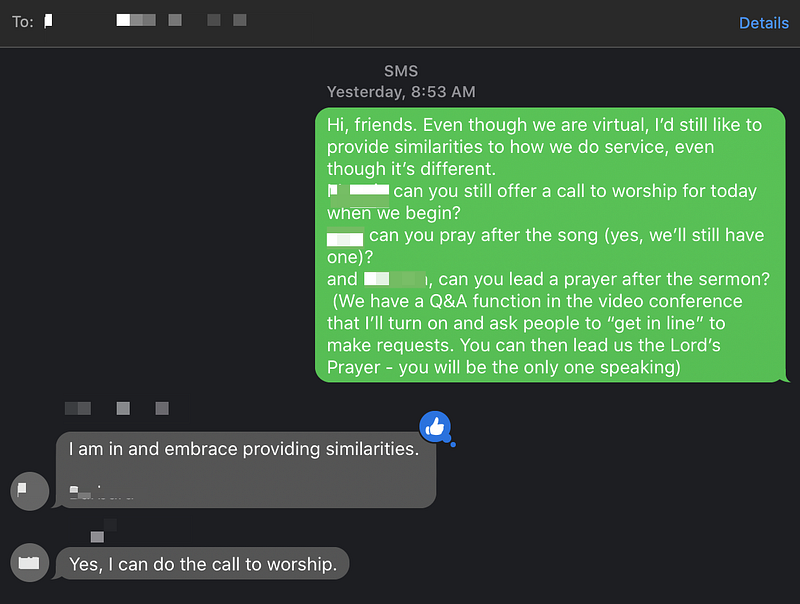
I asked members of the pastoral and Praise & Worship teams to participate as I’d normally do in an in-person service. (See image above.)
While there were similarities, I also wanted to provide context for the differences. I knew that it would take time for people to get started with the software (I’ll talk about that in a moment) and I knew that the end segment with the prayers would also need rethinking, so I prepended a slide that would display information as people were joining the meeting, and another slide to help describe the prayer moment.
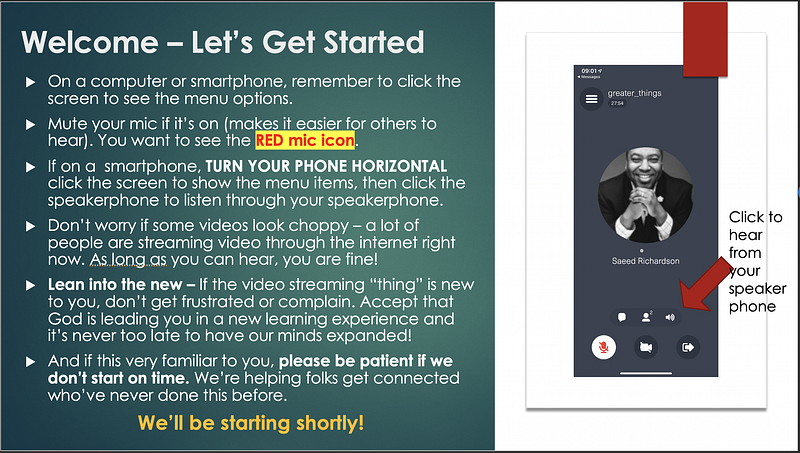
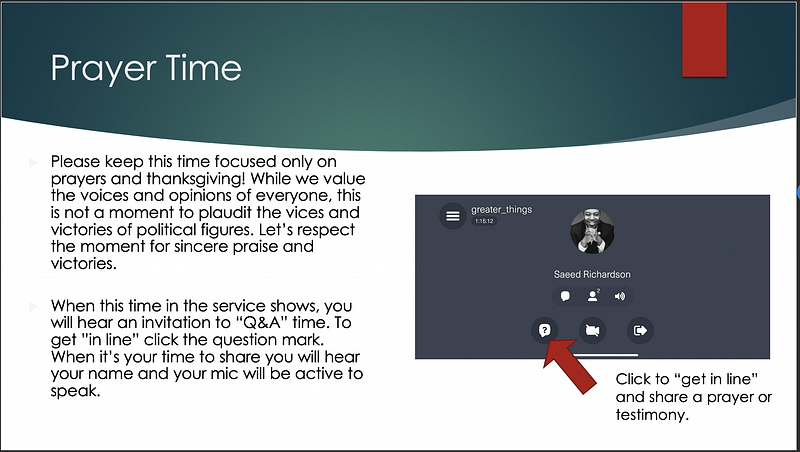
While I know PowerPoint (and Microsoft Office) isn’t free, I honestly cannot think of a clergy person who doesn’t have it. If you don’t have it, you could also do this with OpenOffice, Google Docs (and others), or if you have a Mac, Apple’s Keynote.
Presentation Software : Your choice above, $0.00 (or you already have it; and free options for downloading the PowerPoint into your presentation)
T-Minus 2 hours(‘ish): Final Reminders via Text
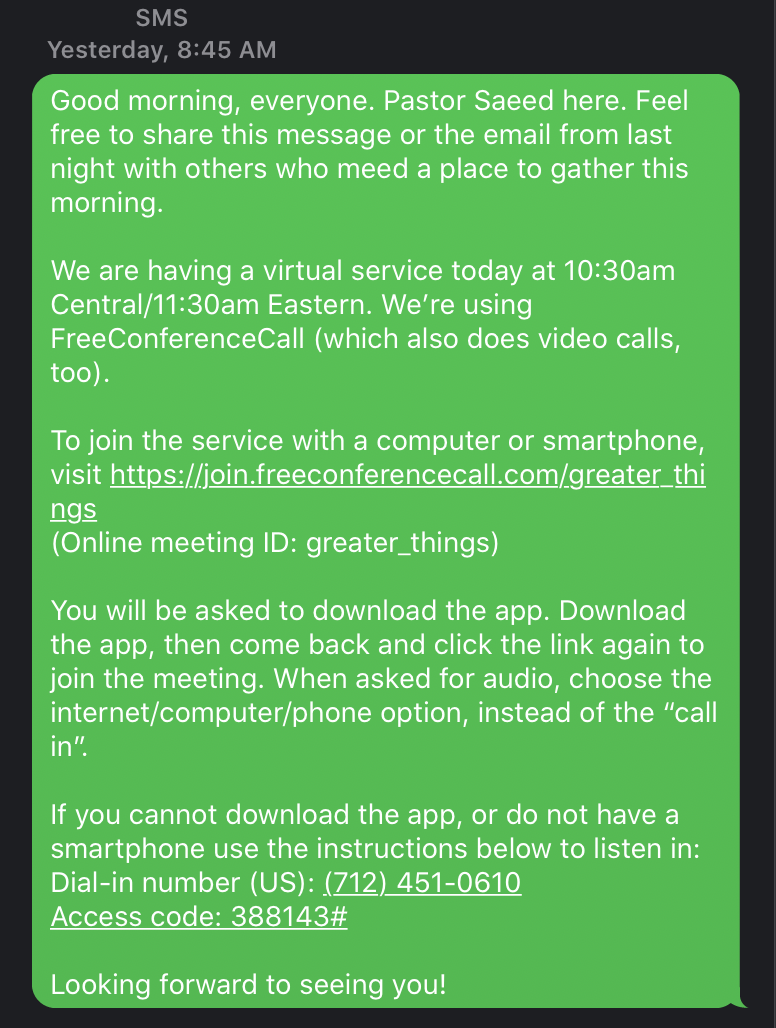
I knew everyone would not have received the email, so I also wanted to send a text. I sent the message to about 20 folks who I knew would forward the details to others (I even included my family on the east coast). Since this was delivered to smartphones, I again included instructions for downloading the application onto their mobile devices and for directly connecting via phone. I sent it at 8:45 am, giving almost two hours for people to spread the word in preparation for service.
Text messages: via phone, $0.00 (Yes, someone will say that you are paying for them in your cell phone plan, but how much are you really paying for two two messages? … unless you don’t pay for texts at all, at which point you can ask someone else to send them for you.)
Using FreeConferenceCall for the Video Conferencing
In a world that seems to be dominated by Zoom (which is awesome and I use it for my other job), I truly believe that FreeConferenceCall is a hidden gem. First of all, it actually does video conferencing, which I don’t believe a lot of people know. Next, for free you get access to Video Conferencing for 1,000 participants, with screen sharing, audio call in, recorded meetings, unlimited meetings, breakout rooms, remote control, whiteboarding, Q&A, and more. (Again, I am not getting a kickback from them or anyone at all.) Zoom may have some features that have a bit more polish, but hands down, FCC holds its own ground.
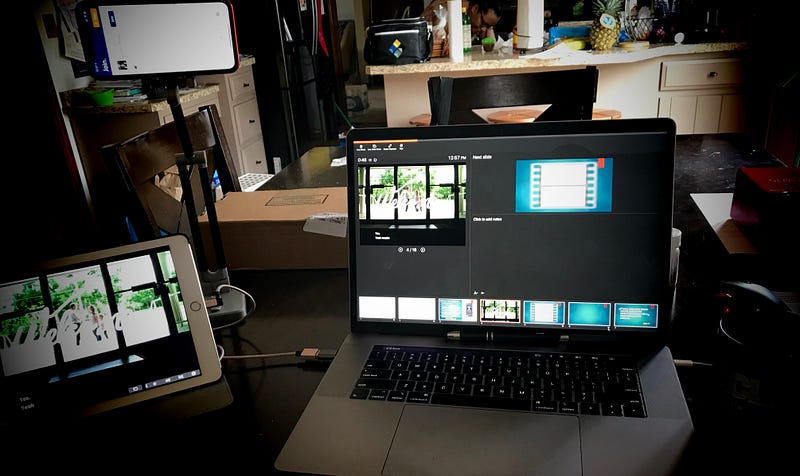
For the service, I planned to use my laptop to run the main camera embedded in my computer and PowerPoint. I used my iPad that I preach with as a second display. This allowed me to use the PowerPoint presentation controls on the main laptop display and to actually view the presentation on the iPad. I use the Duet app that I’ve had for years, but Apple now has the ability to share with an iPad via the SideCar app (this will be different for PCs). Of course, if you have an extra display you could use it instead of the iPad. If you don’t have an extra monitor, no worries, you can just present the presentation on your main computer screen.
I also decided to use my phone to log into the meeting as an extra attendee so I could see what everyone else was seeing during the service. I had a $5 suction cup phone holder my wife purchased from Five Below to use when viewing recipes while cooking. It worked beautifully here.
Using the phone and the computer also allowed me to know first-hand how to triage people connecting into the service.
Video Conferencing : FreeConferenceCall.com, $0.00 (but they are also a pay as you like/can service; if you do find value in them, definitely consider giving something for the service or pay for an upgrade.)
T-Minus 10 Minutes: Setting Expectations
Service was planned to start at 10:30 am, so at 10:20 am I started the PowerPoint presentation, started FreeConferenceCall, and screen-shared my iPad presentation (as seen above). Again, this provided me a control center of sorts for the meeting. I would be able to see what was coming next, any notes I had, flip back/forth through slides as I needed, and switch back to FCC for controlling muting and other options.
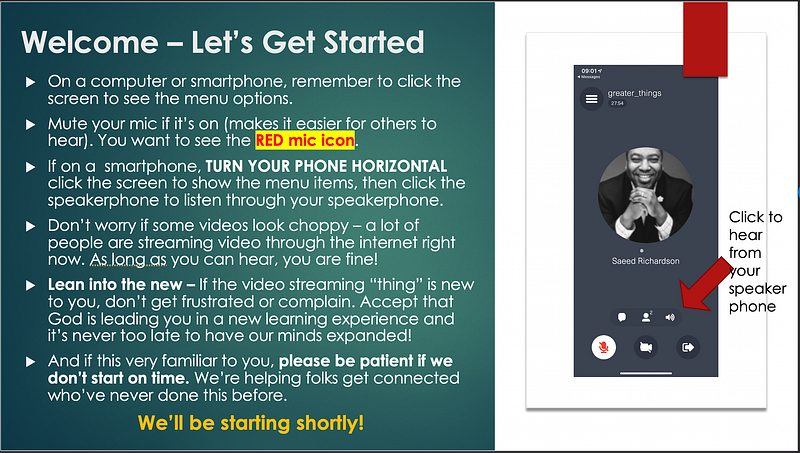
And I left the screen displaying the “Welcome — Let’s Get Started” message. Interesting note: more than a few folks actually read this message out loud over the 18 minutes. It became comical after a while.
T-Plus 18 Minutes: Showtime!
Yes, we started 18 minutes late. I helped people enter the meeting, download the app, turn on their cameras, turn on their mics, turn off their mics and then use the internet/device setting, use their computers and smartphones, and in the end, we had 23 people attend, not including my computer and smartphone. And no one complained about starting late.
For the duration of the service, I screen-shared the presentation, advancing slides as needed. FCC allowed the images of the person speaking to overlay the presentation as we progressed. While not perfect, a surprise addition was in finding out that PowerPoint now has an automated captioning utility that tries to display your words on the screen. I’m not sure if I’ll use it again, but it is interesting to know that it’s there.
I practiced for a good hour before the meeting to ensure that everything flowed for me, so I didn’t have any problems with the tech for the service.
Total Price:
- Email/Newsletter Service: MailChimp free plan, $0.00
- Online Giving: Givelify, $0.00 (OK, 2.9% + $0.30 per transaction, but are we really going to quibble?)
- Presentation Software: Your choice: $0.00, you most likely already have it (and free options for downloading the PowerPoint into your presentation)
- Text messages: via your phone, $0.00 extra (Yes, you are paying for them with a cell plan, or you can ask someone else.)
- Video Conferencing: FreeConferenceCall.com, $0.00 (but they are also a pay as you like/can; if you do find value in them, definitely consider giving something for the service or pay for an upgrade if you want more.)
And here’s what you’re waiting for:
- My Powerpoint presentation of the service (I’ve included the actual presentation — large because it also has the video embedded — and a pdf version for easier download.
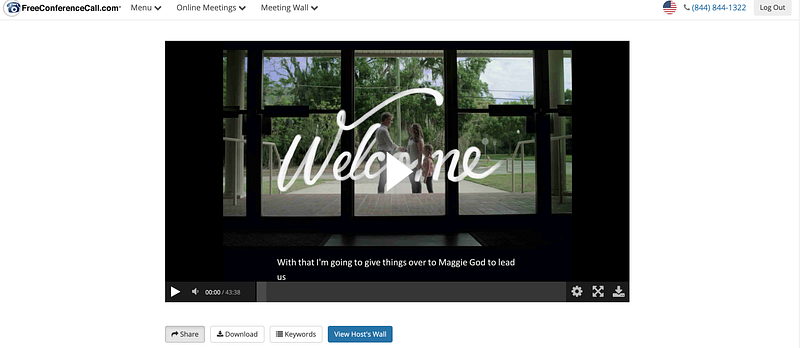
- Link to the video of the service (Again, it’s a rough cut, but here goes.)
Lessons learned:
- Perhaps not surprising, and no way to say this gently, but everyone doesn’t read. A number of folks were confused about why they couldn’t see the screen because they’d dialed in via phone instead of installing the app. They never read the instructions, or just clicked on the phone number instead of the web link. I was well-prepared for this to happen, and you should be prepared, too.
- I didn’t start the recording on time. I actually walked through the interface, gave tips on adjusting audio on the phone and computer, then walked through the opening slide, handed things off to the Praise Team member for the Call to Worship — and then remembered to record. Next time, I’ll set a vibrating alarm on my watch to remind me to start recording.
- Having my phone logged into the meeting was brilliant. First of all, remember to mute the mic on the phone and turn off the speakerphone. If you do not mute the mic you (and everyone else) will get feedback. After that, you have a perfect window into what everyone else is seeing. You can also easily give feedback and troubleshoot what people are experiencing using their smartphones.
- Mute all mics during the worship song. I really wanted to let people respond to the music collectively by leaving the mics on during the song. Unfortunately, people were doing other things and didn’t realize how much sound amplifies across video conferencing. Next time, I’ll utilize the FCC controls to mute all mics during the song.
- Unmute all mics during the prayer … or maybe not — I haven’t decided. I initially thought using the Q&A mode for the prayer would work out best, but I had someone who couldn’t get it to work on her end. So I wound up unmuting all mics to allow her to talk. I’m also thinking that for people on the phones it might be easier if they have the ability to just speak up without having to push buttons.
- Unmute mics during the sermon. I’m a Black Baptist preacher — and I’m used to responses. I entered Lecture mode, which turned off all the mics and I realized I was missing responsiveness about halfway through the sermon. At one point towards the end a new person joined in (even online folks show up 45 minutes late), I turned on all mics, and then heard a lot of background noise. Having the mics unmuted during the sermon would allow me to hear responses and respond to disruptions as they occur. Of course, I’ll need to mentally prepare myself for those disruptions, but that’s not much different than preaching in front of folks as someone walks into the church well after the program begins.
- Take into account natural lighting changes. I didn’t see this coming but my lighting shifted drastically from the moment I started until it was time for my sermon. I had my sermon notes printed, and for some reason, the printer printed them with way too little ink. Because I had natural lighting, I actually lost light and couldn’t read my notes. Next time I’ll have the overhead lights on to compensate (and fix the printer).
- Some people will just not come. This was incredibly sad but is to be expected. There were some members who just will not try something new. For someone who believes that we are supposed to be life-long learners, this is hard. In much the same way we preachers can invisibly know who’s not in church when we preach, it feels a bit more amplified during the online experience.
- It will get better with time. I’m certain the next time things will flow a bit more naturally and fill more comfortable. I’ll post it next week for you to see!
Thanks.