
Convert String to Date in Spark using Azure Databricks
Date conversion may seem obvious but it is not. Read through the article to find out why.
The sample CSV used in this article can be downloaded from the link below.
https://raw.githubusercontent.com/gchandra10/awk_scripts_data_science/master/sales_100.csv

Step 1: Upload the CSV sales_100.csv and Create a Dataframe using Python
# File location and typespark.sql("set spark.sql.legacy.timeParserPolicy=LEGACY")file_location = "/FileStore/tables/sales_100.csv"# The applied options are for CSV files. For other file types, these will be ignored.df = spark.read.format("csv") \
.option("inferSchema", "true") \
.option("header", "true") \
.option("sep", ",") \
.load(file_location)# display(df)
df.printSchema()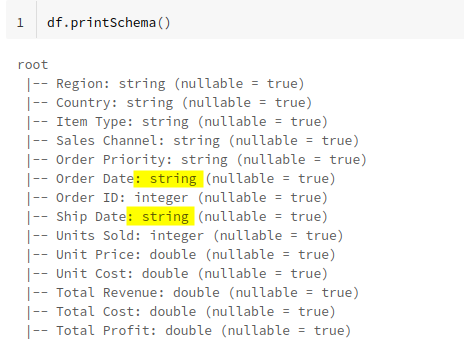

The order date and ship date are expected to be of date datatype but spark infers them as a string.
Method 1: Convert String to Date using “withColumn”
## This method uses withColumn feature of DataFrame and converts the String data type to Datefrom pyspark.sql.functions import col
from pyspark.sql.functions import to_datedf2 = df \
.withColumn("Order Date",to_date(col("Order Date"),"MM/dd/yyyy")) \
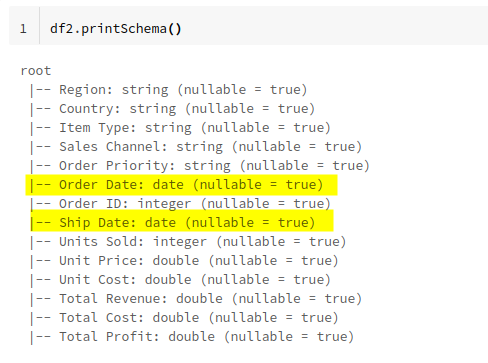
.withColumn("Ship Date",to_date(col("Ship Date"),"MM/dd/yyyy"))df2.show()As data frames are immutable new data frame df2 is created from existing data frame df.
The second point to be noted is, the date is in mm/dd/yyyy format, which needs to be specified in the to_date function. This helps to format it the right way.
The output of Order Date and Ship Date is in yyyy-mm-dd which is the perfect date format.

Note: SQL view can be created using the data frame df2
Method 2: Convert String to Date and also Rename the column using “withColumn”
2 new columns “OrderDate” and “ShipDate” are created and old columns “Order Date” and “Ship Date” are dropped from the data frame.
## Renaming Order Date to OrderDate and Dropping the old columnsdf2 = df \
.withColumn("OrderDate",to_date(col("Order Date"),"MM/dd/yyyy")) \
.withColumn("ShipDate",to_date(col("Ship Date"),"MM/dd/yyyy")) \
.drop(col("Order Date")) \
.drop(col("Ship Date"))df2.show()

Note: SQL view can be created using the data frame df2
Method 3: Instead of using “withColumn” in data frame, “select” is used with data frames.
from pyspark.sql.functions import colfrom pyspark.sql.functions import to_datedf2 = df.select("Region","Country"
,col("Item Type").alias("ItemType")
,col("Sales Channel").alias("SalesChannel")
,col("Order Priority").alias("OrderPriority")
,to_date("Order Date","mm/dd/yyyy").alias("OrderDate")
,col("Order ID").alias("OrderID")
,to_date("Ship Date","mm/dd/yyyy").alias("ShipDate")
,col("Units Sold").alias("UnitsSold")
,col("Unit Price").alias("UnitPrice")
,col("Unit Cost").alias("UnitCost")
,col("Total Revenue").alias("TotalRevenue")
,col("Total Cost").alias("TotalCost")
,col("Total Profit").alias("TotalProfit")
)df2.printSchema()In the above script, 2 things happen at the same time. Columns are renamed without spaces and the string is converted to date.


Note: SQL view can be created using the data frame df2
Method 4: Create a SQL View and convert the datatype.
There is an important step that needs to be done when using SQL. Enabling the Legacy Time Parser.
temp_table_name = "sales_100"df.createOrReplaceTempView(temp_table_name)## Setting this to LEGACY is very importantspark.sql("set spark.sql.legacy.timeParserPolicy=LEGACY")As a follow-up step, write a select statement to convert the data and rename the columns using a column alias
%sqlcreate table new_sales_100 ascreate table new_sales_100 as select `Region` as Region ,`Country` as Country ,`Item Type` as ItemType ,`Sales Channel` as SalesChannel ,`Order Priority` as OrderPriority ,to_date(`Order Date`,'MM/dd/yyyy') as OrderDate ,`Order ID` as OrderID ,to_date(`Ship Date`,'MM/dd/yyyy') as ShipDate ,`Units Sold` as UnitsSold ,`Unit Price` as UnitPrice ,`Unit Cost` as UnitCot ,`Total Revenue` as TotalRevenue ,`Total Cost` as TotalCost ,`Total Profit` as TotalProfit from `sales_100`
View the Table description and data
%sqlselect * from new_sales_100
%sqldescribe new_sales_100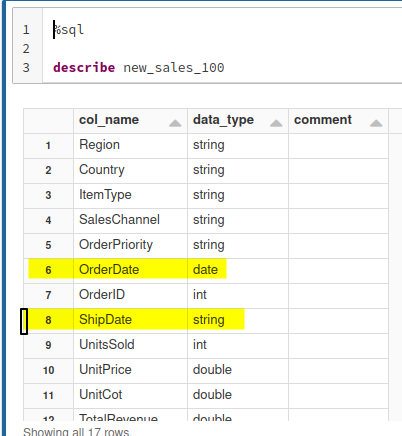
Notebook version of the article is available here
If you like the articles please subscribe using the link below.
To read more interesting articles