
Convert Excel to CSV with Python
Learn to convert Excel spreadsheets and files to CSV with Python.

Each person, team and company might have its own preferences, systems and ways for working with data. And so they might choose different filetypes to store their data.
When 2 systems use different filetypes and they need to work together, it sometimes becomes necessary to convert a file from one filetype to another.
CSV files and Excel spreadsheets are quite similar.
Sure, Excel spreadsheets offer features that CSV files don’t have, like formatting and calculations. But the way the data is stored is really similar.
Both filetypes store tabular data. That means they use columns and rows.
Since data in CSV and Excel files (xlsx and xls) is structured so similarly, Excel spreadsheets can be easily converted into CSV files.
Note that it is not possible to put features like formatting and calculations in CSV files and here I am only talking about the values stored in Excel cells.
In this guide I will use Python to make the conversion from Excel to CSV.
Convert Excel to CSV
This is an example Excel spreadsheet named Sheet_2023 inside of the file monthly_data.xlsx that I will convert to a CSV file:

To convert Excel spreadsheets to CSV files I will use the Python package pandas.
The pandas package has a function called read_excel to which you can pass a filepath to make it return a pandas DataFrame containing the file’s data. And from that DataFrame a CSV file can easily be made by using the to_csv method.
Step 1 — Install pandas
The first step is to install the pandas package which can be done with the command: pip install pandas.
Step 2 — Install openpyxl
To be able to use the read_excel function you also need to install a package called openpyxl. The command for that is: pip install openpyxl.
Step 3 — Import pandas
After installing those packages you can import the pandas package in a Python file like this: import pandas as pd.
Step 4 — Convert Excel spreadsheet to a pandas DataFrame
With the installations and imports done, it is time to code.
You can begin by putting the filepath of the Excel file in a string named filepath.
I use an absolute filepath but you can of course also use relative filepaths. To learn more about filepaths in Python, you can read this short guide:
By passing filepath to the read_excel function you can load the Excel file’s data into a pandas DataFrame df:
import pandas as pd

filepath = "C:/Users/be/Documents/Business Data/monthly_data.xlsx"

df = pd.read_excel(filepath)
print(df)
This is the DataFrame that gets printed by the code above:
      Month  Visitors  Revenue  Revenue per visitor
0   January      3000    32000            10.666667
1  February      2500    20000             8.000000
2     March      4000    55000            13.750000
3     April      4500    77000            17.111111
4     Total     14000   184000            13.142857
Header of DataFrame when converting Excel to CSV
By default the first row of the Excel spreadsheet is used as a header in the DataFrame. Which is fine in this case, but if you don’t want the first line to become a header you can pass header=None to the read_excel function.
You can also pass a number to the header argument to use that row as the header. The rows above that header-row will be skipped and not put in the dataframe.
Note that rows are counted from 0, so the second row, for example, has row-index 1.
Convert specific spreadsheet or multiple spreadsheets to DataFrame
When you have multiple spreadsheets in your Excel file, by default only the first one is loaded into a DataFrame.
But you can overwrite this default behavior by using the sheet_name argument of the read_excel function.
You can pass the index — starting from 0 — of the sheet, the sheet name or a list of sheet indices and/or sheet names to the sheet_name argument. And as a final option you can pass None to it, in that case all sheets will be loaded.
When multiple sheets are loaded, the read_excel function returns a dictionary of DataFrames. The DataFrames can be accesed by specifying the sheet names or indices as keys.
import pandas as pd

filepath = "C:/Users/be/Documents/Business Data/monthly_data.xlsx"

dfs = pd.read_excel(filepath, sheet_name=None)
for key in dfs.keys():
    print(key)
    print(dfs[key])
Here is what the code above prints:
Sheet_2023
      Month  Visitors  Revenue  Revenue per visitor
0   January      3000    32000            10.666667
1  February      2500    20000             8.000000
2     March      4000    55000            13.750000
3     April      4500    77000            17.111111
4     Total     14000   184000            13.142857
Sheet_2022
      Month  Visitors  Revenue  Revenue per visitor
0  December      1000    12000                   12
1     Total      1000    12000                   12
Footer of DataFrame when converting Excel to CSV
You can use the skipfooter argument with a number x to prevent the last x rows to be loaded in the DataFrame.
import pandas as pd

filepath = "C:/Users/be/Documents/Business Data/monthly_data.xlsx"

df = pd.read_excel(filepath, skipfooter=1)
print(df)
The code above prints:
      Month  Visitors  Revenue  Revenue per visitor
0   January      3000    32000            10.666667
1  February      2500    20000             8.000000
2     March      4000    55000            13.750000
3     April      4500    77000            17.111111
This is the data without the last row that contains the totals.
You can check out this documentation page to discover more options of the read_excel function.
Step 5 — Convert pandas DataFrame to CSV file
With the to_csv method of a pandas DataFrame you can put a DataFrame’s data in a CSV file. You just have to pass a filepath to it.
import pandas as pd

filepath = "C:/Users/be/Documents/Business Data/monthly_data.xlsx"

df = pd.read_excel(filepath)

df.to_csv('monthly_data.csv')
In the code above I just used the filename monthly_data.csv and so the file is made in the same directory as the Python file. Here is a screenshot of the CSV file monthly_data.csv:

As you can see, the DataFrame’s index has been put in the CSV as well. To prevent this from happening you can pass along index=False when using the to_csv method.
import pandas as pd

filepath = "C:/Users/be/Documents/Business Data/monthly_data.xlsx"

df = pd.read_excel(filepath)

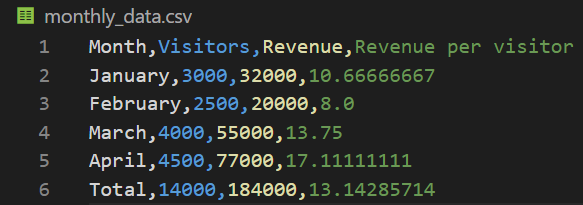
df.to_csv('monthly_data.csv', index=False)
With the code above, the CSV file that is created looks like this:
CSV stands for Comma Separated Values, but with the to_csv method you can also make files with other separators than commas. That can be done by passing the sep argument and specifying the separator in a string.
import pandas as pd

filepath = "C:/Users/be/Documents/Business Data/monthly_data.xlsx"

df = pd.read_excel(filepath)

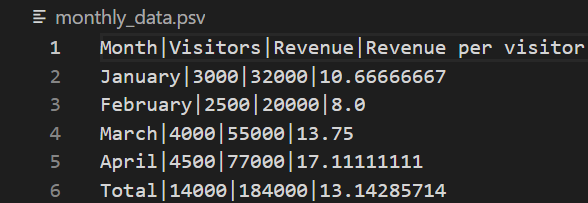
df.to_csv('monthly_data.psv', index=False, sep='|')
The code above makes the file monthly_data.psv in which the values are separated with the pipe character (|).
Hint: Tabs can be specified as
'\t'.
Another useful argument is the encoding argument.
With the encoding argument you can, for instance, specify that the data is encoded with UTF-8. That would be done by adding this to the to_csv method call: encoding="UTF8".
You can check out this documentation page to discover more options of the to_csv method.
Converting all spreadsheets in an Excel file to CSV files
As you have seen in step 4, when an Excel file has multiple spreadsheets, they can all be loaded to DataFrames by adding sheet_name=None to the read_excel function call.
It returns a dictionary which you can loop over. So to convert each sheet of an Excel file you can just use the to_csv method on each DataFrame like this.
import pandas as pd

filepath = "C:/Users/be/Documents/Business Data/monthly_data.xlsx"

dfs = pd.read_excel(filepath, sheet_name=None)

for sheetname, df in dfs.items():
    df.to_csv(f'{sheetname}_data.csv', index=False)
In the code example above I used the sheet names as names for the individual CSV files that the code creates. And so the filenames are Sheet_2023.csv and Sheet_2022.csv.
In the examples above I have been converting xlsx files to CSV files. But with the same approach you can also convert xls files to CSV files.
Thank you for reading!
I hope my post was useful to you!
You can get full access to all my posts by joining Medium. Your membership fee directly supports me and other writers you read. You’ll also get full access to every story on Medium:


