Connecting Azure DevOPs to GCR and GKE
How many acronyms in one title?
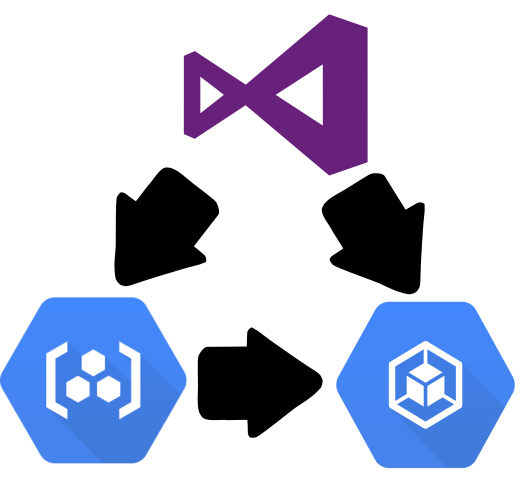
Currently I’m running several projects which are embracing the Continuous Integration and Continuous Deployment (CI/CD) paradigm. We’re using Azure DevOps for our full-stack development process, including running our CI/CD pipelines, with our services being pushed out to a Kubernetes cluster.
We’re using Azure DevOps for a number of reasons; partly legacy as we’ve been a Microsoft house for a long time, and partly because the tooling works well for us right now. It’s also nice to have a single, full stack tool, rather than having to bolt together a variety of open-source tools for requirements, source control, defect tracking and build/deploy. A polyglot solution might be able to offer us an even better stack, but right now we’re better focusing on delivering value to our customers than spending time managing a complex development stack with lots of moving parts.
In terms of Kubernetes, we’re using the Google Cloud Platform (GCP), as a cost-effective option, but also as it offers, in my view, the most mature managed K8s offering in the form of Google Kubernetes Engine (GKE). To simplify integration with the cluster, we’re storing our container images in Google Container Registry (GCE).
This has meant we’ve had to spend some time getting Azure DevOps and GCP to talk to each other, the results of which are presented below. If you’re trying to do the same thing, hopefully this will help!
Pushing Docker Images from Azure DevOps to GCR
As part of our CI/CD pipeline we need to take the Docker images from our build process, running on a hosted Linux build agent in Azure DevOps, and push them into our private Docker registry, for which we use GCR (Google Container Registry). As this is a private registry, we obviously need to ensure that Azure DevOps can authenticate with GCR, which we achieve using a Service Account in GCP, and a Service Endpoint in Azure DevOps. Setting this up is actually quite trivial once you know how.
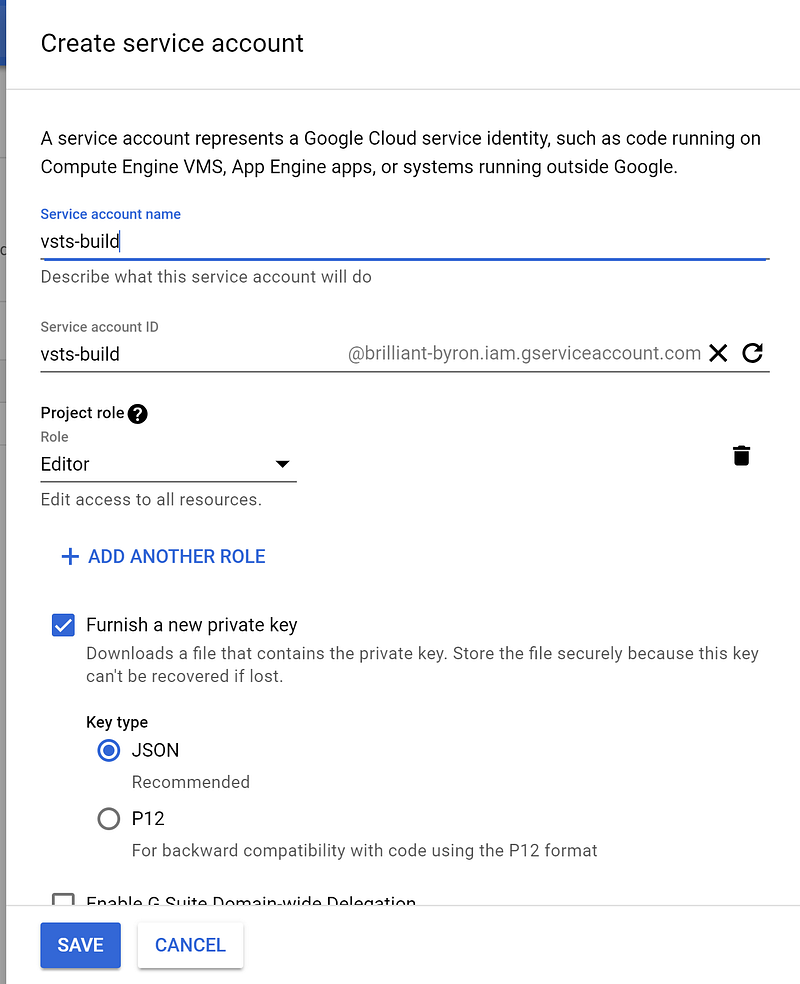
First, from the GCP console, navigate to the IAM (Identity and Access Management) area, and select the Service Account node. With in this node, add a new Service Account; I like to call mine vsts-build, but you can call it anything you like. Give the service account ‘Editor’ permissions on the project, and ensure that the ‘furnish a new private key’ is checked. Now, when you create the account, a JSON file will be downloaded containing the credentials for the new service account. Keep this safe, as you can’t get it back later, but you want to keep it secure as it’s the entire authentication for your service account!
Now head over to Azure DevOps, and in Project Settings/Service Endpoints, create a new Docker Registry end point. Set the type to ‘others’, and give the end point a meaningful name. Set the ‘Docker Id’ to _json_key, then open the JSON file downloaded above, and copy and paste the entire file contents into the password field. This may seem a little odd, but trust me, it works!
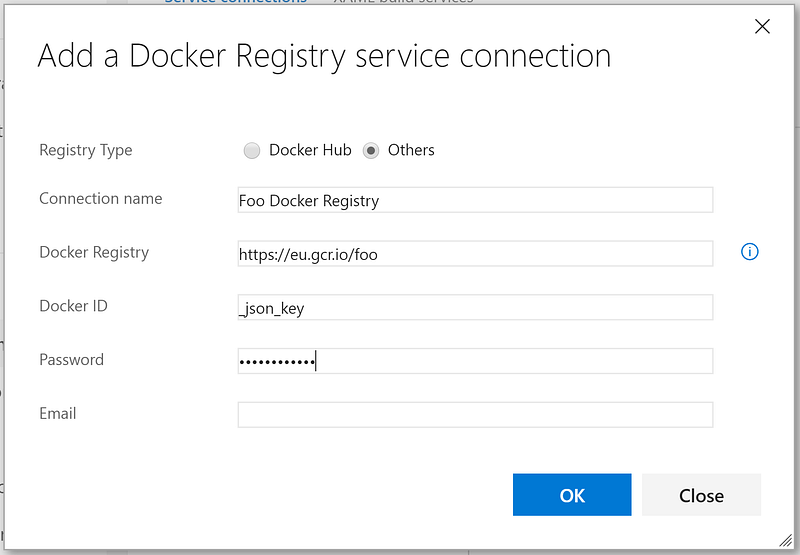
Now you have a Service Endpoint for GCR, authenticating using the Service Account. You can use this from any of the build or deployment tasks that need access to a Docker registry, such as the Pull Image and Push Image tasks.
Connecting Azure DevOps to GKE
Now we can push our Docker images into GCR during our build process, then next thing we want to do is to trigger an update in our Kubernetes cluster and have it upgrade anything using the image. Azure DevOps has a task that can do this, but it needs a Service Endpoint setting up in order to be able to do so. The good news is that just recently this became a whole lot easier to set up, as the Azure DevOps Kubernetes Service Endpoint can now be configured to use a Kubernetes Service Account (not a GCP Service Account), rather than having to use the previous kubeconfig based approach, which required jumping through a number of hoops to get working with GCP. We’ll follow the new Service Account approach in this example.
First we need to create a Service Account in Kubernetes. Connect to the cluster so you can issue kubectl commands to it, and then create a YAML file defining the Service Account, as per the example below. You can change the name to anything you like.
apiVersion: v1
kind: ServiceAccount
metadata:
  name: vsts-deploy
Now apply this to the cluster using the kubectl apply command.
Now we have our service account, we need to bind it to a role, to define what the account is allowed to do. The easiest role to bind to is the cluster-admin role. You can create a role with lesser rights if you need, but as the role deploying changes to the cluster you’ll probably find that you end up adding all the rights of cluster-admin over time anyway. The rolebinding can be created using kubectl:
kubectl create clusterrolebinding [binding name] --clusterrole=cluster-admin --serviceaccount=default:vsts-deployFinally we need to extract the authentication information for the new Service Account so we can set it up in the Endpoint in Azure DevOps. To do this, first list the secrets in the cluster using the following command
kubectl get secretIdentify the secret that starts with the same name as the Service Account you just created, and dump it to a JSON file
kubectl get secret [secret name] -o yaml > sa-secret.yamlAs always, look after the JSON file, as it’s the keys to your cluster. Ideally, fully delete it once you’ve completed the next steps.
With the JSON file open, now we can set up the Kubernetes Service Endpoint in Azure DevOps. In the dialog, set the authorization option to Service Account, give the endpoint a name, and enter the URL for the cluster (you can find this by looking at the cluster in GCP console, and copying the endpoint value). Cut and paste the Token and Certificate values from the JSON file for the K8s Service Account, and check to accept untrusted certificates. At this point the connection should validate, and can be saved.
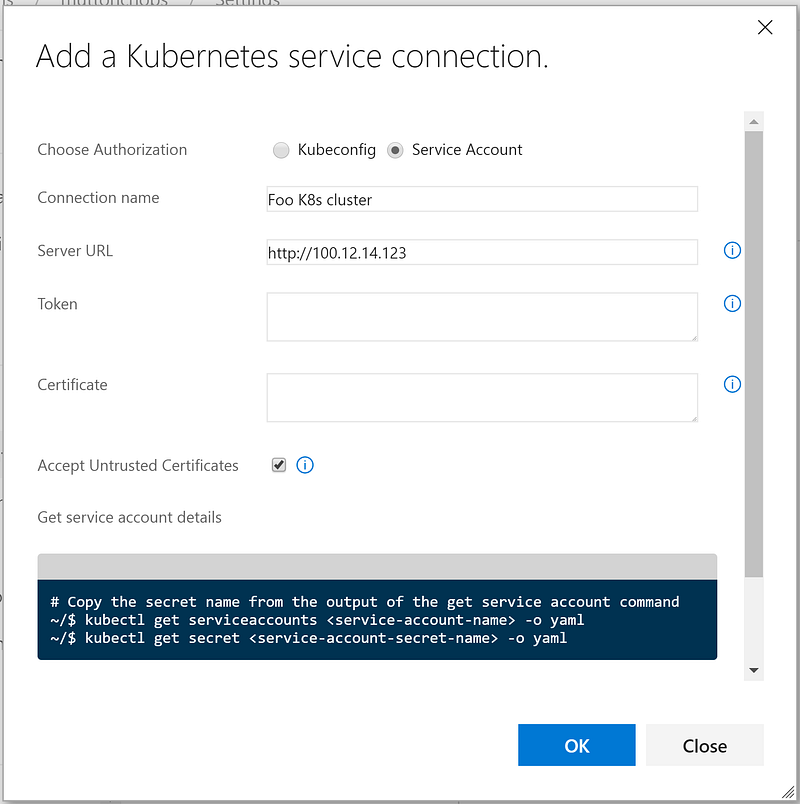
Now we can use the Service Endpoint in our CI/CD process anywhere we need to communicate with the cluster
In this article we’ve looked at how to simply and securely integrate Azure DevOps with GCP to allow a CI/CD pipeline access to elements needed to pull and push containers to a registry, as well as connect to a K8s cluster using Service Accounts.
Hopefully you’ve found this useful, please leave a comment or find me on social media if this is giving you any problems!


