Connect GitHub account to deploy private git repository with ArgoCD
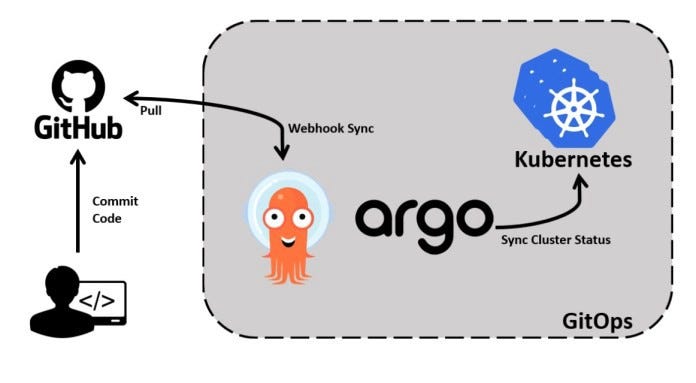
Using ArgoCD is very cool, one of the first walls you will hit as I did are how can you use your private repo inside ArgoCD whiteout to make your git repository public, I have searched a little bit about it, and here is one way I have found if you find a better way pls leave a comment for it, :)
- Create a unique SSH key for your Git project
- Add your public key to GitHub deploy keys
- Add a GitHub connection to your repo using the private key
It's 3 steps you need to do every time you set up a new app inside ArgoCD, I haven't for now not found a better way to do it and don’t know about there will be a better way to do this.
I will try to find a more effective way to use SSH keys for ArgoCD and write a new article for that when I have the bits of knowledge about it.
Create SSH-Key using as Git deploy key
First, we need to generate an SSH key, we are ending up with a private and public key we will use later.
When you write the commend you should type enter several times before the screen look like the picture below.
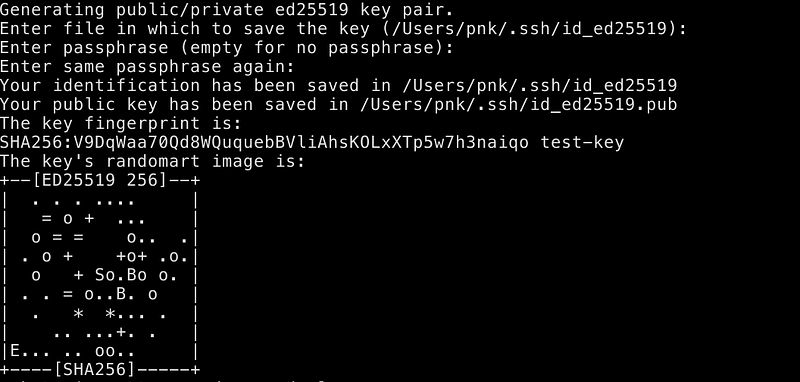
Now you have done the first step of it and are ready to add your public key to your GitHub repository.
Adding a new deploy key on your GitHub repository
First, you need to print out your public key and copy your private key into your GitHub repository settings.
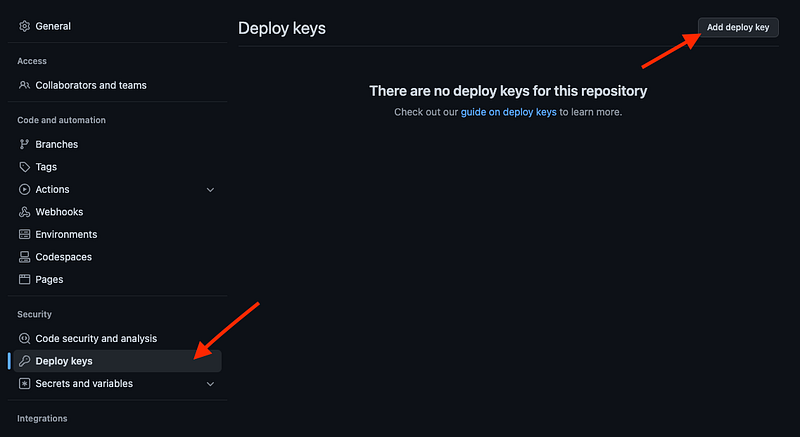
Go to the settings for the GitHub repository and find the menu on left for “Deploy keys”, click “Add deploy key”
Add your public ssh key and click “Add key”
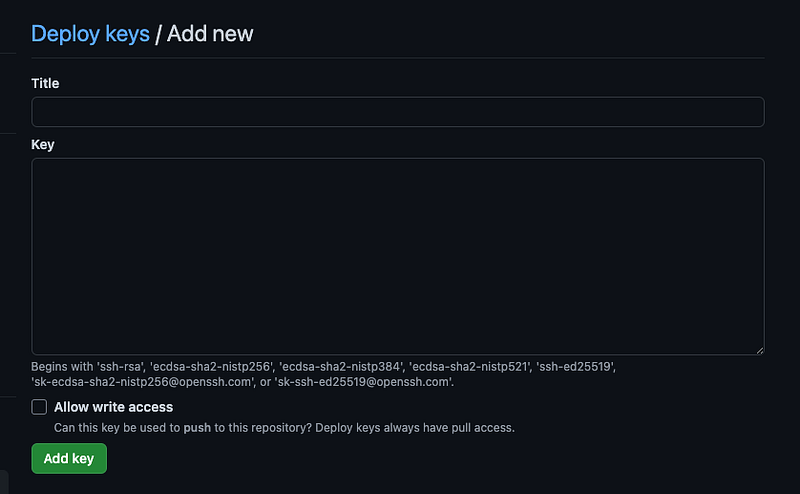
Now you have added your public key for your GitHub repository and can start setup into the ArgoCD UI interface.

Set up SSH authentication for ArgoCD
Display your private SSH key in the terminal and copy your SSH private key and be ready to paste it into ArgoCD
Go to Settings > Repostories to create our connection for this repository using our private SSH key
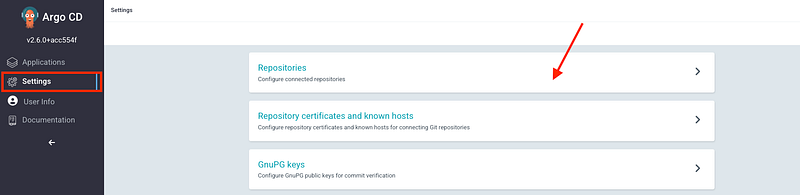
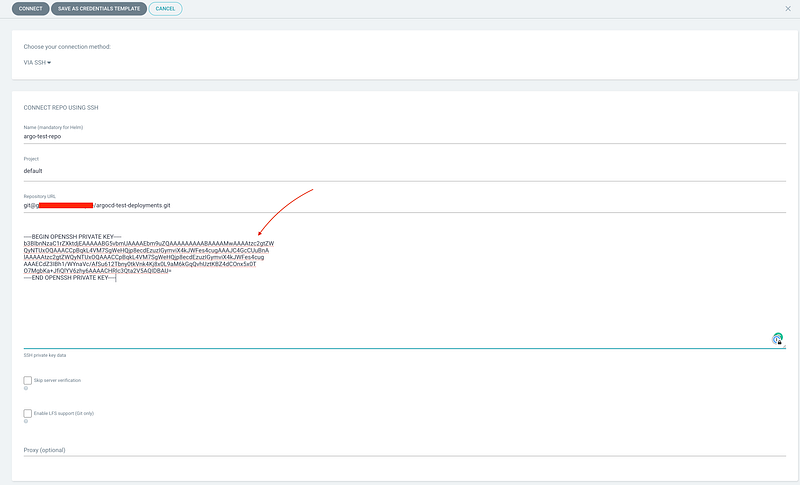
In ArgoCD you can click on “Connect Repo” in the top of your windows and its will popup, fill out the settings and paste your private SSH key into the right place.
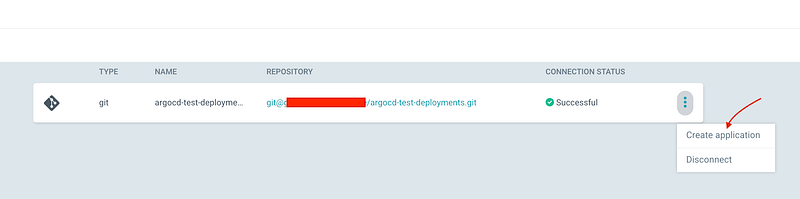
When you have connected your repo you can click on the 3 dots and click “Create application” to create an application based on your repository settings.
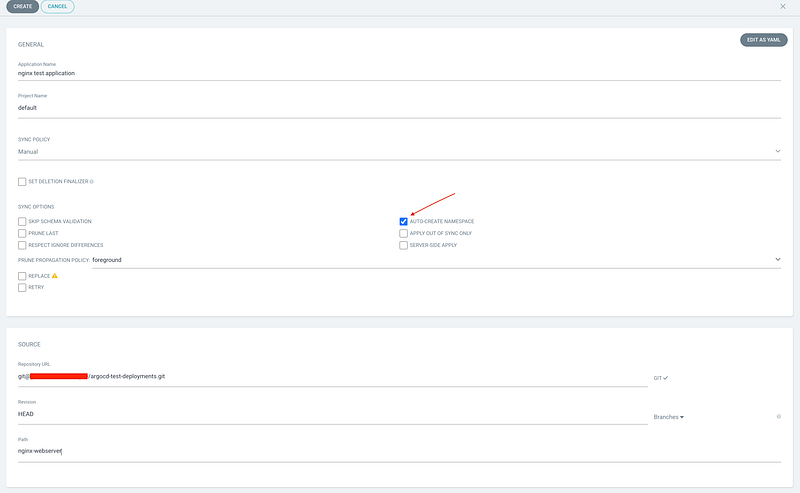
Fill out the data you need, and remember to check out the auto-creating of namespace on.
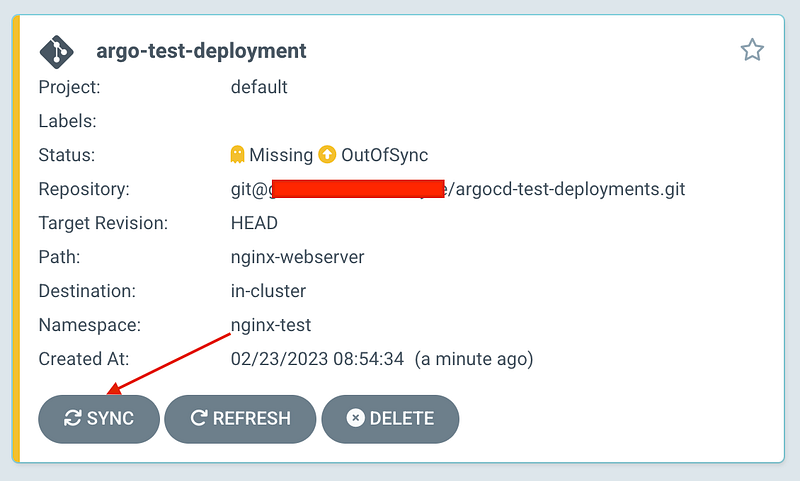
Now click “Create” and your application will be created, now you only need to click on the “Sync” button before the deployment will begin.
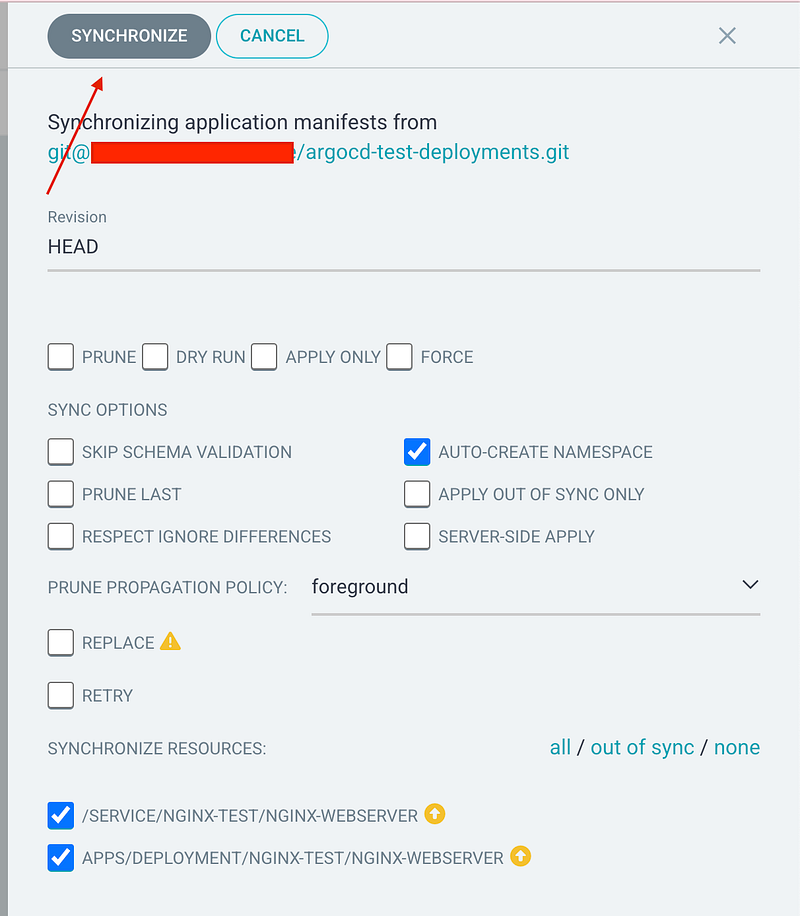
Check your synchronize settings before you click on the button.
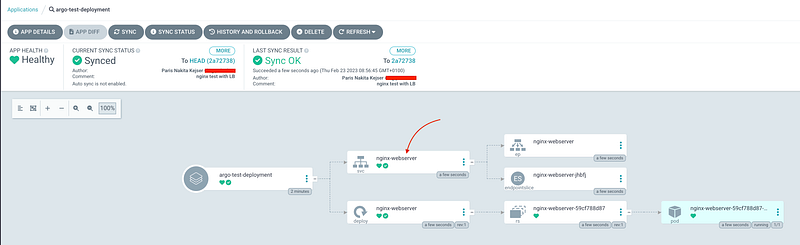
After you have synced your application you can click on it and get a more detailed view where you can see are nice view of how the application is structured.
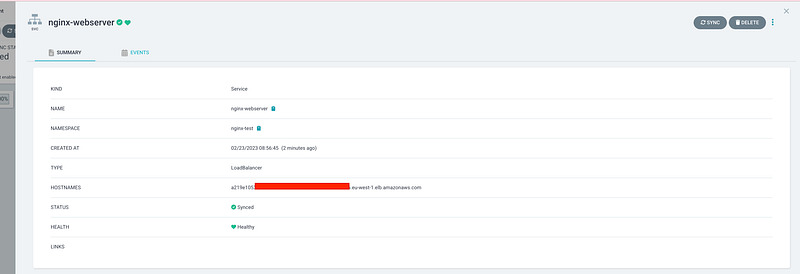
I later find the svc in my case I use a load balancer and need to visit it publicly based on a load balancer on Amazon where my cluster is running.
When I have the link to my load balancer I visit it into a browser to get the NGINX welcome screen.
When we can see the NGINX welcome screen you have success the deployment process with ArgoCD.