
Color and Style Themes in Swift on iOS
Sun, Aug 2, 2015
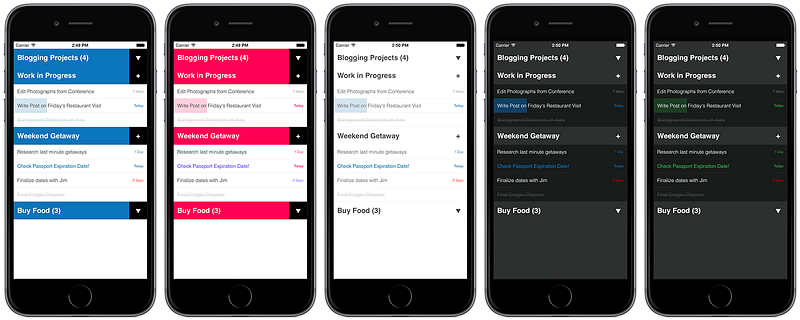
Disclaimer: this was originally posted in 2015. Since then Swift has evolved, and some of the examples and code may need to be adjusted for the current version of Swift.
While working on my most recent iOS project in Swift, the Simplifi To-Do App (yes, I know, the market is oversaturated, but I couldn’t find a to-do app I liked, so I had to make my own) I stumbled over an interesting, if not seemingly very simple, problem: how to implement theme support in my app. To my amazement, I couldn’t find any blog posts or tutorials describing the best ways to do this. Basically what I was shooting for was the ability to switch between different color themes on the fly, and have the App remember and load the user selected theme when it starts up. In this blog post I’ll talk about the method I came up with.
When implementing theme support on iOS there are 3 basic problems we need to solve:
- Where to store the theme definitions, like colors, fonts, alphas, etc, for the various UI elements.
- How to make theme definitions easily accessible throughout our apps code.
- How to update theme definitions to the user selected theme before the first screen on the app is loaded and presented to the user.
This isn’t a full tutorial, just a few notes I would have found useful a few months ago. Hope it helps someone else trying to implement themes in iOS with Swift.
Storing and Retrieving Theme Definitions
By theme definitions I mean the color, font, shadow, and other settings for different UI elements. If you worked with web apps before, such things would be commonly stored in the CSS file. On iOS the best alternative I have found is to store all of the design settings in a single struct. I usually call my themes struct something like “Style.swift.” Here’s an example:
As you can see, all the style variables are static. This means they belong to the struct and can be accessed anywhere in your project without the need to instantiate the struct. You can use them in your code like this:
Even if you are not planning to implement themes, this is a really nice way to keep all your UI design code separate, so you can quickly tweak the look and feel of your app without the need to dig through lines and lines of code. This is obviously not limited to just font and color variables. Anything that defines the look of your app can be stored in the Style.swift struct. Things like, for instance, UIKeyboardAppearance or UIStatusBarStyle settings can be stored here as well.
So now you have a struct that defines the look of your app, but how do you update it for different themes.
Updating Themes
To create different themes, the easiest thing to do is to simply override the static vars in Style.swift. Each of my themes is a static function that belongs to the Style struct, and overrides the default settings.
Now, simply calling Style.themeBlue() from anywhere in your project will update style definitions in your project to the blue theme. Because all the variables are static, this update is persistent as long as your app is running. Of course, you do have to take care to refresh your views to reflect the new UI theme. Just call whatever method you use to build your UI on a given view and you are done.
For multiple themes you would simply have multiple functions resetting the Style variables. Don’t forget to create one default theme function.
Saving and Loading User Selected Theme
Saving is the easy part, you can save and retrieve user preferred theme from NSUserDefaults. This is the way I did it in the Simplifi app:
In the above code I first create a list with all the available themes, so I can use it to populate a table in my settings view later on. Then I have my theme loading function. It checks if the “Theme” key is set in the NSUserDefaults, if it is, it loads the appropriate theme. If not, then it set’s “Solid Blue” as the default theme. I know, that theme selection code is a great opportunity to use a switch, but for some reason I just hate the way a switch statement looks in Swift. I know, I am crazy like that :)
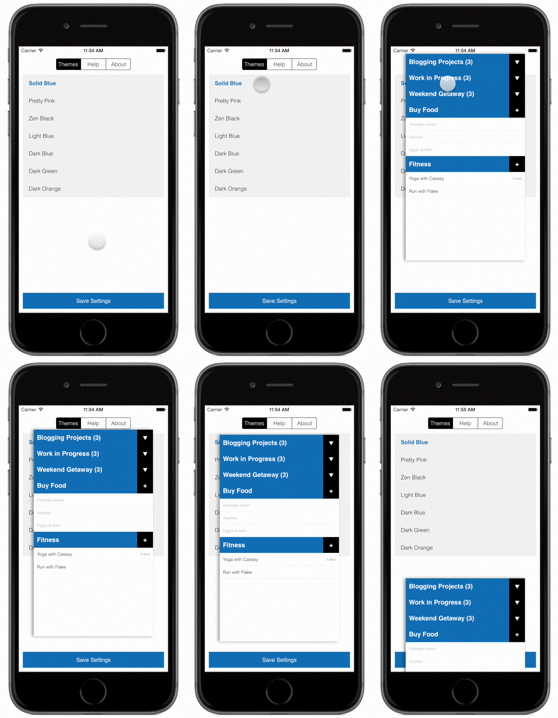
Now you are almost done. You need to build some logic in your settings menu to allow the user to select the theme they like, and load the theme by calling the Style.loadTheme() function from viewDidLoad() function in your main UIViewController.
Calling Functions During App Initialization
To be honest, I don’t remember any more why I specifically needed this, but at some point I needed to load the theme before the variables in the UIViewController are initialized. I think I was initializing one of the variables in UIViewController with some setting from my Style struct. In any case, the point is, I needed to call Style.loadTheme() function before or while my main UIViewController was initializing. I searched and searched, and could not find anything that would work well for me.
Many people recommended placing the code into didFinishLaunchingWithOptions method of the AppDelegate, but that wouldn’t run on time. I can’t remember now, but there were a few other methods I tried, methods that used to work with Objective-C, but no longer work in Swift.
Eventually I gave up and did something that to this day looks very “hacky” to me, but it works, and works flawlessly. As the very first property of the main UIViewController I declared a boolean variable and set it to a closure that would run the `Style.loadTheme() function and then return true:
This method can also be used to run any other code which you just HAVE to run before anything else for some odd reason. By placing it in the AppDelegate method you can get it to run even earlier in the app loading process. Use at your own risk though :)
Final Thoughts
Hope this post helps someone else working on an app with multiple themes. I was going to write an actual tutorial, but just don’t have the time at the moment. If you have any questions, feel free to get in touch with me by emailing to my first initial at sdbr.net. I’ll be glad to help if I can.
Originally published at sdbr.net.


