
Learning Android Development
Code Simple Android Jetpack Compose Drawing App
Detect touch to draw on Canvas using Jetpack Compose

If you plan to learn Android, the most fun app to start is to make a simple drawing app. Instead of learning the conventional way of drawing, let’s learn using the latest Android Jetpack Compose to do so.
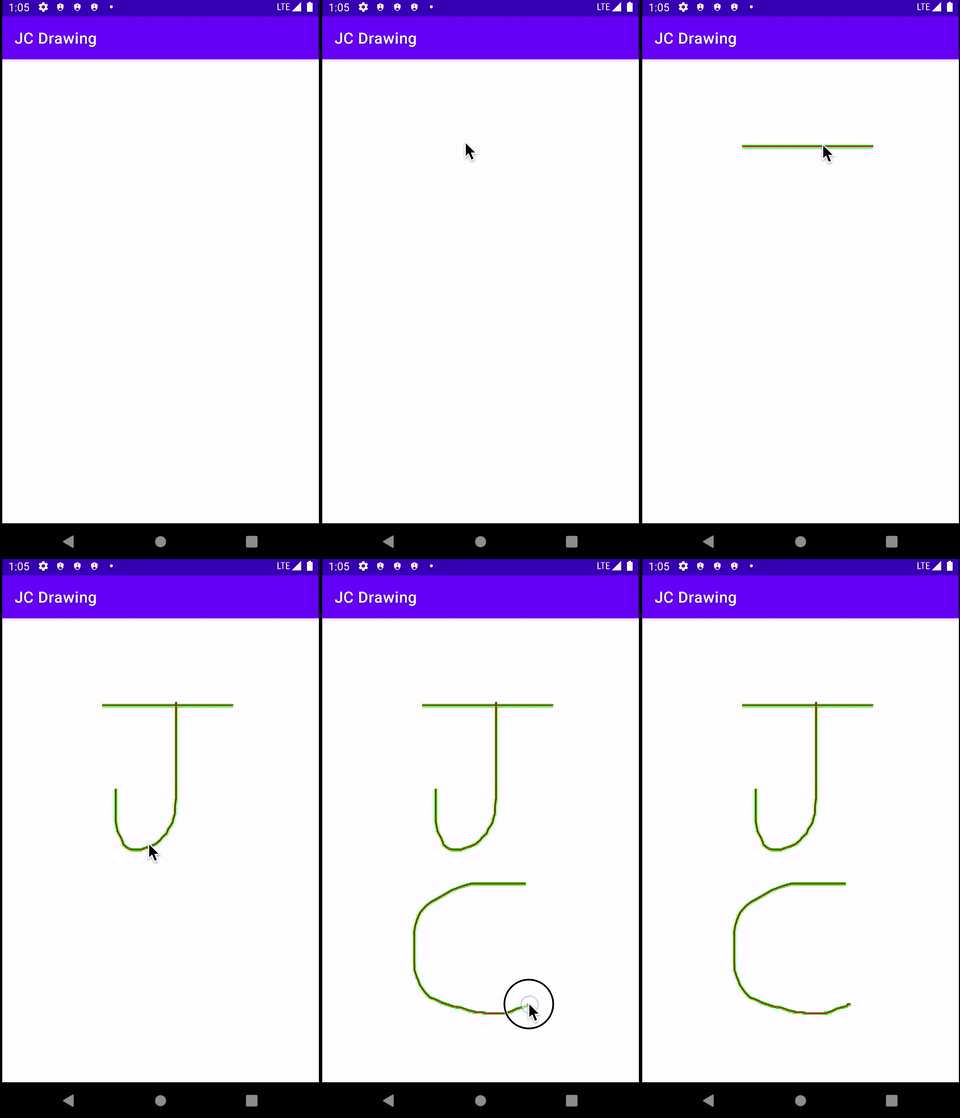
Pre-requisite of Setting Jetpack Compose
As Jetpack Compose is still in Alpha release, to use it, you need to download Android Studio 4.2 (Canary version) and do the setup as below
Drawing in Jetpack Compose
To have a drawing app, we just need three things
- A Canvas for one to draw onto
- The touch detection (touch down, and touch move)
- Drawing the path based on touch detection.
Setting up the Canvas
Unlike the conventional Android Development, it no longer uses layout. Hence we no longer need to build a custom view and have it drawn onto the Canvas.
Instead, we do have a Canvas Compose function.
override fun onCreate(savedInstanceState: Bundle?) {
super.onCreate(savedInstanceState) setContent {
Canvas(modifier = Modifier.fillMaxSize()) {
// Drawing happens here
}
}
}Here we set up the Modifier with fillMaxSize(), so that it used up the entire space of the app.
Detection of touch
To detect touch, conventionally in Android, in the custom view, we override the onTouchEvent function.
override fun onTouchEvent(event: MotionEvent?): Boolean {
    when (event?.action) {
        MotionEvent.ACTION_DOWN -> { }
        MotionEvent.ACTION_MOVE -> { }
        MotionEvent.ACTION_UP -> { }
        else -> return false
    }
    invalidate()
    return true
}
In Jetpack Compose, we use the pointerInteropFilde>ter modifier to detect the touch.
Canvas(modifier = Modifier
        .fillMaxSize()
        .pointerInteropFilter {
            when (it.action) {
                MotionEvent.ACTION_DOWN -> { }
                MotionEvent.ACTION_MOVE -> { }
                MotionEvent.ACTION_UP -> { }
                else -> false
            }
            true
        }
)
From the codes above, both look similar, with the exception there is no invalidate needed. The way Jetpack Compose works to notify the drawing needed is using some state value change.
Check out below for some comparison of the conventional Android vs Jetpack Compose way of working
Drawing of path based on touch
The location that detects the touch and the drawing is different, as illustrated in the diagram below.
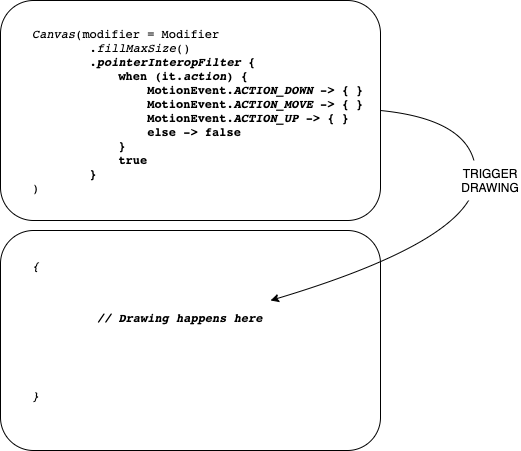
So in order to trigger the drawing, we need to have a mutableState value that behaves like invalidate of the conventional way. Besides, we also need the path to store all the coordinates.
private val action: MutableState<Any?> = mutableStateOf(null)
private val path = Path()
Then upon detection of the drawing, we can update the action and the path as shown below.
when (it.action) {
    MotionEvent.ACTION_DOWN -> {
        action.value = it
        path.moveTo(it.x, it.y)
    }
    MotionEvent.ACTION_MOVE -> {
        action.value = it
        path.lineTo(it.x, it.y)
    }
    else -> false
}
With the action updated, then the drawing will be triggered if it has access to the action as shown below.
{
    action.value?.let {
        drawPath(
                path = path,
                color = Color.Green,
                alpha = 1f,
                style = Stroke(10f))

    }
}
The entire code
In less than 50 lines of code, you have an Android Drawing App made using Jetpack Compose.
private val action: MutableState<Any?> = mutableStateOf(null)
private val path = Path()

override fun onCreate(savedInstanceState: Bundle?) {
    super.onCreate(savedInstanceState)

    setContent {
        Canvas(modifier = Modifier
                .fillMaxSize()
                .pointerInteropFilter {
                    when (it.action) {
                        MotionEvent.ACTION_DOWN -> {
                            action.value = it
                            path.moveTo(it.x, it.y)
                        }
                        MotionEvent.ACTION_MOVE -> {
                            action.value = it
                            path.lineTo(it.x, it.y)
                        }
                        else -> false
                    }
                    true
                }
        ) {
            action.value?.let {
                drawPath(
                        path = path,
                        color = Color.Green,
                        alpha = 1f,
                        style = Stroke(10f))

            }
        }
    }
}
Caveat
If you are a seasoned developer and look at the code above, you might wonder if we can instead send the coordinate through the action and have the path coordinate set up in the drawing function, like something below
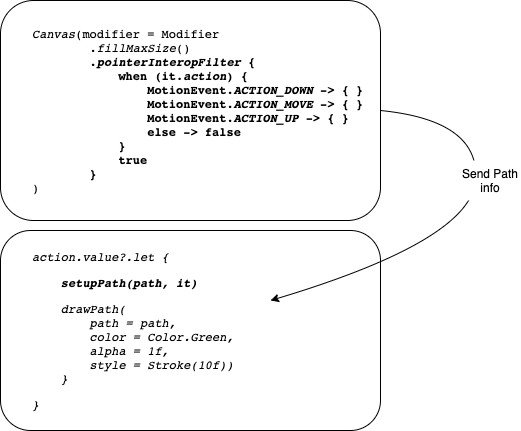
Yes, technically this is permissible.
However based on my experiment, some action update might be missed sending to the drawing function if the subsequent action is triggered (i.e. in particular right after ACTION_DOWN the ACTION_MOVE triggered the action, the action sent from ACTION_DOWN is lost.
Not sure if this is a real limitation of as it is still alpha and not stable, causing the missing action mutable state.
So in order to save guard and get all the path information, let the path setup during the touch detection function, so none is lost.
You can get the code here. Cheers!


