
Ceph RBD Image Mount
The article will show how to
- Mount a rbd image using the admin client
- Make it persist
The Ceph cluster we are using here is described in Ceph Cluster Deploy article.
First we need to create a pool and an rbd image in the pool.
These commands will create a pool named main-block-devices and a rbd image foo in the pool. The size of image will be 1GB.

Client Node Set up for RBD mounts
First, install ceph-common on a ceph-client node.
sudo apt install -y ceph-commonThis will create /etc/ceph directory on the ceph-client node. Then copy /etc/ceph/ceph.conf from the ceph-mon node to /etc/ceph directory on the ceph-client node.
We also need to copy a client keyring file as well. In this example, we will use the admin client. So, copy the below file from the ceph-mon node to the ceph-client node.
/etc/ceph/ceph.client.admin.keyringOnce these two copies are done, we can run the following commands to mount a rbd image.
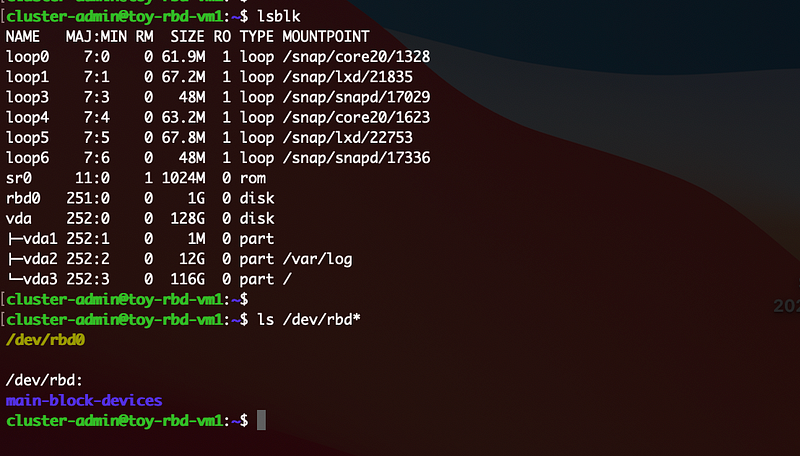
The last command is to unmount the disk. As you see below, when a rbd image is mapped, it appears in two ways: /dev/rbd0 and /dev/main-block-devices/foo. It is safer to use the later one. This screenshot shows when the block device is not mounted.
These map and mount will disappear once the node reboots.
To make the map and the mount persistent over reboots
First we need to add the below line in /etc/ceph/rbdmap.
main-block-devices/foo id=admin,keyring=/etc/ceph/ceph.client.admin.keyringThis rbdmap file is used by rbdmap.service. Then, restart this service.
sudo systemctl restart rbdmap.service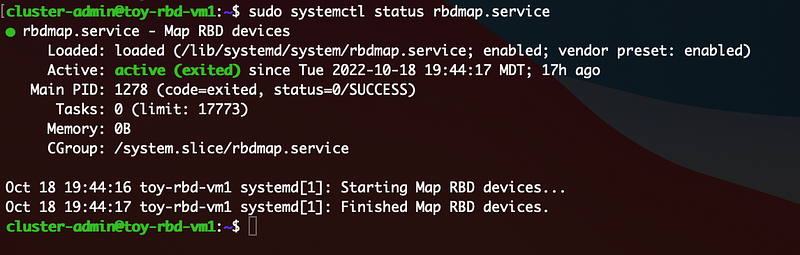
If this service is not enabled, make it enabled.
For mounting the disk, add the following line at /etc/fstab.
/dev/rbd/main-block-devices/foo /mnt/ceph-rbd ext4 defaults 0 0Finally, run the following command.
sudo mount -a


