avatarPKM Beth

Free AI web copilot to create summaries, insights and extended knowledge, download it at here

4665

Abstract

6">The database is automatically created by Capacities as soon as you add a tag to something. You can do this in text or in the object properties.</p><figure id="1445"><img src="https://cdn-images-1.readmedium.com/v2/resize:fit:800/1*9T8pIa1shTaJwcFb2HdRnA.jpeg"><figcaption></figcaption></figure><p id="fab5">Tagging things populates the tag database. You can view the tags in four views: list, gallery, wall, table. For me, the wall view is the best view.</p><figure id="2967"><img src="https://cdn-images-1.readmedium.com/v2/resize:fit:800/1*4Hu3IaRIsIlcwtJFKBabWQ.png"><figcaption>this is the view for all tags, but in the top left you can see ‘dashboard’, this has some in-built queries to help you maintain your database</figcaption></figure><h2 id="e744">Input</h2><p id="0523">There are <a href="https://docs.capacities.io/reference/integrations/">so many ways </a>to upload to Capacities. On my phone, I use WhatsApp to import images, texts and tasks. On my macbook, I just copy and paste.</p><p id="3d5e"><b>Images</b></p><p id="db9e">I’m nearly always on my phone so it’s easy to take a screenshot of the inspiration and share it to WhatsApp. WhatsApp then sends it to my Capacities journal page with any context or information that I have added. To add information, you simply use the text box in WhatsApp. The text becomes the title.</p><p id="43ea">The text goes to the daily journal but the presence of hashtags and an image are also registered and the automatically created databases are updated with the new content.</p><figure id="375e"><img src="https://cdn-images-1.readmedium.com/v2/resize:fit:800/1*p42Zj8hIEOsSA9gAElZAyQ.png"><figcaption></figcaption></figure><figure id="3a9b"><img src="https://cdn-images-1.readmedium.com/v2/resize:fit:800/1*GN3TzFUk0VKHogFD3V3Zbw.png"><figcaption>share menu (left), use the Whatsapp text box to add tags and a title (right)</figcaption></figure><figure id="6fea"><img src="https://cdn-images-1.readmedium.com/v2/resize:fit:800/1*6P300TSXPNxdADOLDNivGA.png"><figcaption></figcaption></figure><figure id="42f3"><img src="https://cdn-images-1.readmedium.com/v2/resize:fit:800/1*LP_tKi_jGd6BmHcTpvjmeA.gif"><figcaption>the image I text to WhatsApp is now in my image database, tagged and titled (left), how to copy and paste an image into Capacities on your computer (right)</figcaption></figure><p id="e54c">If you’re on the computer, you can also copy and paste into Capacities (see above).</p><p id="77da"><b>Doing more with the image</b></p><p id="b0a2">Once you’ve got the image into Capacities, you can do more with it. The automatically created database has a text property, meaning you can add text below the image. Not just a caption, you could write a story about this image if you wanted to, with formatted headings, embedded quotes, links (hello Pinterest?), pictures, tasks, questions... It’s up to you. It is so nice to have this option, to really do more with the information you’re uploading. For me I just say why I saved it, plus whatever else comes to mind.</p><p id="ea98">This feature and its utility are unique to Capacities. You cannot add this useful context to pictures in folders, you can do it to an extent in Pinterest and Bublup but it is clunky and absolutely not made for this.</p><figure id="90f9"><img src="https://cdn-images-1.readmedium.com/v2/resize:fit:800/1*Ed6nSkIdMe1YiCSoRuUPdw.gif"><figcaption>adding information to my image</figcaption></figure><figure id="87c5"><img src="https://cdn-images-1.readmedium.com/v2/resize:fit:800/1*qSgJ4SG_ScGQ5K3dVdf_0Q.gif"><figcaption>added information and linked other pictures</figcaption></figure><p id="ba8f"><b>Text</b></p><p id="13a3">You can also just send texts to your daily journal in Capacities. If you put a tag in your text, as I have below, you’ll see that your text ends up in the tag’s page.</p><p id="908e">This is useful for the quick notes you have that are related to one of the tags in your database, or you can use these texts to create new tags.</p><figure id="75e5"><img src="https://cdn-images-1.readmedium.com/v2/resize:fit:800/1*YAYotiWBkOqghDGty1dCSw.png"><figcaption>from my daily journal</figcaption></figure><figure id="fb1c"><img src="https://cdn-images-1.readmedium.com/v2/resize:fit:800/1*tpCgms9biRU7tx6P46PbAQ.png"><figcaption>but it’s also in the laundry tag page.</figcaption></figure><p id="5521"><b>Tasks</b></p><p id="ddc7">You can take text further by texting yourself tasks by using a pair of square brackets []. This too goes to the daily journal, unless you add a tag, in which case it’ll show up in your tag page too!</p><p id="6709">I think that this looks so good in the wall view- it

Options

pulls every bit of content tagged with laundry into one place and displays it in a really easy to read and useful way. You can filter and sort your entries too, as with all databases.</p><figure id="51ec"><img src="https://cdn-images-1.readmedium.com/v2/resize:fit:800/1*PZ5KmsVW2mBd42KtFBoGMg.png"><figcaption></figcaption></figure><figure id="cd68"><img src="https://cdn-images-1.readmedium.com/v2/resize:fit:800/1*myV8JKdXTkxrNrx8nr1MKA.png"><figcaption>wall view of my laundry room and mudroom tag pages</figcaption></figure><p id="4b44">Repeat these steps and processes as many times as you want to build both your image and tag databases.</p><h2 id="d2c3">Exploring what you’ve saved</h2><p id="ed8f">Remembering to tag means that using the filtering function on Capacities is powerful as it has lots of intentionally placed inputs to read.</p><p id="4662">I paste an example below where I wanted to see all kitchens where I also liked the colour.</p><figure id="2d2c"><img src="https://cdn-images-1.readmedium.com/v2/resize:fit:800/1*G4_Yn6sDjBkXJh7qqZGjjA.gif"><figcaption>the filter is just like Notion, if you haven’t used that it’s really easy to pick up</figcaption></figure><p id="01b4">You can create so many filters to really explore your work.</p><p id="c5dc"><b>So the key really is tagging</b>. I struggle to remember to do things and in other apps I wouldn’t be able to create a query that told me what was untagged. <b>Capacities answers both of these problems in the dashboard view of each database</b>. It will simply tell you what is missing a tag, allowing you to quick add it.</p><figure id="dbef"><img src="https://cdn-images-1.readmedium.com/v2/resize:fit:800/1*4JgcQt2DOTJKKUiRKIH-BQ.gif"><figcaption>all the untagged objects in a database end up in the ‘inbox’ for you to tag</figcaption></figure><p id="cf10">It also gives you another chance to decide if you actually want the photo in your collection, which makes this a more intentional exercise and you end up with a well curated collection of content to move forward with.</p><p id="4ba2">I personally went through my Bublup folder, and of the 100+ things on there, I only transferred about 40 over to Capacities. This slower way of dealing with the information prevents overwhelm and thus means it’s inherently more useful. I have added a picture for a reason. It is building towards something. I want to see it again. I could not say that for all of the other inspiration I had needlessly stored.</p><p id="5f3d">Now, I am confident that If I then decide to move on with a project, I can go into the tag database and either scroll through some amazing designers’ work, and some great advice collected over the years, and I can sort and filter to my heart’s content.</p><p id="34f6">I feel this system makes it easier to act on years of inspiration when the time is right.</p><h1 id="e82f">Summary</h1><p id="9895">In my opinion, using Capacities to organise inspiration is so much better than using folders, Pinterest or Bublup. Information does not need to be unnecessarily siloed and only viewed in one way. Of course, these principles extend beyond kitchens and bathrooms. This method makes it more likely that I can action the inspiration that I see everyday on social media and in life.</p><p id="3686">This allows you to do more with the content that inspires you and the ideas that you have. This system can grow over time to be a really useful and intentional catch-all for your inspirations, thoughts and questions about many things, not just home decoration. These methods help you knit together ideas and themes in a way other apps cannot, and give you a visual and written outlet for your thoughts and creativity, with frictionless input.</p><p id="897a">So, as with all my posts, I conclude that Capacities is genius.</p><p id="d873">Most particularly here I am impressed with</p><ol><li>the tag database as a way to organise your content flexibly</li><li>the WhatsApp integration that makes sharing and adding metadata (title, tags) really easy</li><li>the wall view which is a beautiful and useful way to look at your work, and has the filter option for you to query your content in a way OneDrive search cannot.</li></ol><p id="7a31">This system shows that tools and methods used in PKM can go so much further than knowledge. I call this Digital Life Management. I just want to use digital tools to make my life easier. I really think Capacities can help me do this.</p><p id="40e8">If you’re interested in any of these features more deeply, let me know in the comments below, or dm me on Twitter. I’d love to talk about Capacities with you :)</p></article></body>

Capacities- beyond PKM?

This article highlights some issues with current ways of dealing with information in folders then highlights how Capacities’ tag database can help. It uses the example of images, text and tasks in the context of home inspiration, showing how adding tags to those things can support a clever system of inspiration that lets you store and explore your ideas and creativity using PKM practises.

I have two passions in life: PKM and houses. Capacities lets me use PKM practices to enhance what I do with the house content I save for future inspiration. Instagram is full of home inspiration and whilst I am not in a place to upgrade from my flat, I hope that one day I will be. I have been saving inspiration for future reference since about 2010, but until now I have never known where to store it. Enter Capacities…

There is nothing like this available

What were my options before Capacities?

  1. OneDrive folders

Tried and failed. I hate folders with a burning passion because there are so few things in my digital collection that neatly fit into just one place. I also want to add context to what I’m saving- why do I like it? Does it remind me of another image?

How can I do that with such a rigid folder system? I have hundreds of images sat doing nothing on OneDrive and various old memory sticks, with no more context than the name I chose to give the file, showing that this system absolutely doesn’t work for me.

2. Pinterest

Pinterest is an amazing app, but it essentially has the same problem as OneDrive. It wants you to add pins to one board only. Yes, it’s more visual and it’s handy to have links, but again, I want to save pictures and add text to give context. What if the kitchen I like has a colour scheme I want to save too? Where does it go? Pinterest’s ‘notes to self’ area looks like it offers that, but in practice it’s not great. I still want my pin to go into more than one place, and Pinterest tells me off when I want to do that…

3. Bublup

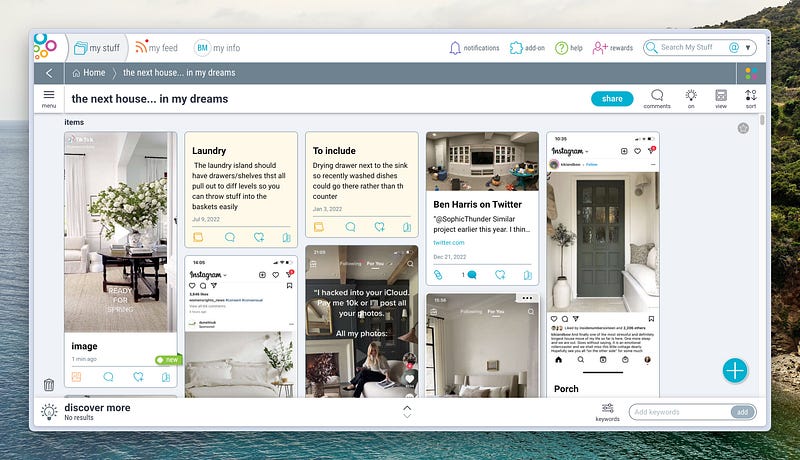
My half solution was Bublup in 2021. I could upload photos, videos, notes, links and tasks and then add comments to them to say why I like them. I could then see them all visually. Combining these content types was a step up from Pinterest where it was just images and videos. But adding the comments is cumbersome so it just became a graveyard of content that wasn’t organised in any way. Barely any pictures have comments, therefore they don’t have context.
So this remained an unanswered question until last week when I had the epiphany that I can use Capacities.

PKM x Pinterest

I realised the crux of the matter was I wanted the ability to resurface a piece of information, likely a photo, but possibly a task or a piece of advice, in multiple places and understand what I was thinking at the time of saving it. Capacities’ tag database can give me this structurally and present the information to me beautifully.

Set up

Firstly, I created a new space. This is like a new Obsidian or Logseq graph, or a new Notion workspace. It’s separate to my knowledge work, which lives in the ‘Topics’ space. I have plenty of tags in there but I want to stay focused on the task there, and not day dream about well-designed kitchens I currently can’t afford. Creating a new space, creatively called ‘Life’, solves that.

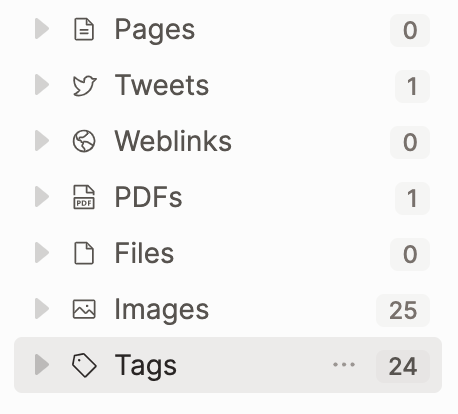
my spaces (left), automatic object types (right)

Beyond that, there’s not much to do. Capacities builds the object types — databases within a space — for you. Paste images, weblinks, tweets, PDFs etc, and the databases appear. This lets you just think about your workflow.

And this workflow is as simple as inputting content and tagging it.

You can then add information and context, to what you’re uploading, but first let’s look at the tags, which are the key to the system.

Tag database

The database is automatically created by Capacities as soon as you add a tag to something. You can do this in text or in the object properties.
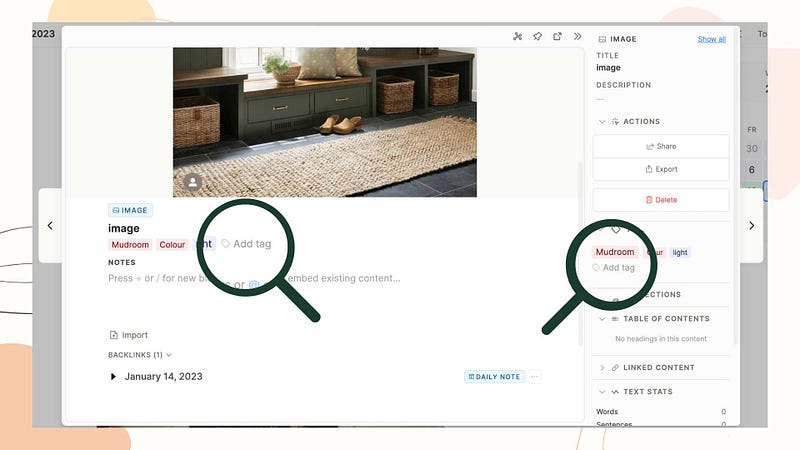
Tagging things populates the tag database. You can view the tags in four views: list, gallery, wall, table. For me, the wall view is the best view.
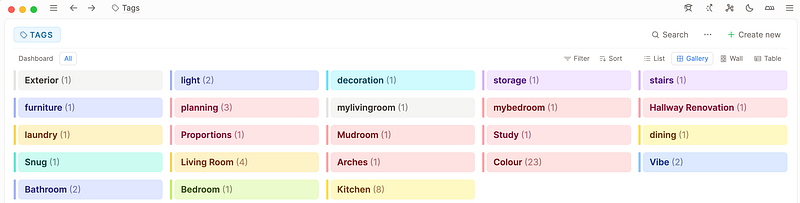
this is the view for all tags, but in the top left you can see ‘dashboard’, this has some in-built queries to help you maintain your database

Input

There are so many ways to upload to Capacities. On my phone, I use WhatsApp to import images, texts and tasks. On my macbook, I just copy and paste.

Images

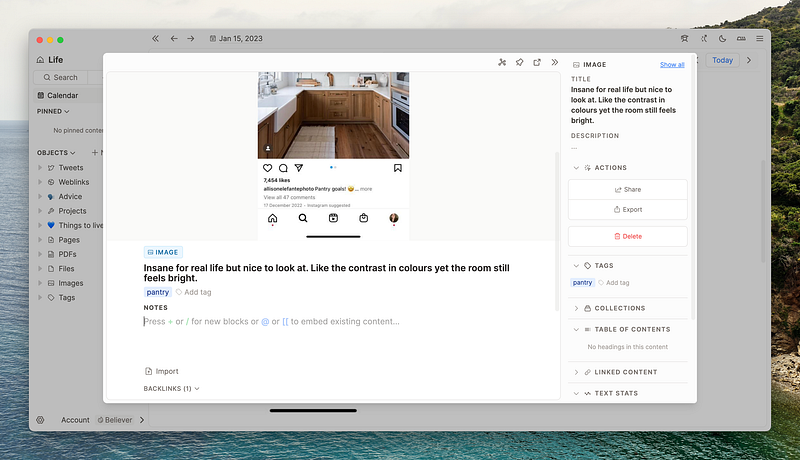
I’m nearly always on my phone so it’s easy to take a screenshot of the inspiration and share it to WhatsApp. WhatsApp then sends it to my Capacities journal page with any context or information that I have added. To add information, you simply use the text box in WhatsApp. The text becomes the title.

The text goes to the daily journal but the presence of hashtags and an image are also registered and the automatically created databases are updated with the new content.
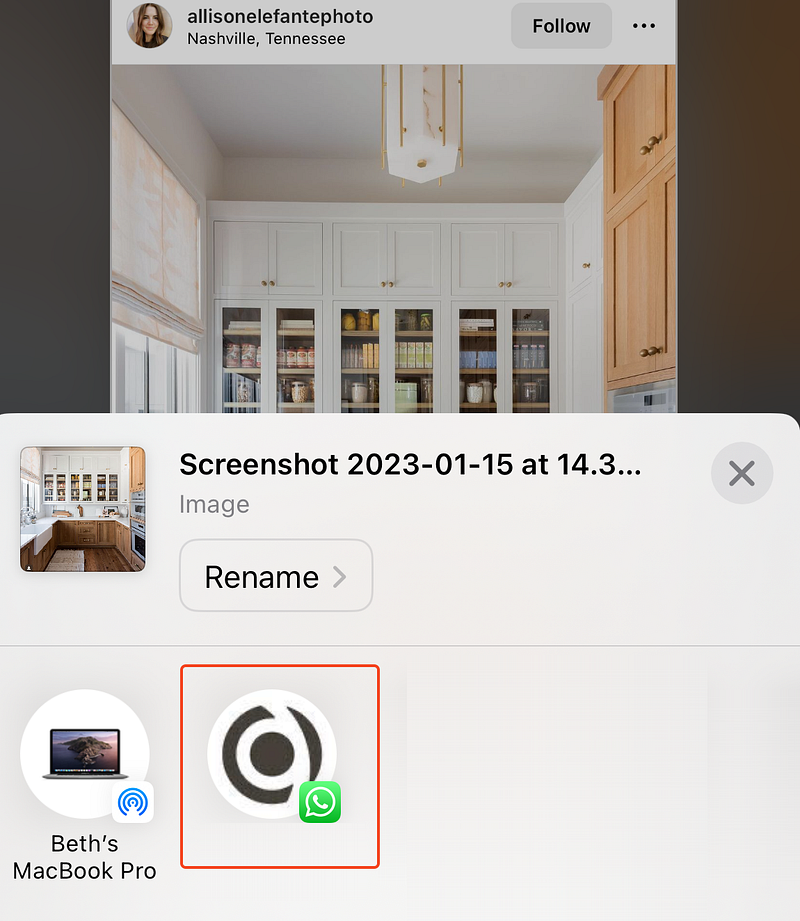
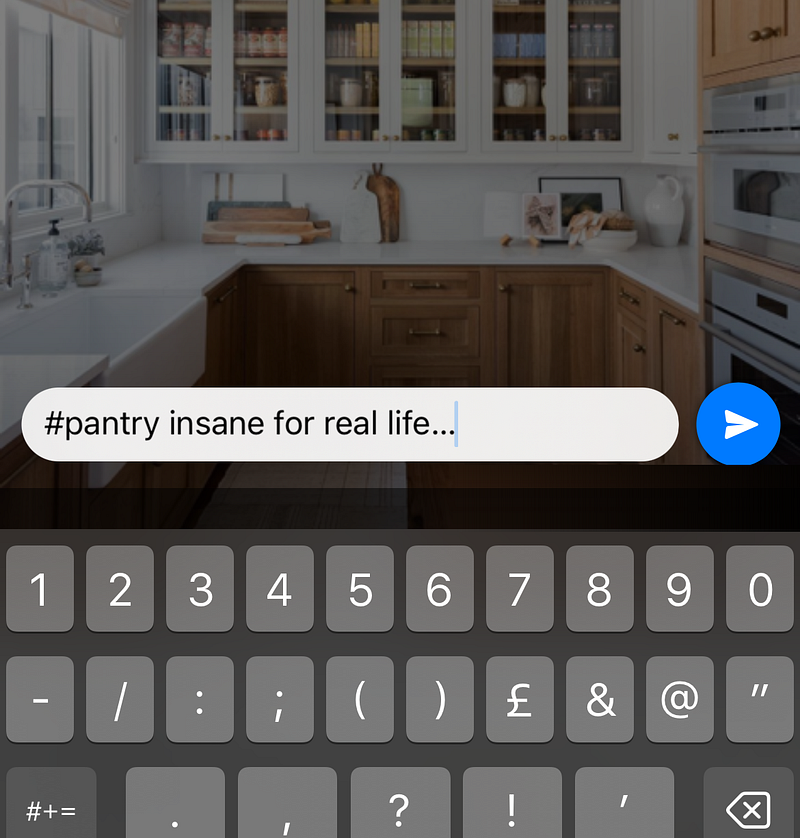
share menu (left), use the Whatsapp text box to add tags and a title (right)
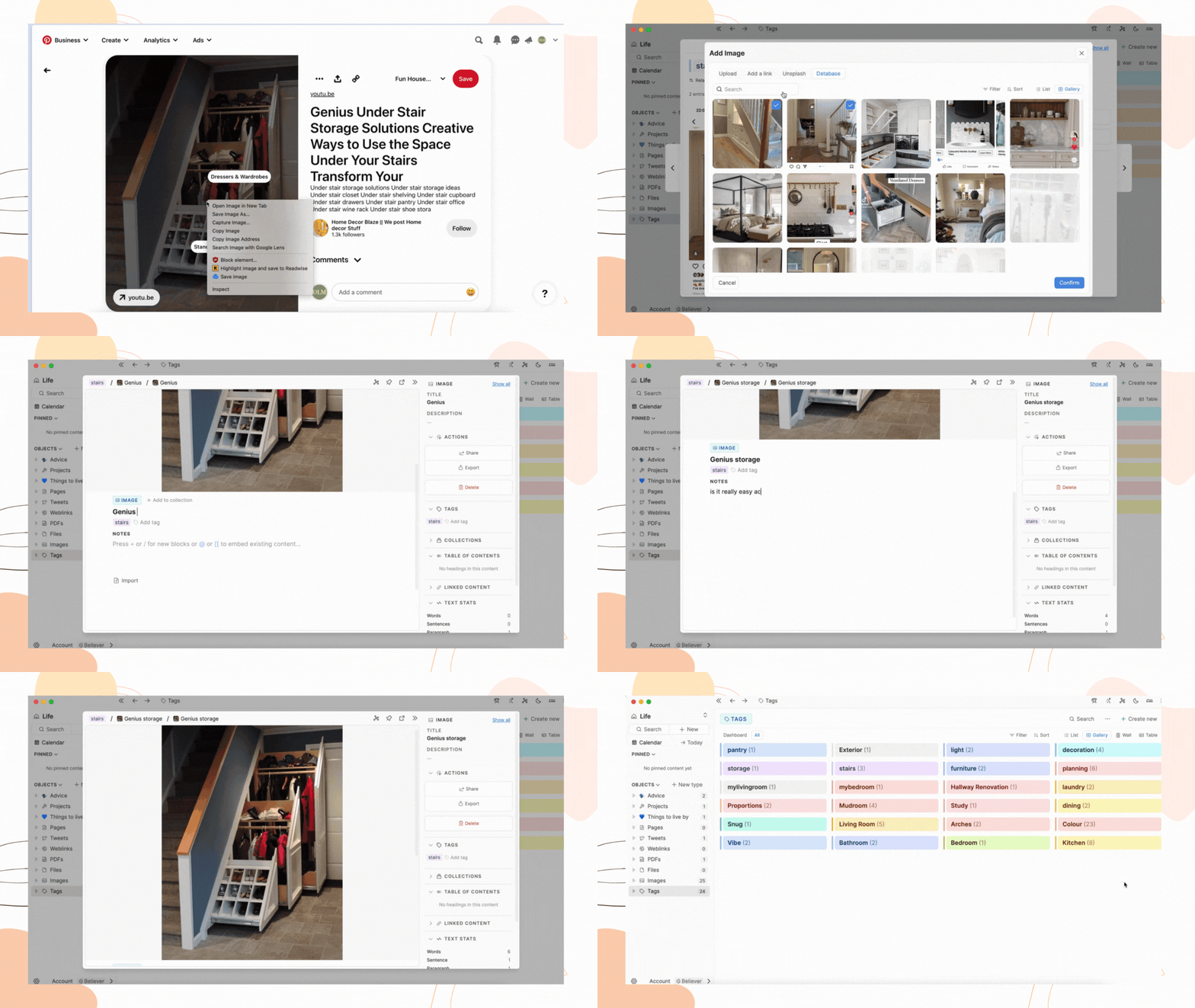
the image I text to WhatsApp is now in my image database, tagged and titled (left), how to copy and paste an image into Capacities on your computer (right)

If you’re on the computer, you can also copy and paste into Capacities (see above).

Doing more with the image

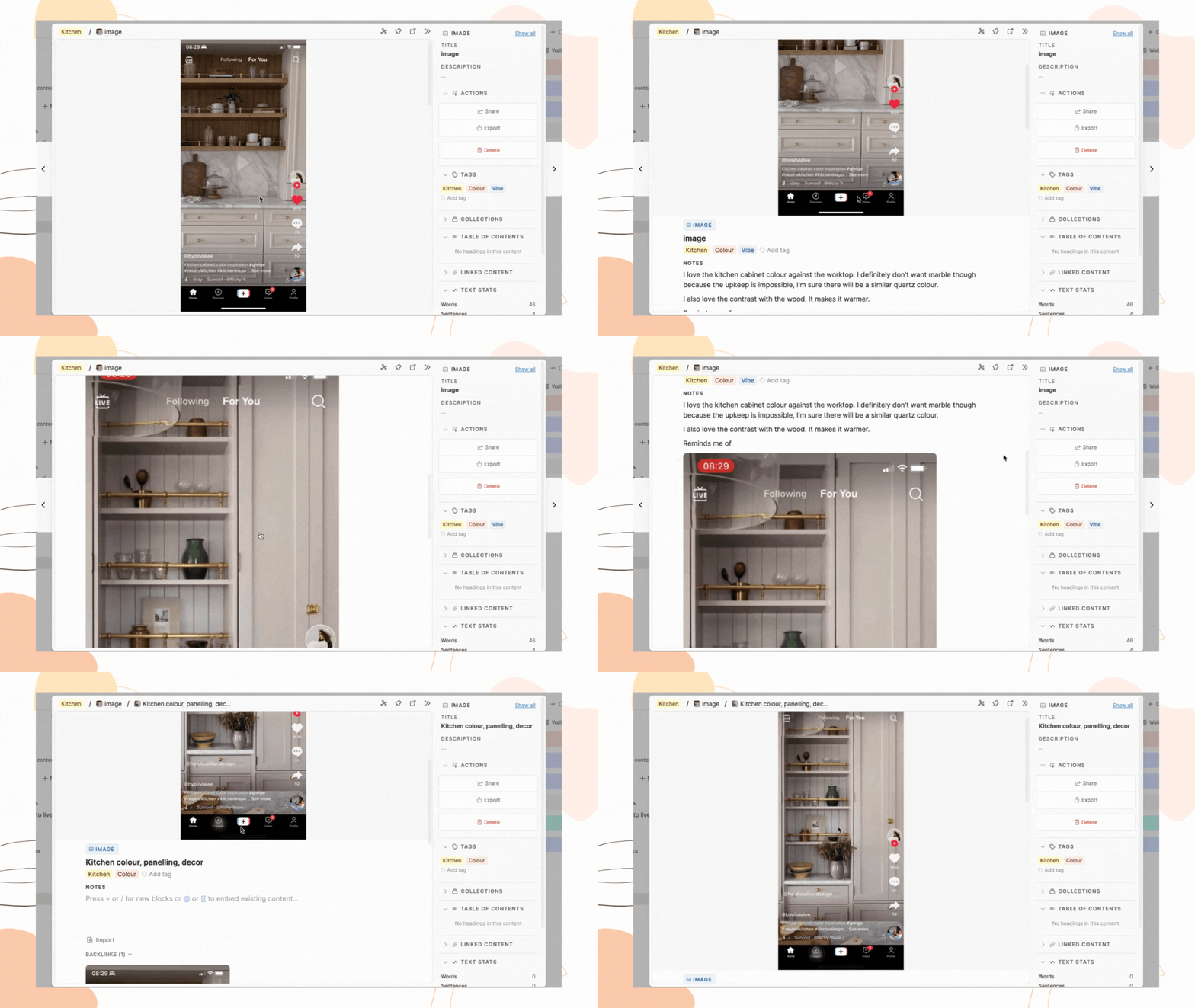
Once you’ve got the image into Capacities, you can do more with it. The automatically created database has a text property, meaning you can add text below the image. Not just a caption, you could write a story about this image if you wanted to, with formatted headings, embedded quotes, links (hello Pinterest?), pictures, tasks, questions... It’s up to you. It is so nice to have this option, to really do more with the information you’re uploading. For me I just say why I saved it, plus whatever else comes to mind.

This feature and its utility are unique to Capacities. You cannot add this useful context to pictures in folders, you can do it to an extent in Pinterest and Bublup but it is clunky and absolutely not made for this.
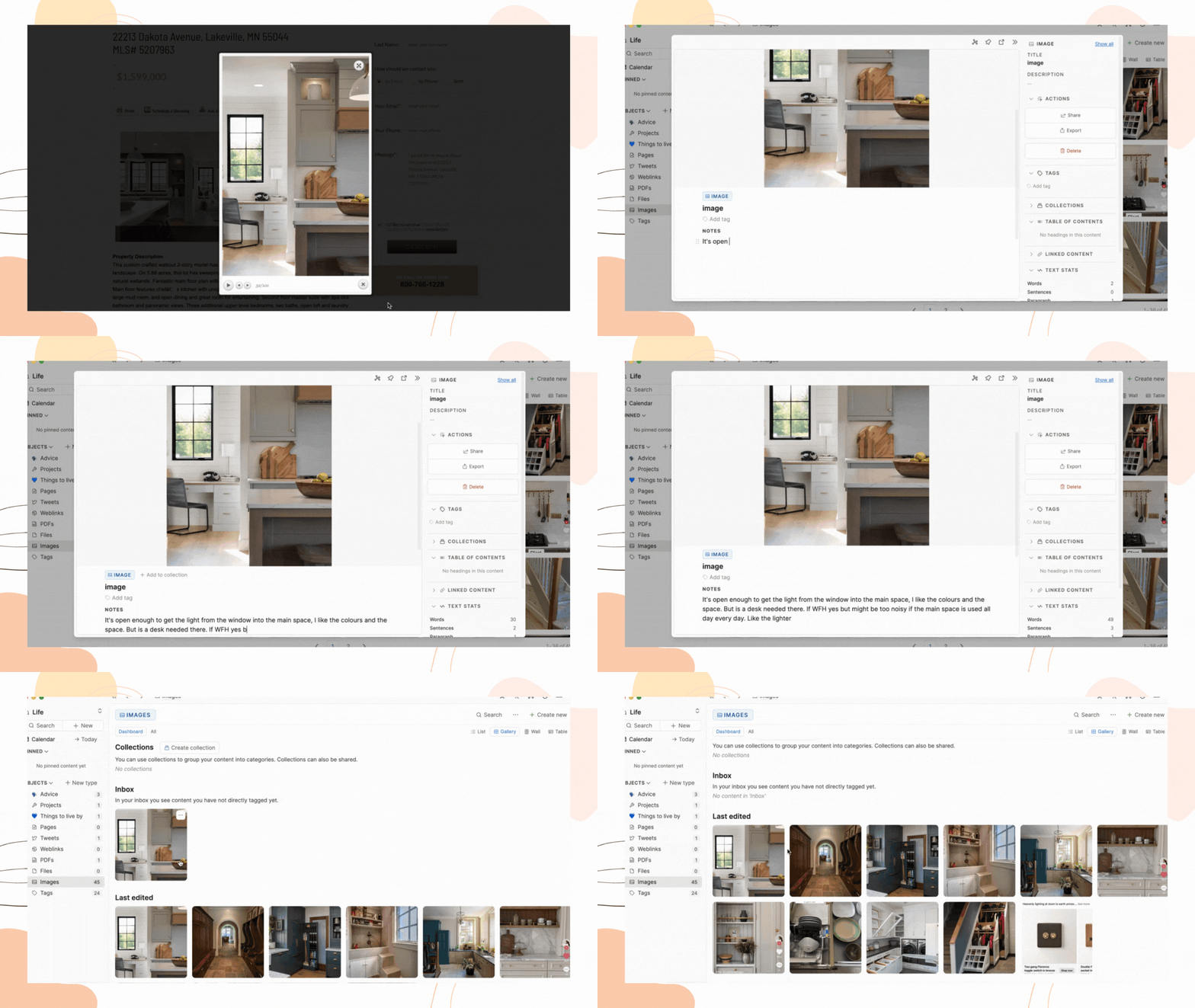
adding information to my image
added information and linked other pictures

Text

You can also just send texts to your daily journal in Capacities. If you put a tag in your text, as I have below, you’ll see that your text ends up in the tag’s page.

This is useful for the quick notes you have that are related to one of the tags in your database, or you can use these texts to create new tags.

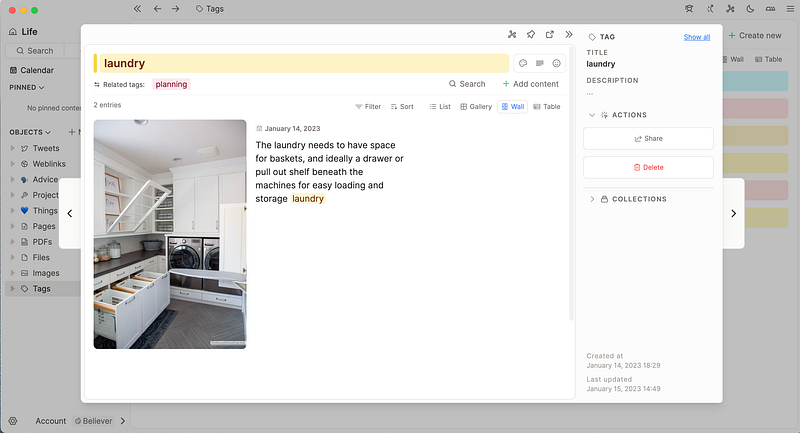
from my daily journal
but it’s also in the laundry tag page.

Tasks

You can take text further by texting yourself tasks by using a pair of square brackets []. This too goes to the daily journal, unless you add a tag, in which case it’ll show up in your tag page too!

I think that this looks so good in the wall view- it pulls every bit of content tagged with laundry into one place and displays it in a really easy to read and useful way. You can filter and sort your entries too, as with all databases.
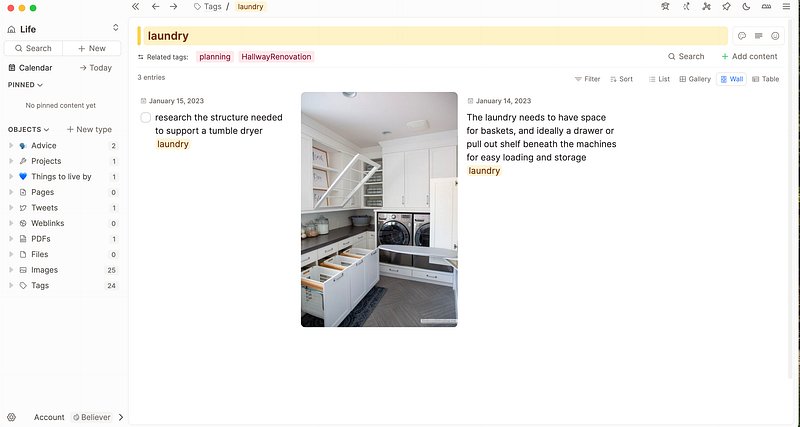
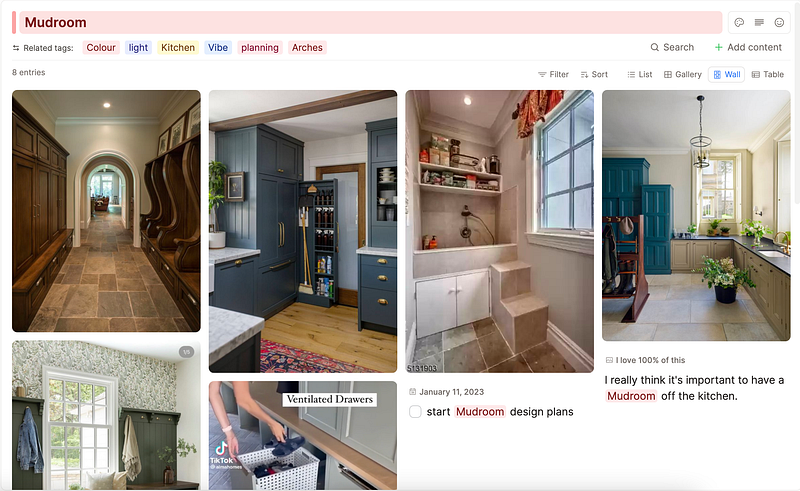
wall view of my laundry room and mudroom tag pages

Repeat these steps and processes as many times as you want to build both your image and tag databases.

Exploring what you’ve saved

Remembering to tag means that using the filtering function on Capacities is powerful as it has lots of intentionally placed inputs to read.

I paste an example below where I wanted to see all kitchens where I also liked the colour.
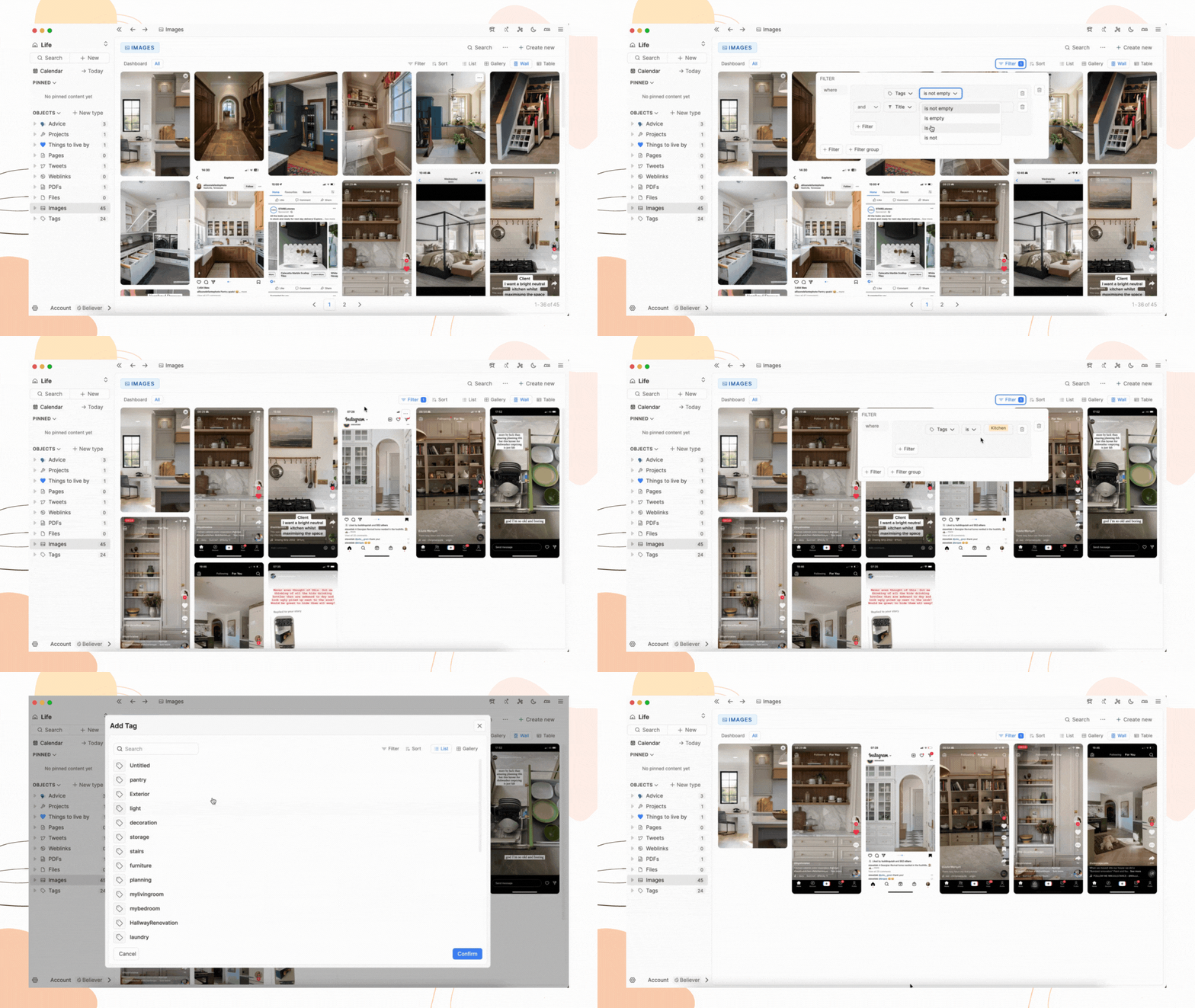
the filter is just like Notion, if you haven’t used that it’s really easy to pick up

You can create so many filters to really explore your work.

So the key really is tagging. I struggle to remember to do things and in other apps I wouldn’t be able to create a query that told me what was untagged. Capacities answers both of these problems in the dashboard view of each database. It will simply tell you what is missing a tag, allowing you to quick add it.
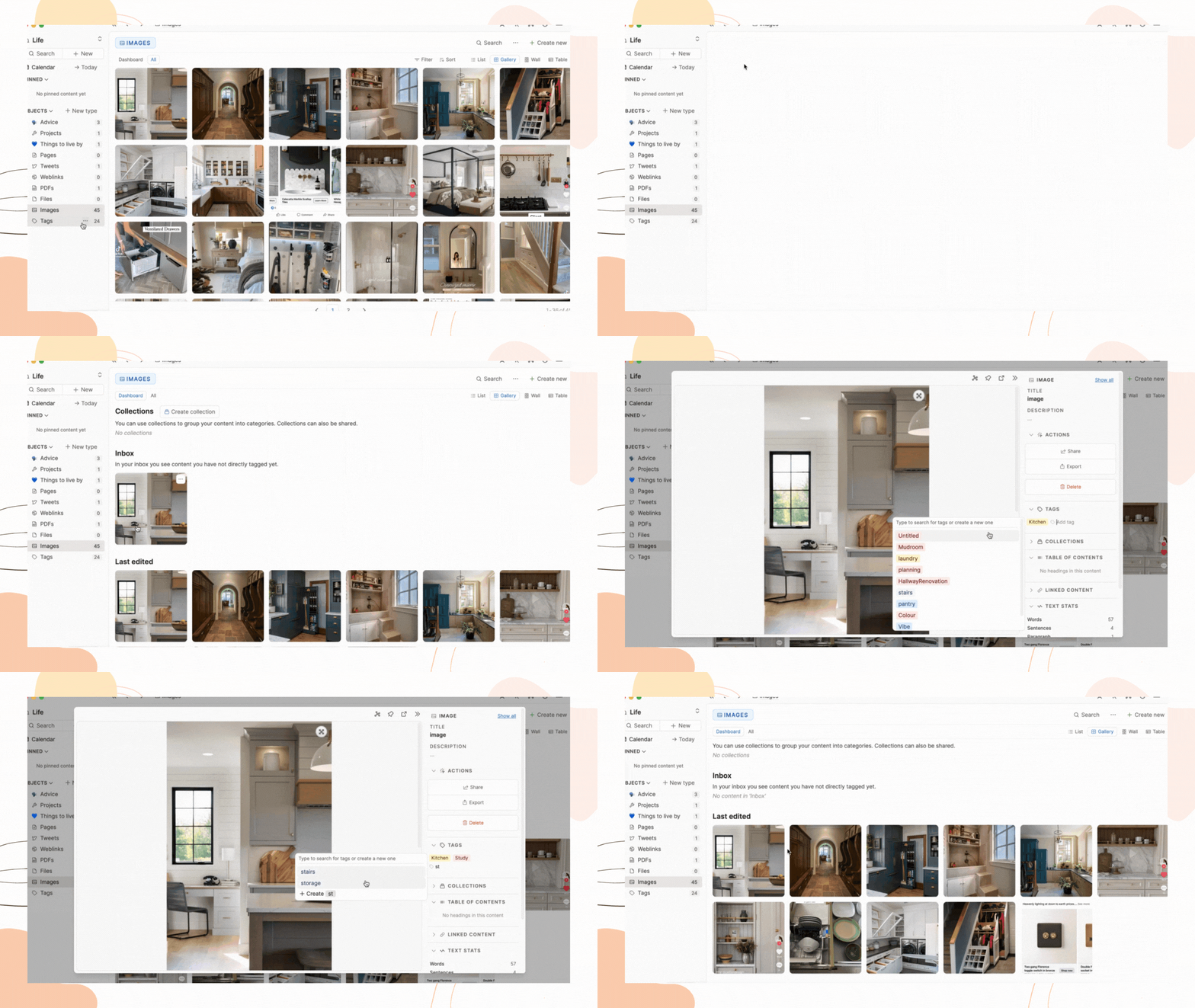
all the untagged objects in a database end up in the ‘inbox’ for you to tag

It also gives you another chance to decide if you actually want the photo in your collection, which makes this a more intentional exercise and you end up with a well curated collection of content to move forward with.

I personally went through my Bublup folder, and of the 100+ things on there, I only transferred about 40 over to Capacities. This slower way of dealing with the information prevents overwhelm and thus means it’s inherently more useful. I have added a picture for a reason. It is building towards something. I want to see it again. I could not say that for all of the other inspiration I had needlessly stored.

Now, I am confident that If I then decide to move on with a project, I can go into the tag database and either scroll through some amazing designers’ work, and some great advice collected over the years, and I can sort and filter to my heart’s content.

I feel this system makes it easier to act on years of inspiration when the time is right.

Summary

In my opinion, using Capacities to organise inspiration is so much better than using folders, Pinterest or Bublup. Information does not need to be unnecessarily siloed and only viewed in one way. Of course, these principles extend beyond kitchens and bathrooms. This method makes it more likely that I can action the inspiration that I see everyday on social media and in life.

This allows you to do more with the content that inspires you and the ideas that you have. This system can grow over time to be a really useful and intentional catch-all for your inspirations, thoughts and questions about many things, not just home decoration. These methods help you knit together ideas and themes in a way other apps cannot, and give you a visual and written outlet for your thoughts and creativity, with frictionless input.

So, as with all my posts, I conclude that Capacities is genius.

Most particularly here I am impressed with

  1. the tag database as a way to organise your content flexibly
  2. the WhatsApp integration that makes sharing and adding metadata (title, tags) really easy
  3. the wall view which is a beautiful and useful way to look at your work, and has the filter option for you to query your content in a way OneDrive search cannot.

This system shows that tools and methods used in PKM can go so much further than knowledge. I call this Digital Life Management. I just want to use digital tools to make my life easier. I really think Capacities can help me do this.

If you’re interested in any of these features more deeply, let me know in the comments below, or dm me on Twitter. I’d love to talk about Capacities with you :)

Pkm
Capacities
Home Improvement
Organisation
Recommended from ReadMedium