
Can the Samsung Galaxy S21 Ultra Replace Your Desktop?
I was already using my Samsung S10 phone in the DeX (“Desktop eXperience”) Mode, and in general, it was working almost good. Now, in 2021, I bought the newest Galaxy S21 Ultra, which costs actually more than my PC. Can this phone replace it? Let’s figure it out.
Before we start, a small note. I bought the Samsung S21 Ultra phone at my own expense. It was not sponsored by Samsung or any other company. So I will tell my experience “as is”.
Let’s get started.
What Is Samsung DeX?
DeX is a technology, that Samsung is developing for several years. The idea is to bring a desktop experience to the smartphone when connecting it to the big screen and/or keyboard. And it’s actually a nice feature — it allows to use of a smartphone as a desktop replacement, as a silent fanless computer with sufficient processing power. It can also be nice for making demos, presentations and other public meetings, without carrying a laptop. Sounds good, but does it really works? Let’s figure it out.
Hardware
First, we need to connect the smartphone to the big screen, and there are several possibilities for doing this. Modern monitors with a USB port can be connected directly using a simple cable. My monitor is old and it has only an HDMI port, so I bought this adapter on Amazon:
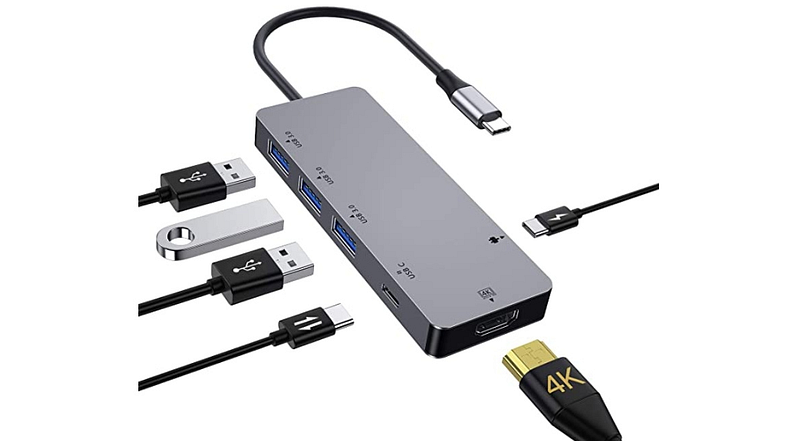
It also allows to connect external USB devices, like a keyboard or mouse, and it provides DC power to the smartphone, which can be important for long work. I also have a “USB switch” that allows switching USB devices between DeX and a “normal” PC by pressing one button:
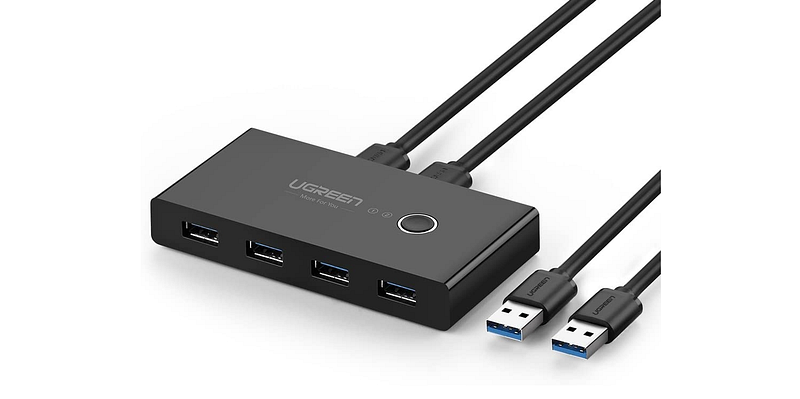
All this allows me to have a complete desktop experience, with a standard full-size USB-keyboard and a mouse. But if somebody wants only to watch a video or make a demo on a big screen, then a solution is much more simple, only the USB-to-HDMI cable is needed:
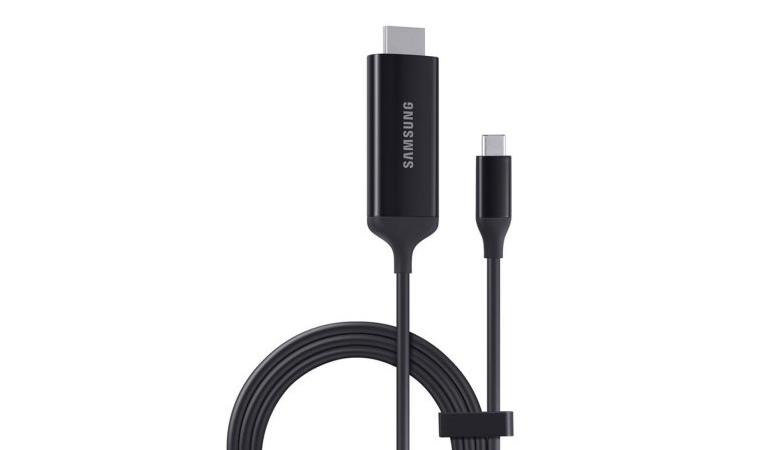
In this mode, there will be obviously no hardware keyboard, but the phone screen can be used as a touchpad. It is also possible to have Wireless DeX if your Smart TV can support it, then no cables required at all.
By the way, this text was fully created on my Samsung phone.
Software
First, we get on the screen, is a desktop UI:
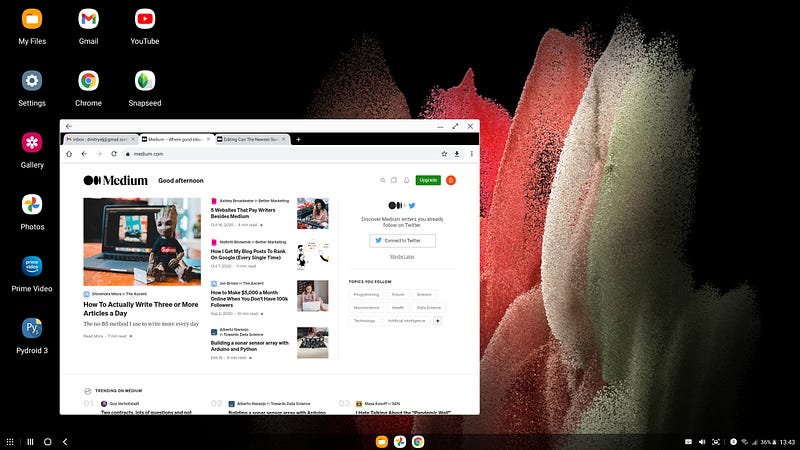
The interesting improvement, compared to the previous version — now the smartphone UI works simultaneously on both screens. I can type text in Google Docs on the big screen and can read Slack messages on the phone at the same time. Another interesting feature is the possibility to use a phone screen as a touchpad.
As for UI in general, we have the Android “under the hood”, so there are no big surprises there. Most of the apps can work natively in desktop mode. Others, like the Fitbit app, can run only in a small “phone-sized” UI:
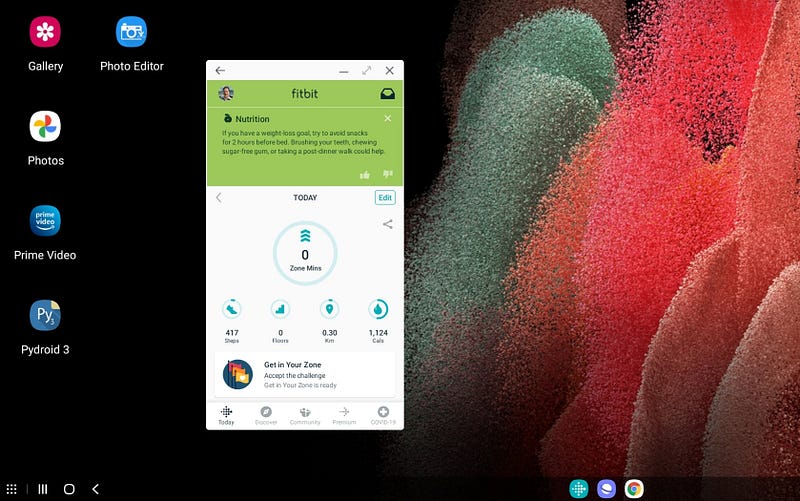
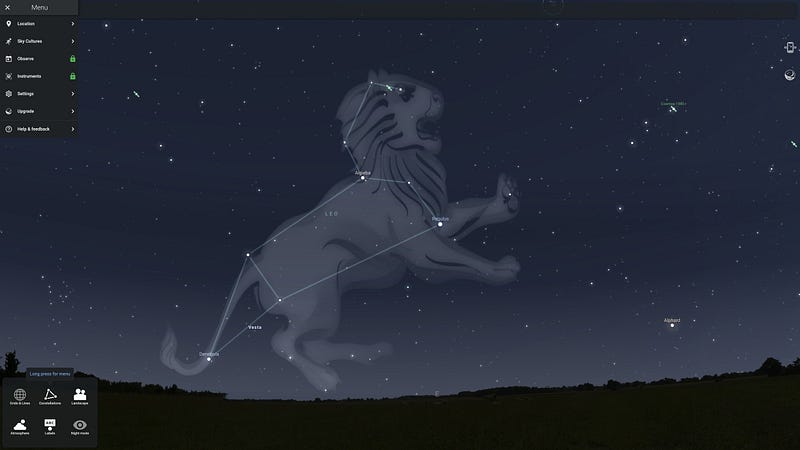
There is an option in settings to force these apps to resize, and most of the times it works. But some apps, like Amazon Kindle, are not working in desktop mode at all. But in general, most of the apps works fine, for instance, this is how the Stellarium Sky Map looks in a full-screen mode:
But there is a big disadvantage here — Android apps are mostly optimized for the small phone screen and finger taps, not for desktop:
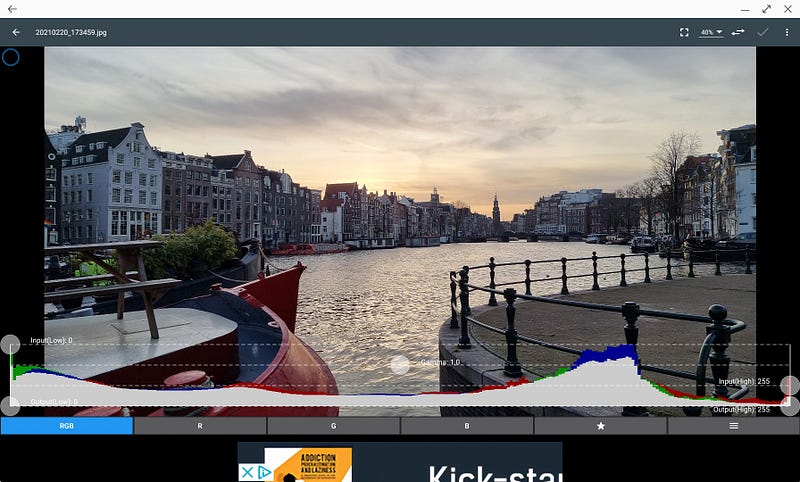
I can imagine that 99% of the programs in the Play Market were never tested with the monitor and mouse connected, so it’s hard to complain about that.
For web-based apps, the situation is much better. Working with texts in Google Docs is perfect:
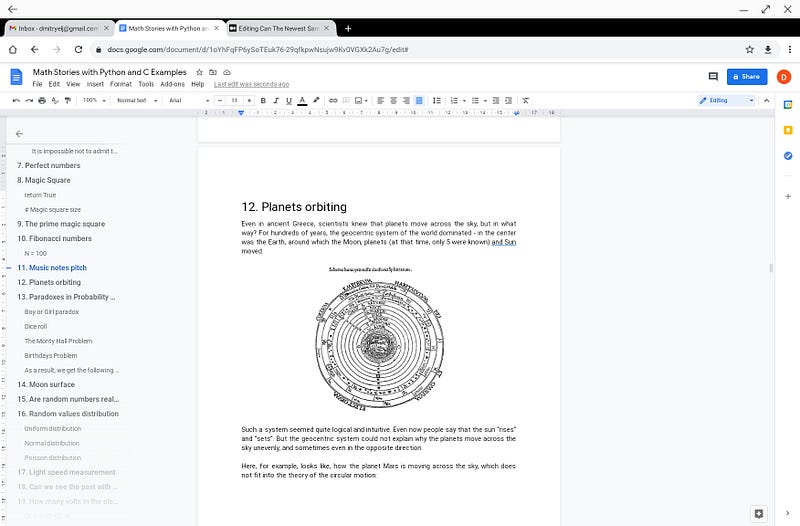
On Samsung S10 it was a bit laggy, especially when editing large documents. On S21 Ultra it’s good, and there are no visible delays at all. The difference is obvious to me, but let’s make more objective tests:
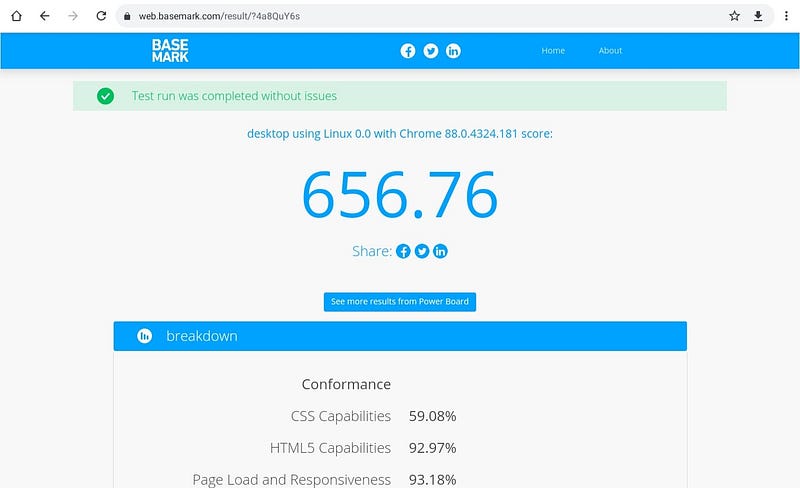
The result is really good. My previous Galaxy S10 phone got only 384 points, and my 1-year-old Microsoft Surface X laptop got 457 points.
Let's test something different. How about programming? Pydroid 3 is a very simple IDE, and definitely not like PyCharm on my PC, but it’s enough for easy or educational tasks. Let’s calculate 10000 signs of PI using Python:
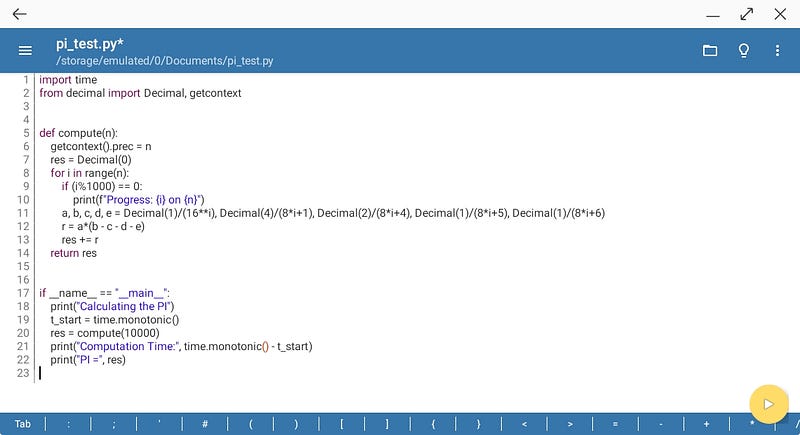
It works, and the calculation took 47 seconds:
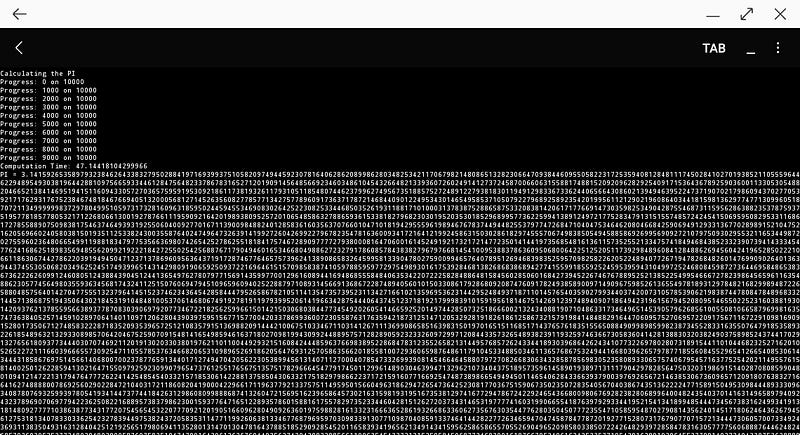
My Core i7 desktop is 3 years old, and it takes 60s for the same calculation! Hmm, this is a weird feeling when my phone is faster than my desktop PC.
Let’s try something more low-level. Termux does the job pretty well, and you get most of the Linux console environment:
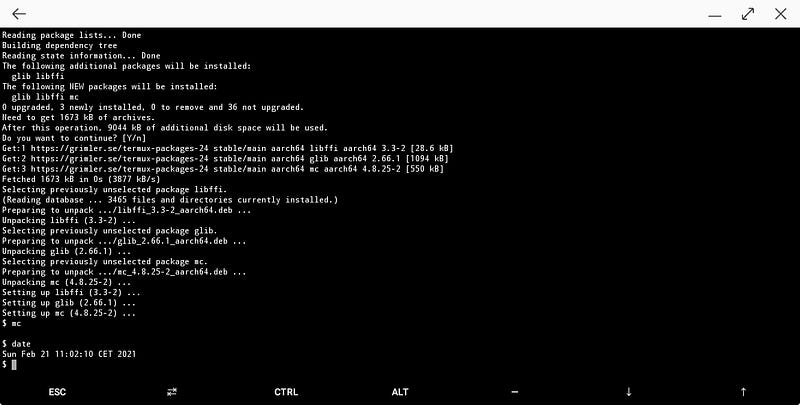
I was able to install the scientific-grade NumPy package for Python:
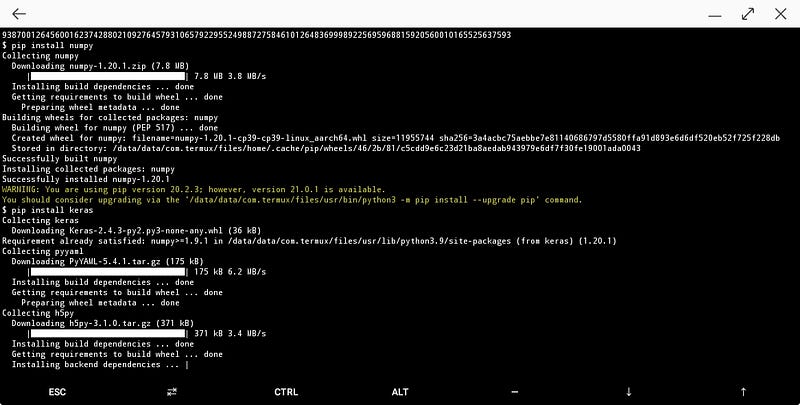
But I was not able to install Keras, some dependencies (LAPACK and BLAS libraries required for scipy) are missing. Maybe it’s possible to build them from source, but it’s out of scope anyway for this article.
The next interesting step was to try full-fledged Linux. Why not? UserLAnd app gives a nice variety of choices:
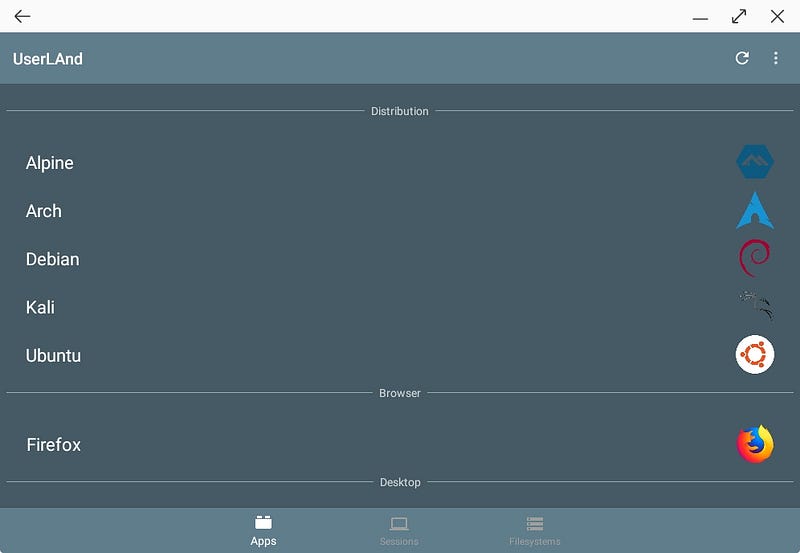
And it really works:
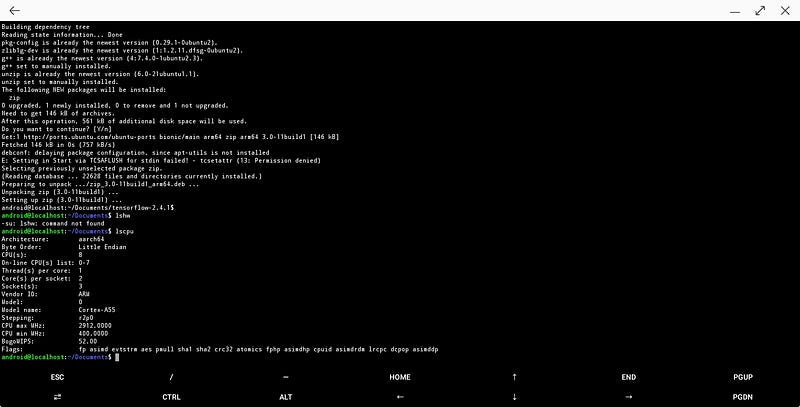
Of course, the hardware access is limited — we are still on the Android phone anyway, and commands like lsusb will not be working, but all other stuff looks just fine.
Entertainment
To be honest, the YouTube app looks absolutely bad on the big screen (and on the S21 phone screen it is not better, by the way). It shows just a simple list, in the style of 10 years old Android UI, without any detailed info, the comments are located somewhere at the bottom of the screen, and so on:
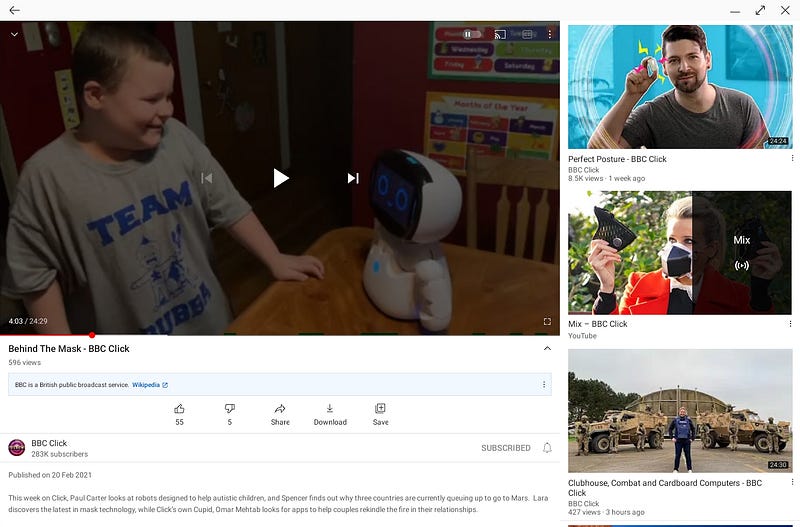
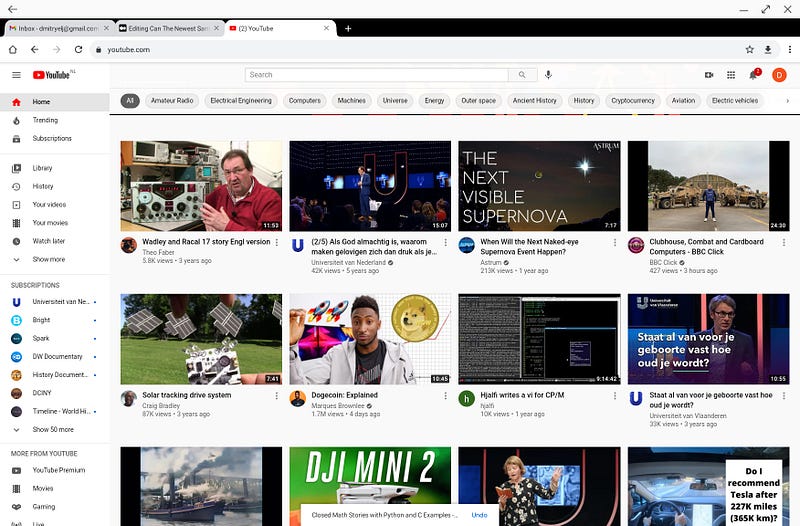
It’s a shame that a company with a so huge budget and so large audience cannot make the normal app. But at least there is no problem to open YouTube in a web browser, and it works fine:
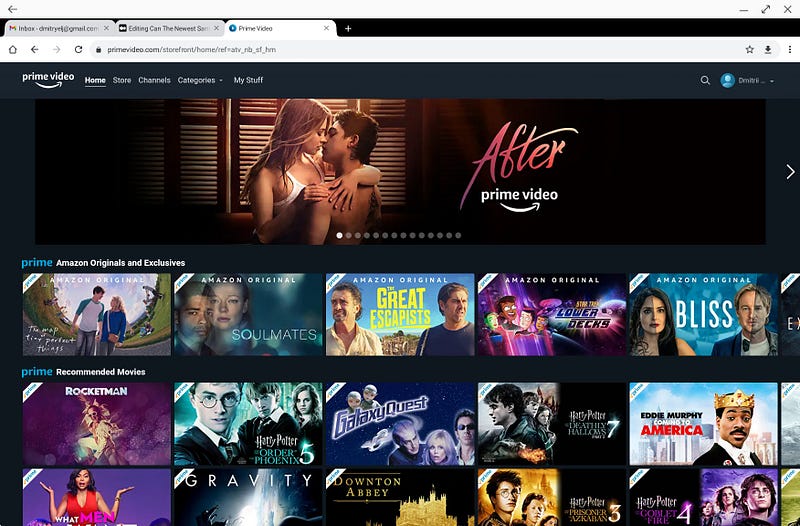
The big advantage comparing to the previous version — the Amazon Prime is now working on DeX:
Earlier, the maximum I was able to get, was this window:
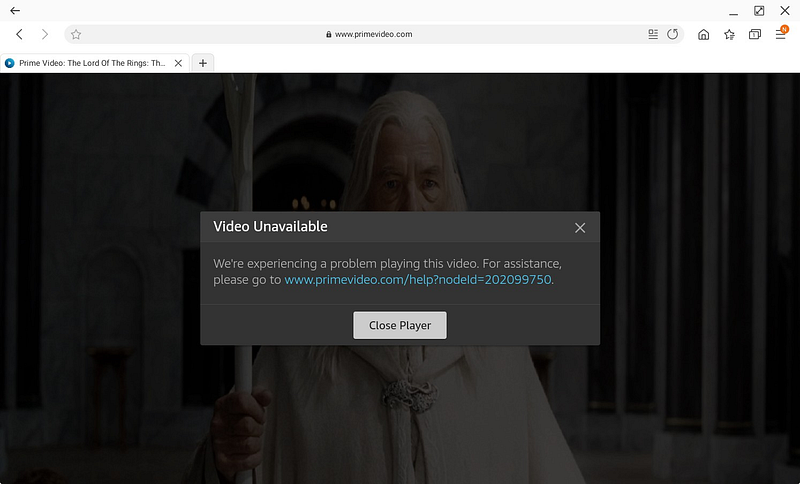
So, it is nice to see that the problem is solved. Some websites, like online TV news, were not working before, it is now also fixed, it looks that a problem with DRM certificates is now gone.
As for the games, I am not a gamer and never played games on a smartphone. The last games I tried, were Doom and Quake, but it was a bit long time ago ;) I installed the Call Of Duty to see how it works:
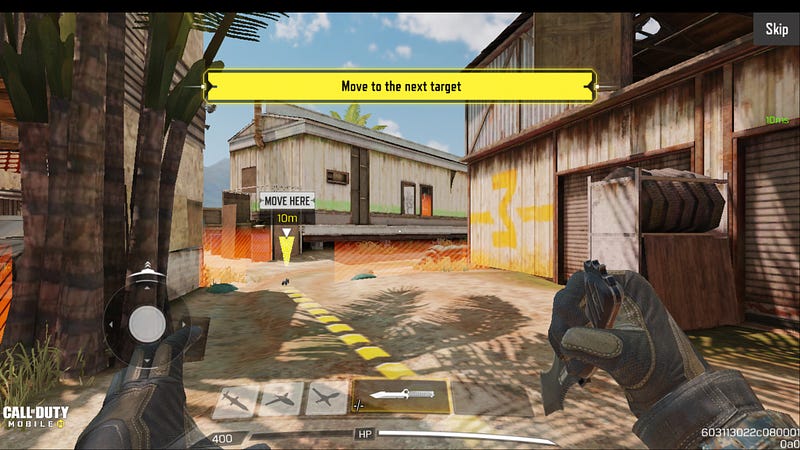
It works, a sort of, but the game controls are on-screen only — I was not able to use the mouse and keyboard keys like WSAD.
The next game, I tried, was the Need For Speed:
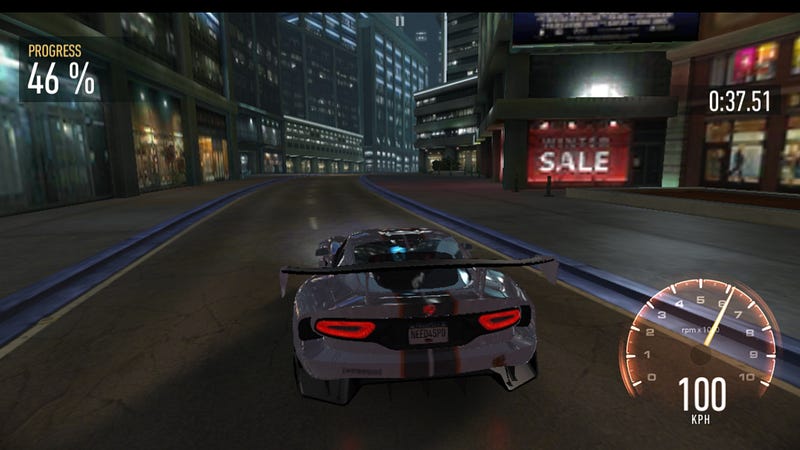
The result was the same: I was able to somehow control the car holding a mouse button, but it was very ineffective and I was the last one in the race. In the “Controls” window there is no ability to select keyboard or mouse:
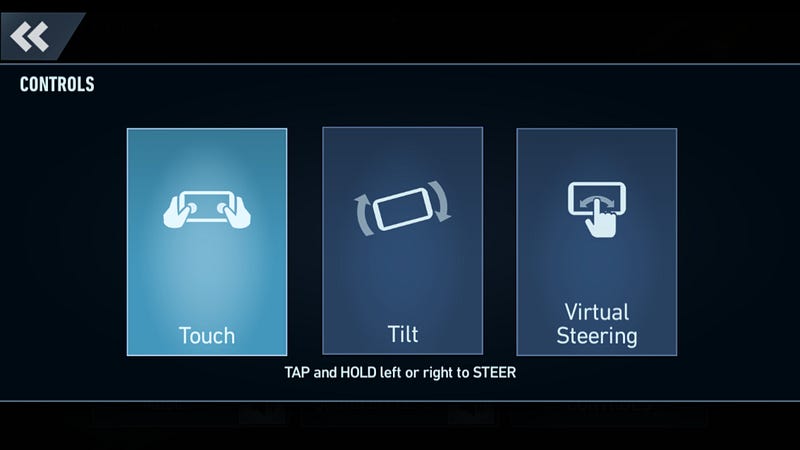
Maybe I missed some hidden settings, but for now, it looks that these Android games are not optimized for “desktop mode” at all. It looks not a priority task for game developers to fully support the desktop mode, the number of users is too small. But more and more smartphones becoming powerful, and maybe it will be changed in the future if more and more people will prefer gaming on a big screen from their phones, who knows. It’s a sort of a chicken and egg problem, from the other side…
Conclusion
Let’s try to get the final answer. Can the S21 Ultra replace the desktop?
Yes and no. From the performance perspective, all works great. The phone is maybe slower than a new PC or laptop of the same price, but it is fast enough not to be annoyed by any lags — all works smooth.
From the software perspective, the situation is much worse. 98% of all Android apps are not optimised for using a big screen, keyboard or mouse. It can be hard to find an IDE for the programming language, a nice image editor, games with desktop support and so on. For web-based applications like Google Docs, all works good, but finding native Android apps that work on a big screen, can be really tricky.
So, I am absolutely not going to use the smartphone for my software development work on a daily basis, it can be possible but will be inefficient. From the other side, for typing the texts like this or for making a demo on the big screen, it works great. At least, on the next vacation, I don’t need to take a laptop with me, S21 and a Bluetooth keyboard can handle most of the tasks good enough, so it can save me 1–2 kg of weight and some space in the luggage.
Thanks for reading.