
Build Custom Interactive Remote Push Notifications in iOS
Create an interactive custom push notification UI to display a video preview with buttons to add and favorite
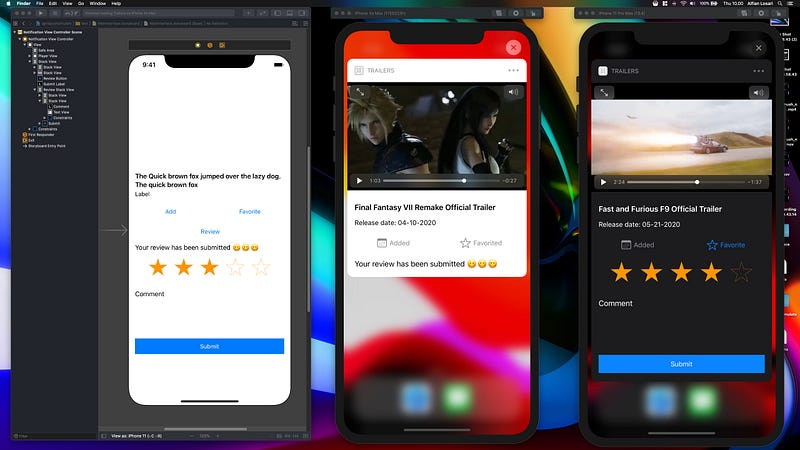
Since iOS 10, Apple has already provided rich notification support for push notification with the introduction of new frameworks, UserNotifications and UserNotificationsUI.
Using these frameworks, we can customize our push notification with abilities such as:
- Customize type and
content/UIof the push notification.
2. Provide custom actions and responses for each of the types of notification.
3. Mutate the content of a received push notification before it is delivered to the user.
4. Customize a custom trigger for the push notification such as in a specific time interval or geographic region.
Besides all this rich notification support, Apple also added new interactive custom UI support in iOS 13. Before, we could only customize the actions for the user to select in an action-sheet like the iPhone UI.
With the interactive notification, we can provide any user interface and interaction that we want in our push notification.
This addition is a real game-changer for push notifications. For example, we can provide controls like a text field, switch, slider, stepper, and any custom control that we want.
Finally, we have the freedom to customize our push notification preview the way we want it to be.
What We Will Build
In this article, we are going to build an interactive custom push notification UI to display a video preview of a trailer with buttons for users to add and favorite them.
Users can also provide ratings using the star and comment using a text field. Here is the list of tasks to do:
- Setup project and dependencies.
- Register push notification permission, type, and category.
- Simulate remote push notifications for testing.
- Set up notification extension target info PLIST.
- Set up UI for the notification content.
- Handle on-receive notification and UI interaction in code.
To simulate a remote push notification in the simulator, you need to download and install Xcode 11.4 beta from the Apple developer website.
Apple Developer
There’s never been a better time to develop for Apple Platforms.
developer.apple.com
You can download the completed project from the GitHub repository below.
Set Up Project and Dependencies
To begin, create a new Xcode project using your unique bundle identifier.
Then, navigate to the project’s signing and capabilities tab. Click on the + Capabilities button and select push notifications from the list. The purpose is to associate the push notification with the App ID of the project.
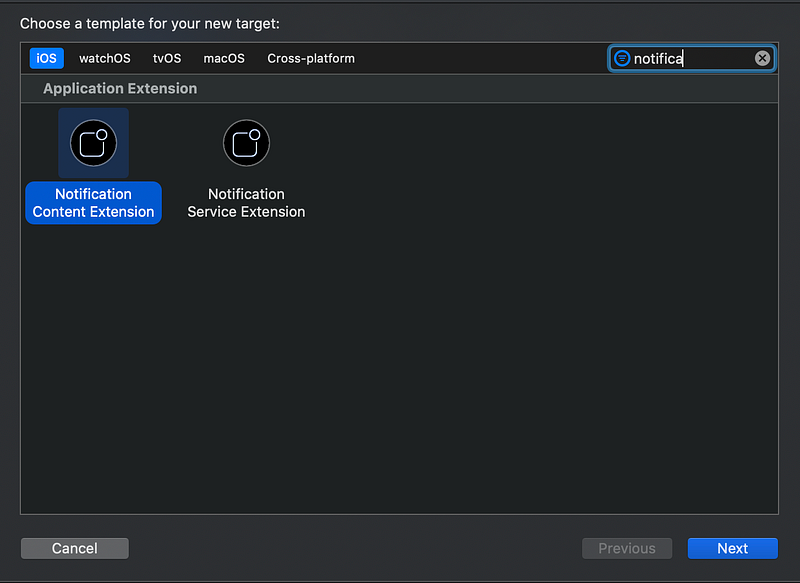
Next, we are going to add a new app extension target for the custom content notification UI. From the menu bar, click on File > New > Target. In the filter text field, type notification.
Finally, select Notification Content Extension from the list. Enter the name and click finish. After that, you can activate the scheme in the alert dialog. Close the project.
Next, we are going to initialize CocoaPods for the project and declare the dependencies.
Using the terminal, navigate to the project folder, and type pod init. After that, open the Podfile using your text editor and add the dependencies to the targets of the app. There are two dependencies to add:
1. XCDYoutubeKit — A library to play YouTube videos using the AVPlayer. (Warning: YouTube’s policy only allows the app to use WebView with iFrame to play videos in-app).
2. Cosmos — A star rating control that we can use in our app.
Run pod install to install all the dependencies to all the targets. Open the project.xcworkspace in your Xcode to begin. Try to build with Command + B to make sure everything is good to go.
Register Permission, Type, and Category for Push Notification
Next, we need to register permission to allow push notifications in our app using the UNUserNotificationCenter.
We add the code to do that in the AppDelegate inside the (_:didFinishLaunchingWithOptions:). Make sure to import the UserNotifications framework at the top of the source file.
Here are the steps to do so:
1. First, we invoke the requestAuthorization, passing the array of authorization options. In this case, we want the alert, badge, and sound.
2. Second, we initialize the UNNotificationCategory, passing the unique category string identifier. In this case, we don’t want to have custom actions, so we pass an empty array.
3. Lastly, we invoke the setNotificationCategories, passing our custom notification category type inside an array.
Simulate Remote Push Notifications for Testing
Xcode 11.4 finally introduced a new feature to simulate remote push notifications locally.
It’s pretty simple to start. We need to create the apns json file containing the payload. We also need to add an additional key beside the aps, which is the Simulator Target Bundle containing the App ID of our app.
The filename extension of the file must use .apns instead of .json. You can take a peek at our sample apns file below.
In this case, we also provide the additional key for videoId and description so we can retrieve the YouTube video URL and display a custom description in the custom UI.
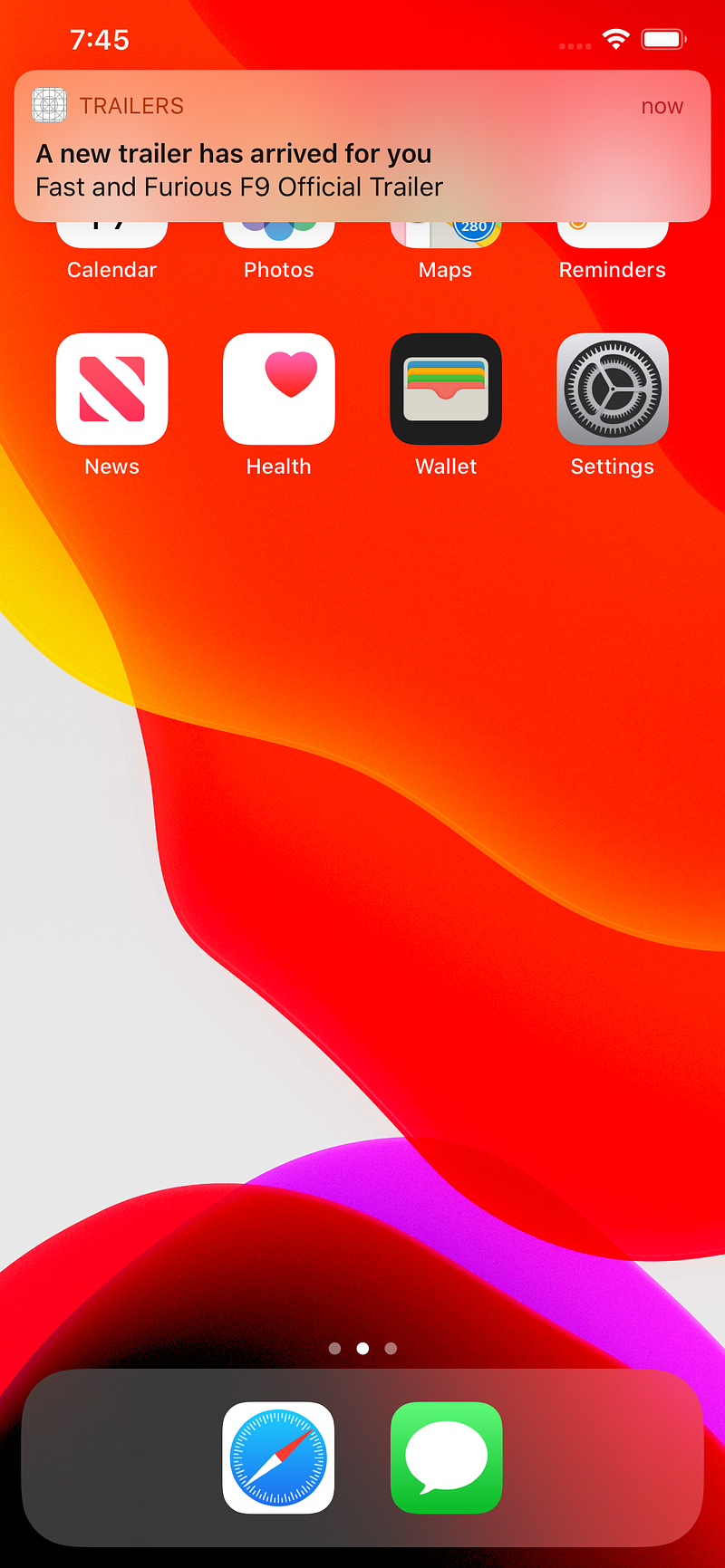
To test the notification, run the app and accept the notification permission. Then, put the app in the background, drag and drop the apns file into the simulator.
Set Up Notification Extension Target Info PLIST
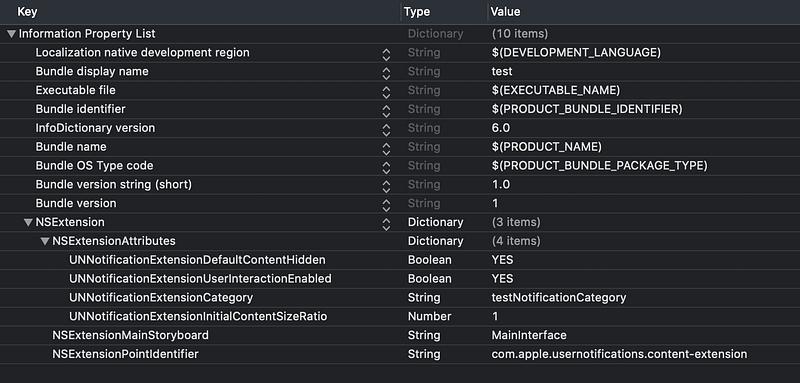
We need to add additional keys to the notification content application extension info.plist. Under the NSExtension > NSExtensionAttributes dictionary, make sure you add all these keys and values:
1. UNNotificationExtensionDefaultContentHidden. This key determines whether to hide the default push notification title and body labels. In our case, we want to hide it so we set the value to NO.
2. UNNotificationExtensionUserInteractionEnabled. This key determines whether to make the UI interactive. We set this to YES.
3. UNNotificationExtensionCategory. We need to set the value of this using the notification type category identifier that we register at the AppDelegate, which is testNotificationCategory.
4. UNNotificationExtensionInitialContentSizeRatio. The initial content size ratio when the preview appears the first time. We set this to default, 1.
Set Up UI for the Notification Content Preview
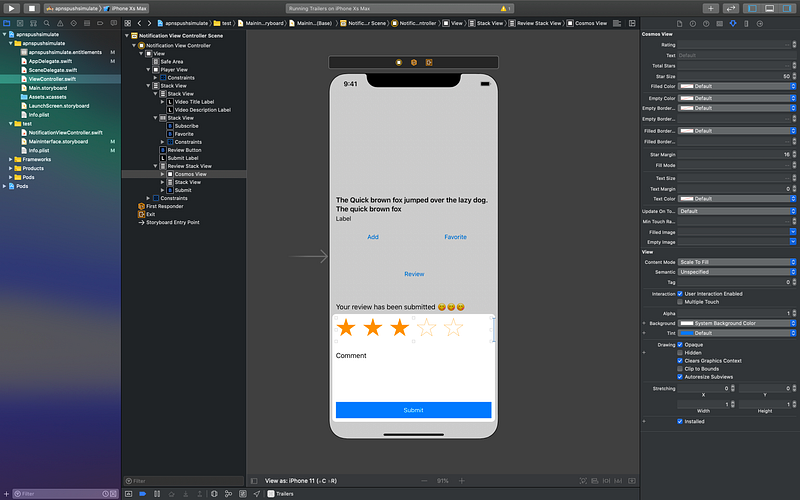
Let’s move to the notification content preview UI. Open the MainInterface.storyboard in the notification extension target. Here are the steps to follow:
1. Drag a view to the View Controller canvas. Add these constraints: Align top, leading, and trailing to Safe Area. Set the height constraints to 240. Rename this view to Player View. This is the video player view that embeds the AVPlayer View.
2. Drag a Stack View to the View Controller below the Player View. Add these constraints: Top Space to Player View with 16. Align leading, trailing, bottom to Safe Area. Set the axis to vertical, alignment and distribution to fill, and set spacing to 16. Rename this to Outer Stack View.
3. Drag a Stack View as a subview of the Outer Stack View. Add two labels inside this Stack View, video title label and video description label. Set the axis to vertical, alignment and distribution to fill, and set spacing to 4. Set the video title label line limit to 2.
4. Drag a Stack View as a subview of the Outer Stack View. Add two buttons inside this Stack View, a subscribe button and a favorite button. Set the axis to horizontal, alignment to fill, distribution to fill equally, and set spacing to 4.
5. Drag a Button as a subview of the Outer Stack View, rename this to Review Button. Set the text to Review.
6. Drag a Label as a subview of the Outer Stack View, rename this to Submit Label. Set the text to Your review has been submitted!
5. Drag a Stack View as a subview of the Outer Stack View. Set the axis to vertical, alignment and distribution to fill, and set spacing to 24. Rename this to Review Stack View.
6. Drag a View as a subview of the Review Stack View. Set the class to CosmosView. In the attribute inspector, set the start margin to 16 and star size to 50. Set the height constraint to 59.
7. Drag a Stack View as a subview of the Review Stack View, below the Cosmos View. Add a label inside this Stack View, comment label, TextView, and Button. Set the axis to vertical, alignment and distribution to fill, and set spacing to 8. Set the height constraint to 100. Make sure to set the Comment label text to comment.
8. Drag a Button as a subview of the Review Stack View at the bottom. Set the text to Submit, and constrain the height to 40.
Handle On-Receive Notification and UI Interaction in Code
Open the NotificationViewController.swift file. There is a NotificationViewController class that subclasses UIViewController and implements the UNNotificationContentExtension.
The didReceive(_:) method is invoked when the push notification arrives, passing the payload. Here is the brief overview of the code handling for the view, properties setup, didReceive, and interaction handler:
1. Import all the required frameworks, AVKit, UserNotifications, UserNotificationsUI, XCYoutubeKit, and Cosmos at the top of the source file.
2. You need to also declare all the properties for labels, buttons, views, and text view.
3. Declare all the @IBAction method handling when the user taps on the respective button. In this case, subscribe, favorite, review, and submit handler.
4. Declare the properties for storing the state of isSubscribed and isFavorited with the property observer. In this case, the text and color of the button change depending on the boolean state.
5. Declare the constants for storing the height of the view. For the sake of this example, I already calculated the possible height when the view is expanded or collapsed.
6. In viewDidLoad, set up the initial view state of buttons and stack views. The Review Stack View and Submit Label are hidden; the first time view appears.
7. In the didReceive, we retrieve the content and set the text of the labels for the title and description. Also, we get the videoID and use the XCDYouTubeClient to get the video URL passing the identifier.
8. After we successfully retrieve the URL, initialize AVPlayerViewController with the URL, embed the view inside the “Player View” container view, and play the content.
9. When the user taps on the review button, unhide the Review Stack View. When they tap on the submit button, hide the Review Stack View and show the submit label. For subscribing and favoriting, toggle the property to update the text and color of the buttons.
Before building and running it, make sure to connect all the @IBOutlets and @IBActions from the Storyboard to the code.
To test, just drag and drop the apns file to the simulator, make sure to use the correct App ID. You can try to play with the videoId value of the file by using your video identifier.
You can retrieve this from the URL parameters of the YouTube video in the browser address bar.
Conclusion
That’s it! Congrats on your achievement in building a custom interactive push notification UI. There are many possibilities and use cases that you can explore using this new capability.
To handle sharing data between the main app and extension target, you need to create an app group id. Then, you can initialize shared UserDefaults to store and retrieve local data.
You can explore more about the UserNotifications framework in the Apple documentation.
Let’s keep life-long learning going!


