
Building a Responsive Header Component with React and react-type-animation
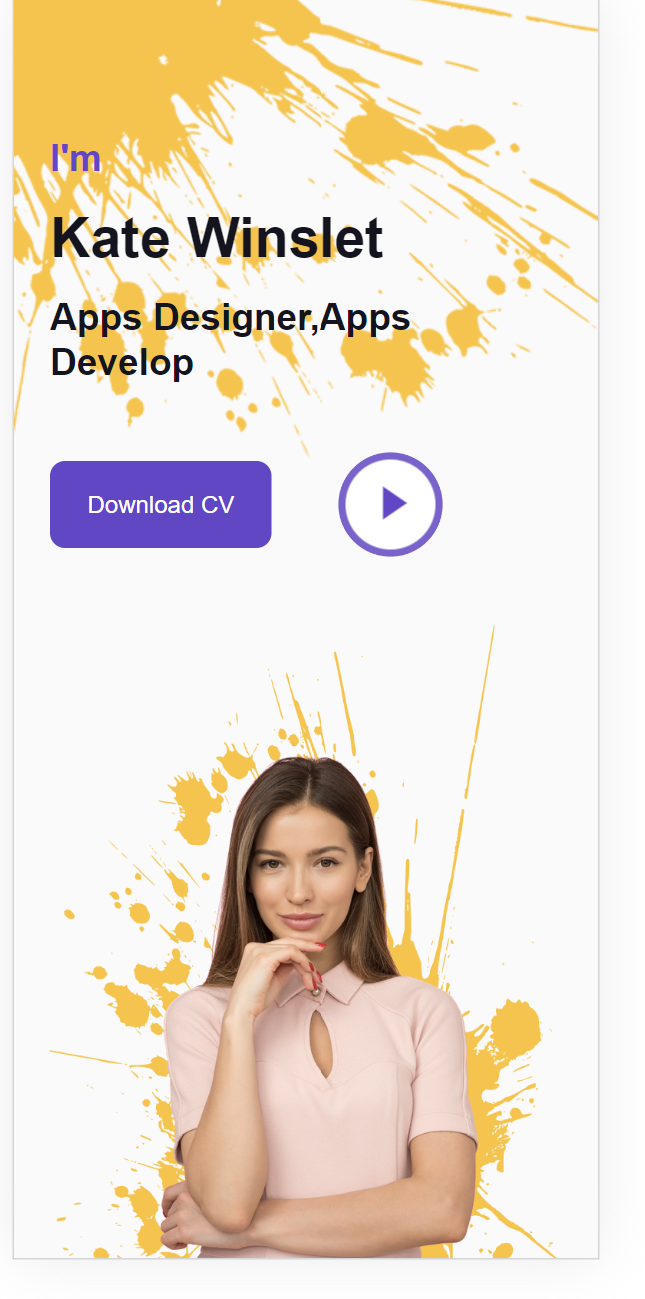
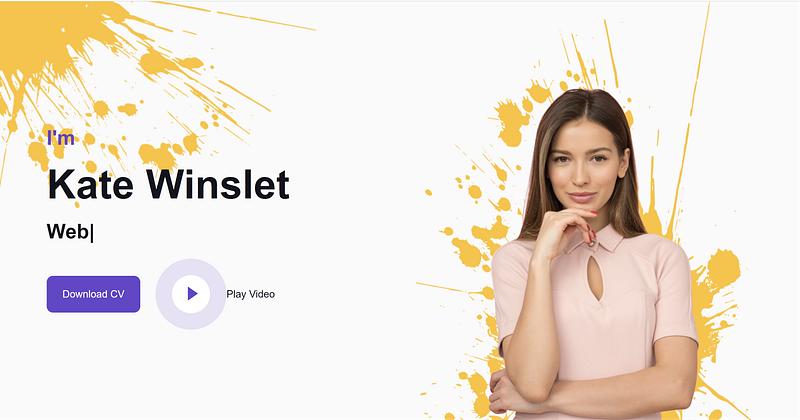
In this tutorial, we’ll create a responsive header component using React. The application includes the Header and App components, integration files, and custom styling. We'll also add the installation part for react-type-animation.
Getting Started
Before we start, let’s install the necessary package for react-type-animation.
# Using npm
npm install react-type-animation
# Using yarn
yarn add react-type-animation
Now, let’s proceed with the implementation.
header.jsx - Creating a Responsive Header Component
The header.jsx file contains the Header component, which includes a dynamic header with an introduction, a typed animation, and download CV and play video buttons.
import React from "react";
import { TypeAnimation } from "react-type-animation";
const Header = () => {
return (
<React.Fragment>
<div className="container-fluid bg-light my-6 mt-0" id="home">
<div className="container">
<div className="row g-5 align-items-center">
<div className="col-lg-6 py-6 pb-0 pt-lg-0">
<h3 className="text-primary h2 mb-3 ">I'm</h3>
<h1 className="display-3 mb-3">Kate Winslet</h1>
<h2 className="typed-text-output d-inline" />
<TypeAnimation
sequence={[
// Same substring at the start will only be typed once, initially
"Web Designer,",
1000,
"Web Developer,",
1000,
"Front End Developer,",
1000,
"Apps Designer,Apps Developer",
1000,
,
]}
className="h2"
speed={50}
repeat={Infinity}
/>
<div className="d-flex align-items-center pt-5">
<a href="" className="btn btn-primary py-3 px-4 me-5">
Download CV
</a>
<button
type="button"
className="btn-play"
data-bs-toggle="modal"
data-src="https://www.youtube.com/embed/DWRcNpR6Kdc"
data-bs-target="#videoModal"
>
<span />
</button>
<h5 className="ms-4 mb-0 d-none d-sm-block">Play Video</h5>
</div>
</div>
<div className="col-lg-6">
<img
className="img-fluid"
src="https://i.imgur.com/XxANu5A.png"
alt=""
/>
</div>
</div>
</div>
</div>
</React.Fragment>
);
};
export default Header;app.jsx - Integrating the Header Component
The app.jsx file serves as the entry point, importing and rendering the Header component.
import './App.css';
import Header from './components/Header';

export default function App() {
  return (
    <>
      <Header />
    </>
  );
}
Styling with app.css
The app.css file contains custom styles to enhance the visual appeal of the application.
/********** Template CSS **********/
:root {
  --primary: #6244c5;
  --secondary: #ffc448;
  --light: #fafafb;
  --dark: #12141d;
}

.back-to-top {
  position: fixed;
  display: none;
  right: 45px;
  bottom: 45px;
  z-index: 99;
}

.my-6 {
  margin-top: 6rem;
  margin-bottom: 6rem;
}

.py-6 {
  padding-top: 6rem;
  padding-bottom: 6rem;
}

/*** Header ***/
#home {
  margin-bottom: 6rem;
  background: url('https://i.imgur.com/rXtr1Rc.png') left top no-repeat;
}

.typed-cursor {
  font-size: 30px;
  color: var(--dark);
}

.btn-play {
  position: relative;
  display: block;
  box-sizing: content-box;
  width: 16px;
  height: 26px;
  border-radius: 100%;
  border: none;
  outline: none !important;
  padding: 18px 20px 20px 28px;
  background: var(--primary);
}

.btn-play:before {
  content: '';
  position: absolute;
  z-index: 0;
  left: 50%;
  top: 50%;
  transform: translateX(-50%) translateY(-50%);
  display: block;
  width: 60px;
  height: 60px;
  background: var(--primary);
  border-radius: 100%;
  animation: pulse-border 1500ms ease-out infinite;
}

.btn-play:after {
  content: '';
  position: absolute;
  z-index: 1;
  left: 50%;
  top: 50%;
  transform: translateX(-50%) translateY(-50%);
  display: block;
  width: 60px;
  height: 60px;
  background: #ffffff;
  border-radius: 100%;
  transition: all 200ms;
}

.btn-play span {
  display: block;
  position: relative;
  z-index: 3;
  width: 0;
  height: 0;
  left: -1px;
  border-left: 16px solid var(--primary);
  border-top: 11px solid transparent;
  border-bottom: 11px solid transparent;
}

@keyframes pulse-border {
  0% {
    transform: translateX(-50%) translateY(-50%) translateZ(0) scale(1);
    opacity: 1;
  }

  100% {
    transform: translateX(-50%) translateY(-50%) translateZ(0) scale(2);
    opacity: 0;
  }
}

.modal-video .modal-dialog {
  position: relative;
  max-width: 800px;
  margin: 60px auto 0 auto;
}

.modal-video .modal-body {
  position: relative;
  padding: 0px;
}

.modal-video .close {
  position: absolute;
  width: 30px;
  height: 30px;
  right: 0px;
  top: -30px;
  z-index: 999;
  font-size: 30px;
  font-weight: normal;
  color: #ffffff;
  background: #000000;
  opacity: 1;
}
main.jsx - Rendering the App Component
The main.jsx file renders the App component into the root element of the HTML document.
import 'bootstrap/dist/css/bootstrap.css';
import React from 'react';
import ReactDOM from 'react-dom/client';
import App from './App.jsx';
import './custom.scss';
import './index.css';

ReactDOM.createRoot(document.getElementById('root')).render(
  <React.StrictMode>
    <App />
  </React.StrictMode>
);
Conclusion
By following this guide, you’ve created a responsive header component using React. Feel free to customize the code according to your specific design requirements. If you have any questions or need further assistance, please let me know!
Live Demo
Check out the Live Demo to experience the responsive header component in action.


