
Building a Plex Media Server with a Raspberry Pi

One of the main uses I make of my Raspberry Pi is to stream movies stored on it. With the right setup, it’s even possible to watch your movies without being on the same network as your Raspberry Pi.
I use Plex, so I’m only going to talk about Plex today. But you should know that there are alternatives like Emby or Jellyfin that work just as well.
What is Plex?
First of all, you need to know which Plex you’re talking about. There’s Plex media server, which turns your machine into a server for playing your content, be it videos, photos, or music, and Plex client, which acts as the interface between your media server and your device. For example, if you want to access your Plex server from your phone, all you have to do is download the Plex application and connect to your server: that’s a client.
This article will focus on Plex media server.
Installing Plex
There are many ways to install Plex. The easiest way is from Ubuntu Desktop, as you can install it simply without the command line. But I’m not going to talk about that because most of the time on Raspberry Pi, the OS you’re using is Raspbian.
On Raspbian, you can either install Plex with all the necessary dependencies and repository or via Docker. I recommend using Docker, as it’s the simplest way and lets you encapsulate your applications so you can easily start, stop or delete them.
The first step is to install Docker. I won’t go into detail here, but if you don’t know Docker or haven’t already installed it, you’ll find what you need in Docker’s documentation.
Then there’s Docker Compose. This is a plugin that lets you easily run multiple Docker containers together. The steps you need to follow to install it can be found here: Installing Docker Compose.
Once Docker and Docker Compose have been installed, you can install Plex. Create a folder that you can call anything, such as “plex-compose”.
Create a docker-compose.yml file in this folder, and paste the following content into it:
---
version: "2.1"
services:
 plex:
 image: lscr.io/linuxserver/plex:latest
 container_name: plex
 network_mode: host
 environment:
 - PUID=1000
 - PGID=1000
 - TZ=Etc/UTC
 - VERSION=docker
 - PLEX_CLAIM=
 volumes:
 - /path/to/library:/config
 - /path/to/tvseries:/tv
 - /path/to/movies:/movies
 restart: unless-stopped
To obtain your Plex claim, go to https://www.plex.tv/, login, and then access https://plex.tv/claim. Copy the claim code and put its value in the text you’ve just copied.
You can also modify the volumes to match your setup. For example, you can replace /path/to/library with /home/user/plex, and /path/to/movies with /home/user/movies, depending on where your movies are stored.
Finally, modify PUID and PGID to suit your setup. They enable you to map the user inside the container to a user on your Raspberry Pi. So, depending on the permissions linked to the location where you store your media, you may need to modify the PUID and PGID.
Once your file has been created and filled in correctly, you can run the docker compose up -dcommand to create and start your container.
Configuring Plex
Start by accessing Plex, either from your Raspberry Pi or from another machine. To access it, simply go to http://localhost:32400 if you’re on your Raspberry Pi, or http://RASPBERRY_PI_IP:32400 if you’re not. If you don’t know your IP, run the command hostname -I.
You should arrive on the Plex login page. Then simply log in and complete the configuration wizard.
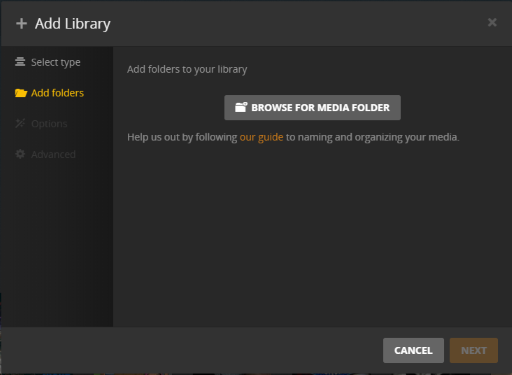
You’ll also need to add libraries. To do this, create a library, then simply select the volumes you’ve mapped to your Docker container. For example, create a “Movies” library and map it to /movies.
If you ever need other volumes, you’ll need to edit your container. To do this, delete it with docker compose down, add the volume you need to the docker-compose.yml file, and run docker compose up -d
again.
When you add libraries, Plex will scan your folders and your media should appear. Then you can test whether everything works by trying to read your media!
Troubleshooting
In 99% of cases, if something doesn’t work properly, it’s because of a permissions problem. Check which users have access to the folders you’ve mapped to your container. To do this, use the ls -ld directorycommand.
Then modify your PUID and PGID accordingly.
Final Note
Setting up Plex is relatively easy with Docker. That’s why I’ve explained this way of installing Plex. If it doesn’t work for you, or if you can’t run Docker, there are many other ways you can try.
Now, I hope you have a working media server!
Thanks for reading! Here are some links that may interest you:


