
Building A DIY NAS With A Raspberry Pi
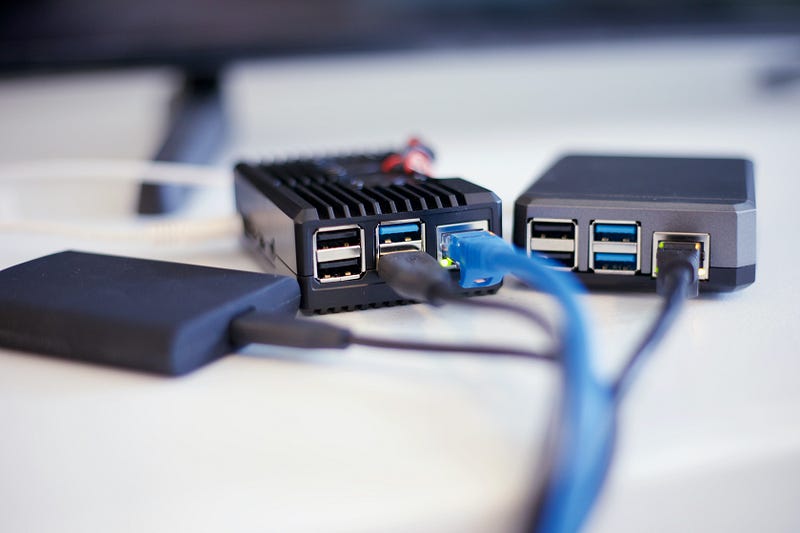
Recently, I was able to buy two new 8GO Raspberry Pi. This gave me the opportunity to improve my homeserv a little by integrating NAS functionality. I’m going to explain how to do this, and you’ll see how simple it is!
What is a NAS?
A NAS (Network-attached storage) is a simple storage device that can be connected either to a private network, or to a corporate network.
It enables you to back up, share and secure your files, as well as facilitate access to them from multiple devices. It’s a practical asset for making teamwork more efficient, or for sharing photos and videos more easily between family members.
In fact, it’s a centralized storage system that you and any other users with access rights can access anywhere, provided you’ve configured it correctly.
What You Need to Build a NAS With a Raspberry Pi
First, you need a Raspberry Pi (obviously). Regardless of model or RAM, a simple NAS doesn’t require much power. However, if you want to install other useful applications, such as a multimedia server, you’ll need at least 4GB of RAM and a good processor. Of course, you’ll also need a micro SD card and a power supply.
You’ll also need at least one hard disk. Maybe more, depending on how you want to back up your data. Depending on the number of disks you use, you may also need a powered USB hub, as the Raspberry Pi’s power supply allows you to power only the Raspberry and one hard disk. With more than two hard disks, you’ll have crashes without an external power supply.
As for the type of hard disk, you can use simple USB external hard disks. It’s also possible to connect hard disks via SATA to the Raspberry Pi, but you’ll need an add-on module (like this one), which I won’t go into here.
Finally, there’s some optional but very useful hardware, such as an ethernet cable for optimum connection, a case to protect the Raspberry Pi, a small fan (although the Raspbery Pi generally doesn’t have problems with overheating, and most cases incorporate a fan anyway).
Setting up the NAS
There are several ways to create a NAS with the Raspberry Pi. The simplest is simply to create a folder and share it over the network. Then, if you want to complicate things, but also add more advanced features to your NAS, you can use software like MergerFS and SnapRaid to set up RAID. Alternatively, you can simply install a Linux distribution specifically used for NAS, such as OpenMediaVault, which lets you manage all this quite easily.
I’ll explain how to setup Samba, and then how to setup OpenMediaVault (you don’t need both Samba and OpenMediaVault but I’ll explain the two ways), however, I won’t talk about MergerFS and SnapRaid because I never used them and don’t know how to configure them properly.
Setting up Samba
Samba is a program that lets you share folders over a network. To install it on the Raspberry Pi, we start by updating our packages:
sudo apt-get update
sudo apt-get upgrade
Then you can install Samba:
sudo apt-get install samba samba-common-binAnd that’s it! But that’s not all, we still need to configure Samba.
Start by creating a folder where you want to share it over the network (or you can use an existing folder). Note, however, that you must have access rights to the folder you’re sharing. For my NAS, I created a storage folder in /mnt, and changed its rights with sudo chown pi:pi /mnt/storage .
Then, open /etc/samba/smb.conf with your favorite text editor:
sudo vim /etc/samba/smb.confHere’s what a Samba share configuration looks like:
[share]
path = /path/to/share
writeable=yes
create mask=0777 # define permissions when a file is created
directory mask=0777 # define permissions when a directory is created
public=no
valid users=@usera,@userb
For me, it is:
[pinas]
path = /mnt/storage
writeable=yes
create mask=0777
directory mask=0777
public=no
Now, you can save your file. Now, let’s create an user for our share:
sudo smbpasswd -a piYou’ll be prompted to create a password. Keep this password in mind.
Now, you have to restart the Samba service to update its configuration:
sudo systemctl restart smbdMake sure your Raspberry Pi is connected to internet, and you’ll be able to connect to this share.
If you’re on Windows, you’ll find your share in the network discovery. If you don’t find it, you can just type the ip of your pi and the name of your share to access it:
\\123.123.123.123\shareIf you don’t know the IP of your Raspberry Pi, run hostname -I .
Setting up OpenMediaVault
If you want to configure your NAS without the headache, OpenMediaVault is the ideal solution, as it unifies several solutions under a simple interface accessible to anyone.
The easiest way to install OpenMediaVault is to use an image available in Raspberry Pi Imager. However, this is not ideal if you already have a Raspberry Pi in use. In this case, if your distribution is based on Debian, you can install OpenMediaVault this way:
wget -O - https://raw.githubusercontent.com/OpenMediaVault-Plugin-Developers/installScript/master/install | sudo bashThen you can reboot your Raspberry Pi to finalize the installation:
sudo rebootOnce your Raspberry Pi has rebooted, you can access OpenMediaVault by typing the IP of your Raspberry Pi into a web browser.
The login form will be displayed, and you’ll need to type in the default credentials:
login: admin
password: openmediavault
You will then have access to the complete interface. The dashboard needs to be configured, but you’ll find a left-hand menu with all the features included in OpenMediaVault.
The aim here is not to give you a detailed guide on how to use OpenMediaVault, explaining the options available in the interface. Rather, I want to guide you through the first steps, whatever your exact project.
Changing Admin Password
For security reasons, it’s always a good idea to change the default credentials as soon as possible after installation. Even if it’s just a small server at home, the default passwords will be tested directly if anyone finds out you’re using OpenMediaVault or a Raspberry Pi.
Simply click on the settings icon in the top left-hand corner and click on “Change Password”.
By default, the home page is empty, and a message tells you what to do: “The dashboard has not yet been configured. To customize it, please go to the settings page.”
Dashboard Configuration
Simply click on the link to configure the widgets you wish to add to this page. It’s really well done, and you’ll be able to get a quick overview of hardware usage (CPU, memory, network) and your current configuration (enabled services, shares, file systems, etc.).
For some of them, you can choose between “table” and “grid”. Choose one — it’s simply a different design. Grids have colors and graphics, while tables are more traditional.
Mounting Storage
The serious part starts when you try to add your storage disks. This was the case a few years ago when I first tried OpenMediaVault, but I find it not very intuitive. The interface helps, but there are several steps and if you forget a step, it won’t work.
First of all, make sure your disk is detected. Go to Storage > Disks to see the list.
Optional: Switch to RAID management if you have several disks and want extra security. For example, if you have two disks, you can set up a mirror, so that if one disk is corrupted, the other will save your life (and especially the files stored on it). This is a particularly complicated step to perform from the command line, which is why it’s a good idea to use an interface like this one.
Next, format your disk with EXT4: go to Storage > File Systems and click on “Create”. You may need to mount it first. Choose your device (/dev/sda in my case) and file system (EXT4 works fine).
Your First Share
This is where I got a little lost in the process, as there are several places in the left-hand menu to configure the “share” folder:
- In Storage > Shared folders: you create a folder and can give it permissions for your users. But this doesn’t mean you can access it from another computer. It’s only a local folder.
- In Services > SMB/CIFS > Shares: this is where you set up a shared folder, which can be accessed from another computer.
Start by creating a new folder in Storage > Shared folders. Define a name (“share” or similar), select the partition you’ve just created (/dev/sda1 in my case), and choose the default permissions. This is just for local access, so it doesn’t really matter at the moment.
Next, go to Services > SMB/CIFS. In the “Settings” submenu, check that the service is enabled. If not, check the “Enabled” box and click Save.
You can now open the “Shares” submenu, and create the shared folder. The form may seem complicated, but you can keep the default values in most cases. Select the shared folder created in the previous step, and everything else is optional. Simply change what applies to you.
If you prefer not to worry about passwords and user authorizations, set the “Public” field to “Guests allowed”.
Once all steps have been completed, the new folder is listed under Services > SMB/CIFS > Shares. And you can now access you share with \\ipaddressofyourpi.
Manage Access Rights
It is advisable to use users and groups to manage permissions on your share folders:
- Create a different group for each access level. Maybe it’s “admins” and “users”. Or maybe it’s one group per shared folder. Find out what’s best for your project. For a simple home share, a group named “acces_partage” may be sufficient to explicitly configure who can access the shared folder. Go to Users > Groups to create the corresponding group(s).
- Next, create a user for each person. In general, you’ll create one username for each individual, but you can have several if you have scripts or applications that connect to this device (a backup service, for example). Go to Users > Users to create the corresponding user(s). Make sure you add them to the correct groups you created earlier.
Once you’ve created at least one user and one group for yourself, we can move on to configuring shared folder permissions:
- Go back to “Groups” and select the group to which you want to give access to your shared folder.
- Click on the privileges icon in the top bar
- You can now choose the permissions to be given for each shared folder you’ve created
- Read/Write: full access to the files in this folder.
- Read only: can open all files, but not modify them.
- No access: cannot open any files.
You can do the same in the Users submenu. However, it’s generally preferable to use groups so that this works directly when you add new users to this group in the future.
And that’s all! For more information, you can check OpenMediaVault’s documentation.
Final Note
As you can see, there are two main ways of setting up a Raspberry Pi NAS. The most user-friendly being with OpenMediaVault. A vous de choisir une solution adaptée en fonction de vos besoins et de vos compétences! Pour ma part, je n’utilise pas OpenMediaVault car j’aime tout configurer moi même et comme je le souhaite.
Thanks for reading! Here are some links that may interest you:


