
Building a web service to display your Medium posts on your site
Using the AWS API Gateway and Lambda

🕙 It was 10'0clock at night and I was trying to display my latest Medium posts on my own website using Medium’s API. Well …that was my first mistake.
One would think a site like Medium would have the basic functionality of retrieving my own posts using their API, but the sad reality is that the functionality just doesn’t exist…at least not yet.
Medium’s API does allow posting to your account, but retrieving your latest post is reserved for your RSS feed that can be found at medium.com/feed/@username, but I wanted to access the actual content directly from Medium using JSON (without parsing XML).
Finding your JSON feed
The first step is to find the URL for your JSON feed. Luckily, this is pretty easy as it can be found at: https://medium.com/@username/latest?format=json
Great, now what? We can’t just use this feed in an Ajax call for a couple of reasons. One, Medium adds some extra content at the beginning to prevent JSON hacking (])}while(1);</x>) and second, they don’t allow cross-domain calls. Basically it’s a CORS issue.
Now if you’re building a site with PHP or Ruby-on-Rails, you can most likely make a call to this URL and return the value back as formatted JSON and do with it as you want.
However, if you are attempting to implement this via jQuery or JavaScript (or in my case, AngularJS) then you need to build an API Gateway that can handle this process.
Using AWS Lambda
As I mentioned, PHP or Ruby-on-Rails could be used for this, but since I am not implementing either, it would have been overkill for what I was trying to implement.
Here enters Amazon Web Services (please note, while AWS offers a free account for 1 year, it is a paid service).
AWS Lambda offers a way to build dynamic, serverless functions that can interact with databases, APIs, and more.
Using Lambda, we’ll set up a basic function using Node.js that takes the URL to our JSON feed and returns a formatted JSON object that can be retrieved by the API gateway we’ll set up in a bit.
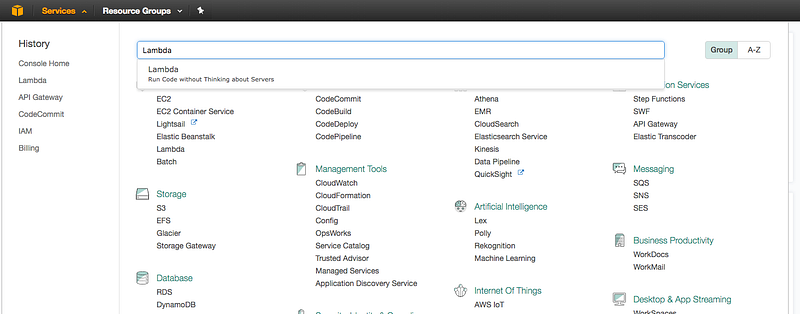
Once you are signed-up or logged-in to AWS, go to the Lambda section.
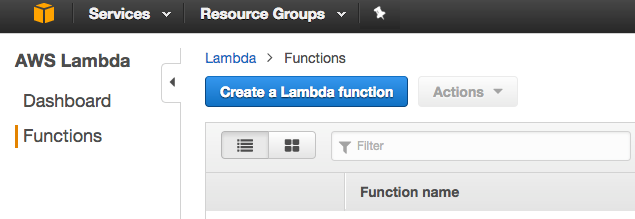
You will see Dashboard and Functions in the sidebar. Make sure to select Functions and then click “Create a Lambda function”.
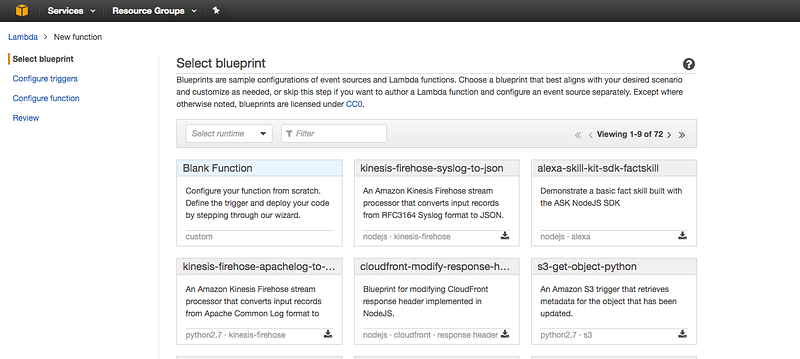
On the next screen you will see “Select blueprint”. Select blank function.
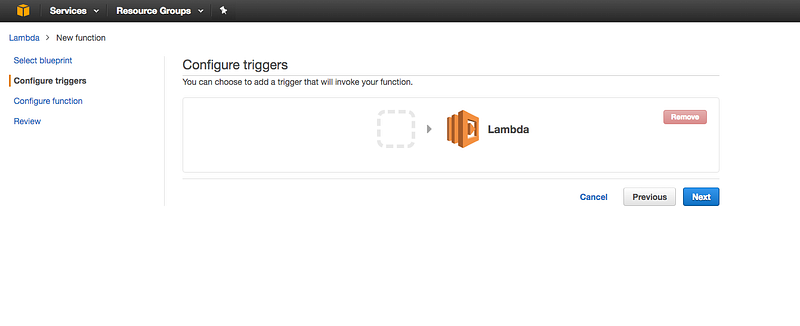
On the next screen you will see “Configure triggers”. Just click next.
On the next screen you will see “Configure function”.
Here we will add our Function name, which can be anything you want. I have named it MediumJSONParser. You will also need to download this Lambda function.
For complete instructions on setup and install of the Lambda function, please visit this GitHub repository.
Once you have the function downloaded, make sure to run an npm install request to install the required lib dependencies (run that from the root of the download folder). Zip this complete package/folder and upload it as the function package under “Lambda function code”.
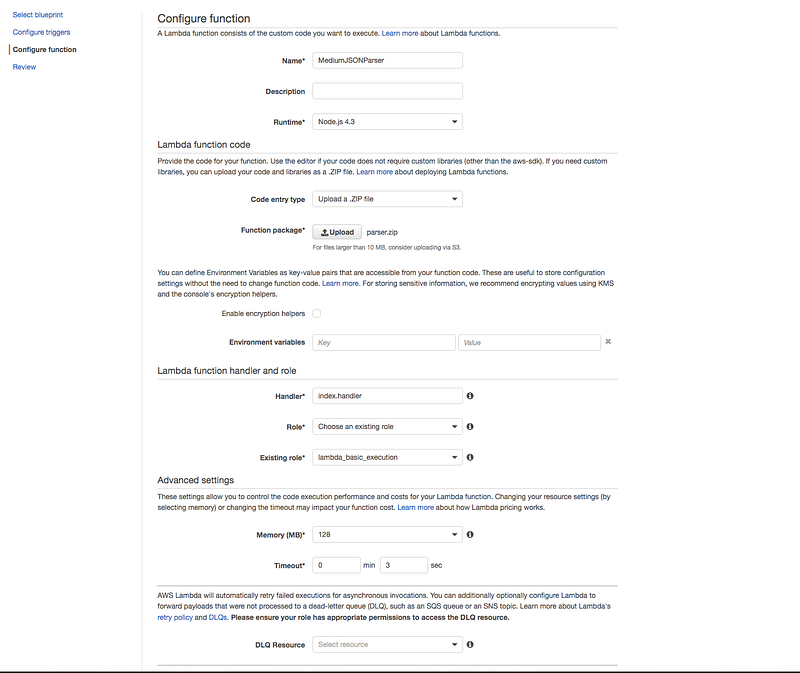
You will also need to select the “Lambda function role”. I generally select Choose an existing role and select lambda_basic_execution. But it could be anything that has permissions.
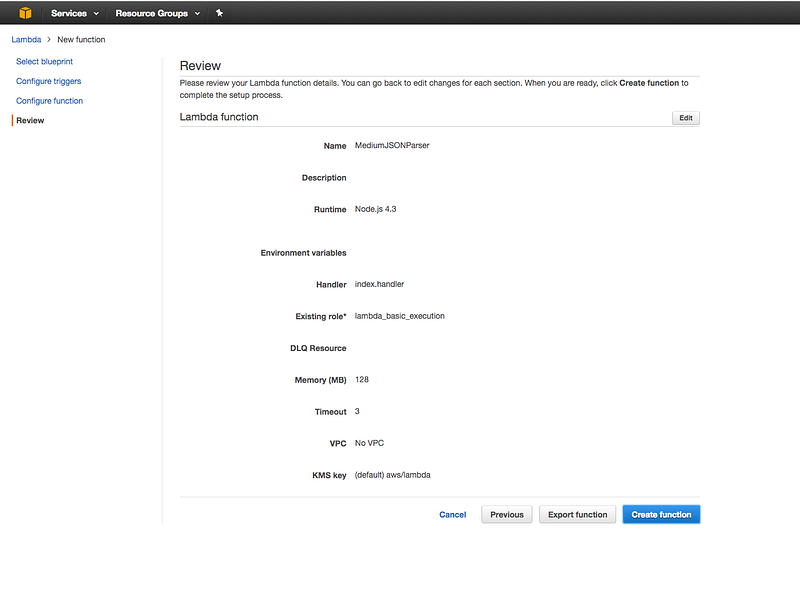
After that, confirm your function and click Create function.
If you run “Test”, you will see your output returns your formatted JSON object.
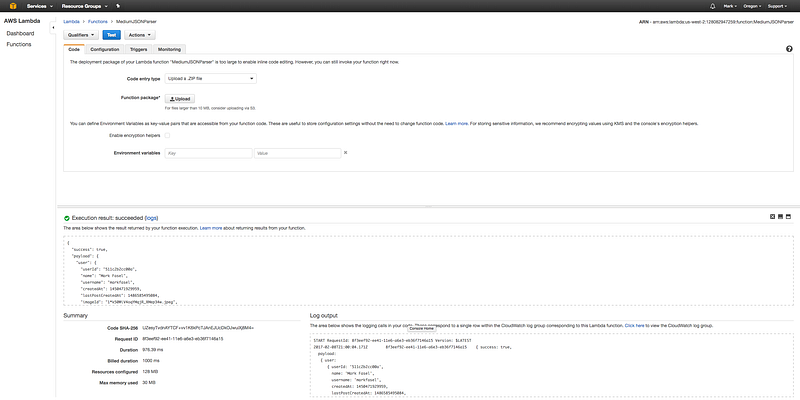
The hard part is done! 🎉
Now that we have our Lambda function working, let’s head over to AWS API gateway and build a simple API to retrieve this formatted JSON object that can be used to make our Ajax or AngularJS call.
AWS API Gateway Setup
API Gateway lets you create, manage and host a RESTful API to expose AWS Lambda functions, HTTP endpoints as well as other services from AWS or third-party development.
To access AWS API, start typing API in the search box.
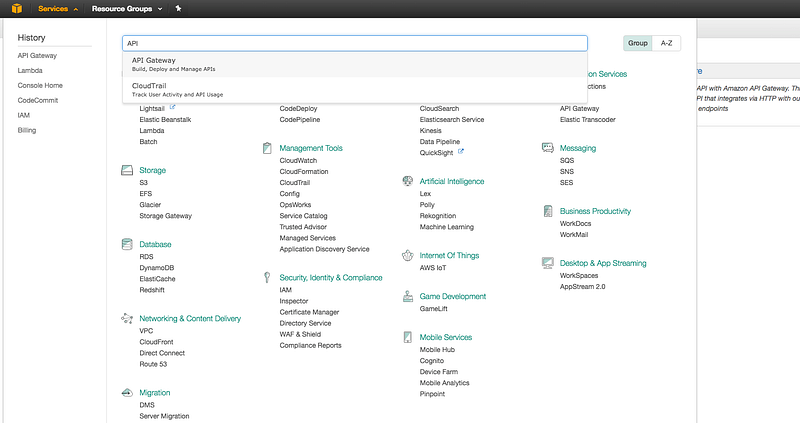
Once under the API Gateway Services, select “Create API”. I’ve added a sample API, but you can call it whatever you want.
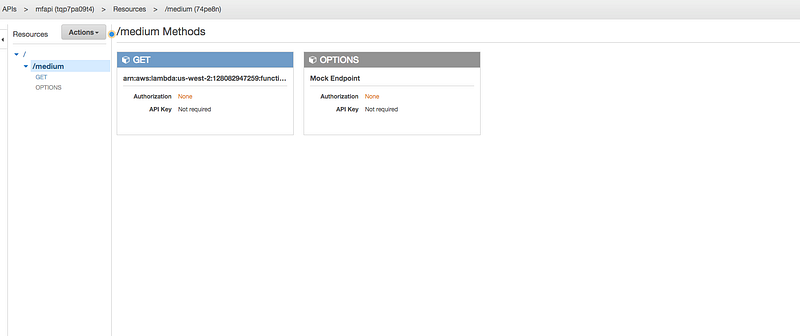
I then create a resource called “medium” and enable CORS. This is critical, but we’ll touch on it a little later to verify it’s working.
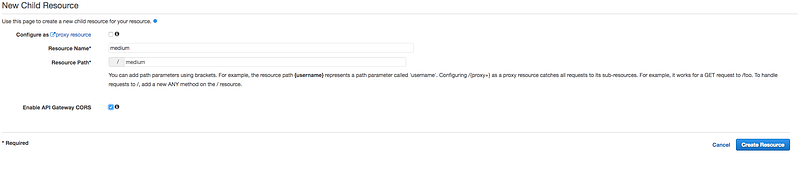
I then create a “GET” method.
Creating our GET method
Under actions, select “Create Method” and add “GET”.
Under the GET setup, select “Lambda Function” and select the region for your Lambda Function. You usually can see the region in the current URL of the browser. Under Lambda Function, start typing the function name we created. It should dropdown with a selection.
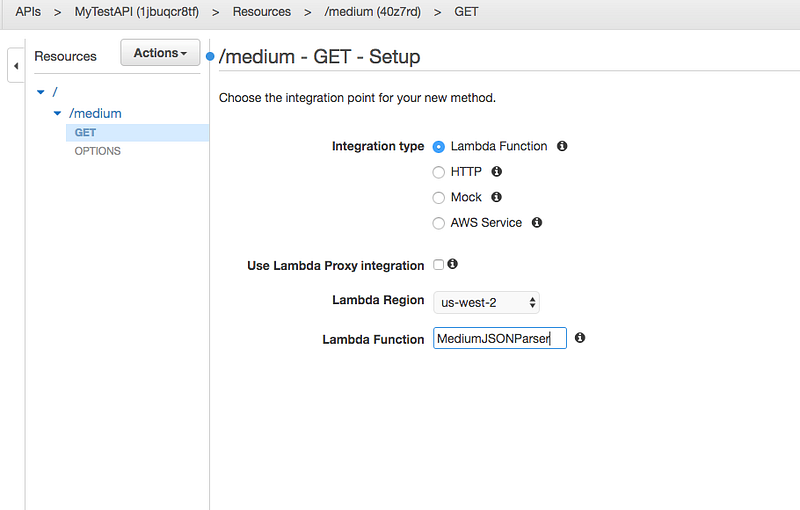
Then click save.
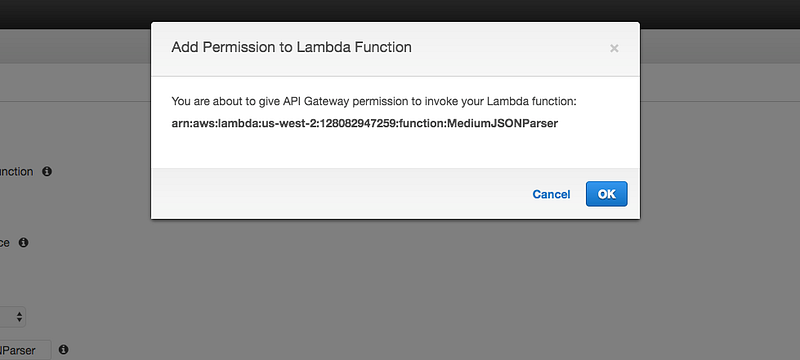
You will get a permission modal. Click OK.
Once completed you can click the Test icon, then the button marked ‘Test’ and you should see your result:
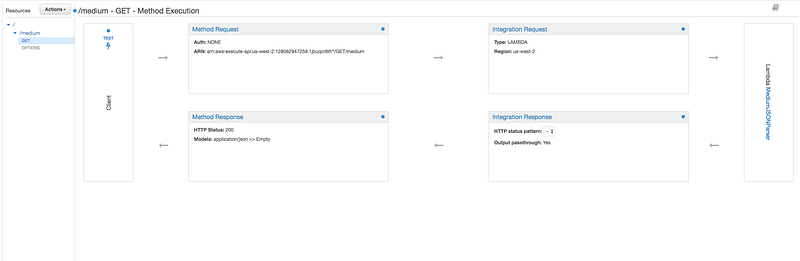
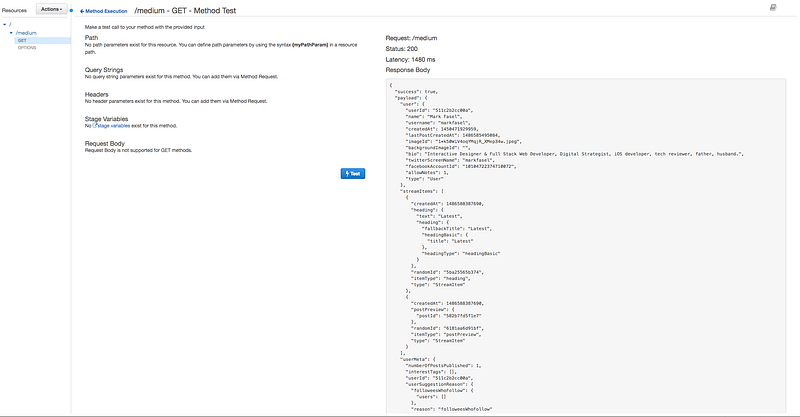
Now that it’s functioning properly, you could set up other responses for catching and even modifying the original function call, but this is designed to be just a starting point.
Feel free to create a branch of the original repository and contribute to this.
The last step to making the API work for use in our Ajax or Angular app is to “Deploy the API”. Click on Actions > Deploy > New Stage and enter the details for the deployment stage.
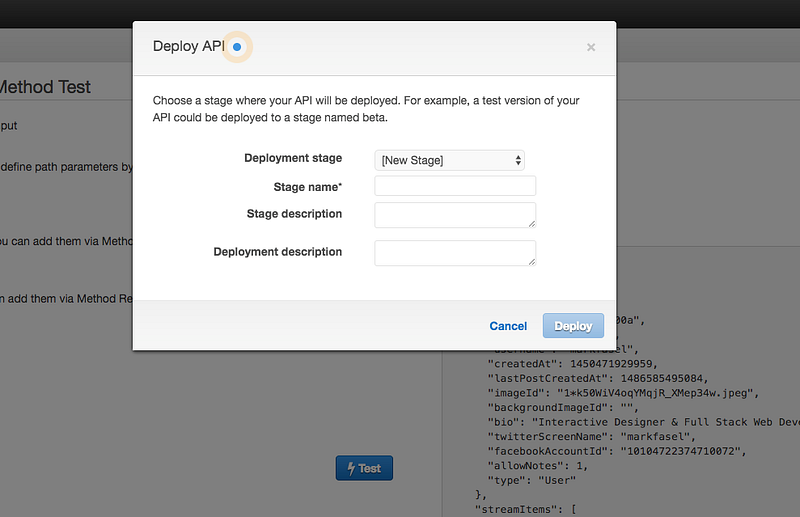
Once complete, you can test the live URL and it should work and return your JSON object.
The reason this is important is because you can’t call Medium’s link directly with Ajax or Angular due to the CORS error. But this allows you to create an API gateway that can accept your Ajax or Angular call and then use Lambda to retrieve and format the data from Medium.
Final thoughts
I hope this was helpful. I searched around for a while to find a simple solution to achieve something basic for my personal website. While my site is still in development, this piece alone has helped me implement a solution that I once thought about ditching.
I like Medium and wanted to use it as my primary blogging platform rather than using WordPress or Ghost, due to many reasons. The fact Medium don’t have this baked into their core API is a bit mind-boggling, but for now this solution works for my needs and I hope others find it useful as well!
If you have any questions or need any help, please reach out!