
Build your own video encoder with AWS Batch, EC2, Docker and ffmpeg: Part-1
- Part-1: Code and pre-requisites
- Part-2: Setting up AWS batch and main executor script.
- Part-3[Optional]: Setting up DASH and HLS delivery-completely open-source.
Video encoding(transcoding) is the process of converting video data from one format to other usually to make it ingestible by different target devices.
Video transrating(re-encoding) is a type of video encoding where the bit-rate(number of bits required to store 1 second of video data) of a video is decreased to reduce the size of video file, this is quite useful for streaming or on-demand video delivery when the target device may have slower internet(or smaller screen size). The process also involves lowering down the frame rate(number of frames per second) to reduce the overall file size(ever notice frame drops on your favourite video-calling software when working with a low-bandwidth internet connection?).
There are a flurry of services available for storing managing and transcoding your video. These services are more costly than they should be and here we will learn how to develop an end-to-end on-demand video encoder with Amazon Web Services, docker and ffmpeg. We will implement our encoder using all open-source tools and libraries.
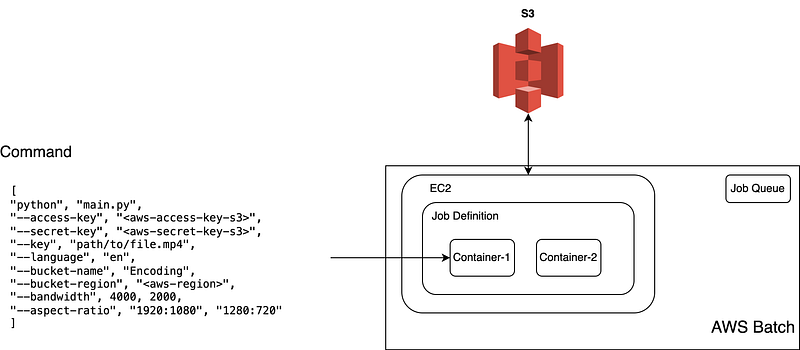
When deploying our transcoder on AWS, we would need some intensive compute through EC2 instances. EC2 instances can be simply launched and you can use ffmpeg library to transcode videos, but what about the time when you won’t be running these jobs, well you could simply stop the EC2 instances but you will still be charged for the hard-drive abd its a time consuming process and then your transcoder won’t be on-demand — enter docker and AWS Batch.
AWS Batch is a service to run batch workloads which are compute intensive like video-transcoding or ML model training. The only requirement is to have a docker image of the application you want to run and the data that is to be processed should be accessible the AWS Batch instances(usually in a S3 bucket). Batch pulls the docker image and creates containers on EC2 instances, whose type is configured and runs the jobs, that’s it.
Let’s start by creating our Dockerfile. We will assume that the code for the app is inside app folder.
I am using python 3.6.8 but you are free to change the version. The dockerfile is pretty straight forward.
Let’s create our app now, using python we will create the utils required for encoding the video with ffmpeg, also few s3 utils to pull and push data to s3 buckets.
The overall app structure should look like this -
├── app
│   ├── Dockerfile
│   ├── s3_utils.py
│   ├── videotranscoder.py
│   ├── languages.py
│   ├── main.py
│   ├── poolexecutor.py
Let’s start with s3_utils.py and video_transcoder.py which are used for pulling and pushing to s3 buckets and accessing ffmpeg for transcoding respectively.
The VideoTranscoder class interacts with ffmpeg through CLI commands.
I am not putting the entire code of s3_utils.py along with other files. You can find them here along with documentation of individual methods.
Now let’s setup AWS Batch to work with our code and docker image. You must have an AWS account first(we won’t be setting up an AWS account here).
First we will create a docker image, tag it and push it to ECR(Elastic Container Registry.) We will be using awscli, you can find the installation guide here. Batch also works with docker registry but either the image has to be public or access management is required. I prefer using ECR.
Setting up ECR is quite simple- for first time users I recommend doing it from AWS console by following the ECR Console guide here.
cd app
# Build the image named batch with v1 tag
docker build --tag batch:v1 .
# Tag the image with the ECR repository path.
# aws-account-id: This is your aws account id.
# ecr-repo-region: Region in which ecr repo exists. For example: `us-east-1`
# ecr-repo-name: Name of the repository.
docker tag batch:v1 {aws-account-id}.dkr.ecr.{ecr-repo-region}.amazonaws.com/{ecr-repo-name}:v1

# Login to aws-ecr
aws ecr get-login-password --region {ecr-repo-region} | docker login --username AWS --password-stdin {aws-account-id}.dkr.ecr.{ecr-repo-region}.amazonaws.com
# Finally push the image to the respository
docker push {aws-account-id}.dkr.ecr.{ecr-repo-region}.amazonaws.com/{ecr-repo-name}:v1
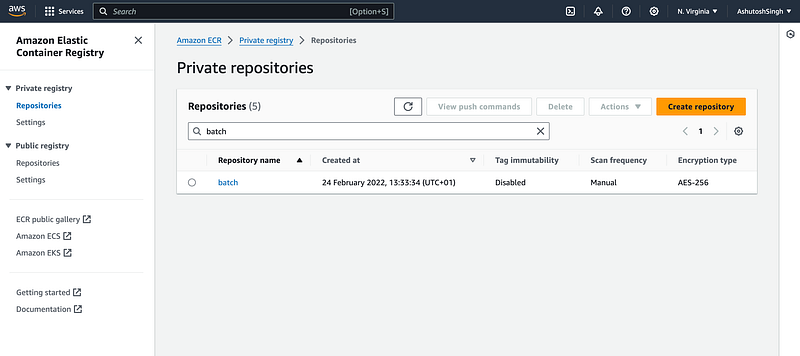
After pushing the image you should be able to see it in your ECR repositories like this, as you can see the repository name for me was batch and the region is us-east-1.
Now we have everything we need and we can move on to setup for AWS Batch the main.py that was mentioned in the app description. See you in the next part!.


