
Build Modern GUI in Python using PyQt5 Framework
Learn to develop Modern Design GUI Program in Python using PyQt5 Framework
Python is a top programming language due to its large community and easy-to-read syntax. Python can help you make Gui software that will give your normal scripts a user interface look. Python had a different module to develop that Gui including Pyqt5, Tkinter, WxWidget and etc.
In this article, I will try to teach you how to develop Modern Gui Programs in Python using Pyqt5 Package. This tutorial will be suitable for beginners programmers. So without wasting any further time let jump into it.
Installation and Set up
Download and install the latest version of Python in your system and if you already had Python installed then install Packages using the below command.
Open your command prompt and type those below commands and press enter.
pip install pyqt5
Basics of PyQt5
Now we have PyQt5 installed in our system so let get started by building the interface window of our Gui Program. Open your favorite Text Editor and follow the below code.
# Building the Window Interfaceimport sys
from PyQt5 import QtWidgets
from PyQt5.QtWidgets import QApplication, QMainWindow, QLabeldef main():
app = QApplication(sys.argv)
win = QMainWindow()
win.setGeometry(400,400,400,300)
win.setWindowTitle("Pyqt5 Tutorial")
win.show()
sys.exit(app.exec_())
main()Output:
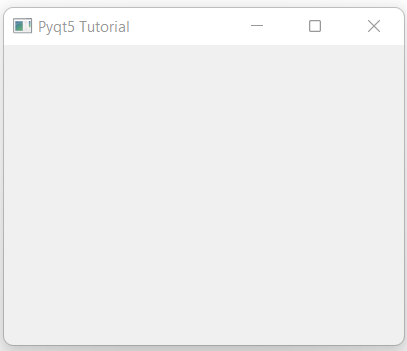
Sweet now we had our first interface window with a title on top and let break down the code and understand it. The first thing we do is to import the Pyqt5 and its classes that we gonna help us to build the Gui Widget. Next, we made a main() function to implement our window interface. Below is a brief of the main function code.
- QMainWindow() is like a container that holds all the widgets like buttons, text, entry box and etc.
- SetGeometry is the method of QMainWindow() which sets the size of our Window box. here is the syntax “setGeometry(x, y, width, height )”.
- SetWindowTitle is used to set the title of our window interface box.
- Win.show() will build and display the custom window interface that we design.
- Sys.exit(app.exec_()) this will set our window not to close until we don’t click the cross button. If you don’t put this line of code your Gui program will dismiss in a second after it is executed.
Label Text
Label Text is the text that you can display on your window interface. For setting Label Text with Pyqt5 we will go to use widget name Qlabel. Follow the following code.
import sys
from PyQt5 import QtWidgets
from PyQt5.QtWidgets import QApplication, QMainWindow, QLabel
def main():
app = QApplication(sys.argv)
win = QMainWindow()
win.setGeometry(400,400,400,300)
win.setWindowTitle("Pyqt5 Tutorial")#Label Text
label= QLabel(win)
label.setText("Hi this is Pyqt5")
label.move(100,100)win.show()
sys.exit(app.exec_())
main()Output:
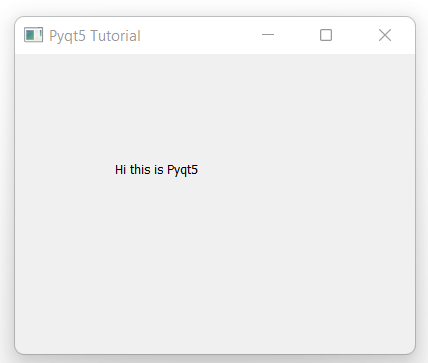
let break down the Code, First, we call the Qlabel() method and pass the QMainWindow variable in it.
- SetText() is used to set the text of your Label, it only takes string data as an argument.
- Move(x, y) method is used to set the position of your label text.
Button and Events
Buttons are the important part of every software that defines the action of the user and the output the software delivers. To make buttons in PyQt5 we had to use another widgets name QtWidgets, Follow the following code.
import sys
from PyQt5 import QtWidgets
from PyQt5.QtWidgets import QApplication, QMainWindow, QLabel
def main():
app = QApplication(sys.argv)
win = QMainWindow()
win.setGeometry(400,400,400,300)
win.setWindowTitle("Pyqt5 Tutorial")#Button
button = QtWidgets.QPushButton(win)
button.setText("Hi! Click Me")
button.move(100,100)win.show()
sys.exit(app.exec_())
main()Output:
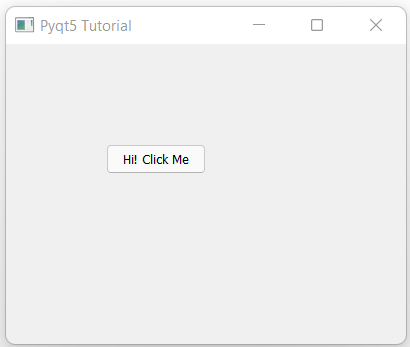
Well if you had seen the code we used the Qwidget method name QPushbutton and pass the QMainWindow variable in it. Next break down the code I done in the following points.
- SetText() is used to set the button name as you saw in the above output image.
- Move() is again to set the button position in the window by using x and y coordinates.
Now next thing we need to do is Event-Driven-Programming. In simple words, we need to define the action of the button, Mean if we click on the button it should do something. Check out the following code and next, I will explain you.
import sys
from PyQt5 import QtWidgets
from PyQt5.QtWidgets import QApplication, QMainWindow, QLabel
def click():
print("Hy Button is clicked!")def main():
app = QApplication(sys.argv)
win = QMainWindow()
win.setGeometry(400,400,400,300)
win.setWindowTitle("Pyqt5 Tutorial")#Button Click
button = QtWidgets.QPushButton(win)
button.setText("Hi! Click Me")
button.move(100,100)
button.clicked.connect(click)win.show()
sys.exit(app.exec_())
main()Well I define another function name click and in the main I declare button.clicked.connect() which take function name which will trigger when a button will click.
Once you run this code and click on the button you will see an output on your console screen. Now it's on you what to code inside the click function. Try this code on your system.
Entry Boxes
Entry boxes are also called text boxes these are boxes you found on software when you see magnify icon next to a box. So to declare the Entry box in Pyqt5 we used another widget name QlineEdit() by passing again QMainWindow in it. Check out the following code and its output.
import sys
from PyQt5 import QtWidgets
from PyQt5.QtWidgets import QApplication, QMainWindow, QLabel
def main():
app = QApplication(sys.argv)
win = QMainWindow()
win.setGeometry(400,400,400,300)
win.setWindowTitle("Pyqt5 Tutorial")#Entry Box / Text Box
textbox = QtWidgets.QLineEdit(win)
textbox.move(100, 100)
textbox.resize(180,40)win.show()
sys.exit(app.exec_())
main()Output:
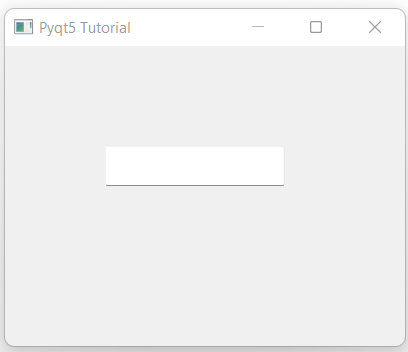
- Resize(width, height) is used to resize your entry box widget.
Message boxes and Pop-ups
Message boxes and Pop-ups are the alternate small windows that appear if something triggers the program. Like you make an email registering software and the user did not enter a strong password then you can alert the user by message boxes.
To make message boxes in Pyqt5 we had another widget for it name QMessageBox which again takes QMainWindow as an argument. Check out the following code to know how it works.
import sys
from PyQt5 import QtWidgets
from PyQt5.QtWidgets import QApplication, QMainWindow, QLabel
def main():
app = QApplication(sys.argv)
win = QMainWindow()
win.setGeometry(400,400,400,300)
win.setWindowTitle("Pyqt5 Tutorial")#Message Box
msg = QtWidgets.QMessageBox(win)
msg.setWindowTitle("Pyqt5 Alert")
msg.setText("Message box in Pyqt5!")
msg.exec_()win.show()
sys.exit(app.exec_())
main()Output:
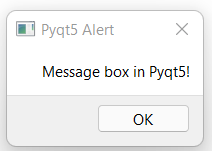
- SetWindowTitle() is used to set the window title of the message box.
You can also set icons in your message boxes like the following code and output.
msg = QtWidgets.QMessageBox(win)
msg.setWindowTitle("Pyqt5 Alert")
msg.setText("Message box in Pyqt5!")
msg.setIcon(QtWidgets.QMessageBox.Critical)
msg.exec_()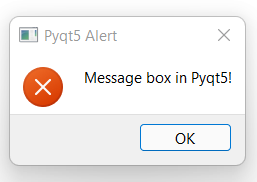
Below is the list of the icon you can use in your message box.
- QMessageBox.Warning
- QMessageBox.Critical
- QMessageBox.Information
- QMessageBox.Question
Final Thoughts
Well, this article introduces you to Pyqt5. I hope you like the blog and learn something new. Feel Free to share your valuable response and also share ❤️ this article with your Python Friends. Happy Codding.
If you are not a medium Member then Become one and support your favorite Authors Thanks! 👇
Never Stop Learning, Here is your dose of my programming articles below, hope you like them also.
More content at plainenglish.io


