
Build flavors in Flutter (Android and iOS) with different Firebase projects per flavor
[update March 7, 2020]
- added instructions for different app icons for different flavors in iOS and Android
[/update]
After plenty of trial and error to get flavors to work, especially in iOS, I decided to write this article with my learnings. So jumping right into it — build flavors in flutter — in all their comprehensive glory.
Why do you need flavors
Flavors are typically used to build your app for different environments such as dev and prod.
For eg.
- your development version of the app might want to point to an API host at dev.api.myapp.com
- and your production version of the app might want to point to api.myapp.com.
Instead of hardcoding these values into variables and building an app for every environment manually, the right approach is to use flavors, and supply these values as build time configurations.
Funnily, this article does not tackle the use-case of how to handle different API hosts. I feel another article does this well, and I did not want to repeat that information. Please check Flutter Ready to Go for the same. (What I cover in this article is explained in the next section)
I feel almost everyone launching an app should be using flavors, but I see that most people avoid using them until much longer. Usually the initial setup inertia is enough to leave it for later, and in the end developers end up wasting a lot of time unintentionally. Unfortunately, in the case of Flutter, they are still not *that* straightforward to setup, hope this article helps with that.
A note on documentation on Flutter flavors
Flutter flavors support is not very well documented in the official docs (yet) — they point to the following three articles as of writing
- Creating flavors of a Flutter app (Android only)
- Flutter ready to go (Android only)
- Flavoring Flutter (Android and iOS)
The Android setup is fairly straightforward. The iOS one is a little low on detail and I had a harder time following it. So I had two main reasons to write this article
- Build upon the above articles and also explain how to setup different Firebase projects for different flavors
- Do a deeper dive into the iOS flavor setup, with steps explained more clearly so that you don’t have to spend about as much time I did trying to get it to work.
The approach for this tutorial
I am going to build a sample app with two flavors: dev, prod. The sample app has commits after every step, so that you can look at code diffs to understand what all changed. And of-course I’ll try and put in detailed instructions as well. It should be easy to use these instructions for an already existing app quite easily.
The sample app is here
Cool? So lets hit the road with the steps…
Step 1: Initialize a default flutter app
Run flutter create flavor_test to create a default flutter project. Nothing fancy.. this is the first commit of the sample app.
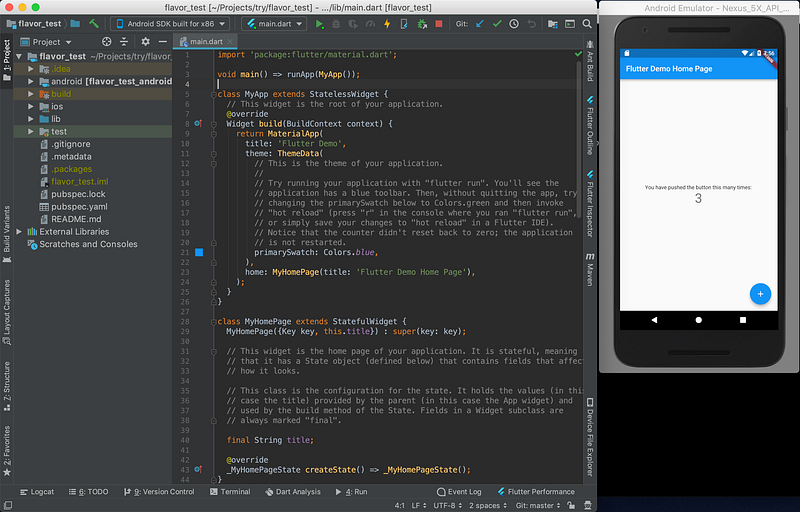
Step 2: Configure the app to connect to Firebase
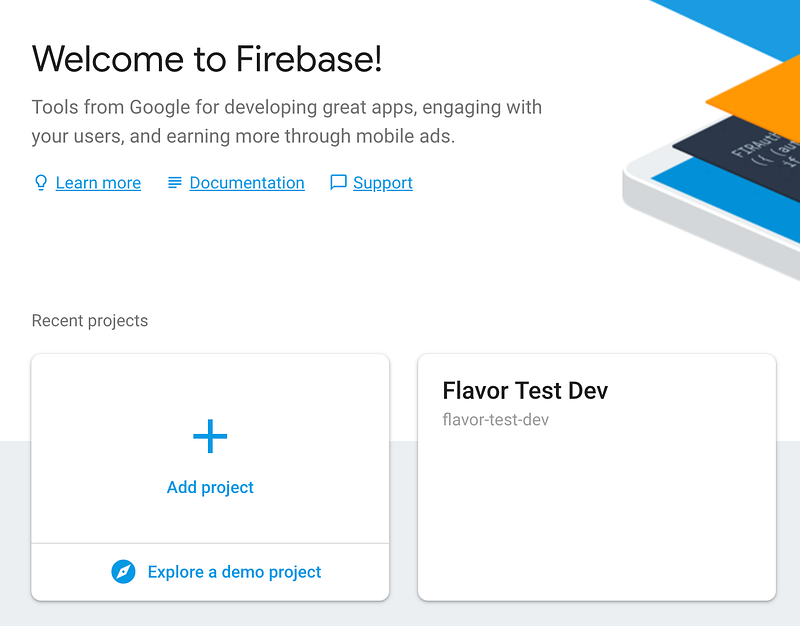
Create the app for iOS and Android in Firebase console and download the GoogleService-Info.plist and google-services.json respectively. You can follow detailed instructions to add Firebase to your Flutter project here — https://firebase.google.com/docs/flutter/setup
An XCode peculiarity for Android guys:
You’ll have to add the ios file through XCode, as the project file does not detect it if you simply copy it to the ios/Runner directory via the command line. Drag and drop it in the Runner folder in XCode, and select all targets. I learned this only while I was writing this tutorial, so thought it might be helpful to someone setting this up from scratch.
In this step I have also updated the main.dart file to store the counter in the Firebase Realtime DB instead of just locally. Make sure you setup the Firebase Realtime DB via the console and add security rules to allow write access.
This is what the app looks like after this commit -
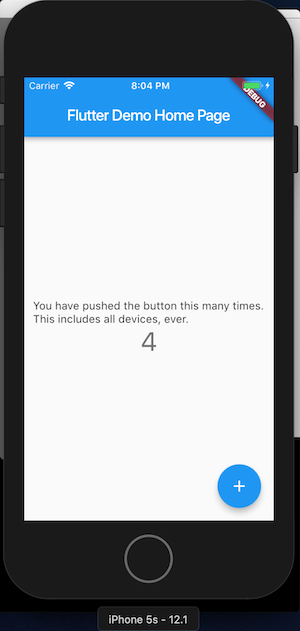
You can look at the commit diff here to see what all changed —
Code Diff : Step 1 to Step 2https://github.com/animeshjain/flavor_test/compare/step_1_init...step_2_firebaseStep 3: Adding build flavors to Android
We are ready with a basic counter app. However, when we ship this app, it will connect to the same firebase database, as it does when we are building and testing it locally. This is a problem, and this is what flavors are supposed to solve.
The current Firebase project we created was for our dev environment (it was named as such as well), and now we want to create a flavor which will be for our prod environment.
So we can create a new Firebase project for the prod environment
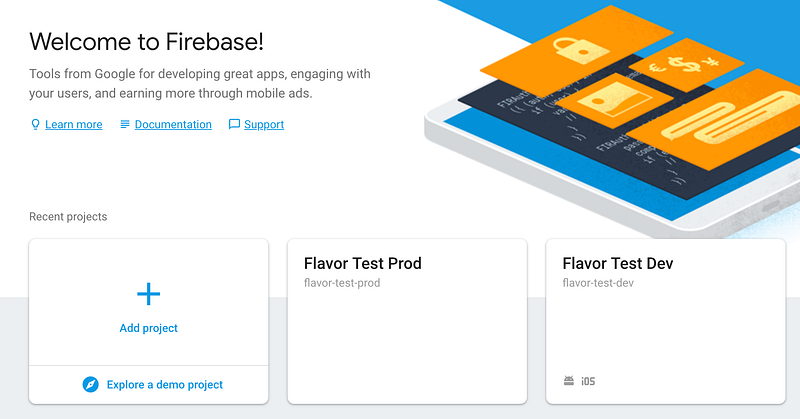
Also create an Android app in the project and download the google-services.json file and keep it handy. We will shortly add it to our app.
For kicks, let’s just see what flutter says when we try to run our app using the --flavor flag.
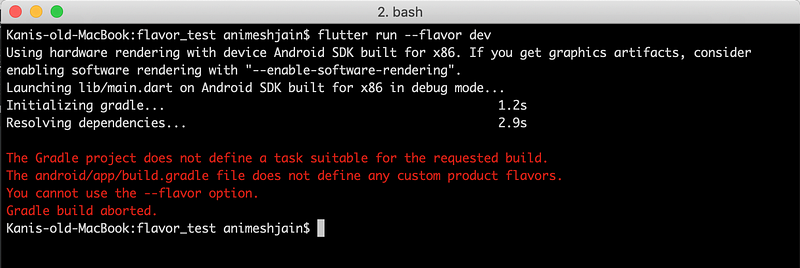
We add flavors to app/build.gradle and it looks something like this
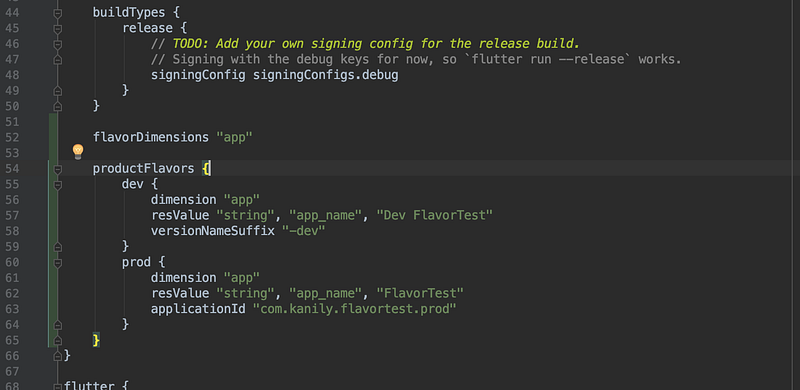
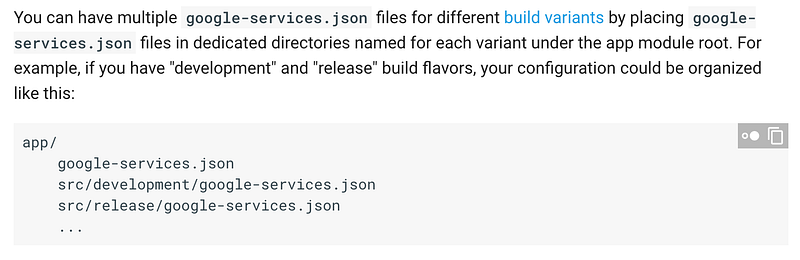
The dev flavor will use the default applicationId as com.kanily.flavortest and the prod flavor will use the flavor specific applicationId as defined in the prod flavor definition com.kanily.flavortest.prod. We have also defined a string resource called app_name which we are using in the AndroidManifest.xml instead of hard coding the app name. Finally, regarding the google-services.json, it can be put under the source folder within subfolders with names matching the flavors. From Firebase Docs -
So these settings take care of
- Different app id’s for different flavors, so that all flavors can be installed simultaneously on the device
- Different application names for different flavors, so that users/testers/developers can easily differentiate
- Each flavor pointing to its own Firebase project (this is automatically taken care of by the convention of placing the files in folders names the same as flavors)
Now you can run the app using the commands
flutter run --flavor dev or flutter run --flavor prod
Both apps can be installed on the device now and they can run in parallel.
Notes: For simplicity, I have removed the profile and release directories which were there in the default flutter scaffold project. They were only adding the Internet Access permission via AndroidManifest.xml, which I have added to the main file.
Here is the code diff to see what all changed —
Code Diff : Step 2 to Step 3https://github.com/animeshjain/flavor_test/compare/step_2_firebase...step_3_android_flavorsStep 4: Adding build flavors to iOS
iOS flavors are going to be more nuanced to setup. Also, iOS configuration is mostly done using the XCode UI and not by editing config files in a text editor😱, it is quite messy to explain by typing words. But I have you covered, to help with understanding I’ve recorded all actions and embedded the screencast gifs. So have a glass of water and buckle up…
Let’s just start with running the flutter run command targeting an iOS device/simulator and see what happens
flutter run --flavor dev
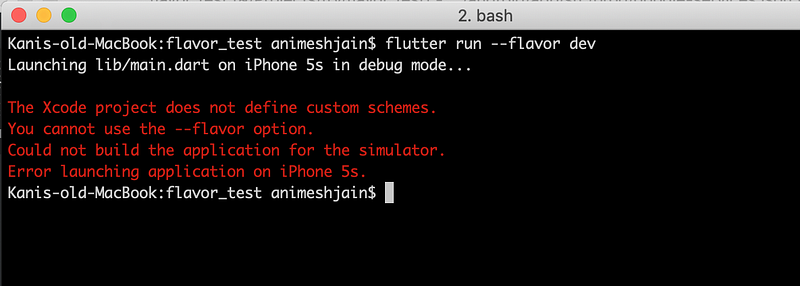
So we need to setup something called custom schemes it seems. We’ll need to fire up Xcode and openios/Runner.xcworkspace
And then, here’s how to setup a custom scheme called dev…
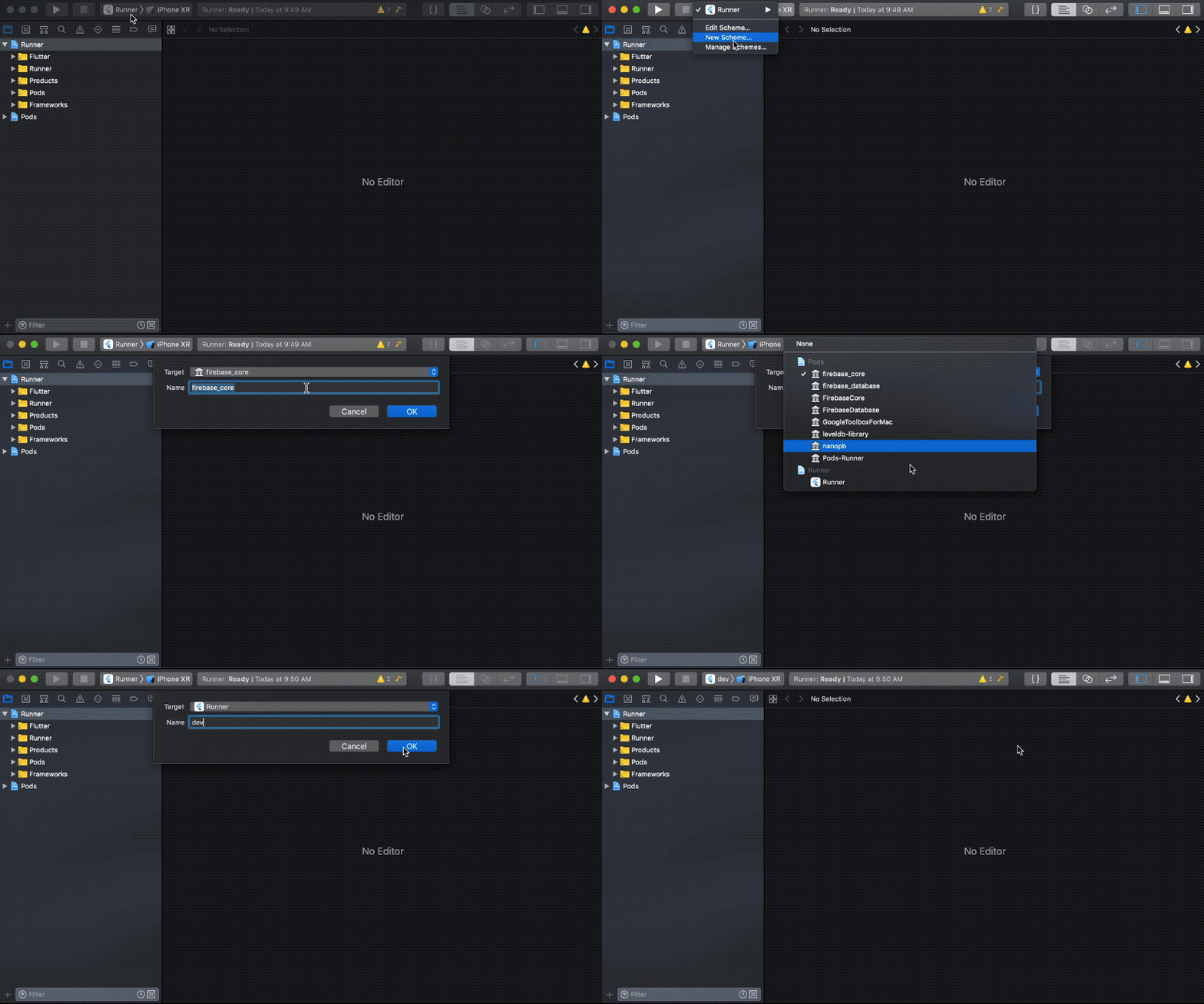
Now running flutter run --flavor dev again…
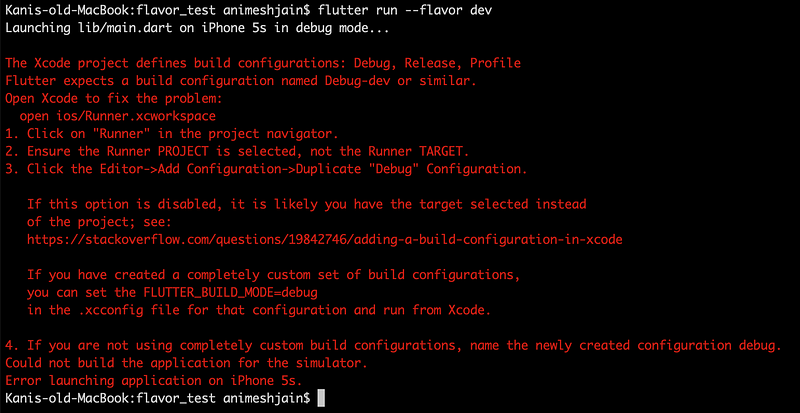
So the error message tell us that Flutter expects a build configuration by the name of Debug-dev or similar. Let’s create these build configurations…
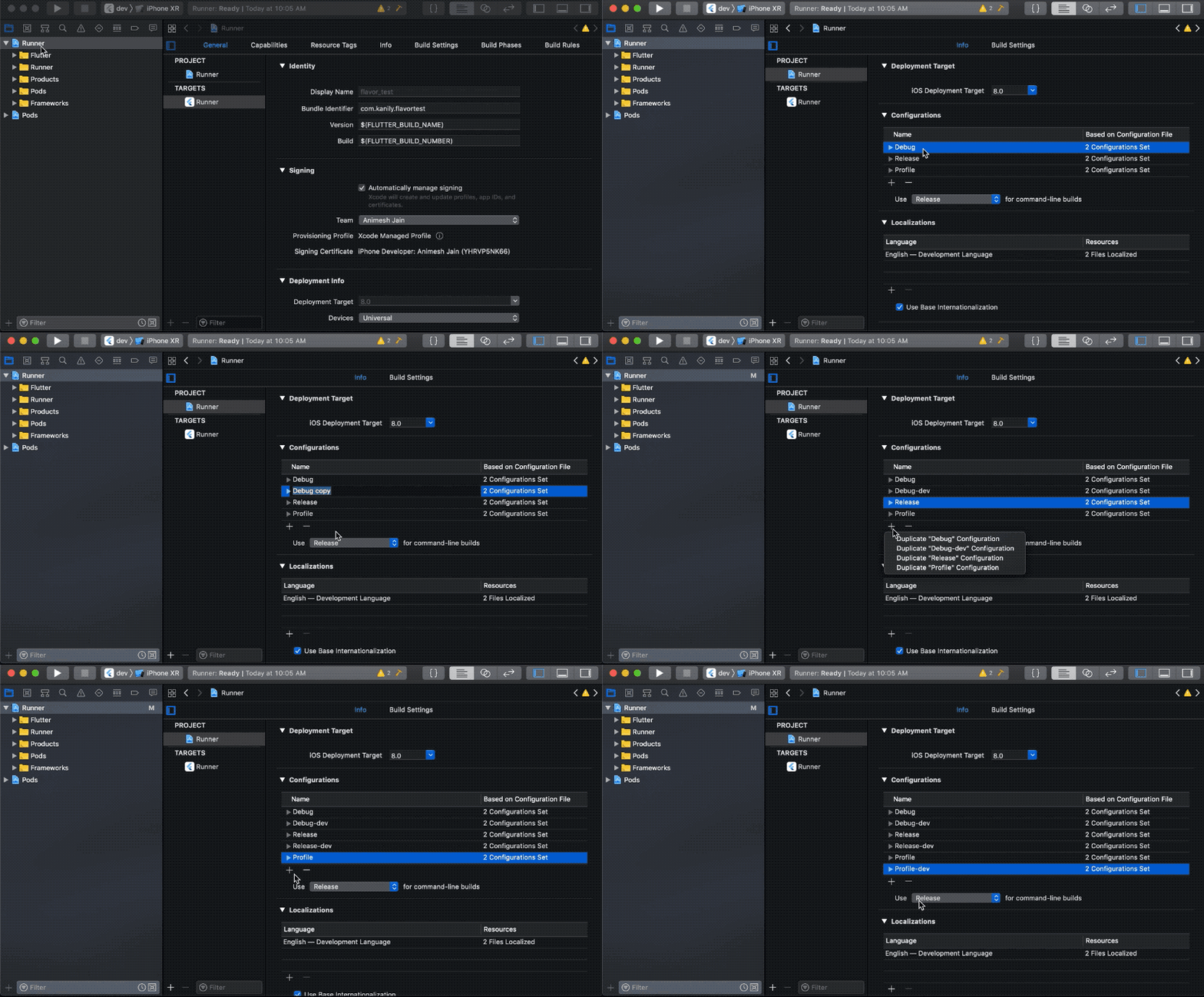
Trying flutter run --flavor dev again…
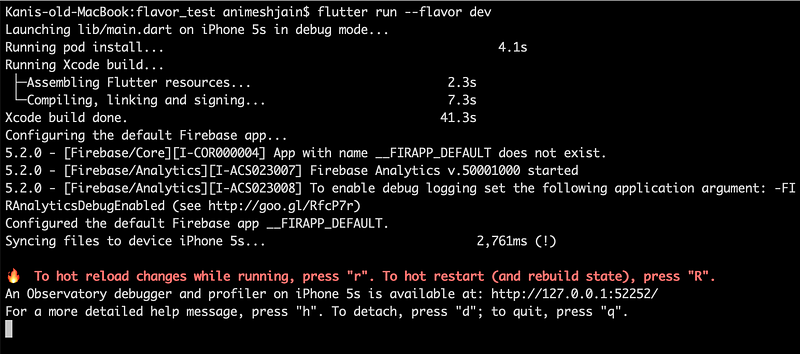
So this worked. But right now we have not customized anything in the build scheme / build configuration, so the app is running with the same configuration as it was earlier. Let’s rename the default build scheme and build configurations to prod.
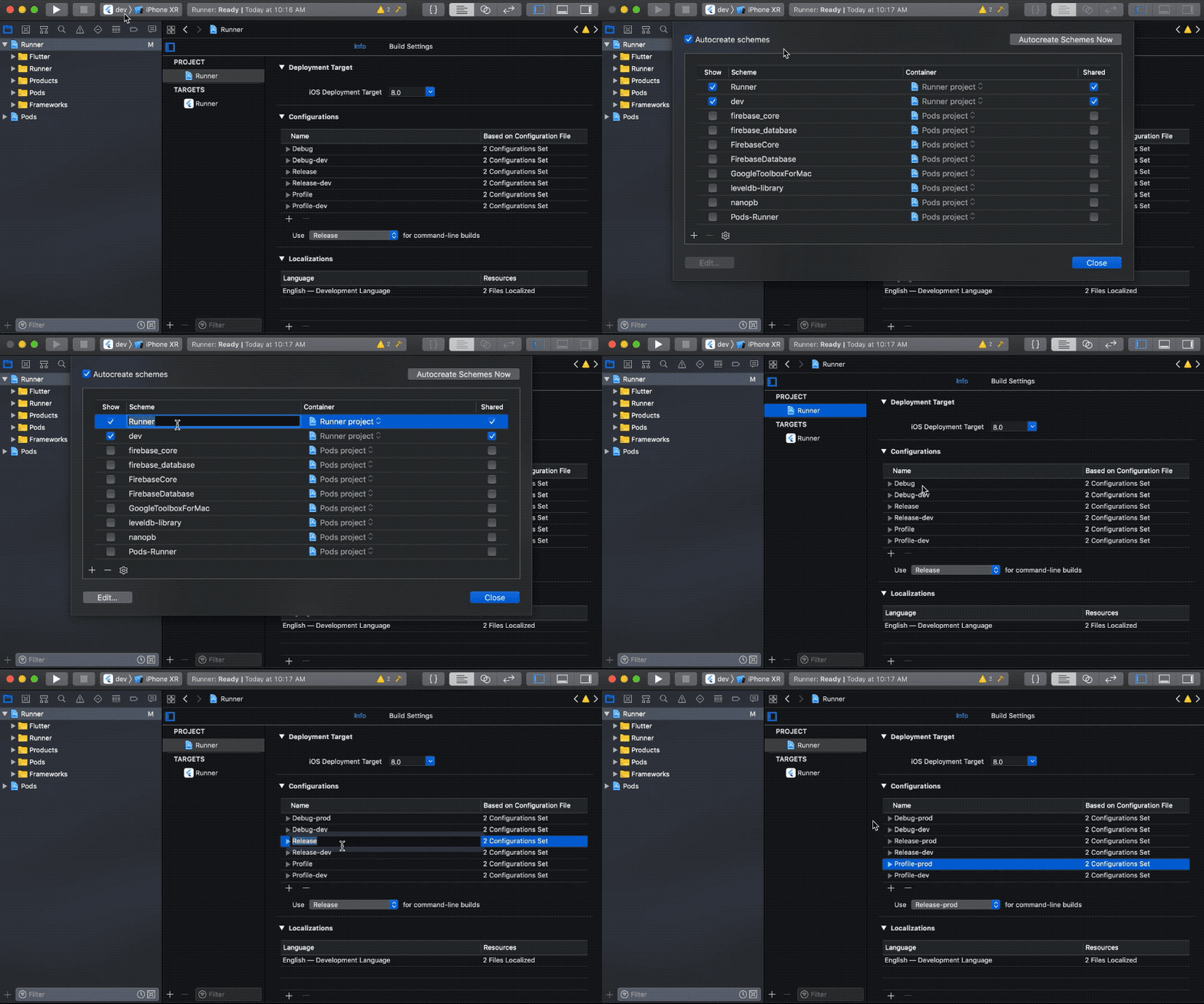
Since we duplicated the build configurations, the dev ones are still connected to the original scheme (which we have now renamed to prod). Lets fix that as well…
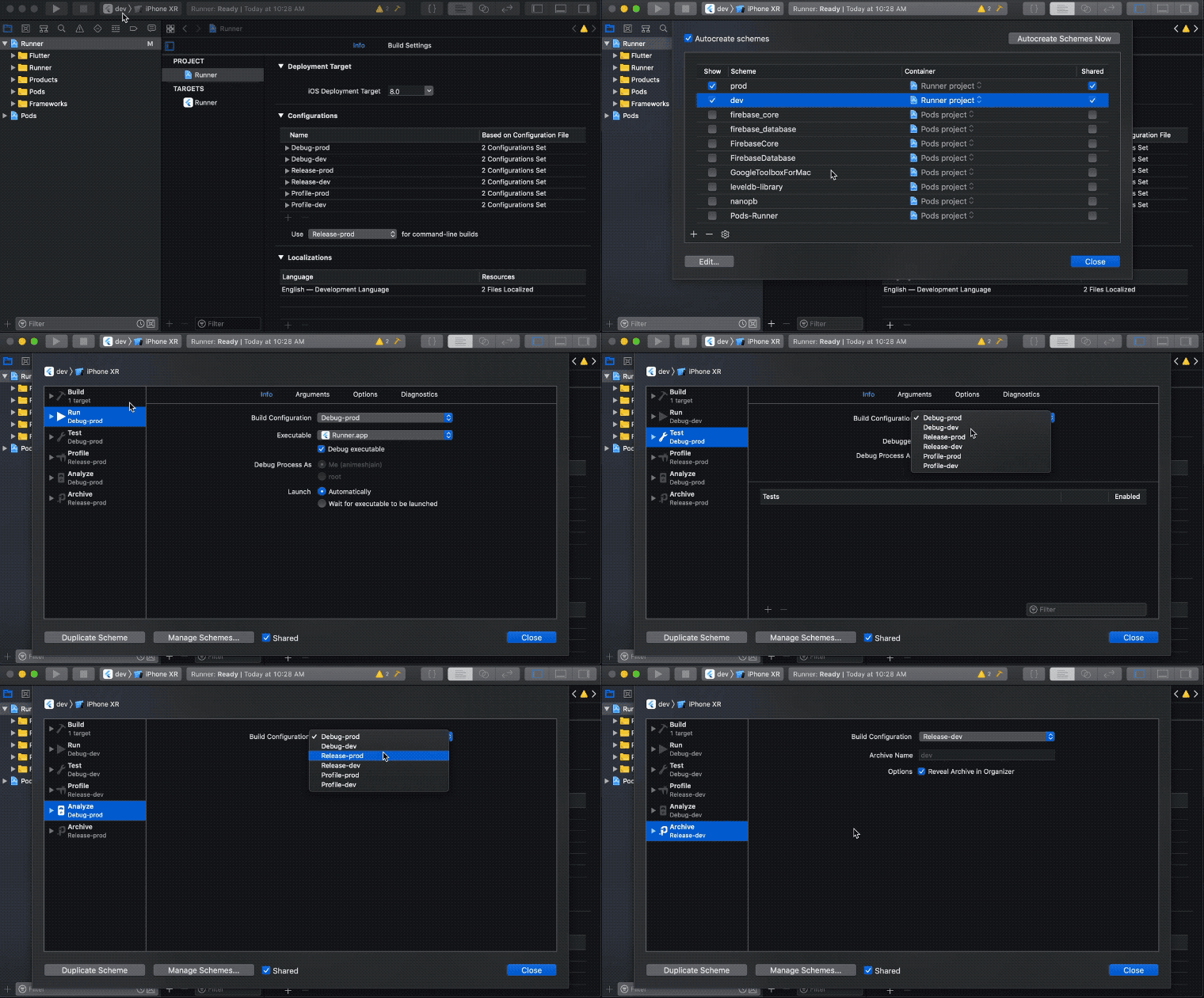
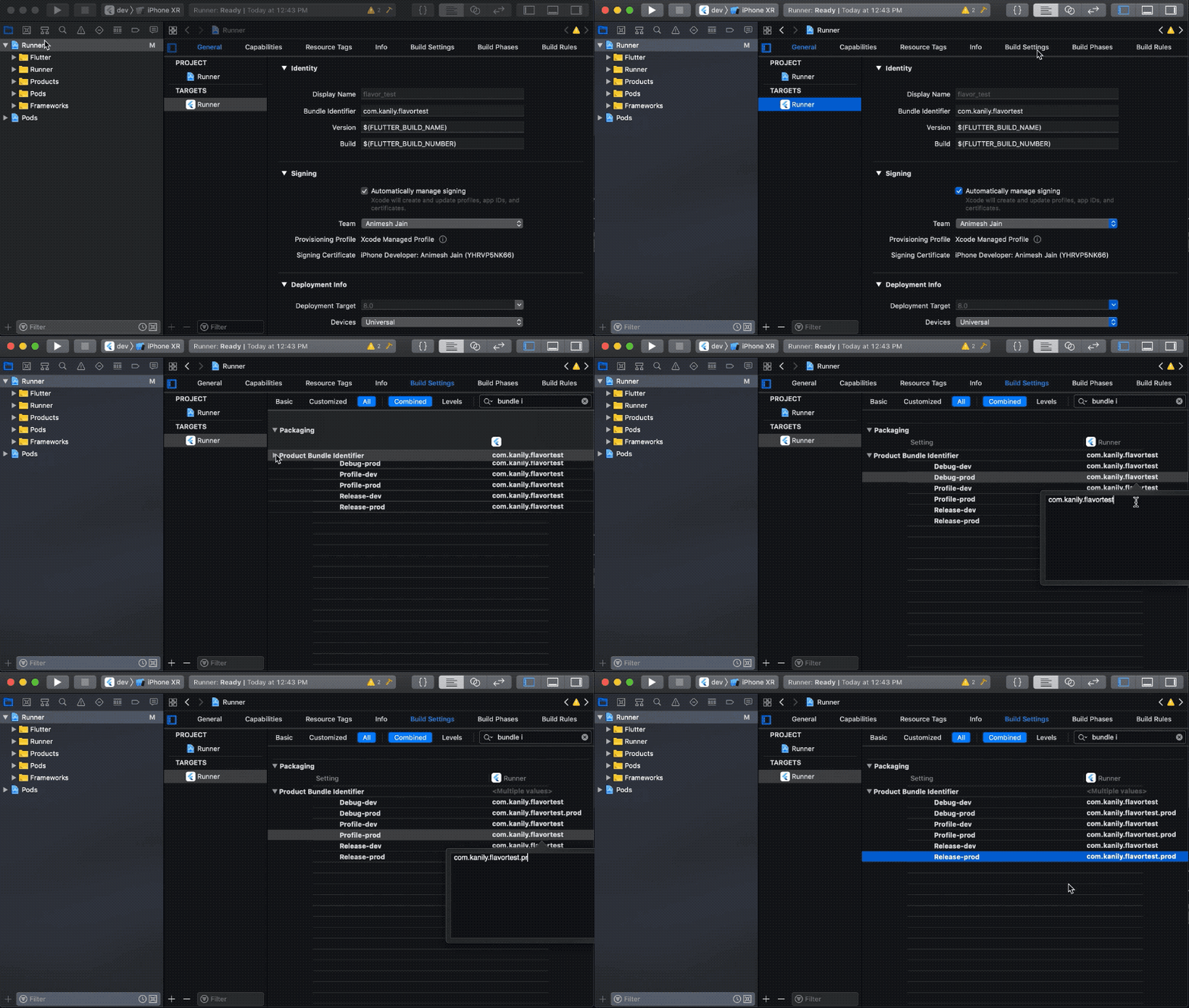
Now we have two schemes connected to their own build configurations. We can now customize things per scheme. Let’s first change the app bundle identifier to be different for both schemes. Our prod applicationId in Android was com.kanily.flavortest.prod, bundle identifier in iOS is parallel to the applicationId in Android. So let’s change our prod bundle identifier to com.kanily.flavortest.prod…
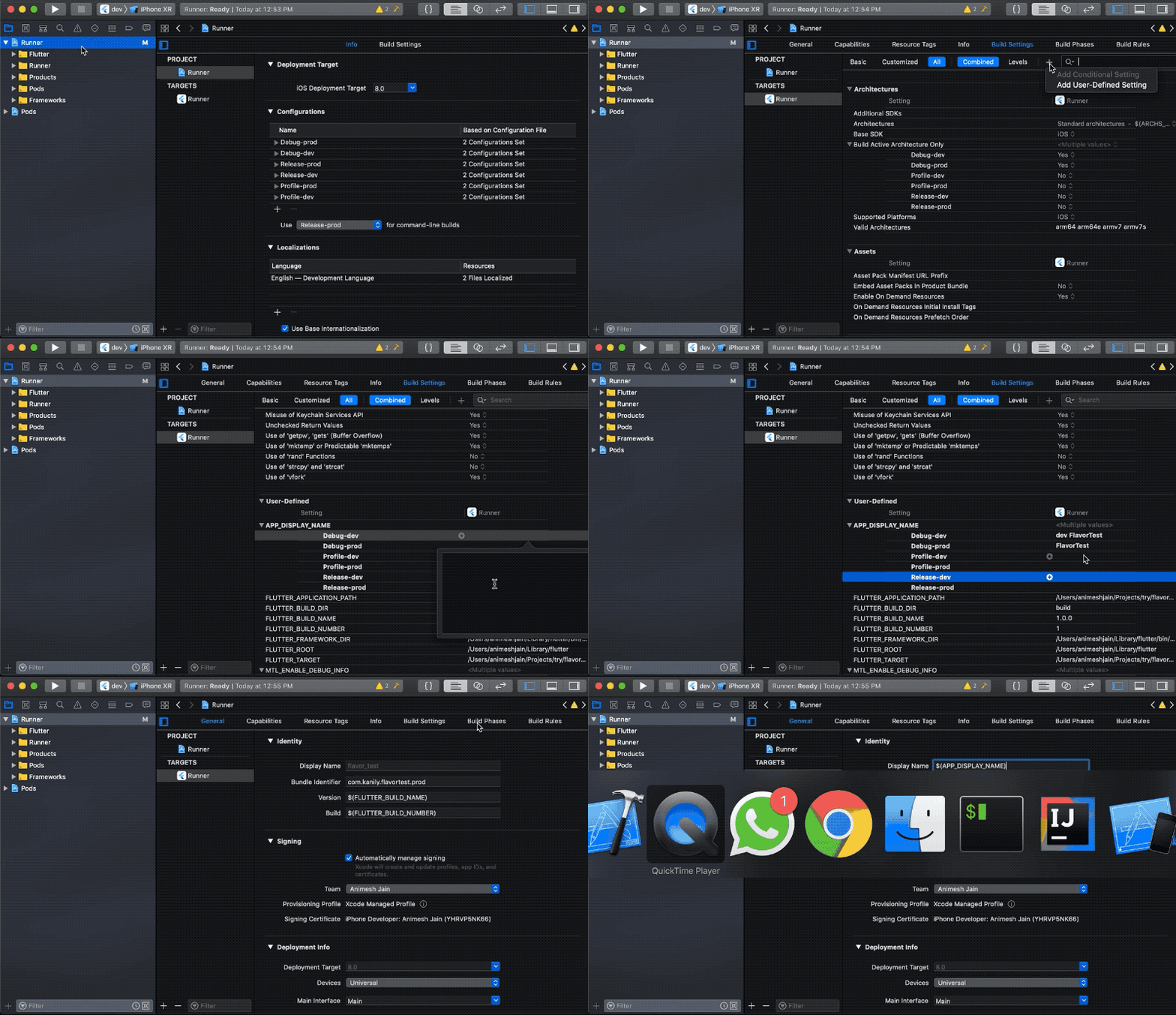
We would also like to use different Display Names for the app. However, the Display Name parameter is not there in the Build Settings for the target, so we simply make a user defined parameter, and use it instead…
[UPDATE May 5, 2020. Thanks to Stanford Lin for the comment]
There has been a change in how Flutter ios build works now, and this video is a bit outdated. You will probably get an error that says
Could not find the built application bundle at build/ios/iphoneos/Runner.appTo avoid this error, instead of adding the `$(APP_DISPLAY_NAME)` to the Display Name property in General Settings tab, you should update your Info.plist file to include a new property
<dict>
...
<key>CFBundleDisplayName</key>
<string>$(APP_DISPLAY_NAME)</string>
...
</dict>
You do not need to change the Display Name property in General Settings tab any more.
Finally we have to figure out a way to use a different GoogleServices-Info.plist based on the build configuration. There are some solutions which suggest doing this at runtime on app startup, basically initializing Firebase by explicitly specifying which config file to use (the Firebase docs suggest the same — https://firebase.google.com/docs/projects/multiprojects). But I like the other option of copying the right file at the default location at build time, so that when the app bundle gets generated, it used the right file automatically.
To achieve that, first we will keep the GoogleServices-Info.plist files for each flavor in a separate folder like follows…
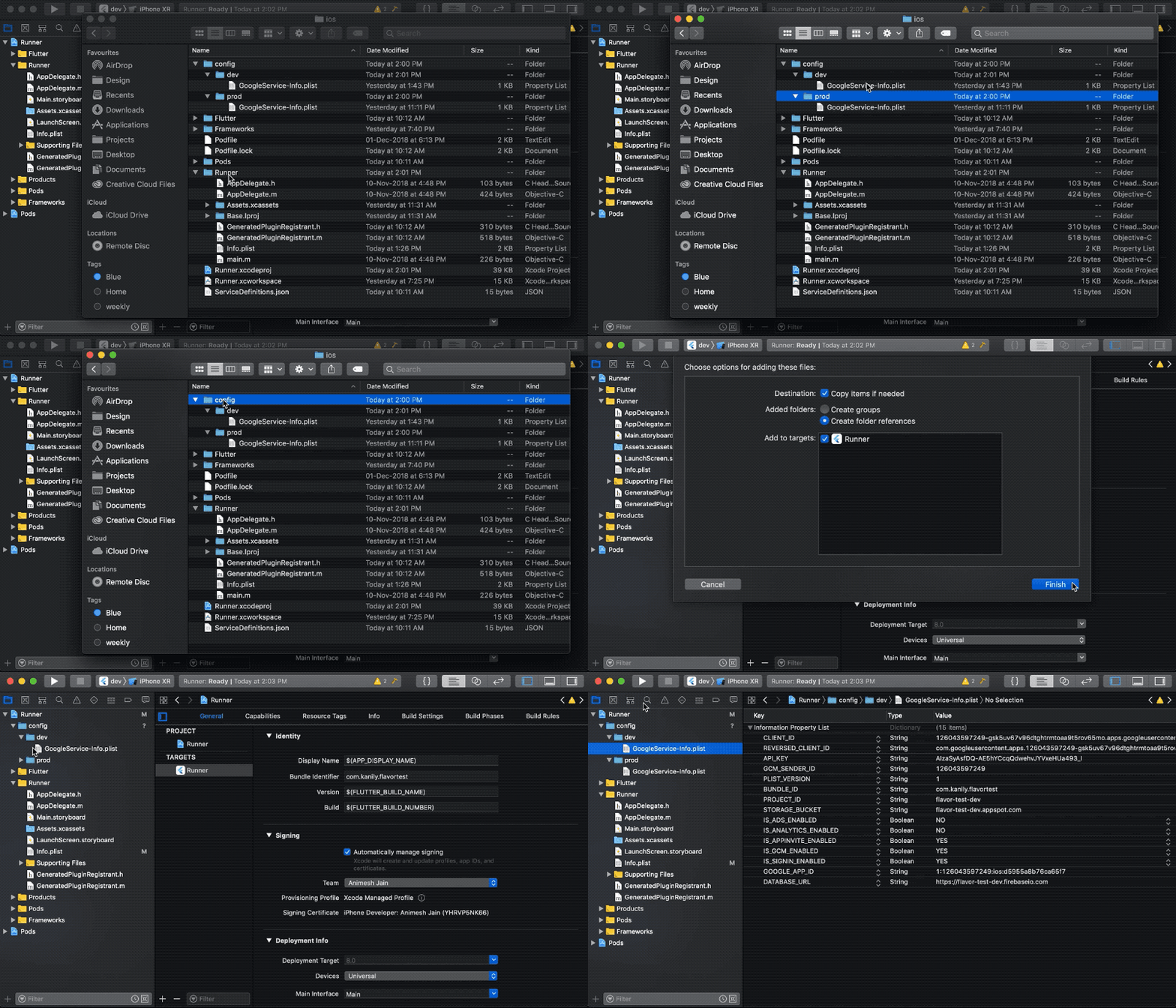
Make sure you drag and drop the config folder explicitly into XCode after copying it to the correct location from the command line or finder. XCode only adds it to it’s project reference after you add it explicitly. It does not pick up files/folders kept in the project directory by default. XCode folder structure after following the above steps looks like…
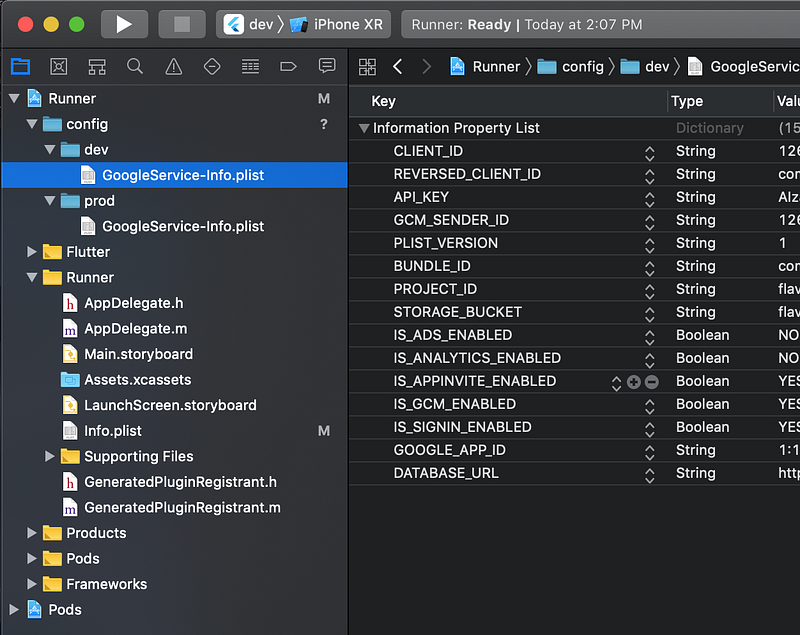
Now we need to figure out how to add a step in the build process so that the respective GoogleServices-Info.plist file is copied into the correct location, i.e. inside the Runner directory. This can be accomplished by adding a new Run script Build Phase to the target…
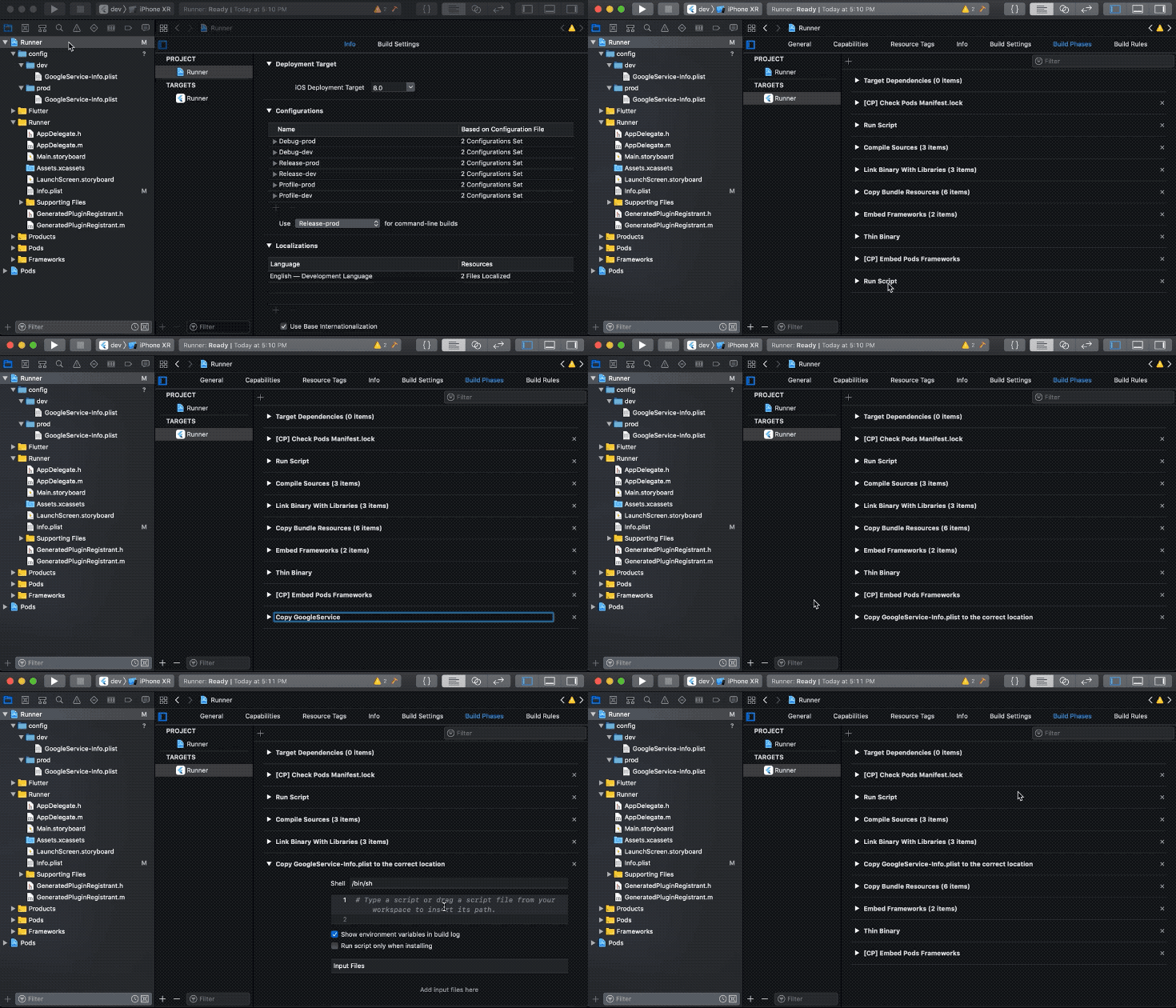
The script I used is below…
[UPDATE June 23, 2020. Thanks to Dharma Teja Nuli for the comment]
Paraphrasing the comment here for ease :
For people who are using zsh instead of bash, you need to make a small adjustment to make the script run.
I had to wrap the script provided by the author with two lines. So the script becomes:
setopt KSH_ARRAYS BASH_REMATCH <insert the author’s script> unsetopt KSH_ARRAYS
I got it from here. Thanks.
And with this, we should be done! Now we can run
flutter run --flavor dev or flutter run --flavor prod
And the iOS device / simulator will install separate apps which connect to separate Firebase DBs!
Code Diff : Step 3 to Step 4https://github.com/animeshjain/flavor_test/compare/step_3_android_flavors...step_4_ios_flavorsStep 5: Adding different app icons for different flavors
Sometimes just different names are not enough. You might want different app icons as well for a more clear visual distinction when multiple flavors are installed in a device.
So far I was using the default launcher icon that Flutter comes with, but to illustrate the steps I have create two icons for prod and dev.


- Steps for Android
Depending on which flavor you consider “default”, one of these icons can simply go to the android/app/src/main/res folder and replace the existing ic_launcher.png files for all the sizes. I’m going to put my dev icon into the default folder.
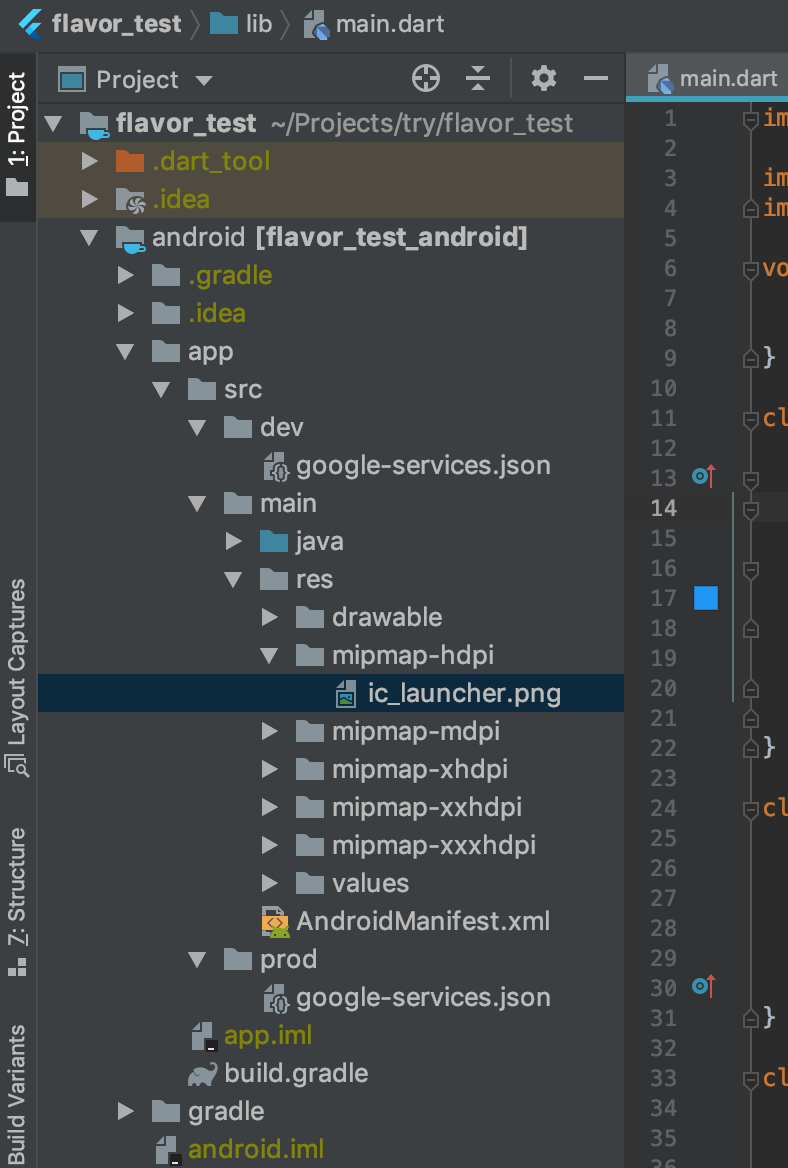
For the prod flavor, as some of you might have guesses, we will simply create a res folder in the prod folder, and add all size specific folders there. So your directory structure will look something like this
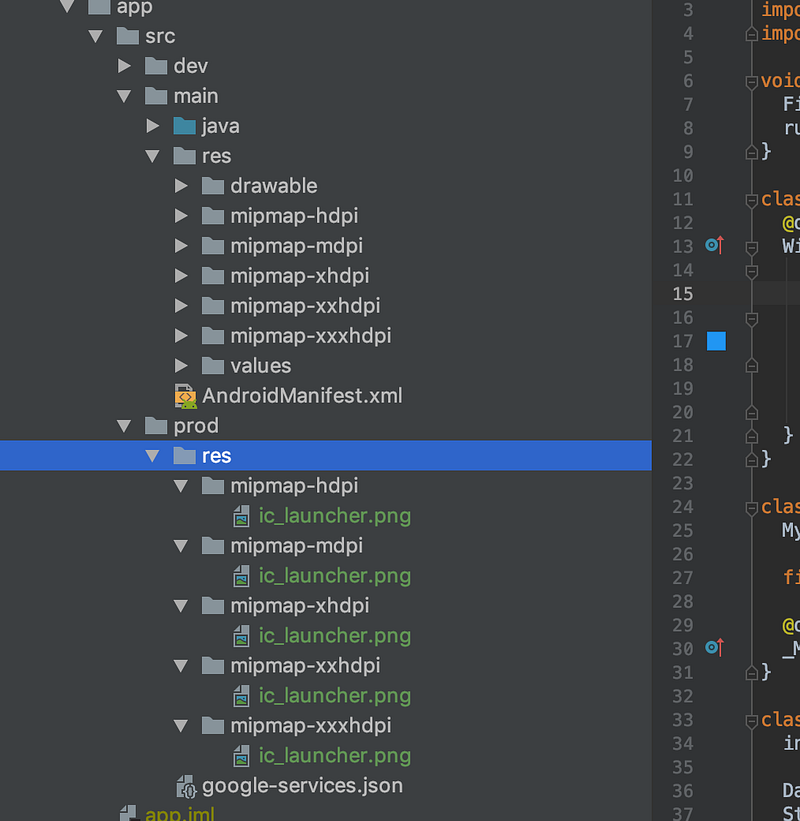
Note: You could have put your dev app icon files into the dev folder specifically as well. Android just looks into the flavor specific directory first, and if nothing is found there, then it falls back to the default directory called main and uses the resources found in that instead.
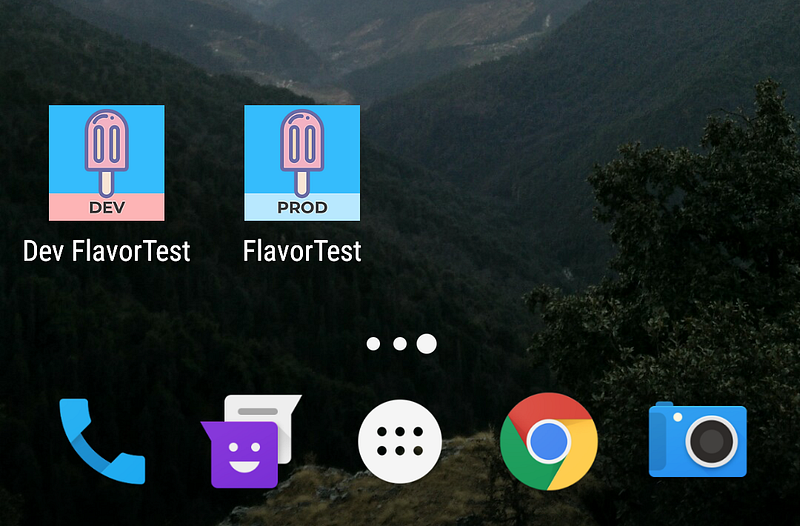
This is how the icons look on Android -
- Steps for iOS
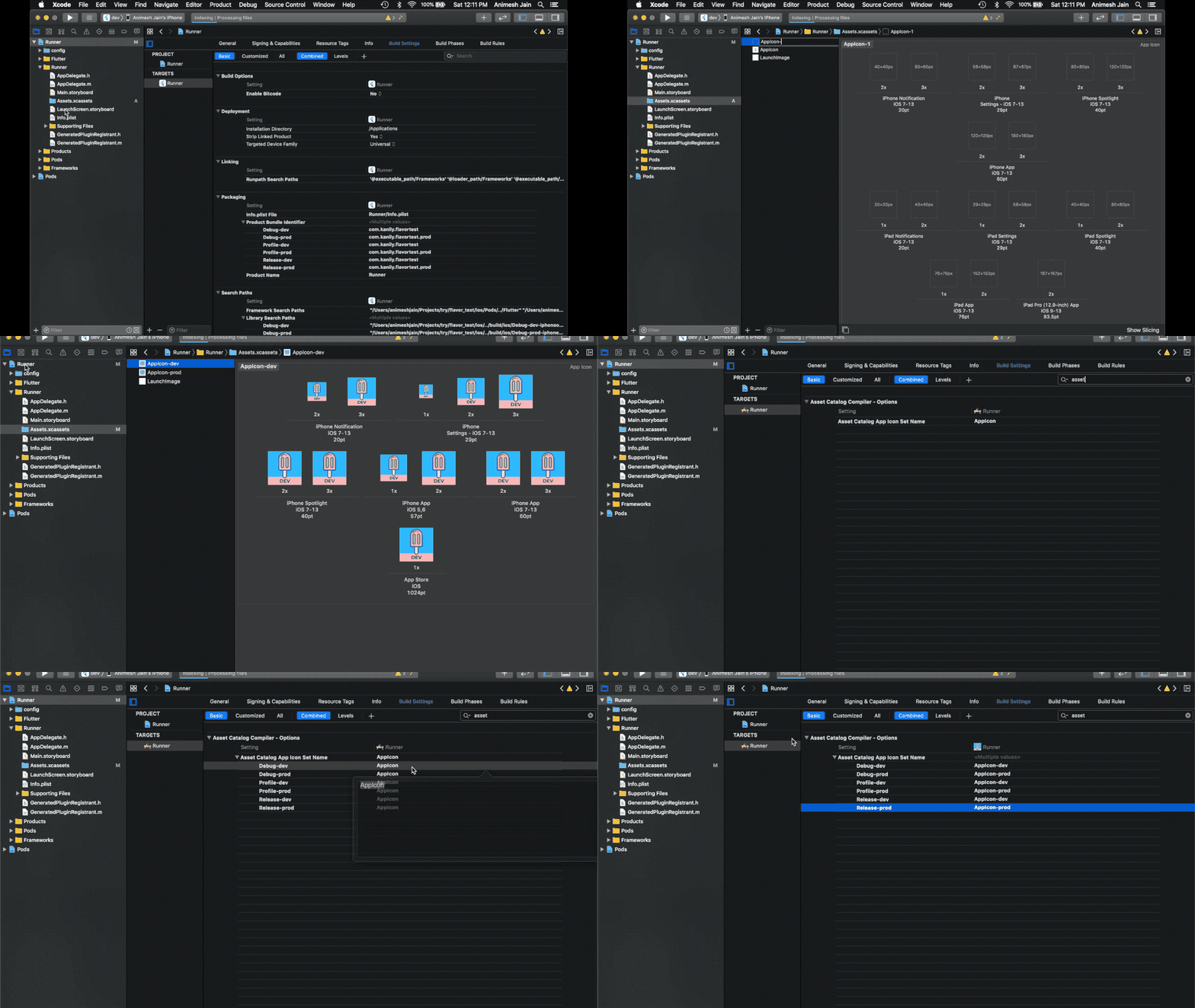
We’ll jump back to Xcode for this one. We create app icon assets and then tell XCode to use different icons for different flavors. Check the gif…
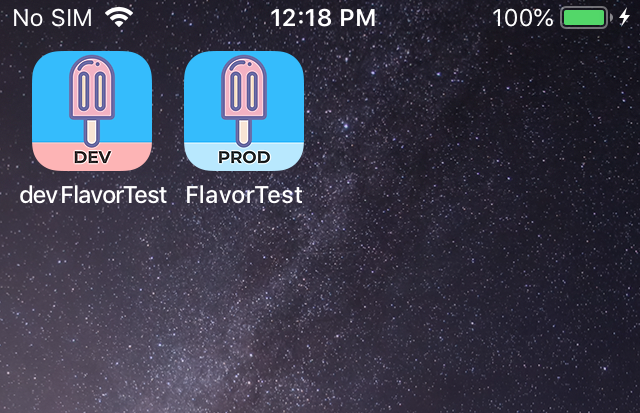
Now when you build the app on iOS, you’ll get something like this -
That’s all folks, hope this tutorial helps clear up any confusion in setting up flavors, especially on iOS. Below are some helpful articles / resources I came across while trying to get this to work.
Supplementary resources
- The github pull request which explains how Flutter Flavors (and build modes — debug, release, profile) map to the respective OS specific build constructs — https://github.com/flutter/flutter/pull/11734
- For those of you interested in a deeper dive on how XCode builds your app — https://www.youtube.com/watch?v=yazY8hCO46s
- Source code for the flutter command line tool that runs the XCode build — https://github.com/flutter/flutter/blob/27b058a41473d5ef136f3874ed6f0a2ccaf969d0/packages/flutter_tools/lib/src/ios/xcodeproj.dart
- For a detailed explanation on how to implement flavors in Dart Code — https://readmedium.com/flutter-ready-to-go-e59873f9d7de


