avatarManpreet Singh

Free AI web copilot to create summaries, insights and extended knowledge, download it at here

1783

Abstract

nd fully customizable widgets. They…</h3></div> <div><p>github.com</p></div> </div> <div> <div style="background-image: url(https://miro.readmedium.com/v2/resize:fit:320/0*k4uz5T4U_DS5vwJl)"></div> </div> </div> </a> </div><p id="0a73">This specific package allows us to build very modern looking GUI’s, while still using the Tkinter features as well! Here are a few examples of the capability behind this package:</p><figure id="2346"><img src="https://cdn-images-1.readmedium.com/v2/resize:fit:800/1*bLrdvhv2H50VQKIK5J5DSw.png"><figcaption></figcaption></figure><figure id="28f2"><img src="https://cdn-images-1.readmedium.com/v2/resize:fit:800/1*c9ceKxIogjyT9Ju2LWe09Q.gif"><figcaption></figcaption></figure><p id="1db9">To install this package, you can use the following <b>pip</b> command:</p><div id="b622"><pre>pip3 <span class="hljs-keyword">install</span> customtkinter</pre></div><p id="9b41">Once installed, you are ready to go! You can use the following example code (from their GitHub) that showcases a very basic example:</p><div id="32c3"><pre>import tkinter import customtkinter

customtkinter.set_appearance_mode(<span class="hljs-string">"System"</span>) # Modes:<span class="hljs-built_in"> system </span>(default), light, dark customtkinter.set_default_color_theme(<span class="hljs-string">"blue"</span>) # Themes: blue (default), dark-blue, green

app = customtkinter.CTk() # create CTk window like you <span class="hljs-keyword">do</span> with the Tk window app.geometry(<span class="hljs-string">"400x240"</span>)

def button_function(): <span class="hljs-built_in">print</span>(<span class="hljs-string">"button pressed"</span>)

<span class="hljs-

Options

comment"># Use CTkButton instead of tkinter Button</span> button = customtkinter.CTkButton(<span class="hljs-attribute">master</span>=app, <span class="hljs-attribute">text</span>=<span class="hljs-string">"CTkButton"</span>, <span class="hljs-attribute">command</span>=button_function) button.place(<span class="hljs-attribute">relx</span>=0.5, <span class="hljs-attribute">rely</span>=0.5, <span class="hljs-attribute">anchor</span>=tkinter.CENTER)

app.mainloop()</pre></div><p id="b0da">This is the output:</p><figure id="8a97"><img src="https://cdn-images-1.readmedium.com/v2/resize:fit:800/1*KG_rKB4AOcavJdyN5_X3Xw.png"><figcaption></figcaption></figure><p id="8eb5">At this point you are ready to go! Do you plan on building software with this package? I would love to hear your thoughts about this!</p><h1 id="86f2">Thanks So Much!</h1><p id="6e35">if you have any suggestions, thoughts, or just want to connect, <a href="https://twitter.com/preettheman">feel free to contact/follow me on Twitter</a>! Also, below is a link to some of my favorite resources for learning programming:</p><div id="23d5" class="link-block"> <a href="https://sites.google.com/view/betterprogrammer/home"> <div> <div> <h2>My Recommendations</h2> <div><h3>Here are some of my favorite courses, books and so much more. Most of these are affiliate links that help me create…</h3></div> <div><p>sites.google.com</p></div> </div> <div> <div style="background-image: url(https://miro.readmedium.com/v2/resize:fit:320/0*-0qzypM_rfMj_TPl)"></div> </div> </div> </a> </div><p id="c1fe">Thanks so much for reading!</p></article></body>

Build Beautiful Software With Python

Welcome back! Python is an awesome programming language with a ton of capability, if you’re new to Python, check out the link below to learn more about it:

So, let’s take a look at an awesome Python package that allows us to build beautiful software! This specific package is called CustomTkinter, and it’s a modern version of the original Tkinter package, here is a link to their GitHub repository if you want to learn more about this package:

This specific package allows us to build very modern looking GUI’s, while still using the Tkinter features as well! Here are a few examples of the capability behind this package:

To install this package, you can use the following pip command:

pip3 install customtkinter

Once installed, you are ready to go! You can use the following example code (from their GitHub) that showcases a very basic example:

import tkinter
import customtkinter

customtkinter.set_appearance_mode("System")  # Modes: system (default), light, dark
customtkinter.set_default_color_theme("blue")  # Themes: blue (default), dark-blue, green

app = customtkinter.CTk()  # create CTk window like you do with the Tk window
app.geometry("400x240")

def button_function():
    print("button pressed")

# Use CTkButton instead of tkinter Button
button = customtkinter.CTkButton(master=app, text="CTkButton", command=button_function)
button.place(relx=0.5, rely=0.5, anchor=tkinter.CENTER)

app.mainloop()

This is the output:
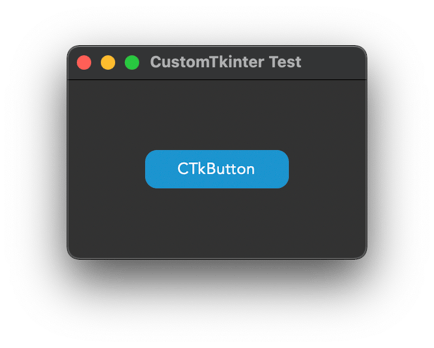
At this point you are ready to go! Do you plan on building software with this package? I would love to hear your thoughts about this!

Thanks So Much!

if you have any suggestions, thoughts, or just want to connect, feel free to contact/follow me on Twitter! Also, below is a link to some of my favorite resources for learning programming:

Thanks so much for reading!

Programming
Coding
Python
Software Development
Software Engineering
Recommended from ReadMedium