Build a Named Entity Recognition App with Streamlit
From building the app to deployment — with code included
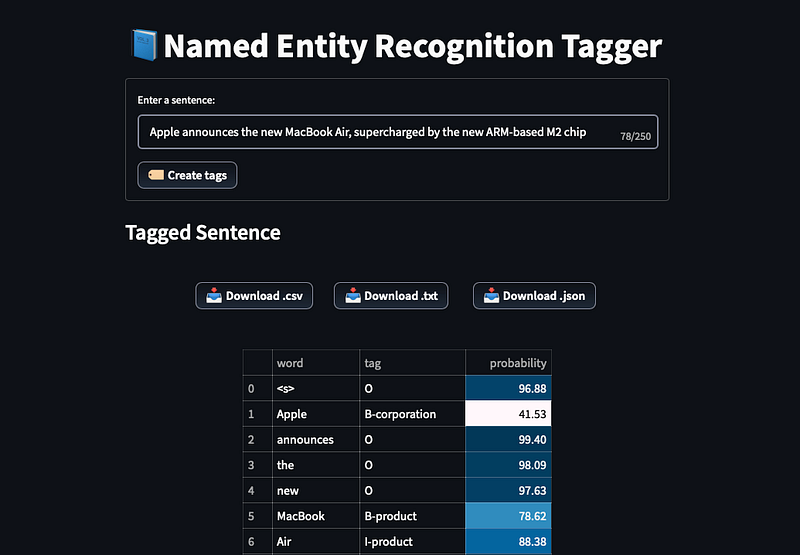
In my previous article, we fine-tuned a Named Entity Recognition (NER) model, trained on the wnut_17[1] dataset.
In this article, we show step-by-step how to integrate this model with Streamlit and deploy it using HugginFace Spaces. The goal of this app is to tag input sentences per user request in real time.
Also, keep in mind, that contrary to trivial ML models, deploying a large language model on Streamlit is tricky. We also address those challenges.
Let’s dive in!
Why Streamlit?
Streamlit is an easy-to-use tool for creating interactive applications that sit on top of a data science project.
There are similar ML-friendly tools like Dash and Gradio. Each one has its strengths. For example, Gradio has an amazing drag-and-drop component, suitable for image classification models.
In general, I prefer Streamlit because:
- It has a spectacular trajectory so far — during the past year, Streamlit has been releasing major updates at least once a month.
- It has a strong community. Members at discussion forums are super-helpful. Also, you can upload your app for free on Streamlit Cloud. If your app is interesting, the community managers will reach out to you and feature your app on the Streamlit website! They may even send you gifts!
Apart from growth and strong community, Streamlit is a fully-fledged tool, suitable for interactive applications in every data science domain.
Next, let’s build our app!
The full example can be found here.
Building the app
This article focuses on building and deploying our model with Streamlit.
If you want to learn more about how the model is produced, feel free to check my previous post.
There is one change though: We use the roberta-large model from HugginFace instead of bert-base. RoBERTa[2] introduced a few novelties like dynamic masking, which make RoBERTa superior to BERT.
Libraries
First, we need the following libraries. For clarity, take a look at the requirements.txt file:
pytorch-lightning==0.9.0
torch==1.10.0
torchtext==0.8.0
torchvision==0.11.1
datasets==2.3.2
numpy==1.20.3
pandas==1.3.5
streamlit==1.11.1
transformers==4.12.5
Streamlit aesthetics
The goal is to make our app minimal and UX-friendly. And Streamlit is the right tool for this job.
Let’s set up the page’s metadata:
In 2 lines of code, we have set up the page’s headers, title, and favicon.
Load the model
We create the load_model function for this task:
Notice the following:
- We use the
@st.cachedecorator to cache our model — because it’s too large(~2BG), we don’t want to reload it every time. - We use the
allow_output_mutation=Trueto tell Streamlit that our model should be treated as an immutable object — a singleton.
Add helper functions for tags generation
Next, we add our helper functions. We will use the tag_sentence function later to generate tags for the input sentence.
Add helper function for downloading results
Sometimes, it’s helpful if a user can download the prediction results as a separate file (e.g. for later usage).
Streamlit API provides the st.download_button for such purposes. We will show how to convert our results into CSV, text, and JSON formats. For this task, we use the following helper functions:
The download buttons will look like this:

Note: There is currently a bug in Streamlit, where sometimes the file is not properly downloaded.
Alternatively, we can create the download button in a custom way. The code for this component is included in the app’s code, as a comment.
Create the form
We have now concluded the setup and we are ready to construct our data pipeline.
The app should do the following:
- Ingest the user input.
- Check if the input sentence is empty.
- Check if the user input sentence contains a single word (there’s no point tagging a single word).
- If everything is ok, load our model and calculate the tags for the input sentence.
- Render the results in the UI.
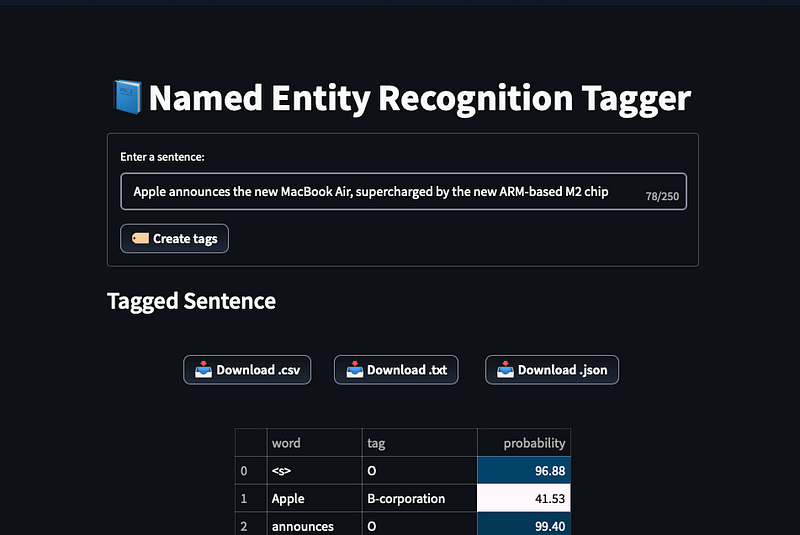
Thus, we have:
And that’s it! The text form will look like this:
Optional — add an ‘About’ section
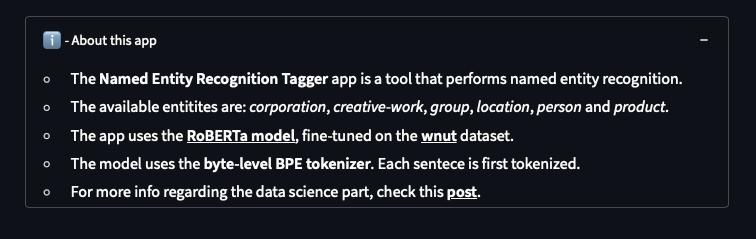
For UX purposes, we can add an About section at the bottom of this page:
This is how this section is displayed:
Deployment
Currently, there 3 ways to deploy the Streamlit app for free:
- Streamlit cloud
- Hugginface Spaces
- Heroku
All options are super-easy — at no cost, and no containers are required.
For our case, we choose HugginFace Spaces because it can better handle large files. The process is as follows:
1. Setup Git
First, make sure you have git installed.
2. Install Git LFS
Because our model is a large binary file >1GB, we should also install Git LFS, which can version large files.
To download it, follow the instructions here. The page includes instructions for Windows, Mac, and Linux.
3. Add requirements file
Hugginface requires that we supply a requirements.txt file with the libraries that our project uses.
We can generate a requirements.txt file instantly using the pipreqs library. Plus, pipreqs generates only the libraries that our project uses:
pip install pipreqs
pipreqs /cd/to/project
4. Log in to HugginFace and create a Space
If you don’t already have a HugginFace account, visit this page.
Then, create a Space (you will find it in the top-right corner). Essentially, a Space acts as a traditional Git repo. Fill in the required details and initialize youe repo.
Afterwards, clone your repo, add the files of your project into the folder, and upload them to the Space:
git clone https://huggingface.co/spaces/nkaf/ner-tagger-streamlit
cd /cd/to/project
git add .
git commit -m “first commit”
git push origin main
And that’s it!
4. Visit your App
You will have to wait a few minutes for the app to initialize. Then, go to the App tab, and if everything is ok, your web application will be live!
You can find the project for this web application here! Feel free to input your sentences and experiment!
Let’s see some examples!
Example 1:
Apple announces the new MacBook Air, supercharged by the new ARM-based M2 chip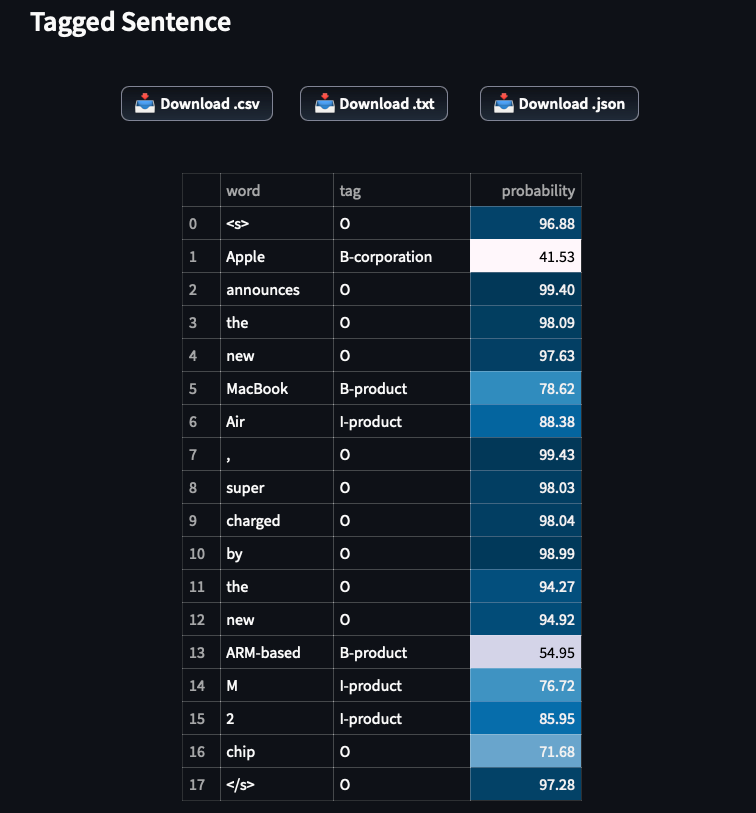
The model correctly tags Apple as a corporation. Also, it correctly identifies and recognizes MacBook Air and ARM-based M2 as products.
Example 2:
Empire State building is located in New York, a city in United States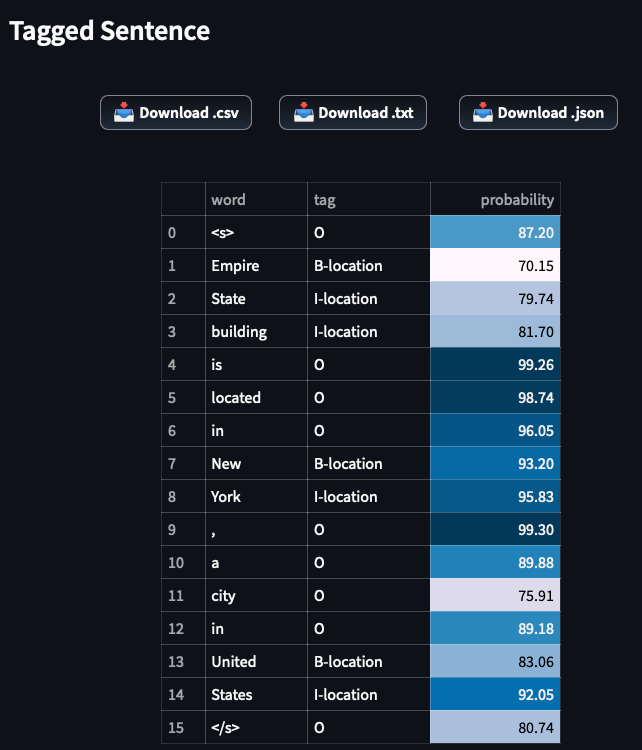
Again our model correctly recognizes all 3 locations of our sentence.
Closing Remarks
Streamlit is an easy-to-use tool that is very efficient at demonstrating the functionality of a data science project.
Also, you can take integrate your data science project with Streamlit almost seamlessly.
Finally, notice that we used only Python — we can create amazing Streamlit apps with almost zero knowledge of either HTML, CSS, or Javascript. Also, Streamlit is compatible with popular data science libraries such as Numpy, Pandas, OpenCV, and Plotly.
Thank you for reading!
- Subscribe to my newsletter!
- Follow me on Linkedin!
- Join Medium! (Affiliate Link)
References
- WNUT 2017 (WNUT 2017 Emerging and Rare entity recognition), Licence: CC BY 4.0, Source
- Yinhan Liu, et al, RoBERTa: A Robustly Optimized BERT Pretraining Approach (2019)


