
Browser Automation with Python and Selenium — 12: Managing Alerts
How to handle alert dialogs

In the previous post, we looked at working with cookies. We will explore the handling of alert dialogs in this post.
An alert is a pop-up window. It gets triggered due to some action performed by the user or automatically due to some system settings. Their purpose is to give some information to the user, take permission, or take some input from the user.
Selenium WebDriver Alert API provides methods to handle interactions with these pop-up message boxes.
We can categorize the alerts into the following three types:
- Simple Alert
- Confirmation Alert
- Prompt Alert
Simple Alert
A simple alert shows a custom message and a single button(usually an “OK”) which dismisses the alert.
When the alert pop-up appears on the web page, control still remains with the parent. We need to switch control to the alert to be able to take action on it.
You can accept an alert with the accept() method, cancel it with the dismiss() method, fill prompts with the send_keys() method, or get the text of the alert with the text property.
In the following example, an alert is created by executing JavaScript code on the page. Then we switch to the alert, read the text, and close it by calling the accept method on it.
# output
Alert text: Custom Alert
Confirmation Alert
A confirmation alert is similar to a simple alert. There is an extra Cancel button to dismiss the alert. The same API methods can also be used for this type of alert.
Prompt Alert
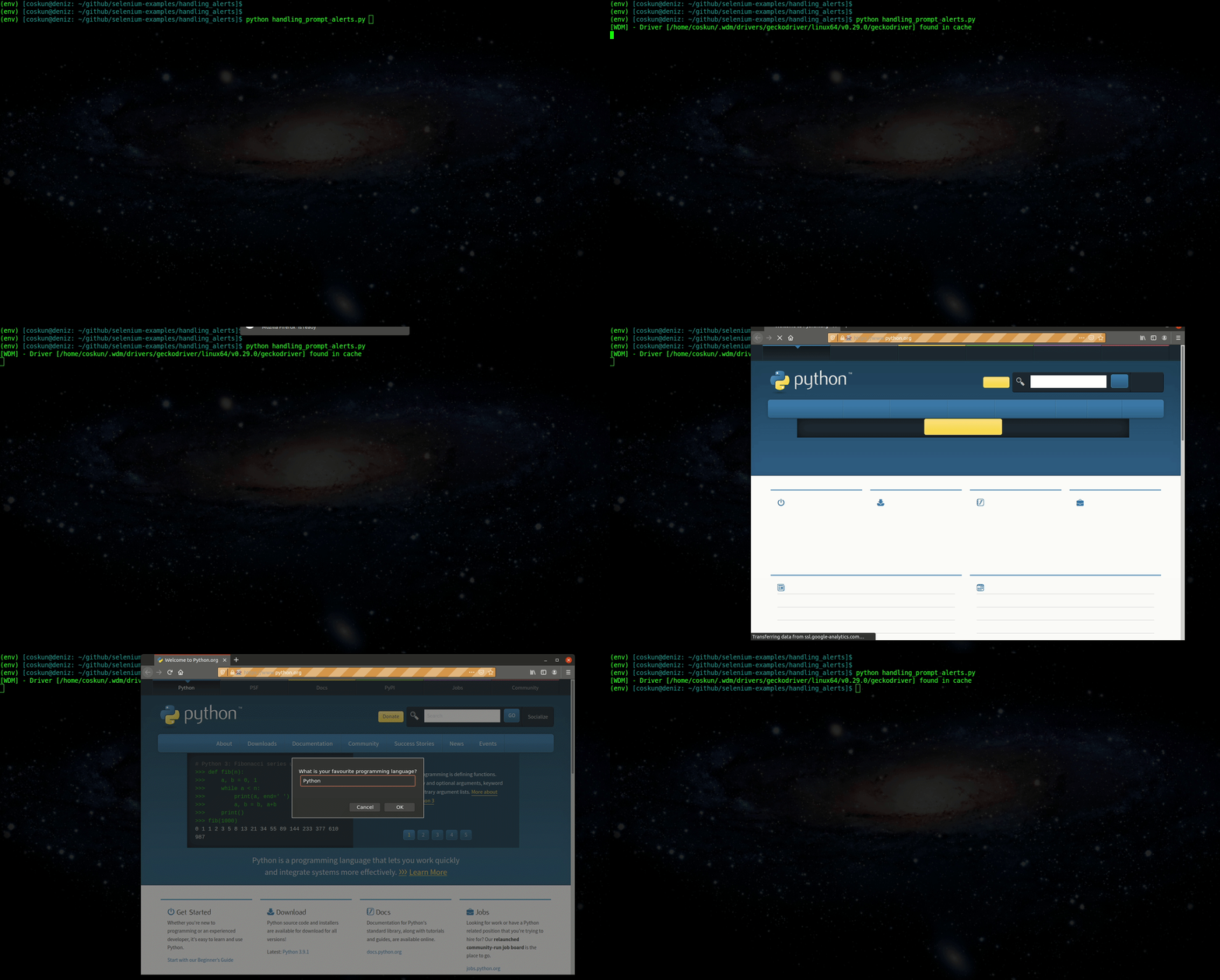
A prompt alert has one more feature than a confirmation alert which is a text input field to take some input from the user.
This input field can be filled with the send_keys() method.
The following example creates a prompt dialog and types “Python” into it.
ElementNotInteractableException is raised if you try to send input to simple or confirm alert using the send_keys method.
InvalidElementStateException : class
        ^
        |
    ElementNotInteractableException : class
    ElementNotSelectableException : class
ElementNotVisibleException : classElementNotInteractableException is derived from InvalidElementStateException.
# output
Received ElementNotInteractableException with message: User prompt of type alert is not interactable
When you try to switch to alerts before they are displayed, you get NoAlertPresentException. To avoid this situation, we can wait for alerts to appear with an explicit wait.
The following example tries to immediately switch to the alert which is created after 3 seconds timeout and NoAlertPresentException is received. At the second attempt, an explicit wait is used with the alert_is_present condition and properly switches to alert and closes it by the accept method.
# output
Received NoAlertPresentException
Switching to alert with explicit wait
Closed alert dialog
Things to Remember
- An alert is a pop-up window that is triggered due to some action performed by the user or automatically due to some system settings.
- There are three types of alerts: Simple, Confirmation, and Prompt.
- You can accept an alert with the
accept()method, cancel it with thedismiss()method, fill prompts with thesend_keys()method, or get the text of the alert with thetextproperty. - You need to switch control to the alert with the
switch_tomethod to be able to take action on it. ElementNotInteractableExceptionis raised if you try to send input to a simple or confirm alert using thesend_keysmethod.NoAlertPresentExceptionis raised when you try to switch to alerts before they are displayed.
In the next post, we will look at interacting with select elements.
Thank you for your time.


