
Beyond Defaults: Using Custom Fonts in Power BI
Enhancing User Experience Through Thoughtful UI and Tailored Typography
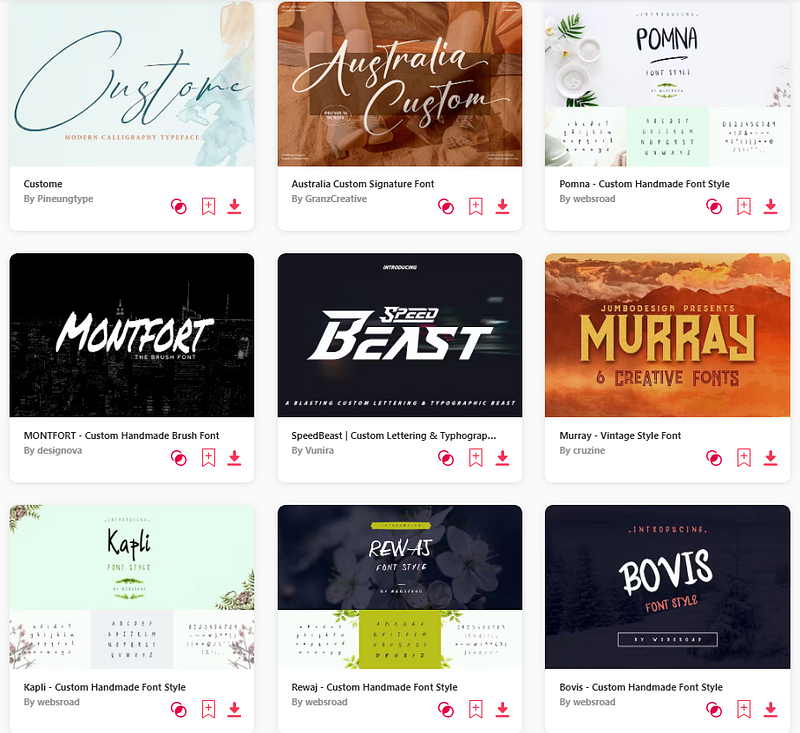
Power BI, by default, offers a select palette of font options. While these fonts are legible and professional, sometimes, there’s a need to step outside the default range — either to align with branding guidelines or to add a distinctive aesthetic touch to your reports. But as with all UI decisions, integrating custom fonts should be approached with care. Good UI isn’t just about looking good; it’s about enhancing the user’s experience, facilitating understanding, and ensuring accessibility. This guide will take you through the process of integrating custom fonts into your Power BI reports, keeping in mind the principles of effective UI design.
Here is a step by step guide to integrate custom fonts to your Power BI report.
Step 1: Prepare a Dummy Theme
Launch Power BI Desktop.
Navigate to the View tab. Under the Themes section, choose Customize current theme.

In the Customize theme window, select Text.
Change the default Font family for each subsection: General, Title, Cards and KPIs, and Tab headers. For this guide, let’s switch from "Segoe UI" to "Corbel".

Click on Apply after adjusting each section.

Step 2: Add Your Custom Font to the Theme
Under the View tab, within Themes, select Save current theme.

This will export the dummy theme you created in a JSON File. Rename it and save it on your PC.
Once it has been saved, open it using Notepad or your prefered code editor. This is what you should see:

You will notice that the dummy font you assigned, in our case “Corbel” appears at multiple places. Replace this font name by the custom font you would like to use. Please note that this new font needs to already be installed on your PC.
You can even set different fonts for headers, titles, etc., as per your requirements. But for a consistent user experience, limit the number of custom fonts.
In our case, we will be replacing the Corbel font with one of my favorites: Poppins. After replacing Corbel by Poppins at each instance, here is what the JSON file now looks like:

Once the changes are done, save your edited JSON file.
Step 3: Replace the current theme with your updated JSON File
Return to Power BI Desktop.
Go to View > Themes > Browse for themes.
Navigate to and select the recently edited JSON file.

Upon successfully importing, Power BI should provide a confirmation message.

You can now test with different visuals to make sure that this new font is working appropriately.
In my case, I selected a text box and started writing. As you can see, the custom font Poppins is applied by default.

Limitations
- User-side Font Installation: For users to see the custom font on Power BI Service, the font must be installed on their systems. Otherwise, they’ll see a default font. This is normally not an issue if you are using your company’s default theme.
- Mobile Compatibility: Check your report in mobile view if it’s commonly accessed via mobile devices. Custom fonts might not always render correctly. A workaround could be to choose a similar-looking standard Power BI font for the mobile view of your report.
Conclusion
Integrating custom fonts can significantly elevate the visual appeal of your Power BI reports. However, always anchor your design choices in solid UI best practices. Fonts should be legible, consistent, and complement the data being presented. Remember, a report’s primary goal is to convey information efficiently; its design should support this aim, not overshadow it. By carefully selecting and integrating custom fonts, you ensure that your reports not only stand out but also remain user-centric, facilitating seamless interpretation and understanding of the data. In the realm of data visualization, where clarity is paramount, striking the right balance between aesthetic appeal and functionality is the key to success.
Don’t forget to subscribe to
👉 Power BI Publication
👉 Power BI Newsletter
and join our Power BI community
👉 Power BI Masterclass


