unction"><span class="hljs-params">()</span> =></span> task1([<span class="hljs-number">1.</span>.<span class="hljs-number">.60</span>]), <span class="hljs-number">3000</span>);
<span class="hljs-built_in">setTimeout</span>(<span class="hljs-function"><span class="hljs-params">()</span> =></span> task1([<span class="hljs-number">1.</span>.<span class="hljs-number">.60</span>]), <span class="hljs-number">4000</span>);
...</pre></div><p id="bdae">Well, this way doesn’t look so elegant. Because we should duplicate <code>setTimeout(() => {}, ...)</code> part as many times as he asked us to repeat.</p><p id="0688">In this case, you can use <i>setInterval,</i> which perfectly fits this situation.</p>
<figure id="0ef2">
<div>
<div>
<iframe class="gist-iframe" src="/gist/moonformeli/98ee8fb204d4678974c0aaa17cef5699.js" allowfullscreen="" frameborder="0" height="undefined" width="undefined">
</div>
</div>
</figure></iframe></div></div></figure><blockquote id="0af8"><p>Note: The way of using setInterval is exactly the same with setTimeout. So it means even though you call setInterval, it doesn’t start right away.</p></blockquote><h2 id="5dea">requestAnimationFrame</h2><p id="6bb1">A few months later, he called us in the morning.</p><p id="4761">“I want to change the algorithm. I want to print [1…] real quick. Yes, print numbers consecutively and never stop it!”</p><p id="7f3a">Now he wants something different. So it isn’t printing [1…60] anymore, we should print numbers from 1. So how can we do this?</p><p id="3487">We could do this with <i>setTimeout </i>by executing a function that prints the given number and call itself again recursively. But this way has a performance issue. I will explain the reason to you in later of this post.</p><p id="a487"><i>requestAnimationFrame</i> executes a callback function whenever the browser is ready to start the next repaint task.</p>
<figure id="8539">
<div>
<div>
<iframe class="gist-iframe" src="/gist/moonformeli/8272bb0457105458c6645b38fbdf4a7c.js" allowfullscreen="" frameborder="0" height="undefined" width="undefined">
</div>
</div>
</figure></iframe></div></div></figure><blockquote id="4552"><p>Note: This usage isn’t a best practice! We will talk more about this later in this post.</p></blockquote><p id="ea0b">Copy that code and run in on your browser console or IDE. You can see the numbers are printed very fast.</p><figure id="7887"><img src="https://cdn-images-1.readmedium.com/v2/resize:fit:800/0*gZWJokXtg5oO_kMz"><figcaption>Photo by <a href="https://unsplash.com/@marcosartorinet?utm_source=medium&utm_medium=referral">Marco Sartori</a> on <a href="https://unsplash.com?utm_source=medium&utm_medium=referral">Unsplash</a></figcaption></figure><h1 id="4e49">Deeper Dive</h1><p id="15b6">Now, I think you understand the basic concept of <i>setTimeout</i>, <i>setInterval</i>, and <i>requestAnimationFrame</i>.</p><p id="c992">All of JavaScript timers return <i>timestamp</i> when they are created. This <i>timestamp</i> the key to finding your callback function in a list called <i>list of active timeouts</i>. So once you generate <i>setTimeout </i>with 100 milliseconds, for example, JavaScript returns <i>timestamp</i> after it stores your callback function in the <i>list of active timeouts</i>, by writing a memo on it, “Execute this in 100 milliseconds”.</p><p id="cb28">You should know JavaScript is a single-thread based language, which means, only one task can be run at a time. Then what about your callback function in <i>setTimeout</i>?</p>
<figure id="07a0">
<div>
<div>
<iframe class="gist-iframe" src="/gist/moonformeli/50ba795c8ba6cfc88e2b55427a6efff0.js" allowfullscreen="" frameborder="0" height="undefined" width="undefined">
</div>
</div>
</figure></iframe></div></div></figure><p id="a652">Check out this code and run it in your browser console. Even though there’s <i>setTimeout, </i>which is supposed to be executed in 100 milliseconds, it doesn’t seem to be run that soon. Doesn’t it seem to take at least a few seconds to print out <code>'print'</code> ? Yes. It’s because JavaScript is a single-thread based. So, since <code>cnt</code> was being increased by <i>for-loop, </i>your<i> setTimeout </i>had to wait until it’s done<i>.</i></p><p id="23e2">It means 100 milliseconds you set in <i>setTimeout</i> does NOT mean that the callback function will be invoked at the exact time in 100 milliseconds.</p>
<figure id="3318">
<div>
<div>
<img class="ratio" src="http://placehold.it/16x9">
<iframe class="" src="https://cdn.embedly.com/widgets/media.html?src=https%3A%2F%2Fwww.youtube.com%2Fembed%2F8aGhZQkoFbQ%3Ffeature%3Doembed&display_name=YouTube&url=https%3A%2F%2Fwww.youtube.com%2Fwatch%3Fv%3D8aGhZQkoFbQ&image=https%3A%2F%2Fi.ytimg.com%2Fvi%2F8aGhZQkoFbQ%2Fhqdefault.jpg&key=a19fcc184b9711e1b4764040d3dc5c07&type=text%2Fhtml&schema=youtube" allowfullscreen="" frameborder="0" height="480" width="854">
</div>
</div>
</figure></iframe></div></div></figure><p id="1338">Another issue of using <i>setTimeout(also setInterval) </i>is that sometimes, or more than sometimes it can cause the browser to miss
Options
a frame. What does it mean?</p><h1 id="d000">Why is my website so slow? It’s because you didn’t respect 16ms!</h1><p id="b665">You might have heard what FPS, <i>Frame Per Second</i>, is. This is the importance of value for making users feel that your browser isn’t slow. It isn’t actually only about the web. Animations, movies, or any other materials that should show the users something continuously, the ideal frames per second is 60. Then the users will not feel it’s slow or there’s lag.</p><p id="c2be">60FPS means 60 frames per second. With this fact, we can derive that calculation.</p><div id="b8b6"><pre><span class="hljs-number">60</span>FPS = <span class="hljs-number">60</span> frames per second = <span class="hljs-number">16</span> <span class="hljs-keyword">ms</span> <span class="hljs-title">per</span> frame</pre></div><p id="0670">The best time for a frame is 16ms, and it will not make the users bored for waiting for your page. And <i>setTimeout</i> that we talked about the above can’t meet this condition.</p><figure id="c31f"><img src="https://cdn-images-1.readmedium.com/v2/resize:fit:800/1*KmOiKHbzv0ZiDZzfe0CPLg.png"><figcaption>setTimeout can cause the browser to miss a frame</figcaption></figure><p id="28f0"><a href="https://developers.google.com/web/fundamentals/performance/rendering/optimize-javascript-execution"><i>Click here to see more about this</i></a>.</p><h2 id="d076">Conclusion</h2><p id="3052">If you run animation with JS timers, I recommend you to use only <i>requestAnimationFrames</i>, unless there is a particular reason to use <i>setTimeout</i>.</p><h1 id="5b91">Things to Be Careful</h1><figure id="1ea2"><img src="https://cdn-images-1.readmedium.com/v2/resize:fit:800/0*Rc_jWYZsJD_Q35Qx"><figcaption>Photo by <a href="https://unsplash.com/@frostroomhead?utm_source=medium&utm_medium=referral">Rodion Kutsaev</a> on <a href="https://unsplash.com?utm_source=medium&utm_medium=referral">Unsplash</a></figcaption></figure><p id="a412">When you use timer functions in JavaScript, there is 1 thing that you MUST be aware of. It’s when to stop the timer function.</p><p id="50da">I said earlier that JavaScript timer functions return <i>timestamp</i> when they are generated, and it is the key to finding the callback function. Another important matter which is as important as generating timer functions and executing them is how to stop timer functions.</p>
<figure id="f282">
<div>
<div>
<iframe class="gist-iframe" src="/gist/moonformeli/3822f76f0106c14ad4ea3daa99775db2.js" allowfullscreen="" frameborder="0" height="undefined" width="undefined">
</div>
</div>
</figure></iframe></div></div></figure>
<figure id="06fd">
<div>
<div>
<iframe class="gist-iframe" src="/gist/moonformeli/dd6790fcd034a865a732ca6c6328700f.js" allowfullscreen="" frameborder="0" height="undefined" width="undefined">
</div>
</div>
</figure></iframe></div></div></figure><p id="26aa">As you can see, <i>setTimeout</i> and <i>setInterval</i> can be stopped by calling <i>clearTimeout</i> and <i>clearInterval </i>with <i>timestamp</i> as the parameter. It’s always good to clear your timer function after you’re done using it.</p><p id="b9b2">The matter is <i>requestAnimationFrame</i>. Here’s the link about <a href="https://html.spec.whatwg.org/multipage/imagebitmap-and-animations.html#dom-animationframeprovider-requestanimationframe"><i>how requestAnimationFrame works</i></a>. You can click it to get more information if you want.</p><blockquote id="1f3d"><p>…
3. Increment target’s <a href="https://html.spec.whatwg.org/multipage/imagebitmap-and-animations.html#animation-frame-callback-identifier">animation frame callback identifier</a> by one, and let handle be the result.
4. Let callbacks be target’s <a href="https://html.spec.whatwg.org/multipage/imagebitmap-and-animations.html#list-of-animation-frame-callbacks">map of animation frame callbacks</a>.
…</p></blockquote><p id="588a">While <i>setTimeout</i> is executed in <i>x milliseconds</i> (technically, <i>x + y milliseconds</i> as I explained earlier in this post), <i>requestAnimationFrame</i> keeps staying in the list called <i>animation frame request callback list</i>.</p><p id="720a"><b>The more you create <i>requestAnimationFrame</i>, the more handlers will be in the list. And you MUST get rid of it from the list every time after the callback function is invoked.</b></p>
<figure id="ed86">
<div>
<div>
<iframe class="gist-iframe" src="/gist/moonformeli/731dd032e0bd8538d84507bc02175b81.js" allowfullscreen="" frameborder="0" height="undefined" width="undefined">
</div>
</div>
</figure></iframe></div></div></figure><p id="2ca9">Note that <i>cancelAnimationFrame</i>, which gets rid of callback function from the list, is called every time before new <i>requestAnimationFrame</i> is generated.</p><p id="41a5">When I used to work on a dashboard, using <i>Canvas</i>, I didn’t call <i>cancelAnimationFrame</i>. What happened later? The timer identifier became over 2M because the web browser wasn’t closed for a few days. The page was completely stopped, and it made me stuck in that problem over five days to solve it.</p><p id="b5f9">Thank you for reading my post! I hope you understand JavaScript timer functions.</p></article></body>
Better Understanding of Timers in JavaScript: SetTimeout vs RequestAnimationFrame

These days, JavaScript timer functions are widely being used by many projects. They are especially so useful when you want to delay some functions back to after other functions are executed.
In this post, I will talk about each timer functions in JavaScript, and how to or when to use them. Also lastly, I will give you a caution when you use them.
List of contents
Introduction of Timers
- setTimeout
- setInterval
- requestAnimationFrame
Deeper dive into
- setTimeout vs setInterval vs requestAnimationFrame
Things to be careful
Introduction of Timers
There are four timer functions in JavaScript.
setTimeout — a function that calls a function or evaluates an expression after a specified number of milliseconds.
setInterval — a function that calls a function or evaluates an expression at specifed intervals. setInterval will continue calling the function until clearInterval is called.
requestAnimationFrame — a function working like setTimeout but which is improved by Mozilla.
setTimeout
Let’s say that you have a client who wants to print out every second for 1 minute. And he gives you an array which contains [1…60]. Now you have to print them out per second.
In this case, we can’t loop over the array as we always did, because it will just print all the numbers out at once. setTimeout takes a function as its first argument and executes it in x milliseconds that you passed to setTimeout as the second argument.
Imagine what loop function will print out.
Fill is a great method when you want to initialize an array with a certain value. In that example, the array will be filled with zero since new Array(60) returns undefined by default.
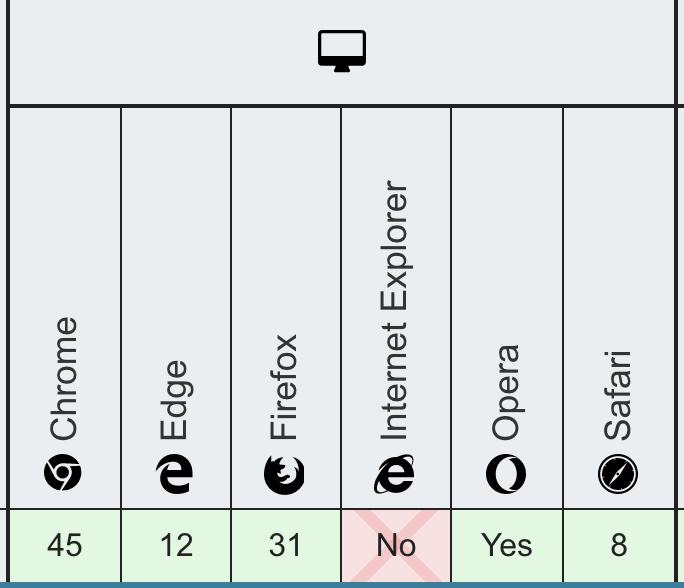
Browser compatibility of Array.prototype.fill. Check out here
Note: fill is not fully supported in all of browsers. It isn’t supported in IE. If you also should consider using fill method in a various browsers, you should come up with a different algorithm for fill method for IE.
This is where setTimeout can be used.
Values [1…60] are printed every second as we expected and our client can also be happy! :D
setInterval
Last time he asked us to print [1…60] out, he was very satisfied with what we’ve done for him. So he asked us to do one more job for him, again. But this time, he wants to print the whole task which prints [1…60] per second repeatedly. What should we do?
Okay, I think we can reuse the first product in this task. So, the thing is, we know how to print [1…60] every second, but how can we repeat it?
Well, this way doesn’t look so elegant. Because we should duplicate setTimeout(() => {}, ...) part as many times as he asked us to repeat.
In this case, you can use setInterval, which perfectly fits this situation.
Note: The way of using setInterval is exactly the same with setTimeout. So it means even though you call setInterval, it doesn’t start right away.
requestAnimationFrame
A few months later, he called us in the morning.
“I want to change the algorithm. I want to print [1…] real quick. Yes, print numbers consecutively and never stop it!”
Now he wants something different. So it isn’t printing [1…60] anymore, we should print numbers from 1. So how can we do this?
We could do this with setTimeout by executing a function that prints the given number and call itself again recursively. But this way has a performance issue. I will explain the reason to you in later of this post.
requestAnimationFrame executes a callback function whenever the browser is ready to start the next repaint task.
Note: This usage isn’t a best practice! We will talk more about this later in this post.
Copy that code and run in on your browser console or IDE. You can see the numbers are printed very fast.

Now, I think you understand the basic concept of setTimeout, setInterval, and requestAnimationFrame.
All of JavaScript timers return timestamp when they are created. This timestamp the key to finding your callback function in a list called list of active timeouts. So once you generate setTimeout with 100 milliseconds, for example, JavaScript returns timestamp after it stores your callback function in the list of active timeouts, by writing a memo on it, “Execute this in 100 milliseconds”.
You should know JavaScript is a single-thread based language, which means, only one task can be run at a time. Then what about your callback function in setTimeout?
Check out this code and run it in your browser console. Even though there’s setTimeout, which is supposed to be executed in 100 milliseconds, it doesn’t seem to be run that soon. Doesn’t it seem to take at least a few seconds to print out 'print' ? Yes. It’s because JavaScript is a single-thread based. So, since cnt was being increased by for-loop, your setTimeout had to wait until it’s done.
It means 100 milliseconds you set in setTimeout does NOT mean that the callback function will be invoked at the exact time in 100 milliseconds.
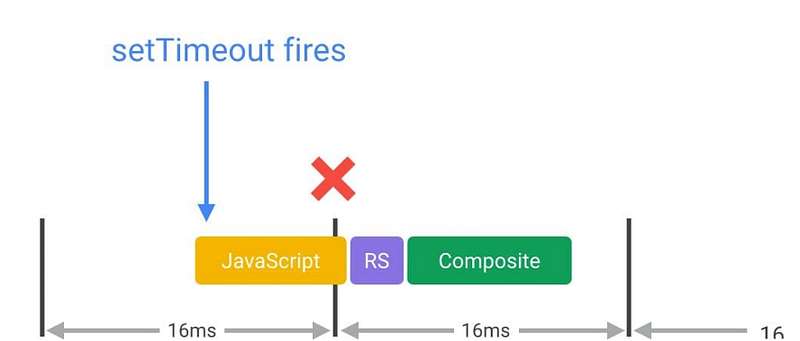
Another issue of using setTimeout(also setInterval) is that sometimes, or more than sometimes it can cause the browser to miss a frame. What does it mean?
Why is my website so slow? It’s because you didn’t respect 16ms!
You might have heard what FPS, Frame Per Second, is. This is the importance of value for making users feel that your browser isn’t slow. It isn’t actually only about the web. Animations, movies, or any other materials that should show the users something continuously, the ideal frames per second is 60. Then the users will not feel it’s slow or there’s lag.
60FPS means 60 frames per second. With this fact, we can derive that calculation.
60FPS = 60 frames per second = 16msper frame
The best time for a frame is 16ms, and it will not make the users bored for waiting for your page. And setTimeout that we talked about the above can’t meet this condition.
When you use timer functions in JavaScript, there is 1 thing that you MUST be aware of. It’s when to stop the timer function.
I said earlier that JavaScript timer functions return timestamp when they are generated, and it is the key to finding the callback function. Another important matter which is as important as generating timer functions and executing them is how to stop timer functions.
As you can see, setTimeout and setInterval can be stopped by calling clearTimeout and clearInterval with timestamp as the parameter. It’s always good to clear your timer function after you’re done using it.
The matter is requestAnimationFrame. Here’s the link about how requestAnimationFrame works. You can click it to get more information if you want.
While setTimeout is executed in x milliseconds (technically, x + y milliseconds as I explained earlier in this post), requestAnimationFrame keeps staying in the list called animation frame request callback list.
The more you create requestAnimationFrame, the more handlers will be in the list. And you MUST get rid of it from the list every time after the callback function is invoked.
Note that cancelAnimationFrame, which gets rid of callback function from the list, is called every time before new requestAnimationFrame is generated.
When I used to work on a dashboard, using Canvas, I didn’t call cancelAnimationFrame. What happened later? The timer identifier became over 2M because the web browser wasn’t closed for a few days. The page was completely stopped, and it made me stuck in that problem over five days to solve it.
Thank you for reading my post! I hope you understand JavaScript timer functions.