avatarRishabh Sharma

Free AI web copilot to create summaries, insights and extended knowledge, download it at here

3629

Abstract

rites a query embedded in Go, converting the result to a Go class as you would have done yourself:</p><figure id="0307"><img src="https://cdn-images-1.readmedium.com/v2/resize:fit:800/0*pyBOeCqD0Zug05Jf.gif"><figcaption></figcaption></figure><h1 id="3a86">#GitHub Copilot Chat</h1><h2 id="8ea3">GitHub Copilot — Your AI pair programmer</h2><p id="1d1b">GitHub Copilot Chat is a companion extension to <a href="https://github.com/features/copilot">GitHub Copilot</a> that provides conversational AI assistance throughout your software development journey in VS Code.</p><figure id="d272"><img src="https://cdn-images-1.readmedium.com/v2/resize:fit:800/0*M80iC2kUK-Kb3Ah0.gif"><figcaption></figcaption></figure><p id="c60e">Whether you’re troubleshooting a bug or crafting a new feature, GitHub Copilot is here to assist when you encounter challenges — simply ask for guidance:</p><ul><li><a href="https://code.visualstudio.com/docs/editor/github-copilot#_chat-view"><b>Chat view</b></a>: Ask Copilot for help with any task or question in the Chat view, bringing in code from your current files.</li><li><a href="https://code.visualstudio.com/docs/editor/github-copilot#_inline-chat"><b>Inline Chat</b></a>: Apply Copilot’s AI suggestions directly to your code, staying in the flow.</li><li><a href="https://code.visualstudio.com/docs/editor/github-copilot#_quick-chat"><b>Quick Chat</b></a>: Bring up a Chat-powered dropdown for quick questions and suggestions.</li></ul><p id="1e12">Learn Copilot Chat in less than 4 minutes with our <a href="https://www.youtube.com/watch?v=3surPGP7_4o">quickstart video</a> or <a href="https://code.visualstudio.com/docs/editor/artificial-intelligence#_chat-view">read VS Code’s Copilot Chat documentation</a>.</p><h2 id="f957">Getting Access to GitHub Copilot</h2><p id="7bc7">Sign up for a <a href="https://github.com/login?return_to=%2fgithub-copilot%2fsignup">30 day free trial with GitHub Copilot</a> today or request Copilot access from your enterprise admin. To access GitHub Copilot, an active GitHub Copilot license is required. You can read more about our business and individual offerings at <a href="https://github.com/features/copilot">github.com/features/copilot</a>.</p><h2 id="88ec">Supported languages and framework</h2><p id="2b5c">GitHub Copilot works on any language, including Java, PHP, Python, JavaScript, Ruby, Go, C#, or C++. Because it’s been trained on languages in public repositories, it works for most popular languages, libraries and frameworks. It’s also integrated into your editor, and fast enough to use as you type.</p><h2 id="4dad">What can you do with GitHub Copilot?</h2><p id="7d9d">We have produced both video tutorials and blog posts to facilitate your learning about GitHub Copilot. Take a moment to check out these resources:</p><ul><li><a href="https://github.blog/2023-07-25-how-to-build-a-gpt-3-app-with-nextjs-react-and-github-copilot/">Building a GPT-3 app using GitHub Copilot</a></li><li><a href="https://www.youtube.com/watch?v=FnJlLruGz5g">Write tests using GitHub Copilot</a></li><li><a href="https://www.youtube.com/watch?v=whhq0-5ibac">Improve code performance using Github Copilot Chat</a></li><li><a href="https://www.youtube.com/watch?v=D-gkwzExddk">Fixing errors using GitHub Copilot</a></li><li><a href="https://github.blog/2023-10-09-prompting-github-copilot-chat-to-become-your-personal-ai-assistant-for-accessibility/">Getting help from GitHub Copilot Chat to make your code more accessible</a></li></ul><h1 id="1742">Import Cost</h1><h2 id="943e">Import Cost VSCode Extension</h2><p id="a887">This extension will display inline i

Options

n the editor the size of the imported package. The extension utilizes webpack in order to detect the imported size.</p><figure id="34eb"><img src="https://cdn-images-1.readmedium.com/v2/resize:fit:800/0*XHBFqe4aprwMeBGo"><figcaption></figcaption></figure><h1 id="d68d">Features</h1><p id="19cc">Calculates the size of imports and requires. Currently supports:</p><ul><li>Default importing: <code>import Func from 'utils';</code></li><li>Entire content importing: <code>import * as Utils from 'utils';</code></li><li>Selective importing: <code>import {Func} from 'utils';</code></li><li>Selective importing with alias: <code>import {orig as alias} from 'utils';</code></li><li>Submodule importing: <code>import Func from 'utils/Func';</code></li><li>Require: <code>const Func = require('utils').Func;</code></li><li>Supports both <code>Javascript</code> and <code>Typescript</code></li></ul><h1 id="2ede">#JavaScript (ES6) code snippets</h1><h2 id="e61d">Installation</h2><p id="a9d4">In order to install an extension you need to launch the Command Palette (Ctrl + Shift + P or Cmd + Shift + P) and type Extensions. There you have either the option to show the already installed snippets or install new ones. Search for <i>JavaScript (ES6) code snippets</i> and install it.</p><h2 id="a732">Supported languages (file extensions)</h2><ul><li>JavaScript (.js)</li><li>TypeScript (.ts)</li><li>JavaScript React (.jsx)</li><li>TypeScript React (.tsx)</li><li>Html (.html)</li><li>Vue (.vue)</li></ul><h2 id="d458">Snippets</h2><p id="b4ef">Below is a list of all available snippets and the triggers of each one. The <b></b> means the <code>TAB</code> key.</p><h1 id="1e6e">#Prettier — Code formatter</h1><h2 id="ba3c">Prettier Formatter for Visual Studio Code</h2><p id="7add"><a href="https://prettier.io/">Prettier</a> is an opinionated code formatter. It enforces a consistent style by parsing your code and re-printing it with its own rules that take the maximum line length into account, wrapping code when necessary.</p><p id="bb51"><i>JavaScript · TypeScript · Flow · JSX · JSON</i> <i>CSS · SCSS · Less</i> <i>HTML · Vue · Angular HANDLEBARS · Ember · Glimmer</i> <i>GraphQL · Markdown · YAML</i></p><h1 id="e7ed">#ES7+ React/Redux/React-Native snippets</h1><h2 id="c2d6">VS Code ES7+ React/Redux/React-Native/JS snippets</h2><p id="a23f">JavaScript and React/Redux snippets in ES7+ with Babel plugin features for <a href="https://code.visualstudio.com/">VS Code</a></p><h1 id="c958">Installation</h1><h1 id="1adc">Visual Studio Marketplace</h1><p id="c815">Launch <i>Quick Open</i>:</p><ul><li><a href="https://code.visualstudio.com/shortcuts/keyboard-shortcuts-linux.pdf"><i>Linux</i></a>: <code>Ctrl+P</code></li><li><a href="https://code.visualstudio.com/shortcuts/keyboard-shortcuts-macos.pdf"><i>macOS</i></a>: <code>⌘P</code></li><li><a href="https://code.visualstudio.com/shortcuts/keyboard-shortcuts-windows.pdf"><i>Windows</i></a>: <code>Ctrl+P</code></li></ul><p id="c214">Paste the following command and press <code>Enter</code>:</p><div id="05dc"><pre>ext install dsznajder.<span class="hljs-property">es7</span>-react-js-snippets</pre></div><h1 id="3061">Options</h1><p id="6c85">From version 4 extension provides options to customize the behavior of the snippets:</p><p id="a5e1">OptionDescriptionlanguageScopeslist of supported languages / files recognitionprettierEnableddetermines if snippets should be parsed with project prettier configimportReactOnTopIf disabled, snippets won’t contain <code>import React</code> on top. React 17+ supporttypescriptadds additional typescript snippets</p></article></body>

Best vscode extensions for frontend Developers

#Bracket Pair Colorization Toggler

A VS Code extension that gives you a simple command to quickly toggle the global “Bracket Pair Colorization” setting added in VS Code v1.60.

The extension only toggles the global “Bracket Pair Colorization” setting. If you have set the setting in your workspace, the extension will not work.

#Figma for VS Code

Streamline your design to code workflow with Figma for VS Code

Figma for VS Code lets you navigate and inspect design files, collaborate with designers, track changes, and speed up implementation — all without leaving your text editor. Improve developer productivity by eliminating the context switching and busy work needed to turn designs into code.

#GitHub Copilot

Your AI pair programmer

Get Code Suggestions in real-time, right in your IDE
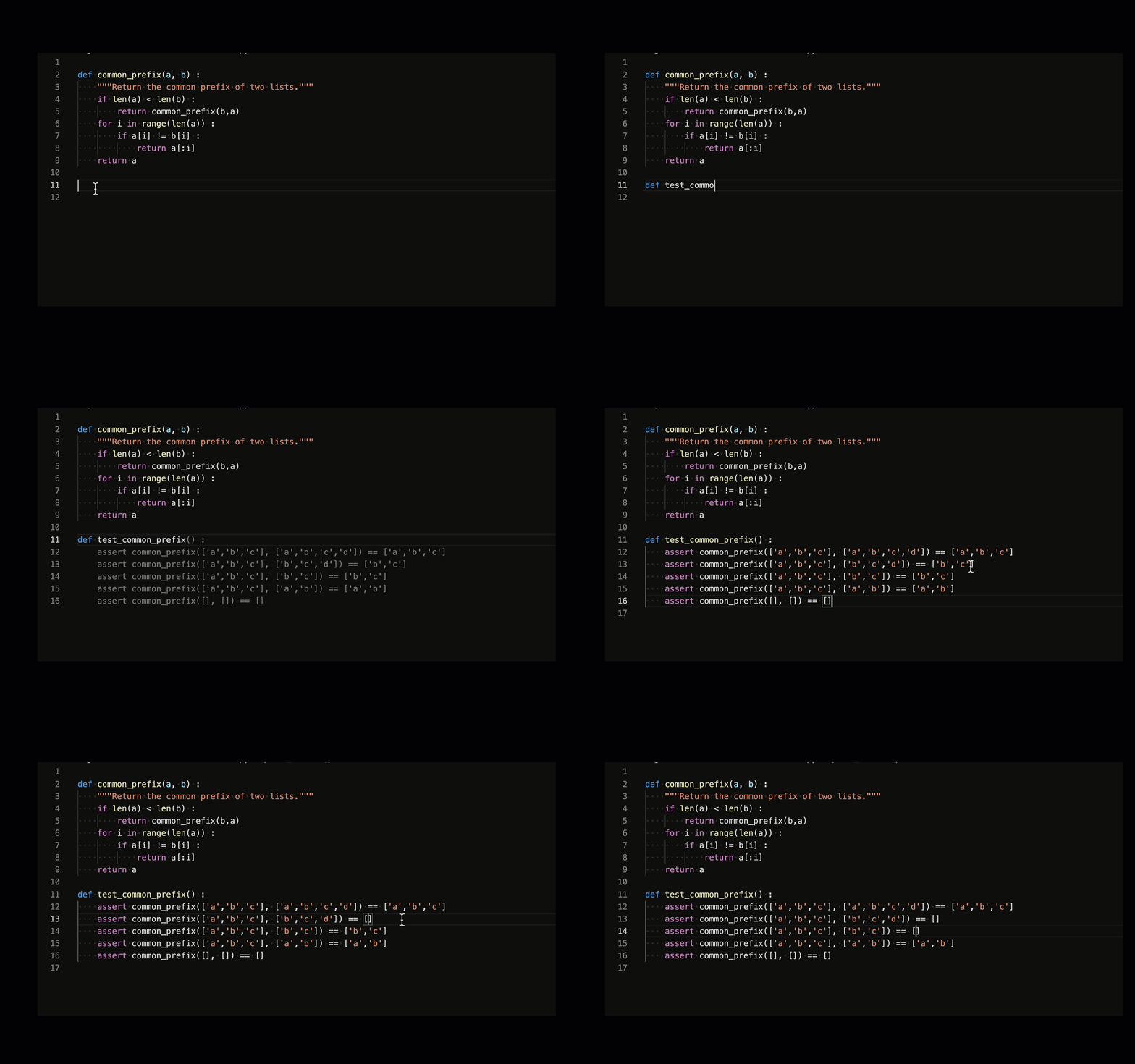
What’s GitHub Copilot

GitHub Copilot provides autocomplete-style suggestions from an AI pair programmer as you code. You can receive suggestions from GitHub Copilot either by starting to write the code you want to use, or by writing a natural language comment describing what you want the code to do.

Privacy

Your code is yours. We follow responsible practices in accordance with our Privacy Statement to ensure that your code snippets will not be used as suggested code for other users of GitHub Copilot.

Start a free trial with GitHub Copilot

What can you do with GitHub Copilot?

Convert comments to code GitHub Copilot uses a special version of GPT-3 that has been trained on a large body of public source code. It is as good at writing natural language as it is at writing code, so in fact it can complete your comments for you. In the example below, we first let it complete our explanation, and then, line by line, we tab through the code that does what we just said in English.
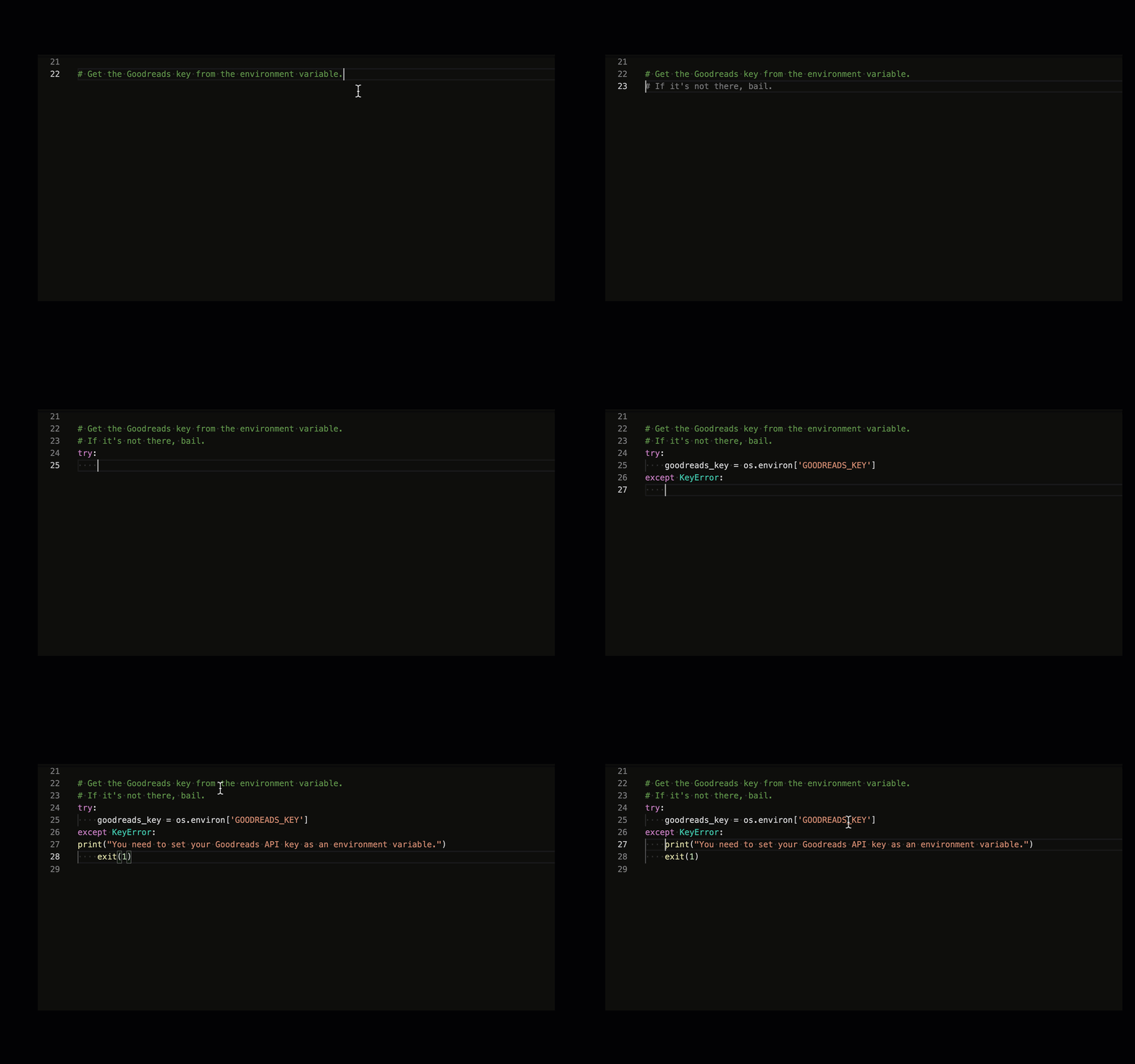
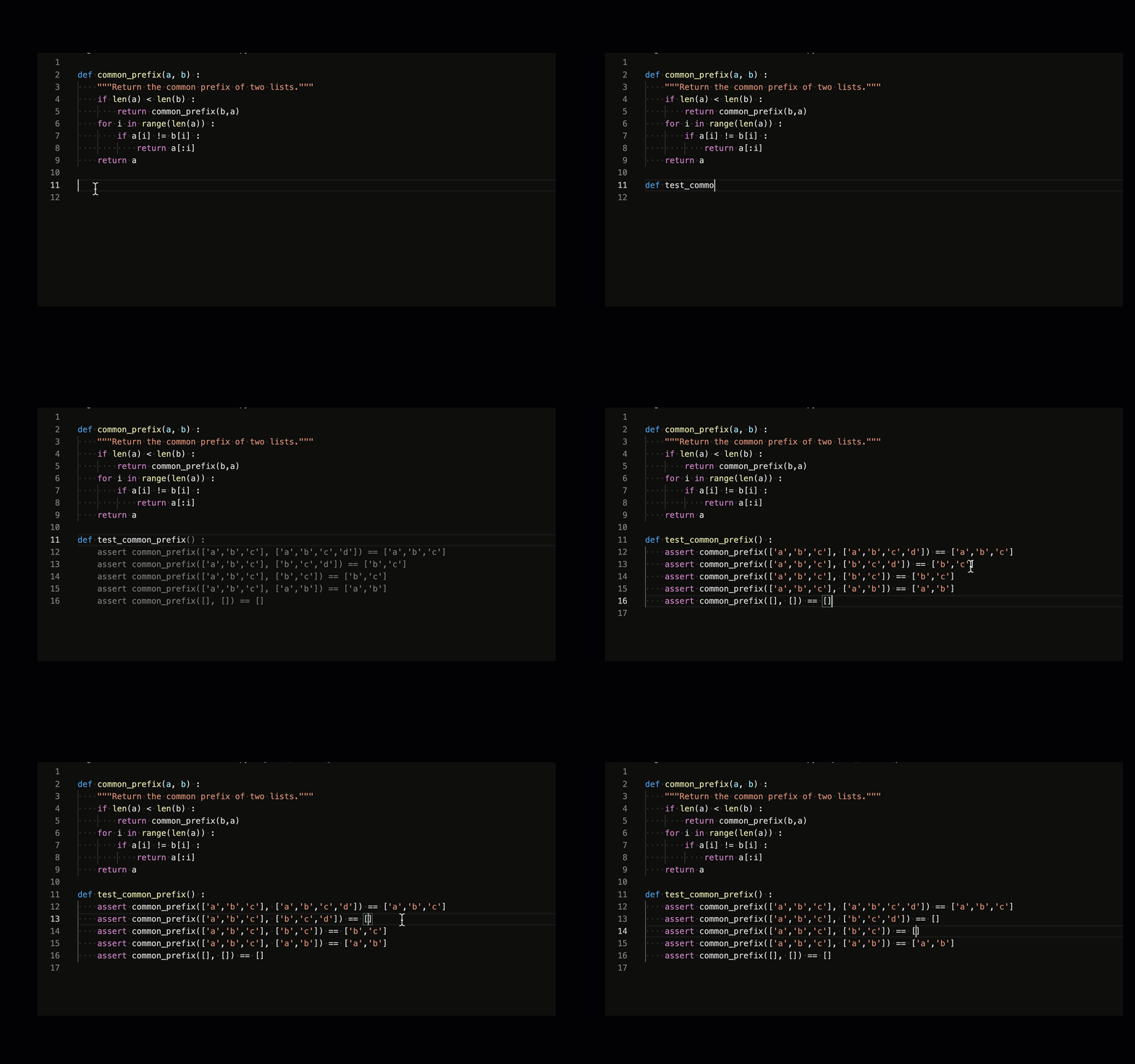
Create unit tests An important use case of GitHub Copilot is to take some of the drudgery out of writing unit tests. Below, we already have an implementation of a function that computes the common prefix of two lists, and we want to test that. To do so, we import the unit test package, and then we start writing a test function to let Copilot generate the asserts which we accept just by hitting the Tab key.
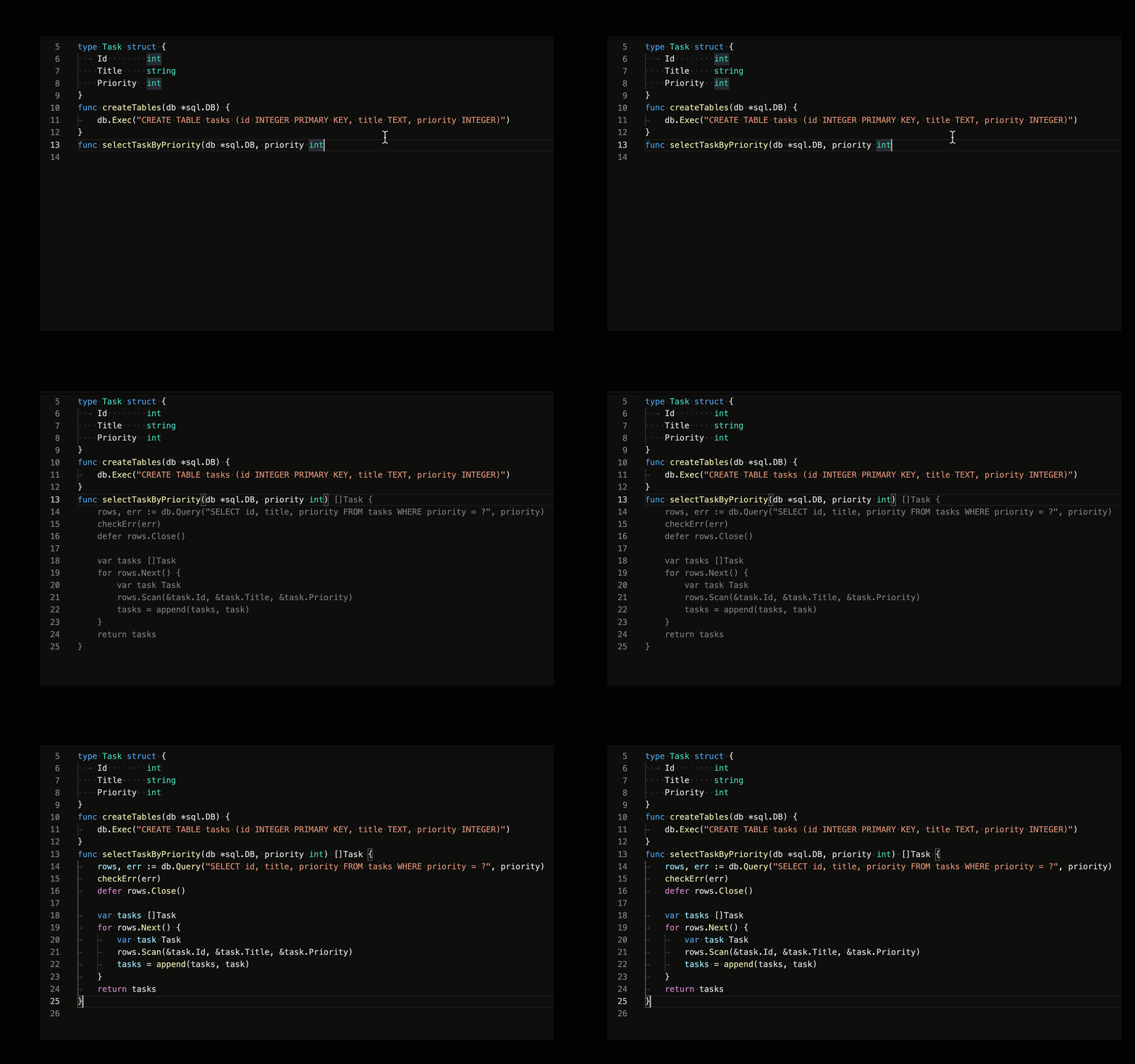
Create a SQL query What’s cooler than generating code in Go? Generating Go with embedded SQL! To make GitHub Copilot do that, just show it the schema as CREATE TABLE statements. And then, it nicely writes a query embedded in Go, converting the result to a Go class as you would have done yourself:
#GitHub Copilot Chat

GitHub Copilot — Your AI pair programmer

GitHub Copilot Chat is a companion extension to GitHub Copilot that provides conversational AI assistance throughout your software development journey in VS Code.
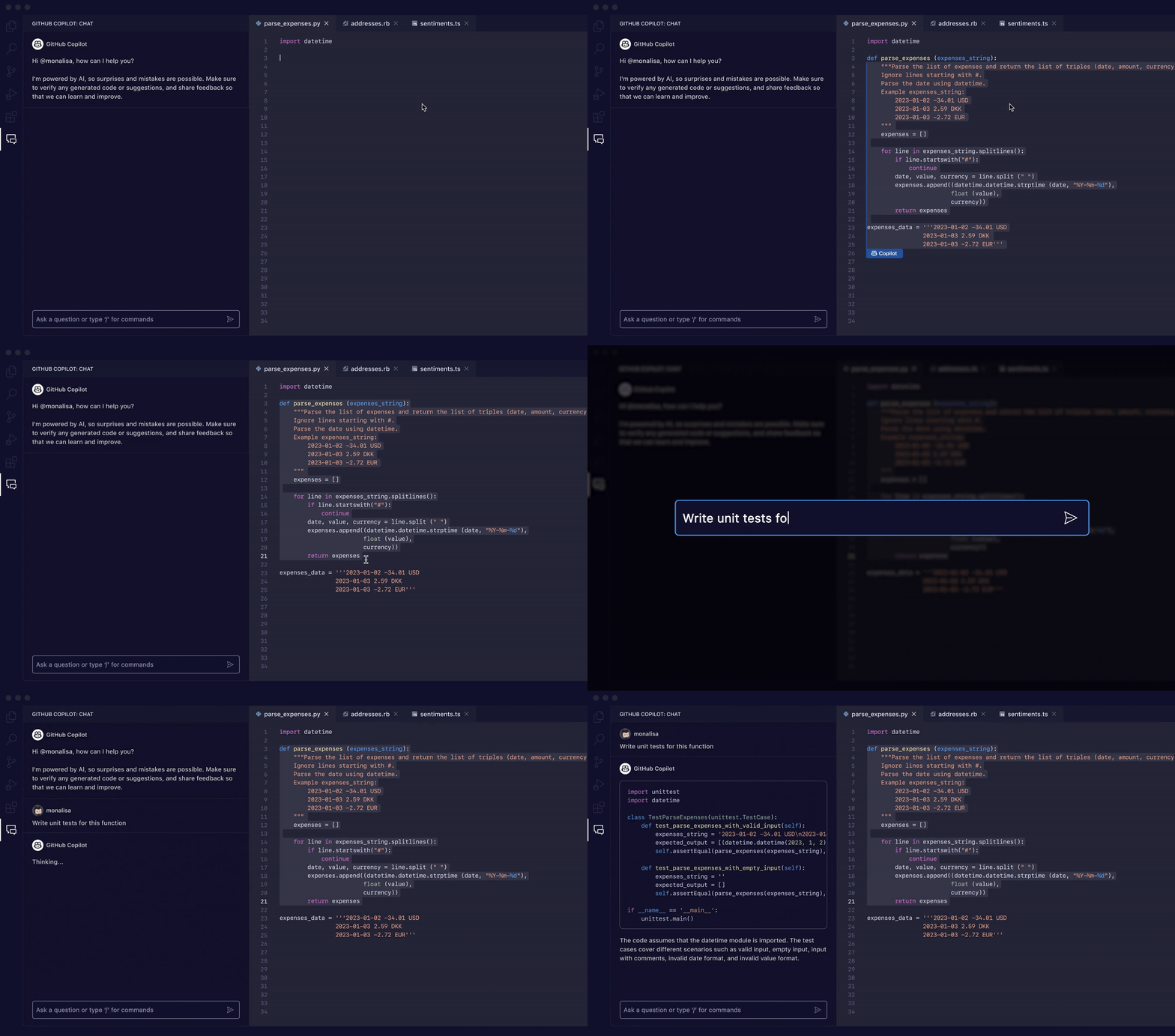
Whether you’re troubleshooting a bug or crafting a new feature, GitHub Copilot is here to assist when you encounter challenges — simply ask for guidance:

  • Chat view: Ask Copilot for help with any task or question in the Chat view, bringing in code from your current files.
  • Inline Chat: Apply Copilot’s AI suggestions directly to your code, staying in the flow.
  • Quick Chat: Bring up a Chat-powered dropdown for quick questions and suggestions.

Learn Copilot Chat in less than 4 minutes with our quickstart video or read VS Code’s Copilot Chat documentation.

Getting Access to GitHub Copilot

Sign up for a 30 day free trial with GitHub Copilot today or request Copilot access from your enterprise admin. To access GitHub Copilot, an active GitHub Copilot license is required. You can read more about our business and individual offerings at github.com/features/copilot.

Supported languages and framework

GitHub Copilot works on any language, including Java, PHP, Python, JavaScript, Ruby, Go, C#, or C++. Because it’s been trained on languages in public repositories, it works for most popular languages, libraries and frameworks. It’s also integrated into your editor, and fast enough to use as you type.

What can you do with GitHub Copilot?

We have produced both video tutorials and blog posts to facilitate your learning about GitHub Copilot. Take a moment to check out these resources:

Import Cost

Import Cost VSCode Extension

This extension will display inline in the editor the size of the imported package. The extension utilizes webpack in order to detect the imported size.

Features

Calculates the size of imports and requires. Currently supports:

  • Default importing: import Func from 'utils';
  • Entire content importing: import * as Utils from 'utils';
  • Selective importing: import {Func} from 'utils';
  • Selective importing with alias: import {orig as alias} from 'utils';
  • Submodule importing: import Func from 'utils/Func';
  • Require: const Func = require('utils').Func;
  • Supports both Javascript and Typescript

#JavaScript (ES6) code snippets

Installation

In order to install an extension you need to launch the Command Palette (Ctrl + Shift + P or Cmd + Shift + P) and type Extensions. There you have either the option to show the already installed snippets or install new ones. Search for JavaScript (ES6) code snippets and install it.

Supported languages (file extensions)

  • JavaScript (.js)
  • TypeScript (.ts)
  • JavaScript React (.jsx)
  • TypeScript React (.tsx)
  • Html (.html)
  • Vue (.vue)

Snippets

Below is a list of all available snippets and the triggers of each one. The means the TAB key.

#Prettier — Code formatter

Prettier Formatter for Visual Studio Code

Prettier is an opinionated code formatter. It enforces a consistent style by parsing your code and re-printing it with its own rules that take the maximum line length into account, wrapping code when necessary.

JavaScript · TypeScript · Flow · JSX · JSON CSS · SCSS · Less HTML · Vue · Angular HANDLEBARS · Ember · Glimmer GraphQL · Markdown · YAML

#ES7+ React/Redux/React-Native snippets

VS Code ES7+ React/Redux/React-Native/JS snippets

JavaScript and React/Redux snippets in ES7+ with Babel plugin features for VS Code

Installation

Visual Studio Marketplace

Launch Quick Open:

Paste the following command and press Enter:

ext install dsznajder.es7-react-js-snippets

Options

From version 4 extension provides options to customize the behavior of the snippets:

OptionDescriptionlanguageScopeslist of supported languages / files recognitionprettierEnableddetermines if snippets should be parsed with project prettier configimportReactOnTopIf disabled, snippets won’t contain import React on top. React 17+ supporttypescriptadds additional typescript snippets

Vscode
Front End Development
Nextjs
Reactjs
Figma
Recommended from ReadMedium