Become a black belt DBeaver sensei
DBeaver tipps that you didn’t know of and that will make you more productive

What’s DBeaver?
DBeaver is a free database tool for basically everybody, doesn’t matter if you are a developer, database administrator or analyst. It is available for Linux, Windows and Mac and can work with all popular databases: MySQL, PostgreSQL, SQL Server, MS Access, Apache Hive, etc. If you never worked with DBeaver I strongly suggest you give it a try and download the Community version here.
Start your journey to become a black belt DBeaver sensei
If you already know all this, then it’s time to enter the Dōjō to become a DBeaver black belt. Just like in Karate we will progress through 9 steps (ranks) starting with easier ones and finishing with advanced lessons! Enough talking! Let’s start!
1. The white belt — Run Scripts more efficiently
You can select any part of SQL script and run it using the following shortcut:
Ctrl + EnterBy using this shortcut you won’t be needing the manually execute SQL commands anymore, which will make you faster.
When you have multiple SQL commands in one script (separated by a “;”) you can jump to the next and previous one by using:
Alt + Arrow Up or Alt + Arrow Down2. The yellow belt — Export Results to another format
Sometimes it is necessary to share the results of a query with others. This can be done easily with the Export button, that you can find under your query result:

Click on the button and select which export format you want:
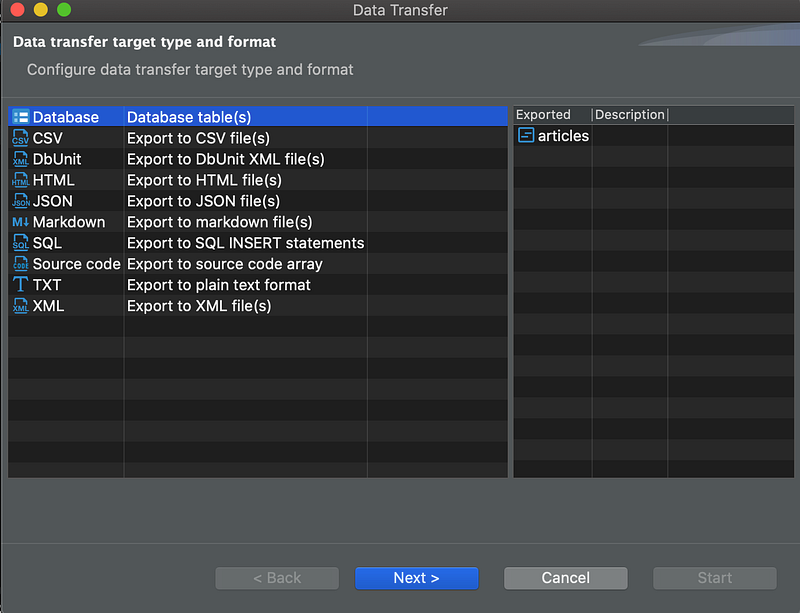
Note how that can be anything from a CSV, TXT file or even a new database table. A neat option is also to export the data as a SQL INSERT statement.
3. The orange belt — Insert, Edit, Delete rows without SQL
You wish there would be an option to insert, edit and delete database entries without writing out INSERT, UPDATE or DELETE statements? Well in DBeaver there is! When you navigate to the Data Tab of your table, you will see the following buttons on the bottom:

These buttons will allow you to edit, insert, duplicate and delete entries. Your changes can be saved by clicking on Save.
4. The green belt — Switch to manual commit
Are you scared that you can delete / edit or insert something in the database by accident and wish that there was an “Undo” button?
Well, I have good news for you! There is one, however you first need to activate it! To do so, on the very top click on the the little arrow next to the grayed out text that says Rollback and select “Manual Commit”.
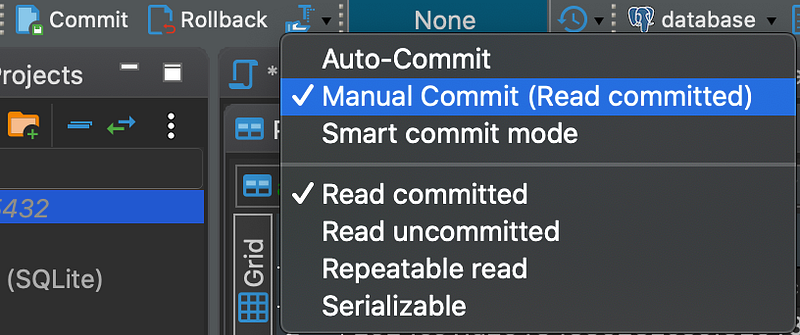
Once you select this option, all your changes will need a manual confirmation by clicking on Commit. If you don’t want a change to happen, you can however click on Rollback, this will revert all changes that you have done to the database or table:

5. The blue belt — Generate automated SQL
It happens quite often that we need to write SELECT, INSERT, UPDATE or DELETE statements for our tables. Typing out everything is boring and a hassle (especially for tables with a lot of columns). Luckily DBeaver can do this for us! Simply right-click on your table in the table list on the left, then go to Generate SQL and select which SQL Statement Code you want. Voila! It’s that easy!
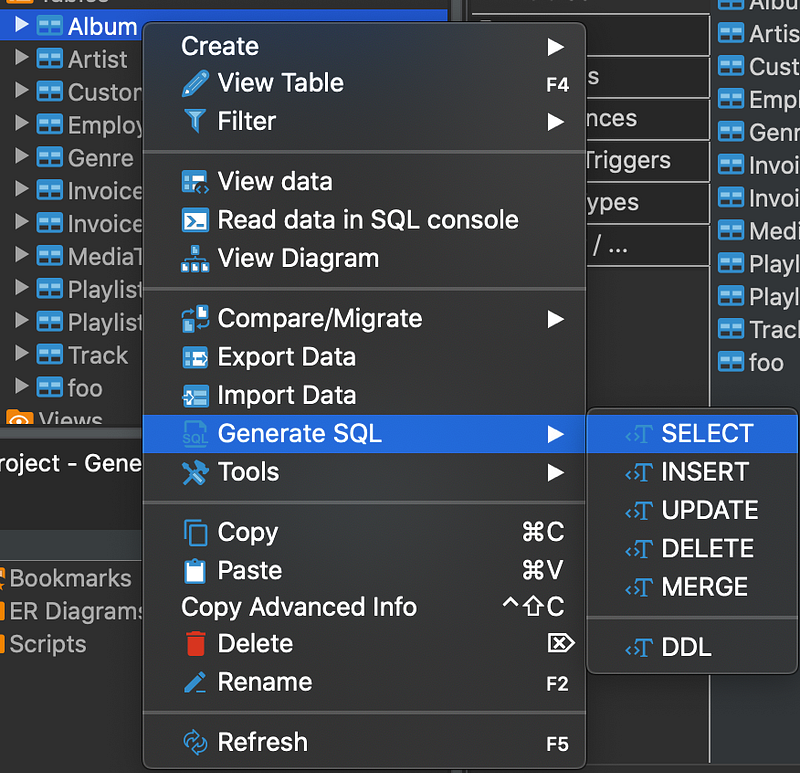
Please note that you can also select multiple tables at once and therfore for example create a DDL statement for your entire database with just a few clicks. Try it out yourself!
6. The purple belt — View spatial data on a map
If you work with spatial data for example with a Postgres Database then you can plot you vector files (points, lines, polygons) directly on a map from within DBeaver. Simply select your table that contains your spatial data and click on the “Map” tab.
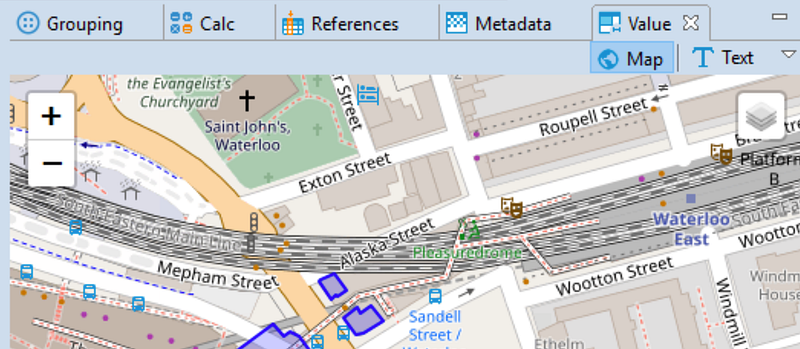
You can find more information on this super cool feature here.
7. The red belt — Visualize your database structure with an ER diagram
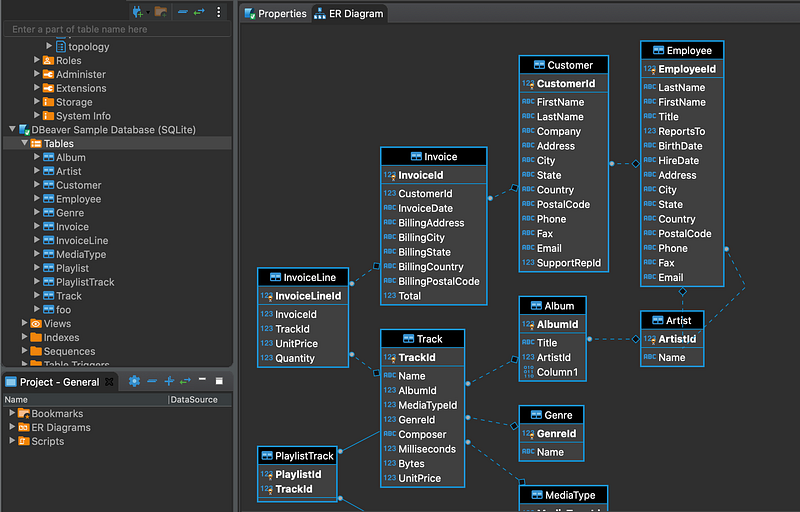
Databases can get overwhelming, especially when there are a lot of tables with relationships that are not fully clear. DBeaver can help you get an overview over your database and its relationships easily by displaying the Entity Relationship (ER) Diagram. Simply click on the Folder “Tables” in the left menu and then navigate to the ER Diagram tab. This will show you all the relationships in your database at one glance:
8. The brown belt — Extensions
DBeaver is great in its free community edition, however you can make it even more powerful by installing some extensions. Some of the most popular extensions for example are:
- Office Extension: Allows you for example to open query results directly in Excel.
- Git Extension:Share your scripts, bookmarks etc in a git repository and share with others.
- Mock Data Generator: Generate mock data for testing.
9. The black belt —Templates
Ever heared of SQL templates? Well if not, then pay attention for this last lesson that will make you a true DBeaver black belt because templates can immensely boost your productivity. First, let’s inspect the list of available templates. Click on Edit and select SQL Template from the list (please note that you have to be inside a SQL script):
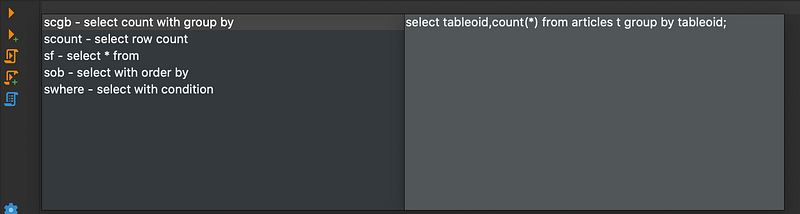
The list shows you which templates are currently available and how to access them. Let’s say for example we wan’t to perform the popular task of a count based on a group. For this we can make use of the template “scgb”. Simply write the abbreviation scgb into your SQL script and press tab:
-- write scgb into your sql script
scgb
-- righter after the last letter press tab
-- then "scgb" should turn into:select tableoid,count(*)
from tablename t group by tableoid;The previously written command should turn into an almost ready to use count and group by statement! How cool is that? Take the time to inspect the other templates and try them out! You don’t have enough? Well simply write your own templates — a more detailed reference can be found here.
Congratulations! You are a true DBeaver black belt sensei now!
Further material:
[1] DBeaver User Guide: https://dbeaver.com/doc/dbeaver.pdf
[2] DBeaver VIM bindings: http://www.legendu.net/misc/blog/tips-for-dbeaver/
[3] 7 Useful features about DBeaver: https://lumh2011.medium.com/7-useful-features-about-dbeaver-9746aa5743eb


