Working With Three.js: The Popular 3D JavaScript Library
Exploring three.js in the Create React App working environment
Three.js is a 3D JavaScript library that renders 3D content on a webpage. It is an open source project which aims to create an easy-to-use, lightweight, cross-browser, general purpose 3D library.
The current builds include a WebGL (Web Graphics Library) renderer and a JavaScript API for rendering interactive 2D and 3D graphics within any compatible web browser without plugins. Modern browsers widely support WebGL.
WebGL it is a low-level API that draws points, lines, and triangles. To do anything useful with WebGL, it requires quite a bit of code, and that is where three.js comes in. It handles advanced features, such as scenes, lights, shadows, materials, textures, 3D math, etc.
Three.js also supports other renderers, such as WebGPU, SVG, and CSS3D. The official examples show the advanced usages.
As this is our first article about three.js, we’ll take a quick look at what it is and how to use it.
The Official Animated Cube Code
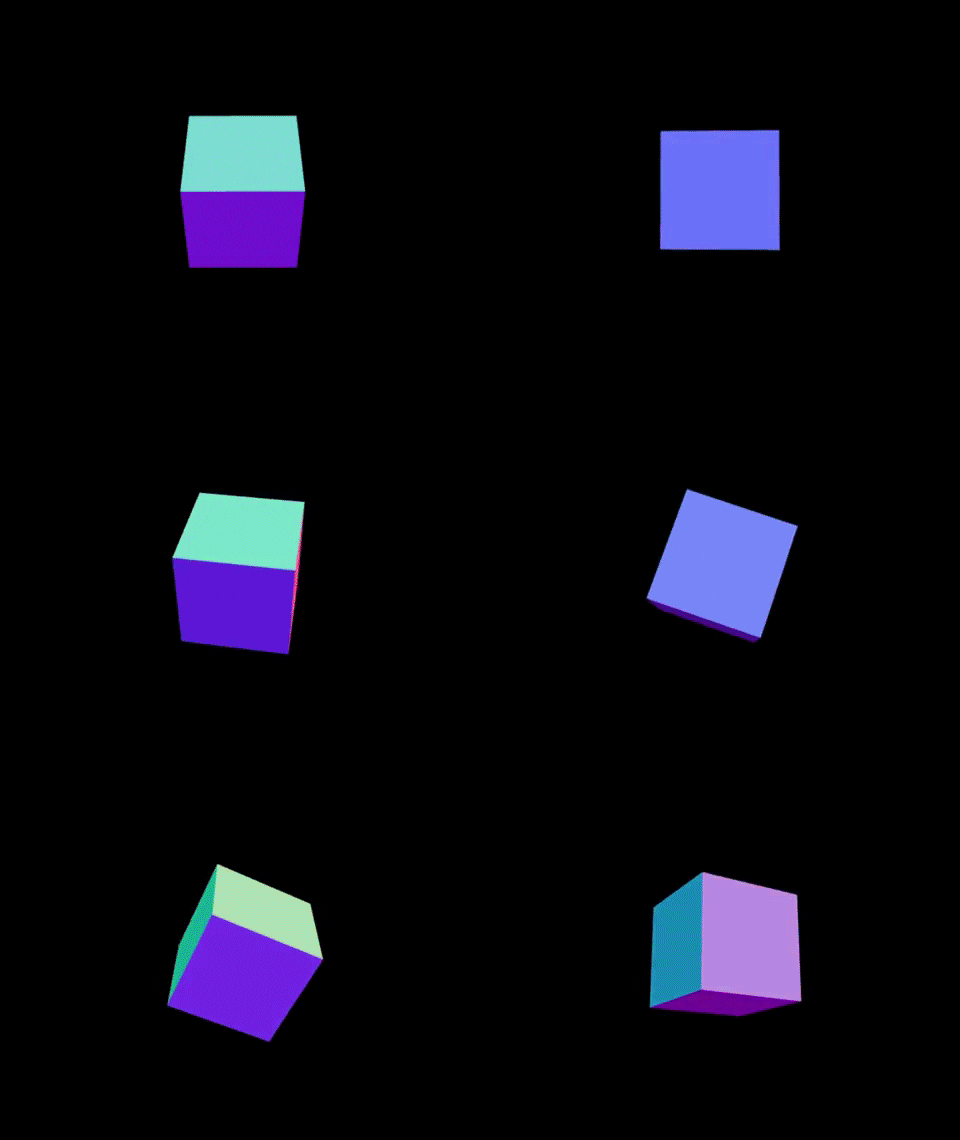
The above heading image is rendered by the official animated cube code, listed in the three’s README file. Here’s the code:
Let’s explain how it works.
At the official code line 1, THREE is imported.
import * as THREE from 'three';At the official code line 4, a PerspectiveCamera is instantiated.
const camera = new THREE.PerspectiveCamera(70, window.innerWidth / window.innerHeight, 0.01, 10);The PerspectiveCamera constructor takes four parameters, as shown below:
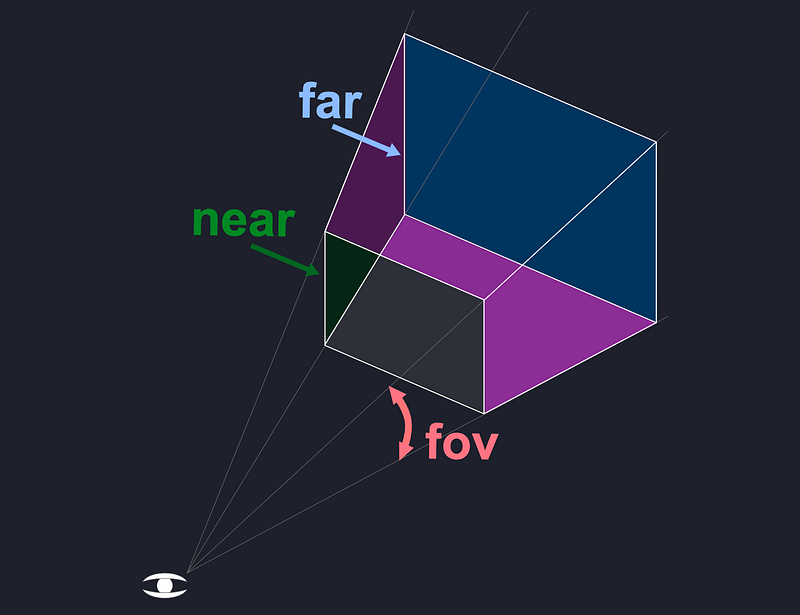
In the example, fov (field of view) is set to 70 degrees in the vertical dimension and aspect is set to the DOM window’s aspect (window.innerWidth / window.innerHeight). near and far represent the space in front of the camera that will be rendered.
Anything before near or after far will be clipped. The range is set to [0.01, 10] in front of the camera. A frustum is a 3D shape that is like a pyramid with the tip sliced off.
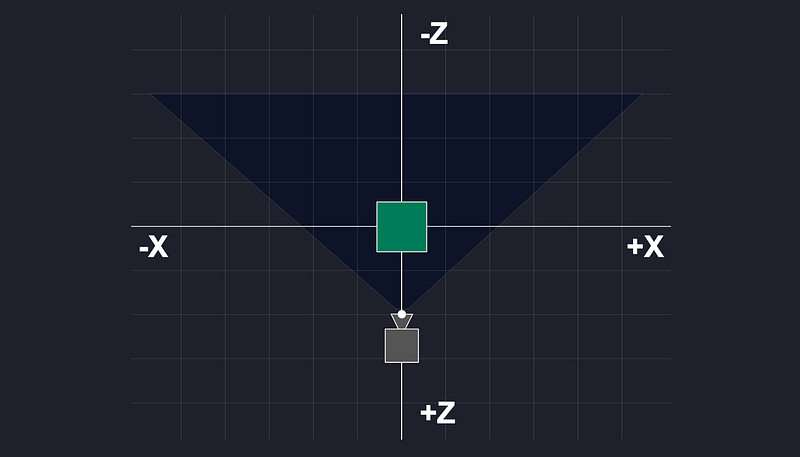
At the official code line 5, camera.position is a 3D vector.
camera.position.z = 2;The camera is located at [0, 0, 2]. The +Y and -Y axes are in the middle of the green square.
These are available types of cameras: ArrayCamera, Camera, CubeCamera, OrthographicCamera, PerspectiveCamera, and StereoCamera.
At the official code line 7, a scene is instantiated.
const scene = new THREE.Scene();A scene is where we place objects, lights, and cameras. These are available types of scenes: Fog, FogExp2, and Scene.
At the official code line 9, a BoxGeometry is instantiated.
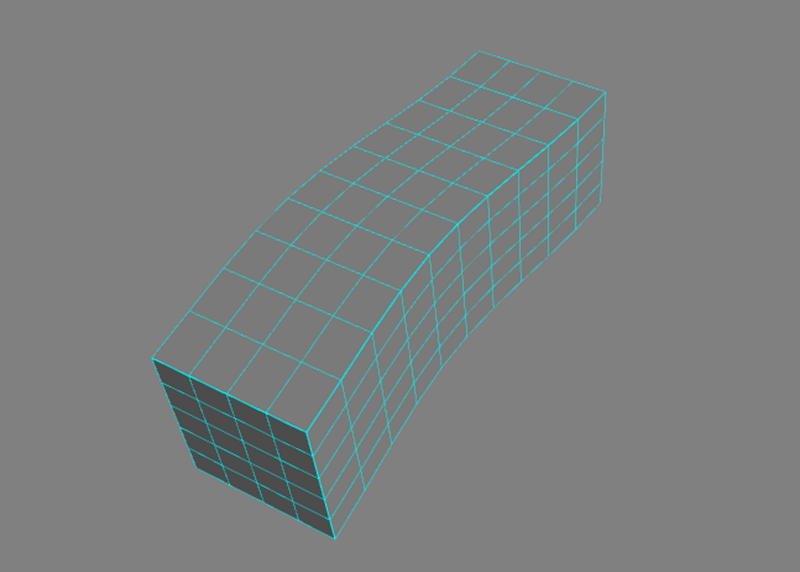
const geometry = new THREE.BoxGeometry(0.2, 0.2, 0.2);Geometry defines the shape of an object. The BoxGeometry defines the box dimension — width, height, and depth. In the example, width, height, and depth are set to 0.2.
The constructor can also define the segmented faces along each side. By default, every side has one segmented face. The more details on each side, the more segmented faces are needed. The following is the illustration of the segmented faces of 4 x 5 x 10:
These are available types of geometries: BoxGeometry, CapsuleGeometry, CircleGeometry, ConeGeometry, CylinderGeometry, DodecahedronGeometry, EdgesGeometry, ExtrudeGeometry, IcosahedronGeometry, LatheGeometry, OctahedronGeometry, PlaneGeometry, PolyhedronGeometry, RingGeometry, ShapeGeometry, SphereGeometry, TetrahedronGeometry, TorusGeometry, TorusKnotGeometry, TubeGeometry, and WireframeGeometry.
At the official code line 10, a MeshNormalMaterial is instantiated with default parameters.
const material = new THREE.MeshNormalMaterial();The material makes the appearance of an object — shiny, flat, color, texture, etc. — and it takes the following parameters:
MeshNormalMaterial has additional parameters, which are shown below:
These are available types of materials: ShadowMaterial, SpriteMaterial, RawShaderMaterial, ShaderMaterial, PointsMaterial, MeshPhysicalMaterial, MeshStandardMaterial, MeshPhongMaterial, MeshToonMaterial, MeshNormalMaterial, MeshLambertMaterial, MeshDepthMaterial, MeshDistanceMaterial, MeshBasicMaterial, MeshMatcapMaterial, LineDashedMaterial, LineBasicMaterial, and Material.
At the official code line 12, a Mesh is instantiated with the specific geometry and material. And at the next line, it is added to a scene.
const mesh = new THREE.Mesh(geometry, material);
scene.add(mesh);
A mesh is the skeleton that makes up the figure of the 3D objects. It is defined by geometry (shape), material (surface), and scene (placement).
At the official code lines 15–18, a WebGL render is instantiated. It is set to the DOM window size, configured with an animation loop, and its domElement is appended to the DOM body.
const renderer = new THREE.WebGLRenderer({ antialias: true });
renderer.setSize(window.innerWidth, window.innerHeight);
renderer.setAnimationLoop(animation);
document.body.appendChild(renderer.domElement);
At the official code lines 21–26, an animation function is defined.
function animation(time) {
  mesh.rotation.x = time / 2000;
  mesh.rotation.y = time / 1000;
  renderer.render(scene, camera);
}
The parameter, time, is the time since renderer.setAnimationLoop(animation) is called. The unit of time is milliseconds. Since it takes 2π to turn around once on each axis, the above animation function rotates around the x-axis in about 12.56 seconds and the y-axis in about 6.28 seconds.
renderer.setAnimationLoop(animation) is a request to start the animation. If animation is null, it will stop any already ongoing animation. setAnimationLoop is the replacement of requestAnimationFrame.
renderer.render(scene, camera) re-renders the updated data.
That’s how three.js works in JavaScript.
Set Up Three.js in Create React App
We use Create React App to see how three.js works in React. The following command creates a React project:
% npx create-react-app react-three
% cd react-three
Set up three.js:
% npm i threethree becomes part of dependencies in package.json:
It is ready to be used in the Create React App.
Replace src/App.js with the following code:
It is almost the same as the official code, except for a couple of things:
- The initialization code is wrapped inside
useEffect(lines 7–32), and it is initialized once (useEffect’s dependency list at line 32 is set to the empty array,[]). - Instead, that
renderer.domElementis appended todocument.body, it is appended todivRef.current(the mutable ref object of thedivelement at line 34).
Execute the code by npm start, and we see the animated cube rotating in the browser.
There are a number of things that can be improved from the code:
- We should not rely on the DOM window’s size since we may implement three.js on a component.
- The app does not resize while the browser resizes.
- Unlike most JavaScript libraries, three.js does not automatically clean up resources. It relies on the browser to clean up while a user leaves the page. The best practice is to free up memory when objects are no longer used.
Here is the improved src/app.js:
At line 59, the div element’s height is set to 100% of the viewport height.
At lines 9–10, we save the div element’s width and height to variables to be reused on lines 11 and 23.
At line 26, divRef.current is saved to divCurrent. This allows the child element added to divCurrent at line 27 to be removed at line 52.
At line 29, the event listener listens to the resize event with the callback function, handleResize.
At lines 32–39, the handleResize function retrieves the new width and height, and use them to update render and camera. At line 38, renderer.render(scene, camera) re-renders the updated data.
At lines 49–56, the cleanup function is returned to stop animation, remove window listener, and release three’s resources.
This is a more efficient three.js code.
Use React-Three-Fiber in Create React App
react-three-fiber is a React renderer for three.js. It allows us to write three.js using JSX, which is more declarative. Everything that works in three.js continues working in react-three-fiber without exception.
There is no extra overhead since JSX elements are converted to three’s objects. For example, <mesh /> is converted to new THREE.Mesh().
Install the package, @react-three/fiber:
% npm i @react-three/fiber@react-three/fiber becomes another dependency in package.json:
With react-three-fiber, src/App.js is more condensed and looks more React-ish.
At lines 4–18, the Box component is defined. It defines meshRef for the mesh element, which is used by the hook, useFrame, at lines 6–11.
useFrame is called for every frame. The parameter, state, includes all three’s state information, including, gl (WebGL), camera, clock, scene, etc.
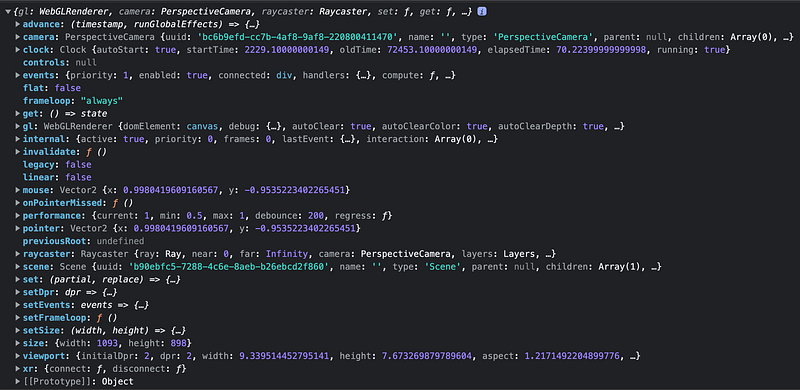
The parameter, delta, is the clock delta in seconds. It is used to set up animation at lines 8–9.
renderPriority is an advanced parameter to switch off automatic rendering entirely.
In react-three-fiber, mesh , along with object three’s objects, becomes a global component. We create the mesh element (lines 13–16) that includes boxGeometry and meshNormalMaterial.
The Box element is placed in a Canvas defined at lines 22–27.
Canvas is the portal into three.js. It renders three’s components. The props of Canvas include gl (WebGL), camera, raycaster, etc.
At line 23, camera’s props are defined as { fov: 70, near: 0.01, far: 100, position: [0, 0, 2] }.
At line 24, style is defined as { height: '100vh', backgroundColor: ‘black’ }. For width, Canvas automatically stretches to 100%.
This shortened code works as well as others.
Have you noticed that we do not call object.dispose()?
React is aware of object lifecycles, react-three-fiber will attempt to free resources by calling object.dispose(), if present, on all unmounted objects. The dispose attempt can be switched off by placing dispose={null} onto meshes, materials, etc, or even on parent containers like groups.
Conclusion
We have explained three’s official animated cube code. It has been running inside the Create React App working environment, with the three package, or the @react-three/fiber package.
What is your preference?
We have mentioned in the D3 article that it is a balance between React and D3 code. Similarly, it is a balance between React and three.js code.
Thanks for reading. I hope this was helpful. If you are interested, you can read about 3D models in three.js, or check out my other Medium articles.
Appendix
We have written the animated cube program a few times with different styles of code. It constantly rotates in the browser.
How do we make an animated gif that captures the action?
We use video to capture the animation and then use https://giphy.com/ to convert the short movie into an animated gif.