
Basic Steps to Mastering Notion App
Come, I’ll help you navigate the tracks
Sooner than later, the time comes when you need to adapt, adopt, or transition to a new app or productivity software.
But, when it comes to adopting alternative or more functional apps, there is a conundrum every user must overcome.
Why is this so?
Many users are set in their first app choices. They tend to resist new apps or software for us as long as they can even if switching may potentially increases their productivity, saves them some money, or even reverse their greying hairlines.
Yes. Don’t we all resist changes until we can’t anymore?
Resistance to new software adoption is understandable, because, often the benefits or improved productivity are only marginal.
In addition to direct and indirect costs, steep new learning curves could be daunting to the average user. Therefore, many users are wary of jumping ship despite the potential benefits of such app switching.
Recently, I had to navigate this conundrum with Notion app.
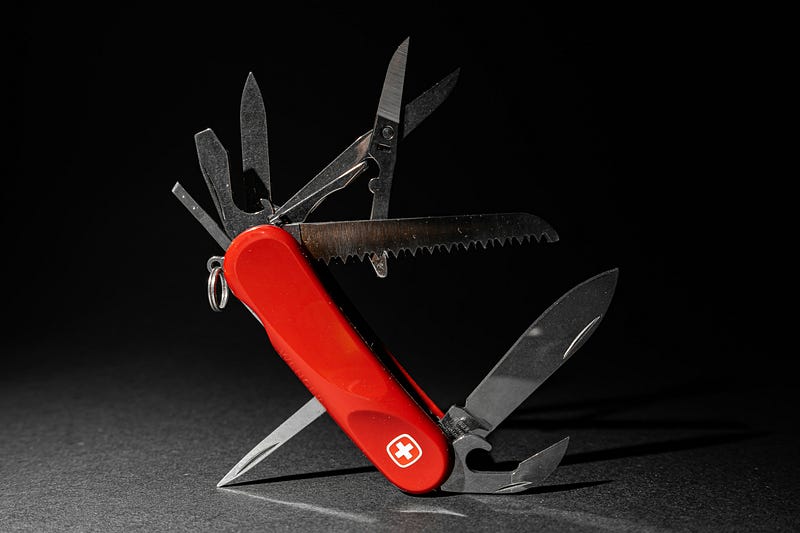
Highly customizable, I like to call Notion the Swiss Army knife of lifestyle and productivity apps.
Notion is many things to many users. It is a note-taking, tasks, and project management app. On Google Play Store, Notion is described as “The all-in-one workspace” and rightly so. Lone users or teams, can plan and organize their lives and work in one place.
At first, the thought of organizing, dragging, and dropping everything in one flat space — your dashboard — may seem impractical. But in use, this approach is easy and hands-on and its possibilities are vast and ever-expanding.
Advantages
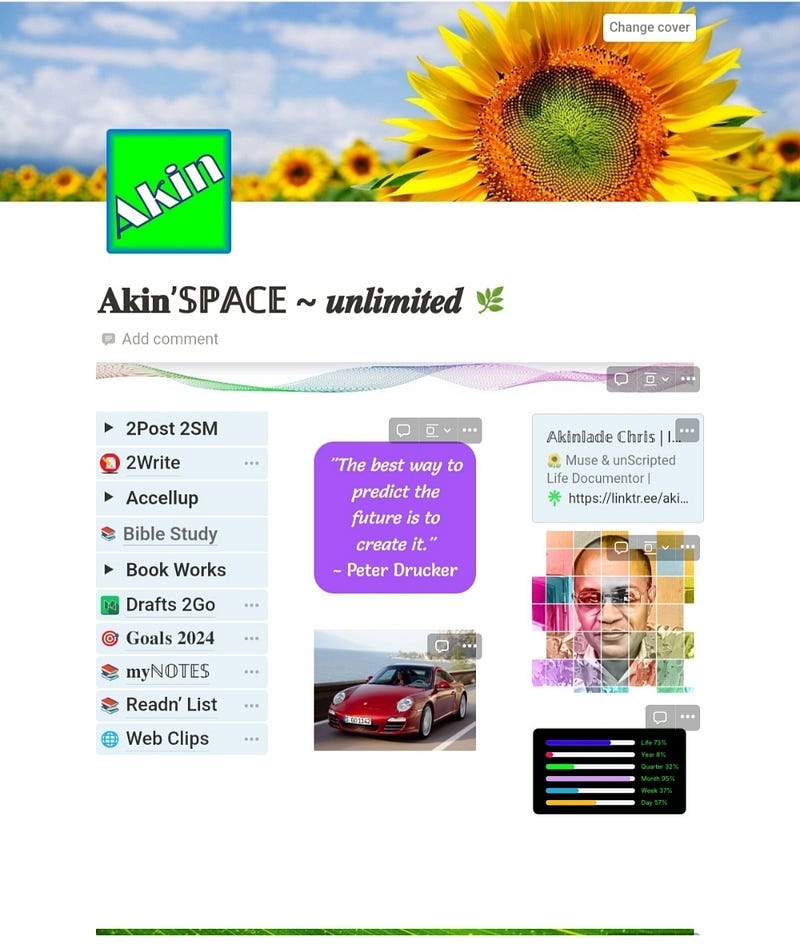
Using Notion, I can read my notes, to-do lists, tasks, annual goals, reading lists, Medium draft stories links, Personal Bible study, my web bookmarks, etc, all in “one page”.
The possibilities are only limited by users’ imagination.
Before my Notion epiphany, I uninstalled and reinstalled the app at least three times in the last calendar year. I just couldn’t instantly figure it out then. I finally came to grips with it.
Why Notion?
- Trello’s sticky note approach to catching and keeping ideas is OK for project management-like needs. However, it lacks the file management and workflow styles needed for document and online writing. For me, this is a serious limitation.
- I found Medium Drafts 2.0 Notion template (by Hudson Rennie) to be a better online writing app. At first, I was slow to learn and use this nifty template. Then one day, last December, tired of Trello, I revisited it, and everything began to click for me.
This template came with an accompanying YouTube video tutorial link and an inline internal hyperlinked guide about (2 pages long). Believe me, this guide is a comprehensive summary of all you need to know as an online writer.
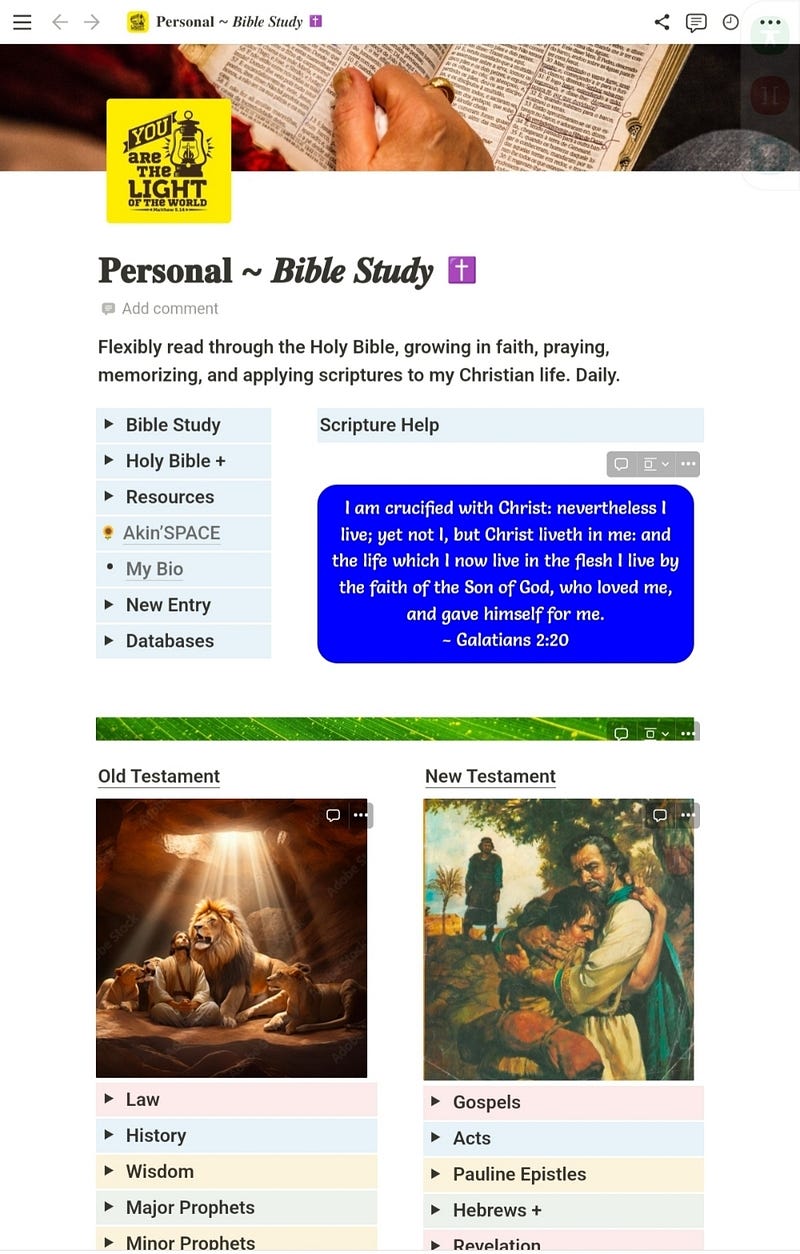
After my last reinstall of Notion app. It took me less than 30 minutes to develop my dashboard. Next, I created Personal Bible Study template. My personal Bible Study time has been more delightful ever since.
You can build your dashboard or start with a free template that you can modify later.
7 Keep It Simple Steps to Learning Notion
- Install Notion on your devices. Preferably, start with your laptop. Later, you can install the app on your mobile devices and then sync it to your desktop installation.
- Next, start with a blank Notion page. This is where you will build your dashboard. Alternatively, you can download ready-made free templates and delete blocks you don’t need in those downloaded templates. Every other block and other Notion templates can be downloaded, duplicated, modified, and featured on your dashboard.
- After downloading a dashboard or template (e.g. a To-Do Tasks Lists template), duplicate, and customize it on your desktop app. Notion desktop interface gives you the download templates option which is absent from your mobile devices. You can also search download and duplicate templates via your mobile browser, but installing templates from your widescreen laptop makes things easier (especially if you are just starting with Notion). For instance, I downloaded and modified Medium Drafts 2.0 template which I renamed as my Drafts 2Go template for my personal use.
- Every element in Notion is a block — text blocks, image blocks, numbered list blocks, hyperlink blocks, embed blocks etc. You don’t need to understand everything before you start to use Notion.
- Adding databases and database properties to your layout and the associated elements makes them more functional. For me, Notion is more than deserving of its hype.
- To ease the learning curve, you can join Notion subreddits for answers. Also, getting around initial teething problems may take no longer than googling or asking for help on the Notion website. For me, the benefits far outweigh the initial snags that I’ve since overcome.
- Notion interface is web responsive. You can easily tweak it for optimal display on all devices and form factors. Notion one page is simple and versatile. You can store, pages and folders within pages. The same goes for documents, multimedia, other Notion templates and lots more.
Final Word
- You need to be online to use Notion. Nevertheless, I find it an ideal alternative to several (not all) of my standalone apps.
- Screenshots of some of my templates are to give you some ideas of how to use Notion to simplify your life and increase your productivity.
Acknowledgment
Special thanks to Hudson Rennie’s free Medium Drafts 2.0 Notion 2.0 template (on Gumroad) and the accompanying YouTube tutorial. With them, I was able to quickly get on top of Notion app.
I’m not yet an expert, but I know enough to ease my life with Notion app.
Thanks for your reading time.
If you enjoy this piece, support my writing by chipping in to buy me a Medium subscription. Click here.


