
Bash Scripts — Part 5 — Signals and Background Tasks
Last time we talked about working with input, output and error streams in bash scripts, file descriptors and stream redirection. Now you already know enough to write something of your own. At this stage of mastering bash, you may well have questions about how to manage running scripts, how to automate their launch.

So far, we’ve been typing script names into the command line and pressing Enter, which causes programs to run immediately, but that’s not the only way to invoke scripts. Today we will talk about how a script can work with Linux signals, about different approaches to running scripts and managing them at runtime.
Linux signals
In Linux, there are more than three dozen signals that are generated by a system or applications. Here is a list of the most commonly used ones that will come in handy when developing command-line scripts.
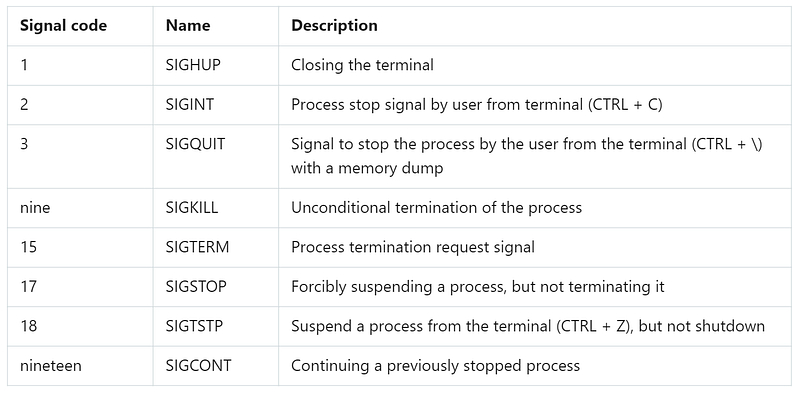
If bash receives a signal SIGHUPwhen you close the terminal, it exits. Before exiting, it sends a signal to SIGHUPall processes running in it, including running scripts.
The signal SIGINTleads to a temporary stop of work. The Linux kernel stops allocating CPU time to the shell. When this happens, the shell notifies the processes by sending them a signal SIGINT.
Bash scripts do not control these signals, but they can recognize them and execute some commands to prepare the script for the consequences of the signals.
Sending signals to scripts
The bash shell allows you to send signals to scripts using keyboard shortcuts. This is very useful if you need to temporarily stop a running script or terminate its work.
Terminating the process
The key combination CTRL + Cgenerates a signal SIGINTand sends it to all processes running in the shell, causing them to terminate.
Let's execute the following command in the shell:
$ sleep 100After that, we will complete its work with a key combination CTRL + C.
raevskym@DESKTOP-JNF3L6H:~/bash_course$ sleep 100
^C
raevskym@DESKTOP-JNF3L6H:~/bash_course$
Temporarily stopping the process
The key combination CTRL + Zallows you to generate a signal SIGTSTPthat pauses the process but does not terminate its execution. Such a process remains in memory and can be resumed. Run the command in the shell:
$ sleep 100And temporarily stop it with a key combination CTRL + Z.
raevskym@DESKTOP-JNF3L6H:~/bash_course$ sleep 100
^Z
[1]+   Stopped            sleep 100
The number in square brackets is the job number that the shell assigns to the process. The shell treats the processes running in it as uniquely numbered jobs. The first process is assigned number 1, the second is number 2, and so on.
If you suspend a shell-bound job and try to exit, bash will issue a warning.
You can view the suspended tasks with the following command:
raevskym@DESKTOP-JNF3L6H:~/bash_course$ ps -l
F S   UID   PID  PPID  C PRI  NI ADDR SZ WCHAN  TTY   TIME CMD
0 S  1000     6     5  0  80   0 -  4265 -      tty1  00:00:01 bash
0 R  1000    98     6  0  80   0 -  4271 -      tty1  00:00:00 ps
In the columnSshowing the status of the process, for suspended processes is displayedT. This indicates that the command is either paused or in a trace state.
If you need to terminate a suspended process, you can use the commandkill.
Its call looks like this:
kill processIDIntercept signals
To enable Linux signal tracking in the script, use the command trap. If the script receives the signal specified when calling this command, it processes it on its own, and the shell will not process such a signal.
The command trapallows the script to respond to signals, otherwise, they are processed by the shell without its participation.
Consider an example that shows how, when invoking a command, we trapspecify the code to be executed and a list of signals, separated by spaces, that we want to intercept. In this case, this is just one signal:
#!/bin/bash
trap "echo ' Trapped Ctrl-C'" SIGINT
echo This is a test script
count=1
while [ $count -le 10 ]
do
echo "Loop #$count"
sleep 1
count=$(( $count + 1 ))
done
The command trapused in this example prints out a text message whenever it detects a signal SIGINTthat can be generated by pressing Ctrl + Con the keyboard.
raevskym@DESKTOP-JNF3L6H:~/bash_course$ ./myscript
This is a test script
Loop #1
Loop #2
Loop #3
^C Trapped Ctrl-C
Loop #4
Loop #5
Loop #6
Loop #7
^C Trapped Ctrl-C
Loop #8
Loop #9
Loop #10
Each time you press a keyCTRL + C, the script executes the commandechospecified in the invocationtraceinstead of letting the shell exit.
Intercept the script exit signal
You can intercept the exit signal from the script by using the trapsignal name when calling the command EXIT:
#!/bin/bash
trap "echo Goodbye..." EXIT
count=1
while [ $count -le 5 ]
do
echo "Loop #$count"
sleep 1
count=$(( $count + 1 ))
done
There is how we can capture an exit signal from a script:
raevskym@DESKTOP-JNF3L6H:~/bash_course$ ./myscript
Loop #1
^CGoodbye...raevskym@DESKTOP-JNF3L6H:~/bash_course$ ./myscript
Loop #1
Loop #2
Loop #3
Loop #4
Loop #5
Goodbye...When a script exits, whether it terminates normally or is terminated by a signalSIGINT, the intercept will be triggered and the shell will execute the commandecho.
Modification of intercepted signals and cancellation of interception
To modify the signals intercepted by the script, you can execute the command trapwith new parameters:
#!/bin/bash
trap "echo 'Ctrl-C is trapped.'" SIGINT
count=1
while [ $count -le 5 ]
do
echo "Loop #$count"
sleep 1
count=$(( $count + 1 ))
done
trap "echo ' I modified the trap!'" SIGINT
count=1
while [ $count -le 5 ]
do
echo "Second Loop #$count"
sleep 1
count=$(( $count + 1 ))
done
Below is what we will get:
raevskym@DESKTOP-JNF3L6H:~/bash_course$ ./myscript
Loop #1
^CCtrl-C is trapped.
Loop #2
Loop #3
Loop #4
Loop #5
Second Loop #1
Second Loop #2
^C I modified the trap!
Second Loop #3
Second Loop #4
Second Loop #5
After modification, signals will be processed in a new way.
Interception of signals can also be canceled, for this it is enough to execute the commandtrapby passing it a double dash and the signal name:
#!/bin/bash
trap "echo 'Ctrl-C is trapped.'" SIGINT
count=1
while [ $count -le 5 ]
do
echo "Loop #$count"
sleep 1
count=$(( $count + 1 ))
done
trap -- SIGINT
echo "I just removed the trap"
count=1
while [ $count -le 5 ]
do
echo "Second Loop #$count"
sleep 1
count=$(( $count + 1 ))
done
If the script receives a signal before the interception is canceled, it will process it as specified in the current command trap. Let's run the script:
$ ./myscriptAnd press CTRL + Con the keyboard.
raevskym@DESKTOP-JNF3L6H:~/bash_course$ ./myscript
Loop #1
^CCtrl-C is trapped.
Loop #2
Loop #3
Loop #4
Loop #5
I just removed the trap
Second Loop #1
Second Loop #2
^C
The first pressingCTRL + Coccurred at the moment of script execution, when signal interception was in effect, so the script executed the command assigned to the signalecho. After the execution reached the command to cancel the interception, the commandCTRL + Cworked as usual, terminating the script.
Executing command line scripts in the background
Sometimes bash scripts take a long time to complete a task. However, you may need to be able to work normally on the command line without waiting for the script to complete. This is not so difficult to implement.
If you have seen the list of processes displayed by the command ps, you may have noticed processes that are running in the background and are not tied to a terminal.
Let's write a script like this:
#!/bin/bash
count=1
while [ $count -le 10 ]
do
sleep 1
count=$(( $count + 1 ))
done
Let’s run it by specifying an ampersand ( &) after the name :
raevskym@DESKTOP-JNF3L6H:~/bash_course$ ./myscript &
[1] 92
This will cause it to run as a background process.
The script will be launched in the background, its identifier will be displayed in the terminal, and when its execution is completed, you will see a message about it.
Note that although the script is executed in the background, it continues to use the terminal to output messages toSTDOUTandSTDERR, that is, the text or error messages it displays can be seen in the terminal.
raevskym@DESKTOP-JNF3L6H:~/bash_course$ ./myscript
[1] 92
raevskym@DESKTOP-JNF3L6H:~/bash_course$ ps -l
F S  UID   PID  PPID  C  PRI NI ADDR SZ WCHAN TTY  TIME     CMD
0 S  1000    6     5  0  80   0 -  4265 -   tty1  00:00:01 bash
0 R  1000    92    6  0  80   0 -  7229 -   tty1  00:00:00 myscript
0 R  1000    93    6  0  80   0 -  1823 -   tty1  00:00:00 sleep
0 R  1000    98    6  0  80   0 -  4271 -   tty1  00:00:00 ps
With this approach, if you exit the terminal, the script running in the background will also exit.
What if you want the script to continue running after the terminal is closed?
Executing scripts that do not exit when the terminal is closed
Scripts can be executed in background processes even after exiting the terminal session. To do this, you can use the command nohup. This command allows you to run the program by blocking signals SIGHUPsent to the process. As a result, the process will run even if you exit the terminal in which it was started. This is what will be output to the terminal:
raevskym@DESKTOP-JNF3L6H:~/bash_course$ nohub ./myscript &
[1] 97
raevskym@DESKTOP-JNF3L6H:~/bash_course$ nohub: ignoring input and appending output to 'nohub.out'
This commandnohupunbinds a process from the terminal. This means that the process will lose references toSTDOUTandSTDERR. In order not to lose the data output by the script, itnohupautomatically redirects messages coming toSTDOUTandSTDERRfrom the filenohup.out.
Please note that when you run multiple scripts from the same directory, what they output will end up in one filenohup.out.
View assignments
The command jobsallows you to view the current jobs that are running in the shell. Let's write a script like this:
#!/bin/bash
count=1
while [ $count -le 10 ]
do
echo "Loop #$count"
sleep 10
count=$(( $count + 1 ))
done
Let’s run it and temporarily stop with a key combination CTRL + Z.
raevskym@DESKTOP-JNF3L6H:~/bash_course$ ./myscript
Loop #1
^Z
[1]+  Stopped             ./myscript
Let’s run the same script in the background, while redirecting the script output to a file so that it does not display anything on the screen:
$ ./myscript > outfile &Having executed the command now jobs, we will see information about both the suspended script and the one that is running in the background.
raevskym@DESKTOP-JNF3L6H:~/bash_course$ ./myscript
Loop #1
^Z
[1]+  Stopped             ./myscript
raevskym@DESKTOP-JNF3L6H:~/bash_course$ ./myscript > outfile &
[2] 89
raevskym@DESKTOP-JNF3L6H:~/bash_course$ jobs -l
[1]+ 99 Stopped         ./myscript
[1]- 89 Running         ./myscript > outfile &
The key-lwhen invoking the commandjobsindicates that we need information about theIDprocesses.
Restarting suspended jobs
To restart the script in the background, you can use the command bg.
Let's run the script:
$ ./myscriptClick CTRL + Zto temporarily stop its execution. Run the following command:
$ bgThe script now runs in the background:
raevskym@DESKTOP-JNF3L6H:~/bash_course$ ./myscript
Loop #1
^Z
[1]+  Stopped             ./myscript
raevskym@DESKTOP-JNF3L6H:~/bash_course$ bg
[1]+ ./myscript &
If you have multiple suspended jobs,bgyou can pass a job number to a command to restart a specific job.
To restart the task in normal mode, use the commandfg:
$ fg 1Scheduling scripts to run
Linux provides a couple of ways to run bash scripts at specified times. This is a team atand task scheduler cron.
A call to the at command looks like this:
at [-f filename] timeThis command recognizes a variety of time formats.
- Standard, indicating hours and minutes, for example — 10:15.
- Using AM / PM indicators, AM or PM, for example — 10:15 PM.
- By using special names such as
now,noon,midnight.
In addition to being able to specify when a job will start, a atdate can also be passed to a command using one of the formats it supports.
- Standard specifying the date format in which the date is written on the templates
MMDDYY,MM/DD/YYorDD.MM.YY. - The textual representation of the date, for example,
Jul 4orDec 25, in this case, you can specify the year, or you can do without it. - View record
now + 25 minutes. - View record
10:15PM tomorrow. - View record
10:15 + 7 days.
We will not delve into this topic, consider a simple use of the command:
raevskym@DESKTOP-JNF3L6H:~/bash_course$ at -f ./myscript now
warning: commands will be executed using /bin/sh
job 1 at Thu Jul 30 12:50:00 2020key-Mwhen invoked isatused to send the output of the script by e-mail if the system is configured accordingly. If sending an email is not possible, this key will simply suppress the output.
To view the list of pending tasks, you can use the commandatq:
raevskym@DESKTOP-JNF3L6H:~/bash_course$ atq
1        Thu Jul 30 12:50:00 2020 = raevskym
Removing pending jobs
The command allows you to delete a pending task atrm. When you call it, indicate the job number:
raevskym@DESKTOP-JNF3L6H:~/bash_course$ atrm 1
Warning: deleting running job
Running scripts on a schedule
Scheduling scripts to run once using a command atcan make life easier in many situations. But what if you want the script to be executed at the same time every day, or once a week, or once a month?
Linux has a utility crontabthat allows you to schedule scripts to run on a regular basis.
Crontabruns in the background and, based on the data in the so-called cron tables, launches scheduled tasks.
To view an existing task table cron, use this command:
$ crontab –lWhen scheduling a script to run on a schedule, it crontabreceives data about when the task needs to be executed in the following format:
minute, hour, day, month, weekFor example, if you want a script with a name to be commandexecuted daily at 10:30 am, this would correspond to the following entry in the task table:
30 10 * * * commandHere, the wildcard “ *" used for the day of the month, month, and day of the week fields indicates that the croncommand should be run every day of every month at 10:30 am.
If, for example, you want the script to run 4:30PMevery Monday, you need to create the following entry in the task table:
30 16 * * 1 commandThe numbering of the days of the week starts from 0, 0 means Sunday, 6 means Saturday. Here’s another example. Here the command will be executed at 12 noon on the first day of every month.
00 12 1 * * commandMonths are numbered starting from 1.
To add a record to the table, you need to call crontabwith the key -e:
crontab –eThen you can enter the commands for forming the schedule:
30 10 * * * /home/raevskym/Desktop/myscriptThanks to this command, the script will be called daily at 10:30. If you encounter the “Resource temporarily unavailable” error, run the command below as root:
$ rm -f /var/run/crond.pidIt cronis even easier to organize the periodic launch of scripts using several special directories:
/etc/cron.hourly
/etc/cron.daily
/etc/cron.weekly
/etc/cron.monthly
If you put a script file in one of them, this will lead, respectively, to its hourly, daily, weekly or monthly launch.
Running scripts at login and at shell startup
You can automate the launch of scripts by relying on various events, such as user login or shell launch. Here you can read about the files that are processed in such situations. For example, these are the following files:
$HOME/.bash_profile
$HOME/.bash_login
$HOME/.profile
To run the script at login, place its call to a file .bash_profile.
What about running scripts when you open a terminal? The file will help organize this .bashrc.
Outcome
Today we examined the issues related to the lifecycle management of scripts, talked about how to run scripts in the background, how to schedule their execution on a schedule. Next time read about functions in bash scripts and library development.
Dear Readers! Do you use scheduling tools to run your command line scripts on a schedule? If yes, please tell us about them.


