avatarasierr.dev

Free AI web copilot to create summaries, insights and extended knowledge, download it at here

3855

Abstract

ional code to handle the form data</span> });</pre></div><h2 id="3e3e">2. Interactive Dropdown Menu</h2><div id="5c90"><pre><span class="hljs-variable language_">document</span>.<span class="hljs-title function_">getElementById</span>(<span class="hljs-string">"dropdownMenu"</span>).<span class="hljs-title function_">addEventListener</span>(<span class="hljs-string">"mouseover"</span>, <span class="hljs-keyword">function</span>(<span class="hljs-params"></span>) { <span class="hljs-variable language_">document</span>.<span class="hljs-title function_">getElementById</span>(<span class="hljs-string">"dropdownContent"</span>).<span class="hljs-property">style</span>.<span class="hljs-property">display</span> = <span class="hljs-string">'block'</span>; }); <span class="hljs-variable language_">document</span>.<span class="hljs-title function_">getElementById</span>(<span class="hljs-string">"dropdownMenu"</span>).<span class="hljs-title function_">addEventListener</span>(<span class="hljs-string">"mouseout"</span>, <span class="hljs-keyword">function</span>(<span class="hljs-params"></span>) { <span class="hljs-variable language_">document</span>.<span class="hljs-title function_">getElementById</span>(<span class="hljs-string">"dropdownContent"</span>).<span class="hljs-property">style</span>.<span class="hljs-property">display</span> = <span class="hljs-string">'none'</span>; });</pre></div><h2 id="4617">3 .Dynamic Content Toggle</h2><div id="36f8"><pre><span class="hljs-variable language_">document</span>.<span class="hljs-title function_">getElementById</span>(<span class="hljs-string">"toggleButton"</span>).<span class="hljs-title function_">addEventListener</span>(<span class="hljs-string">"click"</span>, <span class="hljs-keyword">function</span>(<span class="hljs-params"></span>) { <span class="hljs-keyword">var</span> content = <span class="hljs-variable language_">document</span>.<span class="hljs-title function_">getElementById</span>(<span class="hljs-string">"extraContent"</span>); content.<span class="hljs-property">style</span>.<span class="hljs-property">display</span> = content.<span class="hljs-property">style</span>.<span class="hljs-property">display</span> === <span class="hljs-string">'block'</span> ? <span class="hljs-string">'none'</span> : <span class="hljs-string">'block'</span>; });</pre></div><h2 id="f924">4 .Keyboard Shortcut Implementation</h2><div id="c1c7"><pre><span class="hljs-variable language_">document</span>.<span class="hljs-title function_">addEventListener</span>(<span class="hljs-string">"keydown"</span>, <span class="hljs-keyword">function</span>(<span class="hljs-params">event</span>) { <span class="hljs-keyword">if</span> (event.<span class="hljs-property">key</span> === <span class="hljs-string">'Enter'</span>) { <span class="hljs-title function_">performSearch</span>(); <span class="hljs-comment">// A function that handles the search</span> } });</pre></div><h1 id="eaea">Event Propagation: Bubbling and Capturing Explained</h1><p id="9dab">In JavaScript, when an event occurs, it doesn’t just affect the target element it was triggered on; it initiates a process known as event propagation. This propagation follows two distinct phases: capturing and bubbling.</p><h2 id="8193">1. Capturing Phase:</h2><p id="dae0">When an event occurs, it first travels down the DOM from the root to the target element. This is the capturing phase. In this phase, the event moves through ancestors of the target element, starting from the outermost ancestor (document object) and ending at the target. By default, event listeners are not triggered during this phase, but you can set them to do so by specifying <code>true</code> as the third argument in <code>addEventListener</code>.</p><div id="c6bb"><pre><span class="hljs-comment">// Capturing phase</span

Options

<span class="hljs-variable language_">document</span>.<span class="hljs-title function_">getElementById</span>(<span class="hljs-string">"parentElement"</span>).<span class="hljs-title function_">addEventListener</span>(<span class="hljs-string">"click"</span>, <span class="hljs-keyword">function</span>(<span class="hljs-params"></span>) { <span class="hljs-variable language_">console</span>.<span class="hljs-title function_">log</span>(<span class="hljs-string">"Captured on parent element"</span>); }, <span class="hljs-literal">true</span>); <span class="hljs-comment">// 'true' enables capturing</span></pre></div><h2 id="425c">2. Bubbling Phase:</h2><p id="a17a">After reaching the target element, the event then bubbles up from the target element back to the root of the DOM. During this phase, the event moves through all ancestors of the target element in reverse order, starting from the target itself. Unless specified otherwise, event listeners are set to trigger during this bubbling phase.</p><div id="e14a"><pre><span class="hljs-comment">// Bubbling phase</span> <span class="hljs-variable language_">document</span>.<span class="hljs-title function_">getElementById</span>(<span class="hljs-string">"childElement"</span>).<span class="hljs-title function_">addEventListener</span>(<span class="hljs-string">"click"</span>, <span class="hljs-keyword">function</span>(<span class="hljs-params"></span>) { <span class="hljs-variable language_">console</span>.<span class="hljs-title function_">log</span>(<span class="hljs-string">"Triggered on child element"</span>); }); <span class="hljs-comment">// Default behavior is bubbling</span></pre></div><p id="ecbe">Understanding the difference between these two phases is crucial, especially when you have nested elements where similar events are triggered. Depending on how you set up your event listeners, you can control whether an event handler should be executed during the capturing phase, the bubbling phase, or both.</p><p id="1d90">For instance, if you have a button inside a form and both elements have a <code>click</code> event listener attached, clicking the button would trigger the event on the button and then on the form as the event bubbles up. In complex applications, managing event propagation properly can prevent unexpected behaviors and ensure that events are handled at the appropriate level in the DOM hierarchy.</p><h1 id="e535">Vanilla JavaScript vs. Frameworks</h1><p id="78bb">While modern frameworks provide their own ways of handling events, knowing how to work with events in vanilla JavaScript is invaluable. It not only gives you a deeper understanding of how web applications work but also empowers you to solve problems that frameworks might not address directly. Plus, it’s a skill that stands the test of time, no matter how many new frameworks emerge.</p><p id="3c63">Event handling is a cornerstone of interactive web development. By mastering JavaScript event handling, you’re unlocking the potential to create dynamic, user-friendly, and responsive web applications. Whether you’re working with simple websites or complex applications, the principles of JavaScript events remain the same, forming a critical component of your development toolkit.</p><h2 id="2094">Related Content:</h2><ul><li><a href="https://readmedium.com/back-to-basics-mastering-javascript-modules-with-import-and-export-8189f70f4d43">Back to Basics: Mastering JavaScript Modules with Import and Export</a></li><li><a href="https://readmedium.com/back-to-basics-advanced-promise-patterns-in-javascript-58be59199dd6">Back to Basics: Advanced Promise Patterns in JavaScript</a></li><li><a href="https://readmedium.com/back-to-basics-mastering-arrow-functions-in-javascript-52493f76893f">Back to Basics: Mastering Arrow Functions in JavaScript</a></li></ul></article></body>

Back to Basics: Demystifying JavaScript Event Handling

As we continue our "Back to Basics" series, it’s time to dive into one of the foundational elements of interactive web development - JavaScript event handling. In a world where frameworks often steal the spotlight, understanding the nuts and bolts of vanilla JavaScript remains crucial. This article will guide you through the essentials of JavaScript event handling, equipping you with the knowledge to create responsive and interactive web pages, regardless of the device or platform.
Understanding JavaScript Events

An 'event' in JavaScript is something that happens in the browser - a user action like a click, a mouse movement, a keypress, or even a webpage loading. JavaScript listens to these events and allows you to execute code in response, making your website interactive.

Types of Events

From clicking a button on a mouse to swiping on a touchscreen, different devices generate various types of events. It’s essential to understand these to create inclusive and responsive web applications. Some common event types include:

  • Mouse Events: Click, mouseover, mouseout
  • Keyboard Events: Keypress, keydown, keyup
  • Form Events: Submit, change, focus
  • Touch Events: Touchstart, touchmove, touchend – crucial for mobile responsiveness

Adding Event Listeners

JavaScript offers two primary ways to respond to events: the traditional way using HTML event attributes (onclick, onmouseover, etc.) and the more modern, preferred method using addEventListener.

  • HTML Event Attributes: While simple, this approach tightly couples your HTML with JavaScript, which can be problematic for larger applications.

<button onclick="alert('Button clicked!')">Click me</button>

  • addEventListener: This method is more flexible and powerful. It allows you to add multiple event listeners to a single element and more easily separate your HTML and JavaScript.
document.getElementById("myButton").addEventListener("click", function() {
  alert("Button clicked!");
});

Certainly, let's enhance the "Real-World Examples" section with a few varied and practical examples along with their corresponding code snippets:

Examples

1. Form Submission Handling

document.getElementById("contactForm").addEventListener("submit", function(event) {
  event.preventDefault(); // Prevents the default form submission action
  alert("Thank you for your submission!");
  // Additional code to handle the form data
});

2. Interactive Dropdown Menu

document.getElementById("dropdownMenu").addEventListener("mouseover", function() {
  document.getElementById("dropdownContent").style.display = 'block';
});
document.getElementById("dropdownMenu").addEventListener("mouseout", function() {
  document.getElementById("dropdownContent").style.display = 'none';
});

3 .Dynamic Content Toggle

document.getElementById("toggleButton").addEventListener("click", function() {
  var content = document.getElementById("extraContent");
  content.style.display = content.style.display === 'block' ? 'none' : 'block';
});

4 .Keyboard Shortcut Implementation

document.addEventListener("keydown", function(event) {
  if (event.key === 'Enter') {
    performSearch(); // A function that handles the search
  }
});

Event Propagation: Bubbling and Capturing Explained

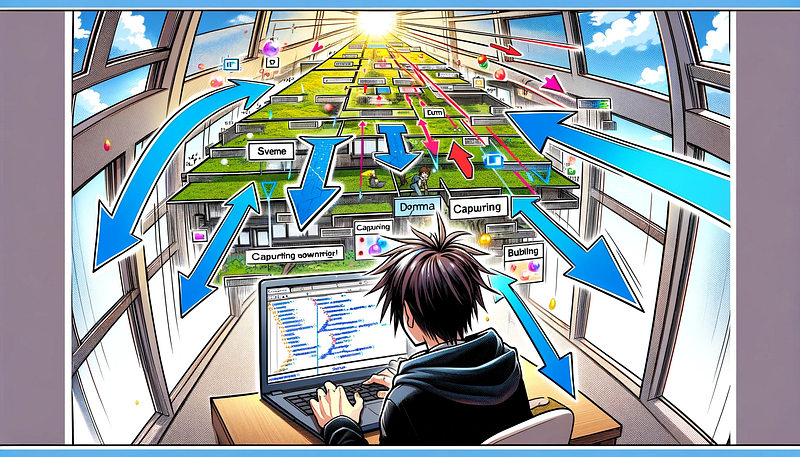
In JavaScript, when an event occurs, it doesn’t just affect the target element it was triggered on; it initiates a process known as event propagation. This propagation follows two distinct phases: capturing and bubbling.

1. Capturing Phase:

When an event occurs, it first travels down the DOM from the root to the target element. This is the capturing phase. In this phase, the event moves through ancestors of the target element, starting from the outermost ancestor (document object) and ending at the target. By default, event listeners are not triggered during this phase, but you can set them to do so by specifying true as the third argument in addEventListener.

// Capturing phase
document.getElementById("parentElement").addEventListener("click", function() {
  console.log("Captured on parent element");
}, true); // 'true' enables capturing

2. Bubbling Phase:

After reaching the target element, the event then bubbles up from the target element back to the root of the DOM. During this phase, the event moves through all ancestors of the target element in reverse order, starting from the target itself. Unless specified otherwise, event listeners are set to trigger during this bubbling phase.

// Bubbling phase
document.getElementById("childElement").addEventListener("click", function() {
  console.log("Triggered on child element");
}); // Default behavior is bubbling

Understanding the difference between these two phases is crucial, especially when you have nested elements where similar events are triggered. Depending on how you set up your event listeners, you can control whether an event handler should be executed during the capturing phase, the bubbling phase, or both.

For instance, if you have a button inside a form and both elements have a click event listener attached, clicking the button would trigger the event on the button and then on the form as the event bubbles up. In complex applications, managing event propagation properly can prevent unexpected behaviors and ensure that events are handled at the appropriate level in the DOM hierarchy.

Vanilla JavaScript vs. Frameworks

While modern frameworks provide their own ways of handling events, knowing how to work with events in vanilla JavaScript is invaluable. It not only gives you a deeper understanding of how web applications work but also empowers you to solve problems that frameworks might not address directly. Plus, it’s a skill that stands the test of time, no matter how many new frameworks emerge.

Event handling is a cornerstone of interactive web development. By mastering JavaScript event handling, you’re unlocking the potential to create dynamic, user-friendly, and responsive web applications. Whether you’re working with simple websites or complex applications, the principles of JavaScript events remain the same, forming a critical component of your development toolkit.

Related Content:

JavaScript
Events
Vanilla Javascript
Development
Back To Basics
Recommended from ReadMedium