avatarDev Shah

Free AI web copilot to create summaries, insights and extended knowledge, download it at here

2055

Abstract

id="1589"><img src="https://cdn-images-1.readmedium.com/v2/resize:fit:800/1*iHMjYmDGQNi6ynIqOOrpWA.png"><figcaption>Adding in CNAME’s for existing app service</figcaption></figure><h1 id="66a0">STEP 2: Add custom domain for the app service</h1><ul><li>Go to the <b>App Service > Custom domains</b></li><li>Add a custom domain with the same name as the CNAME record you created in Step 1 — <code>xyz.test.yourdomain.com</code>.</li></ul><figure id="5c9b"><img src="https://cdn-images-1.readmedium.com/v2/resize:fit:800/1*M3ZiNbW3oAHSRcSUe5R0aw.png"><figcaption>Add new custom domain for an app service</figcaption></figure><h1 id="a640">STEP 3: Create SSL certificate via App Service Managed Certificates (ASMC)</h1><ul><li>Go to <b>App Service > TLS/SSL settings</b></li><li>Click on <b>Private Key Certificates</b></li><li>Click on <b>+ Create App Service Managed Certificate</b> option<b> </b>&<b> </b>create a new certificate for the custom domain — <code>xyz.test.yourdomain.com</code></li></ul><figure id="5429"><img src="https://cdn-images-1.readmedium.com/v2/resize:fit:800/1*myRHHtDDOfn2LjAjWY7T0Q.png"><figcaption></figcaption></figure><h1 id="e150">STEP 4: Bind the new certificate with your domain</h1><ul><li>Go to <b>App Service > TLS/SSL settings</b></li><li>Click on <b>Bindings > Add TLS/SSL Binding</b> and bind the custom domain with the new certificate you just created.</li></ul><figure id="2a9b"><img src="https://cdn-images-1.readmedium.com/v2/resize:fit:800/1*uIqYqPV6oJpD9V6neqKE-Q.png"><figcaption>Add binding modal</figcaption></figure><figure id="ee00"><img src="https://cdn-images-1.readmedium.com/v2/resize:fit:800/1*ilmCaPVoFzYf-0YPhVJWLQ.png"><figcaption>After adding the binding you should see it here</figcaption></figure><h1 id="3c91">STEP 5: Ready!</h1><ul><li>The new domain <code>xyz.test.yourdomain.com</code> should now be live! You should be seeing something similar under custom domains page.</li></ul><figure id="90b4"><img src="https://cdn-images-1.readmedium.com/v2/resize:fit:800/1*MbmU1jjF8bQ

Options

aGR4fSTIyhw.png"><figcaption>Custom domain is ready!</figcaption></figure><h1 id="4592">STEP 6: Update all references for this domain</h1><p id="94f3">In order to get the new environment (domain) fully up and running, update the app service references at the below places to point to the new domain <code>xyz.test.yourdomain.com</code>.</p><ol><li><b>Update OAuth URL’s </b>if any — Google, Microsoft or any 3rd party OAuth</li><li><b>Update Application setting references</b> — Point to the new domain url because apps communicate with each other via host name & urls.</li><li>Update any references to the domain name in the <b>application code</b></li></ol><h1 id="e01e">FAQ’s</h1><h2 id="97cb">1. Prevent CORS errors!</h2><p id="d55f">Once all steps are completed, we need to prevent those frustrating CORS errors. You need to update <b>CORS</b> settings for your app, if any.</p><h2 id="1347">2. CORS errors, still?</h2><p id="a214">Further, if you still see CORS errors in the browser remember those are not always related to CORS and you need to confirm if the app service itself is up & running via POSTMAN or Application Insights.</p><h2 id="3209">3. Advantages</h2><p id="9447">ASMC is a<b> free service </b>which makes sure your<b> certificates are valid and auto-renew after expiry</b>. This reduces manual efforts to renew certificates and prevents us the headache of setting up <i>Let’s Encrypt</i> for automating this.</p><h2 id="b21c">4. Limitations</h2><p id="c0fe">It doesn’t support — Wildcard certs, naked domains or A records.</p><h2 id="0515">5. Automate?</h2><p id="bc80">I was pretty disappointed with the fact that we cannot yet automate this with Azure CLI or PowerShell scripts.</p><p id="b7f5">As ASMC is still in preview mode their CLI commands are still work in progress.</p><h1 id="0b4b">Final Thoughts</h1><p id="fa0b" type="7">Once Azure allows us to automate this whole process, automated environment provisioning will be possible!</p><p id="fb40">Share or 👏 if you found this article helpful.</p></article></body>

Azure: How to switch domains for environments via ASMC

If you’re tired of azurewebsites.net domains, make your own in a few clicks.

This article is going to explain how to go about switching domain names for your existing apps. It mainly covers these topics:

CNAME records, custom domains, certificates, SSL bindings, CORS updates.

Let’s say you don’t want to use azurewebsites.net domain anymore for your app and you want to switch from *.azurewebsites.net to *.yourdomain.com. Azure recently came out with App Service Managed Certificates (ASMC) feature which allows you to add a custom domain for your app service in a few clicks.

Follow the below step by step guide to complete the domain switch.

Note: This feature is in preview mode currently.

STEP 1: Create CNAME records for the new domain

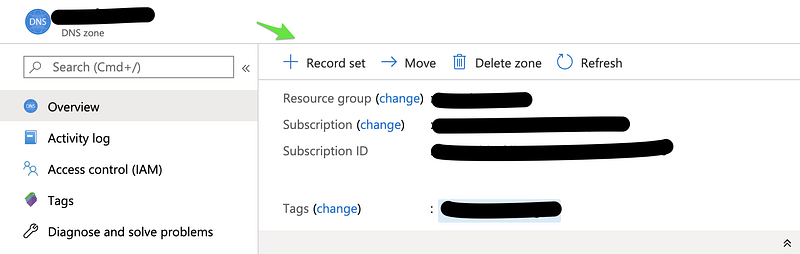
  • In the portal, Go to DNS Zones and select the zone that you want your app to be hosted on

Example: test.yourdomain.com domain for an app service you want to eventually call xyz.test.yourdomain.com

  • Click on + Record Set to add a CNAME record (CNAME = Alias)
  • Choose the new alias/name you want for you app and Azure will check if those domains are available and verified, hence wait for the green tick to appear.
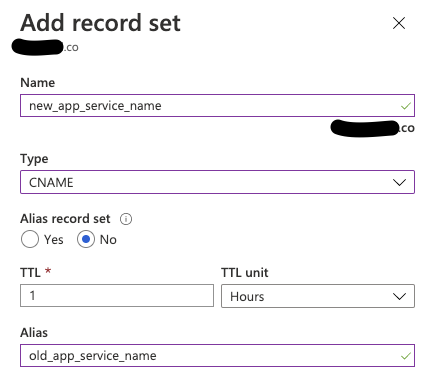
Adding in CNAME’s for existing app service

STEP 2: Add custom domain for the app service

  • Go to the App Service > Custom domains
  • Add a custom domain with the same name as the CNAME record you created in Step 1 — xyz.test.yourdomain.com.
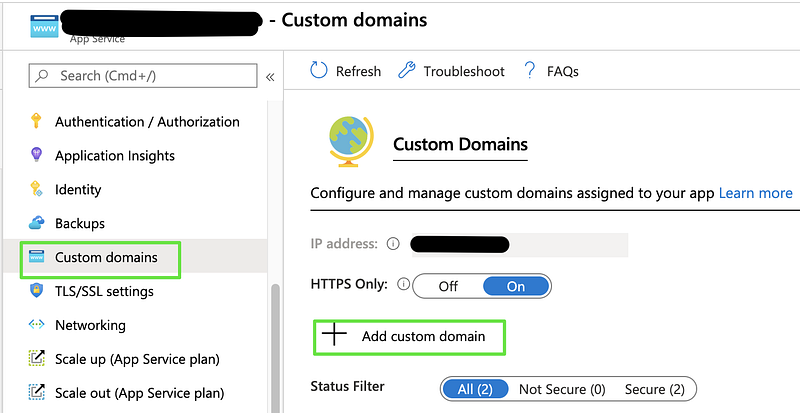
Add new custom domain for an app service

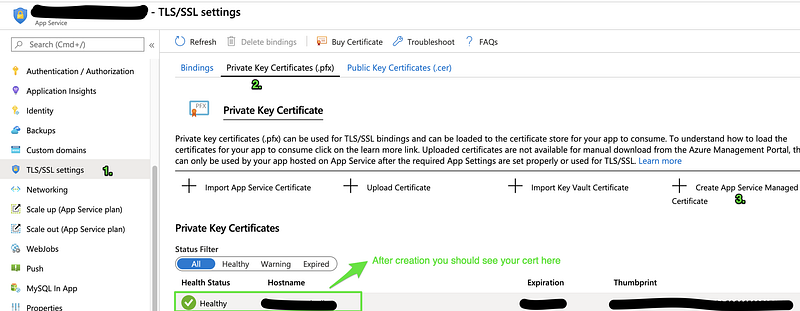
STEP 3: Create SSL certificate via App Service Managed Certificates (ASMC)

  • Go to App Service > TLS/SSL settings
  • Click on Private Key Certificates
  • Click on + Create App Service Managed Certificate option & create a new certificate for the custom domain — xyz.test.yourdomain.com
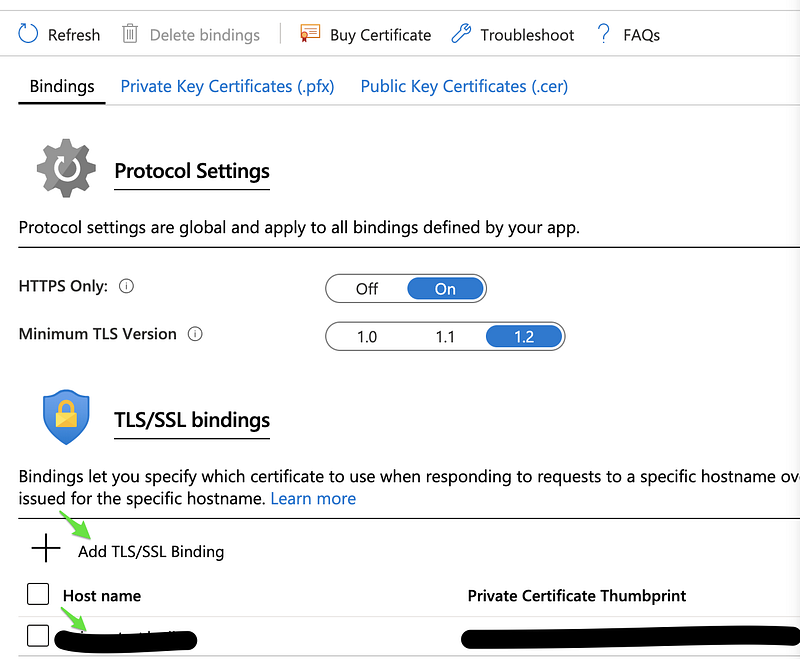
STEP 4: Bind the new certificate with your domain

  • Go to App Service > TLS/SSL settings
  • Click on Bindings > Add TLS/SSL Binding and bind the custom domain with the new certificate you just created.
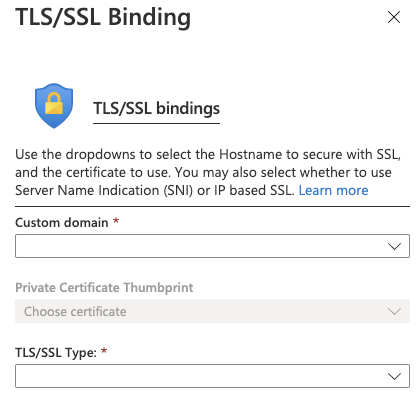
Add binding modal
After adding the binding you should see it here

STEP 5: Ready!

  • The new domain xyz.test.yourdomain.com should now be live! You should be seeing something similar under custom domains page.
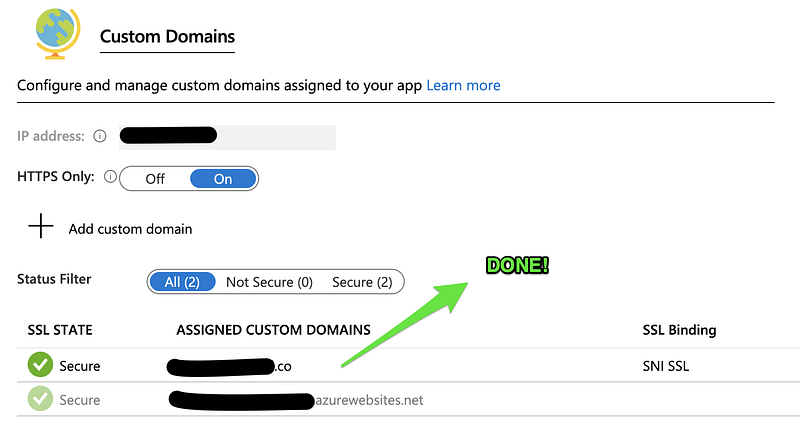
Custom domain is ready!

STEP 6: Update all references for this domain

In order to get the new environment (domain) fully up and running, update the app service references at the below places to point to the new domain xyz.test.yourdomain.com.

  1. Update OAuth URL’s if any — Google, Microsoft or any 3rd party OAuth
  2. Update Application setting references — Point to the new domain url because apps communicate with each other via host name & urls.
  3. Update any references to the domain name in the application code

FAQ’s

1. Prevent CORS errors!

Once all steps are completed, we need to prevent those frustrating CORS errors. You need to update CORS settings for your app, if any.

2. CORS errors, still?

Further, if you still see CORS errors in the browser remember those are not always related to CORS and you need to confirm if the app service itself is up & running via POSTMAN or Application Insights.

3. Advantages

ASMC is a free service which makes sure your certificates are valid and auto-renew after expiry. This reduces manual efforts to renew certificates and prevents us the headache of setting up Let’s Encrypt for automating this.

4. Limitations

It doesn’t support — Wildcard certs, naked domains or A records.

5. Automate?

I was pretty disappointed with the fact that we cannot yet automate this with Azure CLI or PowerShell scripts.

As ASMC is still in preview mode their CLI commands are still work in progress.

Final Thoughts

Once Azure allows us to automate this whole process, automated environment provisioning will be possible!

Share or 👏 if you found this article helpful.

Azure
Cloud
Domains
How To
Technology
Recommended from ReadMedium