
Azure DevOps markdown cheat-sheet
Creating engaging and user-friendly Wiki pages can be a nice experience. To make your life easier, I have catalogued a collection of hints, tricks, and useful links from various sources. These insights will help you craft pages that are not only informative but also visually attractive.
As a beginning of a page, we usually adding the Table of content: [[_TOC_]]
Headers. Accessible from menu panel and markdown code: # H1 header ## H2 header ### H3 header #### H4 header ##### H5 header
Basic text formatting:
_Italic_
**Bold**
**_Bold & italic_**
**~~Bold, strike-through text~~**
For adding Bullet or Numbered lists in the menu related icons configured. For nested list, the next example can be used:
1. 1st item.
   - Item 1
   - Item 2
   - Item 3
1. 2nditem.
   - Nested item 1
      - Further nested item 1
      - Further nested item 2
      - Further nested item 3
   - Nested item 2
   - Nested item 3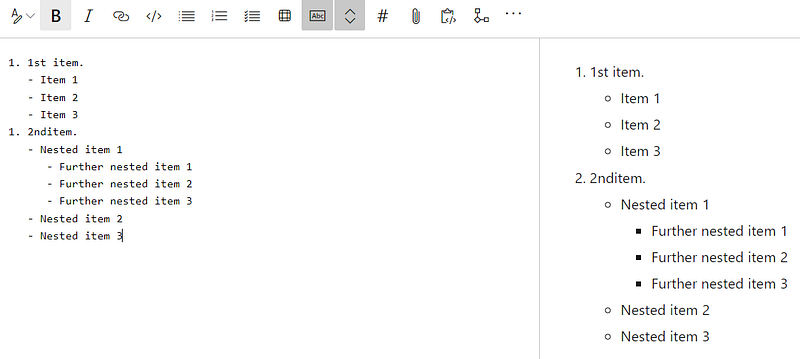
Blockquotes. Allows to craft all types of quotes:
> Single line quote
>> Nested quote
>> multiple line
>> quote
Adding Horizontal line:
:exclamation:Some text

----
:memo: take a note of it
Notification and warning boxes: these boxes serve as attention-grabbers without relying on excessive bold text. Let’s explore how to make them visually appealing:
| :exclamation:  IMPORTANT  |
|---------------------------|


| :zap:        Ignore at your own risk!   |
|-----------------------------------------|


| :memo:        | Take note!|
|---------------|:------------------------|


| :point_up:    | Remember! |
|---------------|:------------------------|

| :warning: WARNING          |
|:---------------------------|
| Warning     |


| :boom: DANGER              |
|:---------------------------|
| Danger! |


|:information_source: Information|
|:---------------------------|
| This is an info box! |
Markdown tables are tricky to use, but with some basic CSS and HTML knowledge they will be nicely displayed.
Remember! Markdown tables do not allow adding of the new lines in a row, should be used
, or HTML . The example below shows creation of the list in a cell, and adding some font styles:
<div>
<table>
  <thead>
    <tr>
      <td align="left" style="font-weight: bold;"> Information
    </td>
      <td>Notification text</td>
    </tr>
  </thead>
  <tbody>
    <tr>
      <td style="font-weight: bold; color: red;">Some info text.</td>
      <td>
      <ul>
<li>It is not dangerous.</li>
<li> But be carefull.</li>
</td>
    </tr>
  </tbody>
</table>
</div>
Very basic markdown table looks much simpler. Use
to shift text to the second line.
| **Name**     | Definition     | Comment         |
|--------------|----------------|-----------------|
| Work item 1  | some info text | Comment **text**|
| Work item 2  | some info text | Comment **text** <br/>second line of text |
Adding Images and formatting theis size. To change size of an image use wisth and hight parametes as shown below:
#Add image

#Change size
<img src="https://images.pexels.com/photos/20787/pexels-photo.jpg?auto=compress&cs=tinysrgb&w=1260&h=750&dpr=2" alt="Text" width="200" hight="300">
Mermaid diagrams are a fantastic tool for creating clear and visually appealing schemas and graphs on Wiki pages. Their flexibility allows you to tailor them to your specific needs.
The link to the Mermaid tutorial: Flowcharts Syntax | Mermaid. And simple example:
:::mermaid
graph LR;
    A[Start here]-->|Link text| B(Action) --> C{Decision}
    C -->|One| D[Result one]
    C -->|Two| E[Result two]
:::
I have been curating this list of insights from my hands-on experience with ADO Wiki. As I continue to learn and explore, I will be adding more valuable hints to this collection. Feel free to check it out, and if you have any suggestions to enhance it further, please let me know!


