ive us the worst headaches.</p><h1 id="b129">2. Not Setting a permission policy for the bucket</h1><p id="9aca">Let me break it to you, in AWS, everything, and I mean absolutely everything requires permissions.</p><p id="7be9">Permissions are excellent and help us build secure applications, but it can be an easy thing to forget and a bit weird as a beginner.</p><p id="3e7f">If you stay in the permissions tab, scroll down until you find the section below.</p><figure id="8e03"><img src="https://cdn-images-1.readmedium.com/v2/resize:fit:800/1*ENOdyUjwhucQpDIiP9ra4A.png"><figcaption></figcaption></figure><p id="add2">Hit edit, so we can start editing the policy.</p><figure id="c222"><img src="https://cdn-images-1.readmedium.com/v2/resize:fit:800/1*2nc_KHN7Gq2jXQz2enxTMw.png"><figcaption></figcaption></figure><p id="dcb3">Note that you can easily copy your bucket name (ARN), which you will need in a bit.</p><p id="5443">If anything, delete whatever you have in the editor and copy the code snippet below.</p>
<figure id="49b9">
<div>
<div>
<iframe class="gist-iframe" src="/gist/pacosw1/8526d3c3feb7958a6bf597d7d02ed0b1.js" allowfullscreen="" frameborder="0" height="undefined" width="undefined">
</div>
</div>
</figure></iframe></div></div></figure><p id="3d98">Let's get a better understanding of what this policy is doing.</p><blockquote id="934c"><p><b>Effect</b>: what we want to do with our action (could also be deny)</p></blockquote><blockquote id="e93a"><p><b>Principal</b>: Who can perform the action (*
Options
) means anyone, so its public</p></blockquote><blockquote id="309c"><p><b>Action</b>: What action we want to allow to be performed. GetObject allows read access</p></blockquote><blockquote id="8583"><p><b>Resource: </b>What S3 bucket’s path do we want this rule to be applied to.</p></blockquote><p id="14ba"><i>/* means all routes in our bucket</i></p><p id="ef9f"><b>Remember your bucket ARN right above the editor? Click the copy icon and replace <i>assets.tudicuando.com </i>with your bucket's ARN.</b></p><p id="62e3">Hit save.</p><p id="a5a8">When you scroll up and see your bucket name, The Ddashobard should display a red badge.</p><figure id="be5a"><img src="https://cdn-images-1.readmedium.com/v2/resize:fit:800/1*rBO20nD32cLkRXH_WsxZVQ.png"><figcaption></figcaption></figure><p id="c32f">Either way, upload an image and test its "publicness" by going to the properties tab (of the picture) and copying the Object URL.</p><figure id="8fa2"><img src="https://cdn-images-1.readmedium.com/v2/resize:fit:800/1*iKf2fiVeErgx5ZLVAlph2A.png"><figcaption></figcaption></figure><p id="6da9">Now paste it into your browser, and Viola! You have served an image.</p><figure id="f819"><img src="https://cdn-images-1.readmedium.com/v2/resize:fit:800/1*ZDC-zxf4Lc2tL81pRCLxiw.png"><figcaption></figcaption></figure><p id="1f8e">That's it; your bucket is now officially public 😎 and ready to serve some awesome pics. 📸</p><p id="e0dc">If you want to learn more about different AWS services, follow me for future content where I share insight and tutorials while building a production-ready web app using AWS.</p></article></body>
This is the reason your S3 bucket is denying you access
Fix it in under 3 minutes
So you are probably using an S3 bucket to host a react website or want to serve images to the public.
However, nothing seems to make sense, and you get access denied when trying to view an object using its URL.
Don't worry; fixing this is very simple.
Let's begin.
1. Unchecking "block all public access."
This check-box appears when you first create your bucket, so if you missed it, head to the S3 dashboard, click on your bucket and go to the permissions tab.
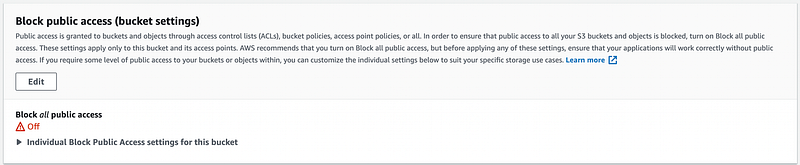
Scroll down until you find the section shown above, click edit, uncheck the box, and hit the save button.
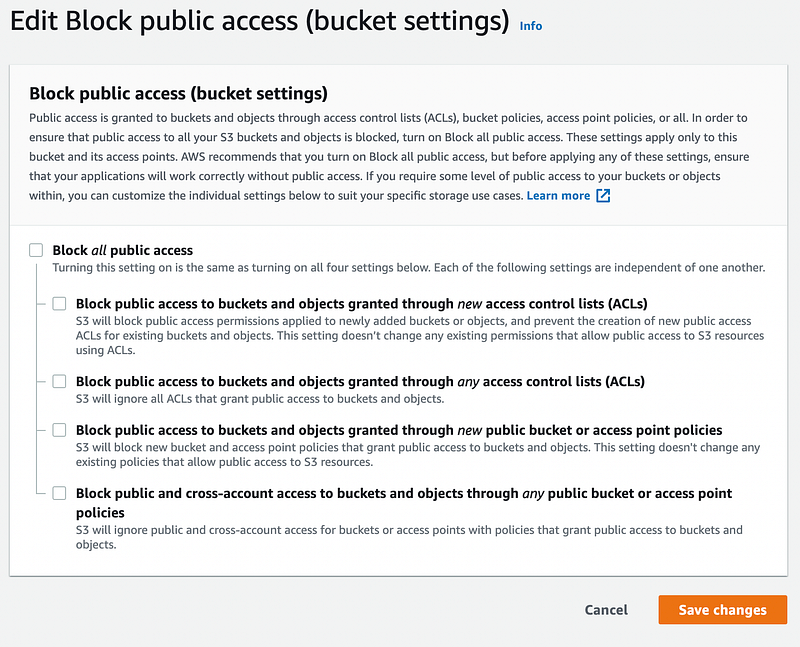
We are halfway there, and this is probably not your issue, but it is a good idea to make sure just in case.
It's always the tiny careless mistakes that give us the worst headaches.
2. Not Setting a permission policy for the bucket
Let me break it to you, in AWS, everything, and I mean absolutely everything requires permissions.
Permissions are excellent and help us build secure applications, but it can be an easy thing to forget and a bit weird as a beginner.
If you stay in the permissions tab, scroll down until you find the section below.

Hit edit, so we can start editing the policy.

Note that you can easily copy your bucket name (ARN), which you will need in a bit.
If anything, delete whatever you have in the editor and copy the code snippet below.
Let's get a better understanding of what this policy is doing.
Effect: what we want to do with our action (could also be deny)
Principal: Who can perform the action (*) means anyone, so its public
Action: What action we want to allow to be performed. GetObject allows read access
Resource: What S3 bucket’s path do we want this rule to be applied to.
/* means all routes in our bucket
Remember your bucket ARN right above the editor? Click the copy icon and replace assets.tudicuando.com with your bucket's ARN.
Hit save.
When you scroll up and see your bucket name, The Ddashobard should display a red badge.
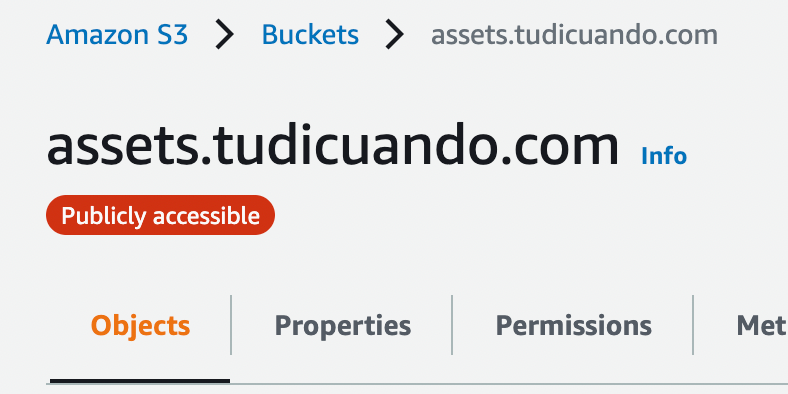
Either way, upload an image and test its "publicness" by going to the properties tab (of the picture) and copying the Object URL.

Now paste it into your browser, and Viola! You have served an image.
That's it; your bucket is now officially public 😎 and ready to serve some awesome pics. 📸
If you want to learn more about different AWS services, follow me for future content where I share insight and tutorials while building a production-ready web app using AWS.