avatar⚗ Kevin Summersill 🔋

Free AI web copilot to create summaries, insights and extended knowledge, download it at here

1121

Abstract

te”.</p><p id="ea2d">So the question is, Do you have to wait 7 days just to provision and test resources out? Well, the answer is no. That is the reason for this article. So this article will cover the following:</p><ul><li>Change the AWS Console to view secrets for deletion</li><li>Delete the secrets using the AWS CLI</li></ul><h2 id="6896">Step 1. View Secrets Schedule for Deletion within Console</h2><p id="0a2d">So if you did like I did and delete the secrets then by default the secrets are no longer visible in the console. In order to make them visible in the console select the gear icon on the secrets screen and select “<i>Show secrets scheduled for deletion</i>”. Click Save and then you should be able to see the secrets that are scheduled for deletion.</p><figure id="4ca6"><img src="https://cdn-images-1.readmedium.com/v2/resize:fit:800/1*7PBO4oQoTTCZCbWz3UjT6Q.png"><figcaption>Shows different preferences to view secrets in AWS Secrets Manager</figcaption></figure><p id="aebd">I had to do this because I could not remember the different secrets that were applied.</p><h2 id="9165">Step 2. Run the AWS

Options

CLI to force delete Secret</h2><p id="1c60">So now run the following command to run a force delete on the secret using the AWS CLI.</p><div id="0fc6"><pre><span class="hljs-string">aws</span> <span class="hljs-string">secretsmanager</span> <span class="hljs-built_in">delete-secret</span> <span class="hljs-built_in">--secret-id</span> <<span class="hljs-string">secret-id</span>> <span class="hljs-built_in">--force-delete-without-recovery</span> <span class="hljs-built_in">--region</span> <<span class="hljs-string">aws</span> <span class="hljs-string">region</span>></pre></div><p id="61ba"><b>Note:</b> You cannot add the — recovery-window-in-days to 0 unless the secret is restored first. So just delete the secret and run the “force-delete-with-out-recovery”. This will take a min or so to finish up and then refresh. Should see that secret is now deleted.</p><p id="4ee5">Great! Now when there are no longer any more secrets that are causing the issue you should be good to go after Terraform refreshes the state. If this helped and you like the articles please subscribe. Thanks!</p></article></body>

AWS Secrets Manager and Terraform State Delete Issue

Photo by Mahdi Bafande on Unsplash

I recently ran into an issue with pushing up some Terraform changes and seeing the following error:

You can't perform this operation on the secret because it was marked for deletion

I was completely confused as if I read the error correctly I would have seen it was dealing with the Terraform itself. So let's explain how this issue occurred. By default AWS Secrets within the Manager is set up with a “7” day recovery window. This means that the secret is NOT fully deleted until the 7-day time frame is up. So even though you may have run a “terraform destroy” the secret is still captured in the “state”.

So the question is, Do you have to wait 7 days just to provision and test resources out? Well, the answer is no. That is the reason for this article. So this article will cover the following:

  • Change the AWS Console to view secrets for deletion
  • Delete the secrets using the AWS CLI

Step 1. View Secrets Schedule for Deletion within Console

So if you did like I did and delete the secrets then by default the secrets are no longer visible in the console. In order to make them visible in the console select the gear icon on the secrets screen and select “Show secrets scheduled for deletion”. Click Save and then you should be able to see the secrets that are scheduled for deletion.
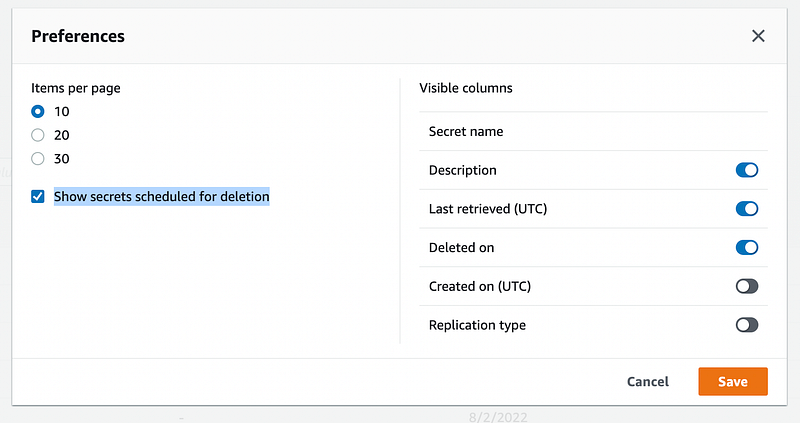
Shows different preferences to view secrets in AWS Secrets Manager

I had to do this because I could not remember the different secrets that were applied.

Step 2. Run the AWS CLI to force delete Secret

So now run the following command to run a force delete on the secret using the AWS CLI.

aws secretsmanager delete-secret --secret-id <secret-id> --force-delete-without-recovery --region <aws region>

Note: You cannot add the — recovery-window-in-days to 0 unless the secret is restored first. So just delete the secret and run the “force-delete-with-out-recovery”. This will take a min or so to finish up and then refresh. Should see that secret is now deleted.

Great! Now when there are no longer any more secrets that are causing the issue you should be good to go after Terraform refreshes the state. If this helped and you like the articles please subscribe. Thanks!

Development
Marketing
Programming
Terraform
AWS
Recommended from ReadMedium