
AWS S3 Bucket Local Testing Using LocalStack
In this article, We will show you how you can use LocalStack to test AWS S3 Bucket on your local system.

Video
What is LocalStack?
LocalStack provides an easy-to-use test/mocking framework for developing Cloud applications. This means you can test AWS cloud resources locally on your machine.
Note: LocalStack supporting only AWS cloud stack.
LocalStack spins up the following core Cloud APIs on your local machine.
- ACM , API Gateway, CloudFormation, CloudWatch
- CloudWatch Logs, DynamoDB, DynamoDB Streams
- EC2, Elasticsearch Service, EventBridge (CloudWatch Events)
- Firehose, IAM, Kinesis, KMS, Lambda, Redshift
- Route53, S3, SecretsManager, SES, SNS
- SQS, SSM, StepFunctions, STS
Benefits of Using LocalStack
- Reduce Cost
- Test AWS Cloud Resource Locally
- Learn AWS Cloud Resource Locally
- Debug Locally
Let’s Start
We hope you have installed Docker on your system else you can check the following article to install Docker.
Docker-Compose.YML
Note: Starting with version 0.11.0, all APIs are exposed via a single edge service, which is accessible on http://localhost:4566 by default. If you look into the following file we have used EDGE_PORT=4566.
In the above file, We are creating 2 Services as below with default region us-east-1
- Lambda
- S3
If you run the following command
docker-compose up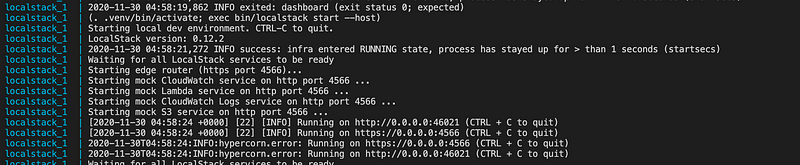
You will see the LocalStack container is running successfully
How To Test Services
To check all the services type the following URL on your browser
http://localhost:4566/health

if you look at the above screenshot 4 services are running
- lambda
- logs
- s3
- cloud watch
But in our docker-compose.yml file, we have added only 2 services which are
- lambda
- s3
With lambda service logs and cloud watch service enabled by default.
Create S3 Bucket Locally
Make sure you have installed AWS client on your system if not you can follow the following link to install
Once your LocalStack container is running up. You can open a new terminal and create an S3 Bucket using following command
aws --endpoint-url=http://localhost:4566 s3 mb s3://onexlabThe above command will create the S3 bucket onexlab in the LocalStack S3 bucket.

Upload File To S3 Bucket Locally
We have created one file text-test.txt as shown below in the screenshot
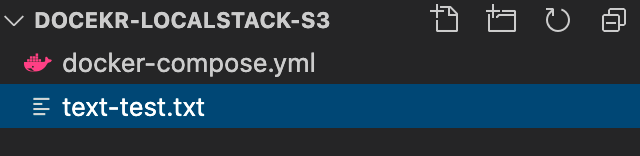
to upload text-test.txt to the S3 bucket using the following command
aws --endpoint-url=http://localhost:4566 s3 cp text-test.txt s3://onexlabThe above command will copy the file to the S3 bucket

You can verify using the below command S3 bucket contains files
aws --endpoint-url=http://localhost:4566 s3 ls s3://onexlab
How To Verify Locally?
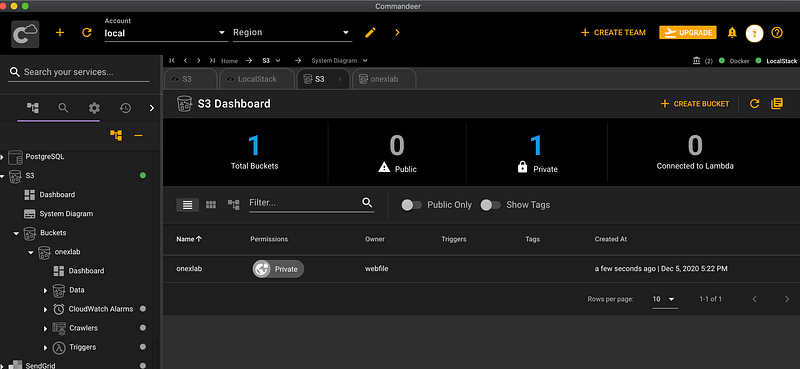
we are using Commandeer to check the S3 bucket and the File has been created succefully.

Github
Thank you 🚀🚀🚀🚀


