
AWS Glue Studio: Perform PySpark SQL Queries Without Knowing Spark
There are a lot more people that know SQL than know how to program in python and are proficient in Spark to perform big data analytics on their data. With AWS Glue Studio, it’s possible to build data pipelines for big data analytics on a distributed cluster without knowing to code a single line of spark code. This tutorial below is a walk-through on how to create a glue job with the Glue Studio Visual editor without knowing how to code. I will be using an example of performing a SQL query to identify customers who have made purchase orders greater than $500.
Create a New Job
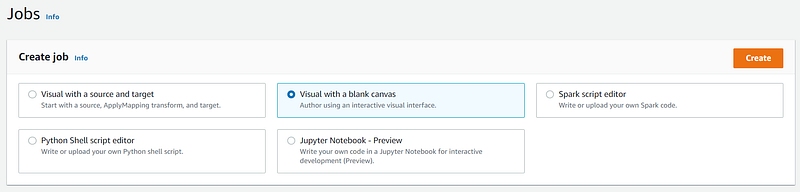
We first need to create a new job by selecting the “Visual with a blank canvas” in glue studio.
Add Source Datasets
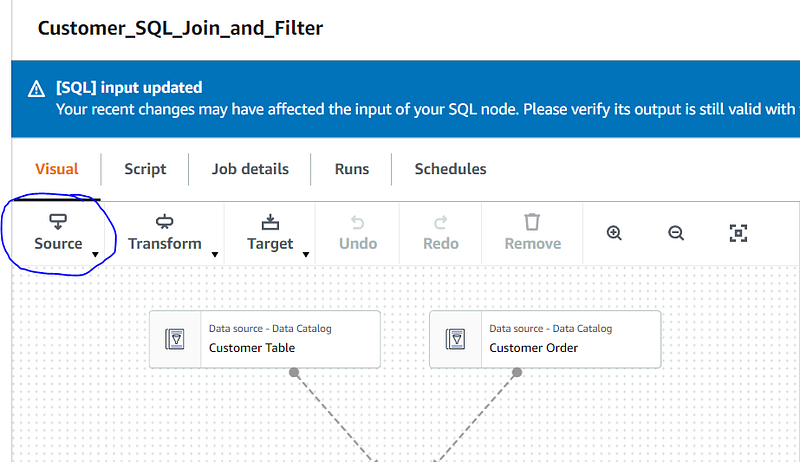
To start our workflow, we need to bring our source data into the canvas. I added a table containing my customer information and another table with my customer orders
SQL Transform
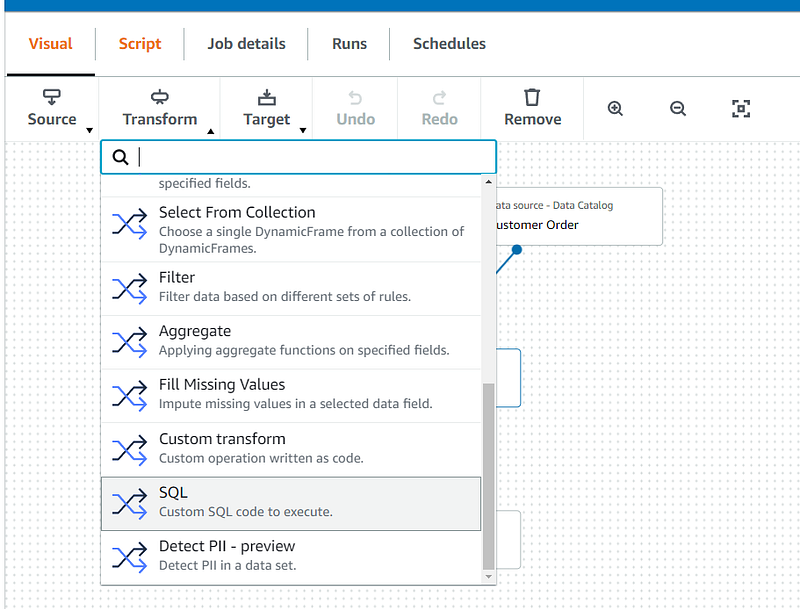
Next, select the “SQL” Transform from the Transform Drop down and connect it to your two datasets. For my use case, I need to identify my customers by first name and last name so I needed to join these two datasets together which will be performed in the SQL query.
Add SQL Logic
First, we need to add SQL Aliases to our input sources so they can be referenced in our SQL code. In the image below, you can see that I labeled mine ”profile” and “orders”. Now we can add our SQL Query to the SQL Query box. In my specific use case, we are filtering orders that are greater than $500 and grouping by customer id.
select id, first(first_name) as first_name, first(last_name) as last_name, count(id) as total_orders
from orders
inner join profile ON  orders.customer_id = profile.id
where total_amount > 500
group by (id)
order by total_orders desc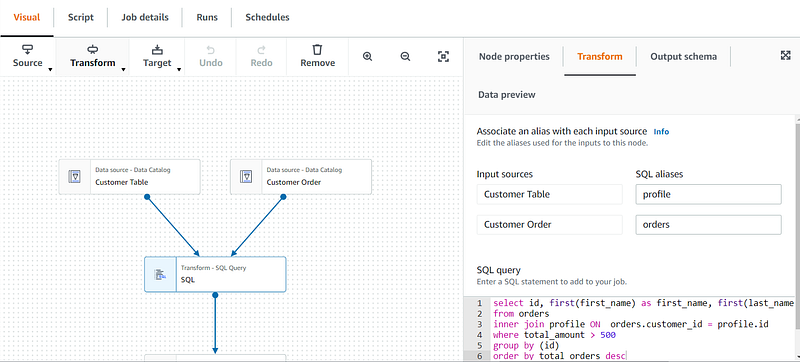
We can ensure our SQL Query is accurate by clicking on the data preview button to the sample results being returned. This can help us identify if there are any errors in our logic.
Write results to a target
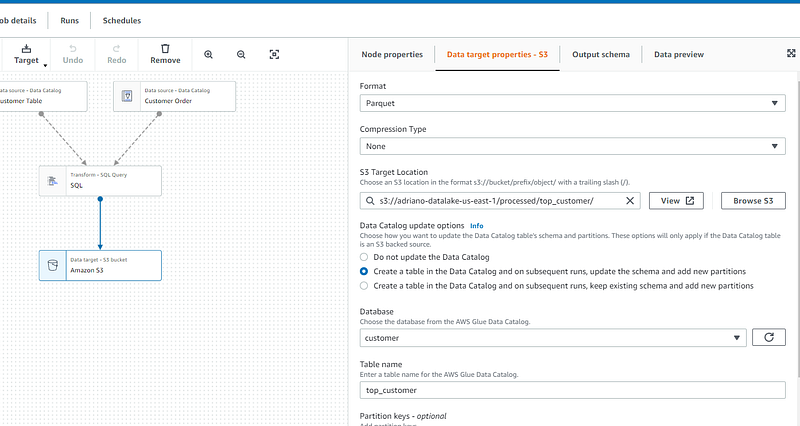
If all you needed to do was perform a single SQL Query, you are ready to write the results of your analysis. In my case, I decided to write them back to an S3 Bucket and add the location to the glue catalog so I could later query these results in AWS Athena.
If you click on the script tab, you can see the spark code that was created based on the transform and parameters you added.
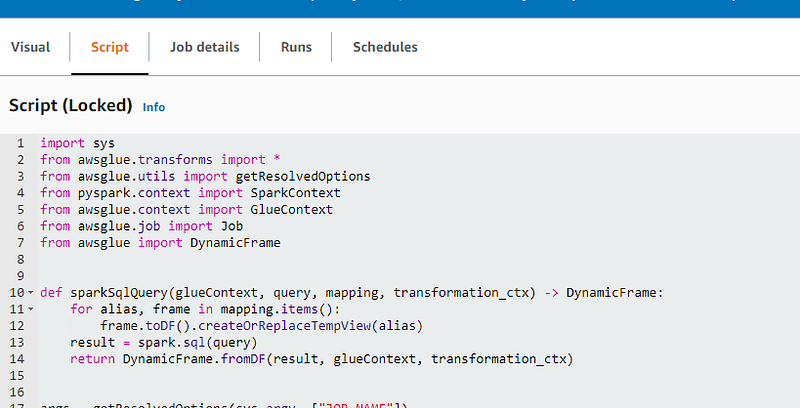
And that’s it! You have just created a AWS Glue job that can perform a distributed spark SQL query on your dataset. Simple as that.
I have also created a video tutorial explaining all the steps if you want to follow along there.
If this video is helpful, consider subscribing to my youtube channel.
I hope you enjoyed reading this. If you’d like to support me as a writer consider signing up to become a Medium member. It’s just $5 a month and you get unlimited access to Medium.
More content at plainenglish.io. Sign up for our free weekly newsletter. Get exclusive access to writing opportunities and advice in our community Discord.