
Illumination Innovation | Automation | Guide
Automating Your Social Media
Using IFTTT to automate Illumination’s social media feed

Hello fellow writers and editors,
I have automated the process of sharing your articles on Facebook and Twitter, LinkedIn will follow shortly.
In order to give you the same options in your private endeavors, I decided to share in this article the process, step by step. After reading this, you should be able to automate your own social media activity. Whether you use it for your personal articles, or to share the articles of your own publication.
Posting On Social Media
We receive hundreds of submissions daily. Our editors need to check and publish them, often adding in missing tags, re-formatting a subtitle or things like that. This alone can be very time-consuming. Additionally, since we launched an official Facebook and Twitter presence, your articles need to get shared there too, to increase their reach.
So far, our editors have taken care of that.
Tree Langdon ♾️ and Sylvia Love Johnson have managed the Facebook account, making sure that your posts will be seen there.
Dipti Pande, Sylvia Love Johnson, Lilycelle Belarmino Ausa, Selma, Karen Madej 💛, Ksenia Sein, and I have managed our Twitter account, tweeting your stories out.
But both of these processes were manual, meaning we’d have to set up the tweets and posts each time, copying the URL or however each one of us has managed this process for themselves. That’s not a problem with 2 or 3 articles.
Having to check, publish, and post 40 lined up submissions, however, can quickly make you feel exhausted. In the last two days, though I have still published a few articles, I have not really tweeted them out. That is a huge waste of your potential due to my personal laziness.
I’ve also noticed one of our talented writers, René Junge, using a service called PenSignal to automate tweets. I looked into that, but PenSignal requires a paid plan. I wanted to find a free solution to our current situation.
So I’ve looked into finally automating that process entirely so that we’ll no longer need to do that for each and every article that gets published.
How did I do that?
IFTTT
You can register for free over at https://ifttt.com/, which is a service provider to help you automate a lot of things, from Twitter and Facebook to Medium, RSS or things like Google’s Cortana, Alexa, your Emails, Newsletters, whatever you got.
I’ve used IFTTT to automate our social media presence in a few easy steps. It now automatically takes our Illumination RSS feed and posts new articles on both Twitter and Facebook, with no human involvement.
You can also use IFTTT to connect Medium with your personal accounts, so you don’t need to manually post them. In order to help you with setting it up, I’ll provide a short tutorial below.
Setting up IFTTT
You will need to register an account with IFTTT. You can use your Google Account for this, which will register you in one easy click.
Then you’ll be greeted by the home screen.
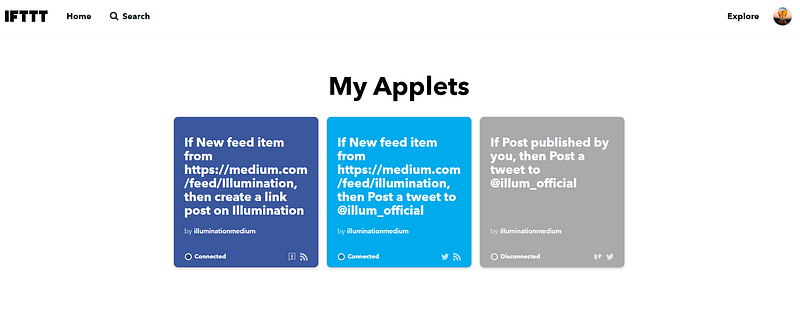
As you can see, I have three Applets shown here. You’ll have none when you start out. The first two are what will automatically post to Facebook and Twitter for you. To get started, click on your profile picture in the top right and from there, select “Create”.
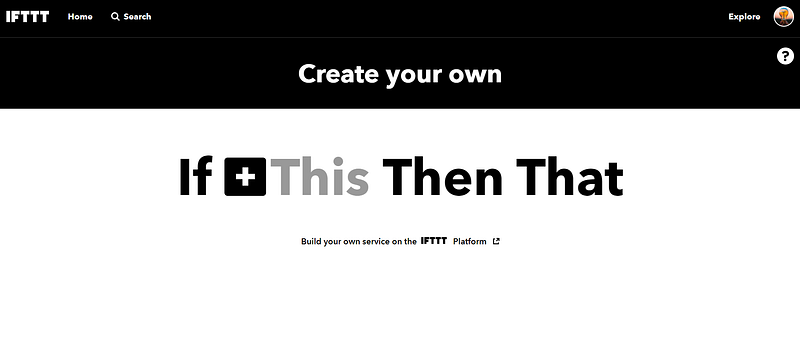
On this new page, click on “If +This”. It will ask you to search for a specific service. If you’d like to automatically post your Medium articles to Twitter or Facebook, type “Medium” in the search bar and select it.
When you first select it, you will be asked by IFTTT to authorize access to your personal account. It won’t be able to do anything without gaining access. Confirm.
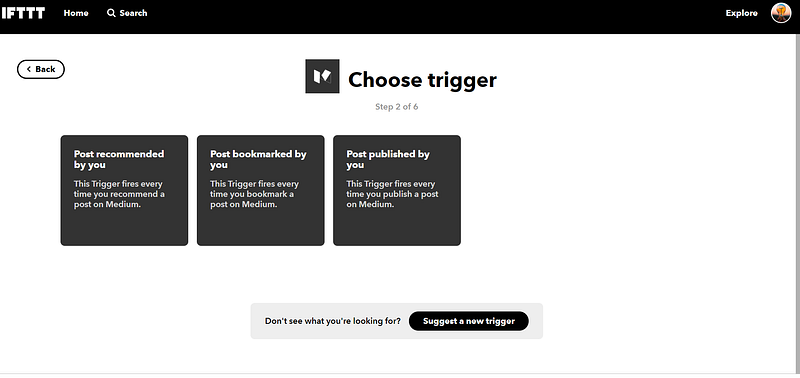
Now you are asked to select a trigger. A trigger is an event that fires your action (like a tweet or post). Select “Post published by you”. You’ll get back to the first screen, with Medium now showing in the headline “If Medium, then +That”.
Select the “That” part to create the action following your trigger. In our example case, let’s go with a Twitter tweet.
For that, select Twitter as your “That”. Again you’ll be asked to allow IFTTT access to your Twitter account. After you confirmed, you’ll be taken to the “Choose Action” screen.
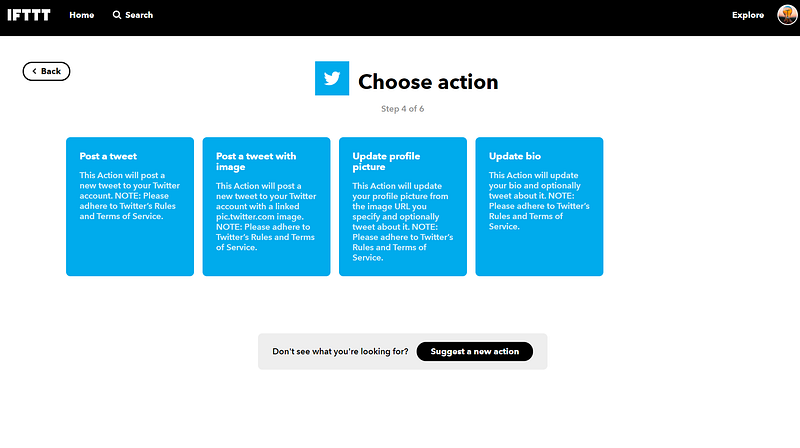
Here, select the first option “Post a tweet”. It will open a new page with the details of your tweet.
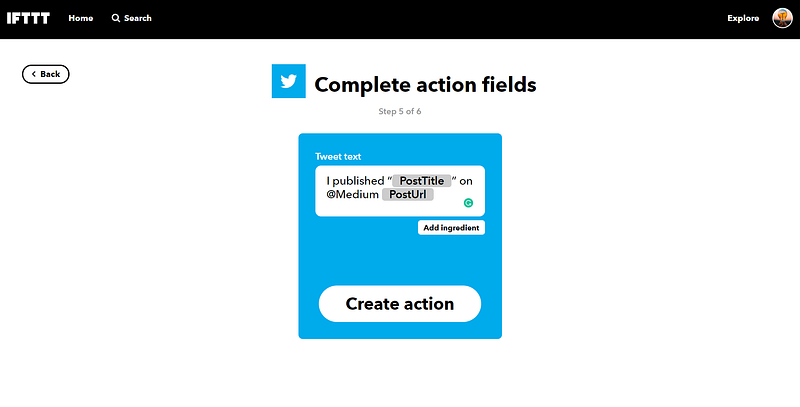
The Tweet text is what will be tweeted by IFTTT when you publish an article.
The two tags shown here are “ingredients” that help implement code easily.
The “PostTitle” Tag will automatically use the title of your Medium story, while the “PostUrl” will contain the link to your story. You are free to change the other text to your liking or change the order. You can also add # Hashtags and handles that will be included in each automated post.
When you’re happy, click on “Create Action”. Select whether you’d like to receive notifications when this app does its job or not. Then click “Finish”.
You’re set! The next time you publish a new article on Medium, it should automatically post it for you on Twitter.
Important sidenote regarding posting your published stories via IFTTT
As René Junge pointed out to me, IFTTT can not differentiate between your own articles and responses you wrote to other people. Medium treats responses as your own published stories and thus will trigger IFTTT to post them on social media as well.
Just keep that in mind when automating your Twitter this way.
For Publications
If you want to use IFTTT for your own publication, the Medium Post option will not be enough, as it only allows you to see posts that you publish with your personal account.
We will circumvent this by using the RSS feed provided by Medium. Each publication automatically has its own RSS feed:
RSS feeds
Medium provides RSS feeds for user profiles and publications.
User profile
To access a user’s feed, add /feed/ before their username, for example:
medium.com/feed/@Medium
Publications
For a Medium publication’s RSS feed, add /feed/ before the publication’s name, like so:
medium.com/feed/the-story
Publications with custom domains
For a publication on a custom domain, add /feed/ to the end of the URL:
https://journal.thriveglobal.com/feed.
Source: https://help.medium.com/hc/en-us/articles/214874118-RSS-feeds
So follow the IFTTT setup, but this time, instead of “Medium”, select “RSS” for “If +This”. It will ask you for an URL. In the case of Illumination, this was medium.com/feed/illumination.
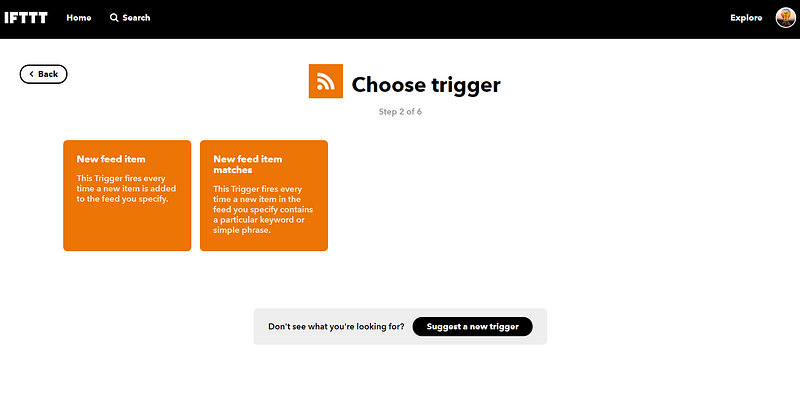
Here you select “New feed item”. The RSS feed is automatically updated by Medium and will contain new articles when they get published.
Again select Twitter, Facebook or whatever outlet you want to share this feed with, just like in the guide above.
Now your RSS feed will be used by IFTTT to post new articles for you on Twitter, Facebook & co.
UPDATE
Twitter daily Tweet limit
I just noticed that IFTTT has a daily limit regarding Twitter in place. The automation allows only 25 tweets per 24-hour cycle, after that, it will stop tweeting new entries until the next day.
For private use (like sharing all your writing of the day) that might not be a problem, unless you write many responses to other writers too (remember, they take from your total)
But if you run an official Twitter account with the goal to share the works of hundreds of writers, then that solution might not be efficient enough. I’m currently scouting for alternatives to keep the cadence up.
This is all you need to set up your automation process for Tweets, Facebook posts, and more. IFTTT is free, easy to use, and took only a few minutes to set up.
So if you’d like to automate your tweets and posts, I recommend it.
Kevin is an editor and writer for the ILLUMINATION publication. Follow him on Twitter and LinkedIn.


