avatarAsjad Naqvi

Free AI web copilot to create summaries, insights and extended knowledge, download it at here

9852

Abstract

n the screen</span> local filename <span class="hljs-string">"x'.tsv.gz"</span> copy <span class="hljs-string">"https://ec.europa.eu/eurostat/api/dissemination/sdmx/2.1/data/x'/?format=TSV&compressed=true"</span> <span class="hljs-string">"`x'.tsv.gz"</span>, replace

shell <span class="hljs-string">"C:\Program Files\7-Zip\7zG.exe"</span> e -y `x<span class="hljs-number">'.</span>tsv.gz di <span class="hljs-string">"."</span> _cont <span class="hljs-comment">// displays a dot for each file</span> }</pre></div><p id="e3de">You can keep expanding the list of files by selecting file names from the regular browser window in the <a href="http://ec.europa.eu/eurostat/data/database">Eurostat’s data browser page</a>. File names are always given in brackets at the end of the data you want to download.</p><h1 id="3b2b">Step 4: Formatting data files</h1><p id="17e7">Once the Eurostat files have been downloaded using the procedures explained in the step above, the next step is to clean up the files to fix the following two issues:</p><ol><li>Names of variables</li><li>Getting rid of text fields in numeric fields</li><li>Getting the data structure right</li></ol><p id="f781">For the cleaning I usually start with a new dofile. So just to be safe, I will start with setting the directory again and import the file as follows:</p><div id="4763"><pre>*** <span class="hljs-keyword">import</span> the file. mind the paths

clear cd <span class="hljs-string">"<your directory>"</span> <span class="hljs-comment">// the path to the root</span>

<span class="hljs-keyword">import</span> delimited <span class="hljs-keyword">using</span> ./raw/nama_10_gdp.tsv, <span class="hljs-built_in">delim</span>(tab) clear</pre></div><p id="7d03">The data in the data browser looks like this:</p><figure id="b226"><img src="https://cdn-images-1.readmedium.com/v2/resize:fit:800/1*yFlm9-T8CtEFrIn-mH6JLQ.png"><figcaption></figcaption></figure><p id="ce81">The variable <i>v1 </i>essentially contains three variables lumped together. The remain variables, <i>v2 </i>onwards, are the data points for every year. This pattern exists for each file.</p><p id="d121">We can clean up <i>v1</i> split splitting it on the comma and generating new variables starting with <i>a</i>:</p><div id="94a6"><pre>split v1, <span class="hljs-selector-tag">p</span>(,) gen(<span class="hljs-selector-tag">a</span>) drop v1 <span class="hljs-attribute">order</span> <span class="hljs-selector-tag">a</span>* v*</pre></div><p id="2254">We can also clean up with the a variable names by picking the value from the first row and using it to rename the <i>a1, a2, a3</i> etc. variables:</p><div id="918a"><pre><span class="hljs-comment">// removing all non-numeric characters in the a's</span> <span class="hljs-keyword">foreach</span> j of varlist a* { replace j<span class="hljs-string">'="geo" if j'</span>==<span class="hljs-string">"geo\TIME_PERIOD"</span> local header = j<span class="hljs-string">'[1] ren j'</span> header<span class="hljs-string">' }</span></pre></div><p id="a7d7">In the next step, we clean up the v columns which contain all the data. In Eurostat datasets, numeric variables sometimes also contain alphabets representing footnotes like <i>p = provisional</i>, <i>c = confidential</i>, etc. These should ideally exist in a separate column but when importing Eurostat data, they are padded in front of the values. We can get rid of these by performing a string search and replacing it with missing:</p><div id="c9cf"><pre><span class="hljs-comment">// removing all non-numeric characters in the v's</span></pre></div><div id="0fe1"><pre>foreach i of varlist v* { <span class="hljs-built_in">cap</span> replace i<span class="hljs-string">' = ustrregexra(i'</span>, <span class="hljs-string">"[a-z]"</span>, <span class="hljs-string">""</span>) <span class="hljs-built_in">cap</span> replace i<span class="hljs-string">' = ustrregexra(i'</span>, <span class="hljs-string">":"</span>, <span class="hljs-string">""</span>) <span class="hljs-built_in">cap</span> replace i<span class="hljs-string">' = ustrregexra(i'</span>, <span class="hljs-string">"e"</span>, <span class="hljs-string">""</span>) <span class="hljs-built_in">cap</span> replace i<span class="hljs-string">' = ustrregexra(i'</span>, <span class="hljs-string">"p"</span>, <span class="hljs-string">""</span>) <span class="hljs-built_in">cap</span> replace i<span class="hljs-string">' = ustrregexra(i'</span>, <span class="hljs-string">"r"</span>, <span class="hljs-string">""</span>) <span class="hljs-built_in">cap</span> replace i<span class="hljs-string">' = ustrregexra(i'</span>, <span class="hljs-string">"s"</span>, <span class="hljs-string">""</span>) }</pre></div><p id="b240">Note that, I usually loop over dozens of files to update the datasets, and the code above has evolved after new strings are found. The generic regular expression given by <code>ustrregexra(i', "[a-z]", "")</code> should be sufficient. If you want to learn more about writing regular expressions, have a look at the <a href="https://readmedium.com/regular-expressions-regex-in-stata-6e5c200ef27c">Regular expressions (regex) in Stata</a> guide.</p><p id="4901">Like the a variables, we can also fix the <i>v </i>variables by picking the year information from the first row, adding a <i>y </i>prefix to it (Stata does not allow just numeric variables as variable names):</p><div id="12b7"><pre>// fixing the v columns

<span class="hljs-keyword">foreach</span> k of varlist v* { <span class="hljs-keyword">local</span> header = <span class="hljs-string">k'[1] ren </span>k<span class="hljs-string">' yheader'</span> }</pre></div><p id="a1d2">Now the data is in order, so we can drop the first row and destring the variables:</p><div id="59af"><pre><span class="hljs-keyword">drop</span> <span class="hljs-keyword">in</span> <span class="hljs-number">1</span> <span class="hljs-operator">/</span><span class="hljs-operator">/</span> <span class="hljs-keyword">drop</span> the <span class="hljs-keyword">first</span> <span class="hljs-type">row</span> destring _all, replace</pre></div><p id="849b">If everything is done correctly, this should give us a clean dataset:</p><figure id="5e03"><img src="https://cdn-images-1.readmedium.com/v2/resize:fit:800/1*qBM7ap0t5gkApb7h8XR3HA.png"><figcaption></figcaption></figure><h1 id="9b37">Step 5: Reshaping the file</h1><p id="82a1">The downloaded and cleaned Eurostat files are usually not in the format that most Stata require to handle panel datasets. The panel (or <i>long</i>) format is usually of the form:</p><div id="b396"><pre><span class="hljs-string">ID</span> <span class="hljs-string">Year</span> <span class="hljs-string">Var</span> <span class="hljs-string">—</span> <span class="hljs-string">—</span> <span class="hljs-string">—</span> <span class="hljs-string">—</span> <span class="hljs-string">—</span> <span class="hljs-bullet">-</span> <span class="hljs-number">1</span> <span class="hljs-number">2001 </span><span class="hljs-number">1</span> <span class="hljs-number">1</span> <span class="hljs-number">2002 </span><span class="hljs-number">0</span> <span class="hljs-number">1</span> <span class="hljs-number">2003 </span><span class="hljs-number">1</span> <span class="hljs-number">2</span> <span class="hljs-number">2001 </span><span class="hljs-number">1</span> <span class="hljs-number">2</span> <span class="hljs-number">2002 </span><span class="hljs-number">1</span> <span class="hljs-number">2</span> <span class="hljs-number">2003 </span><span class="hljs-number">0</span></pre></div><p id="f819">such that the ID (the panel identifier) and Year (the time identifier) combination has not duplicates. Eurostat files are given in the <i>wide</i> format where the columns represent the variables across time in the following format:</p><div id="52e6"><pre><span class="hljs-string">ID</span> <span class="hljs-string">Var_2001</span> <span class="hljs-string">Var_2002</span> <span class="hljs-string">Var_2003</span> <span class="hljs-string">—</span> <span class="hljs-string">—</span> <span class="hljs-string">—</span> <span class="hljs-string">—</span> <span class="hljs-string">—</span> <span class="hljs-string">—</span> <span class="hljs-string">—</span> <span class="hljs-string">—</span> <span class="hljs-string">—</span> <span class="hljs-string">—</span> <span class="hljs-string">—</span> <span class="hljs-string">—</span> <span class="hljs-string">—</span> <span class="hljs-string">—</span> <span class="hljs-bullet">-</span> <span class="hljs-number">1</span> <span class="hljs-number">1</span> <span class="hljs-number">0</span> <span class="hljs-number">1</span> <span class="hljs-number">2</span> <span class="hljs-number">1</span> <span class="hljs-number">1</span> <span class="hljs-number">0</span></pre></div><p id="d5e5">I usually prefer to have the long format for the final file. For this we can use some tricks to write the code more efficiently.</p><p id="1244">First store the variable name in the label as well:</p><div id="3952"><pre>**** store variable names <span class="hljs-keyword">as</span> variable labels <span class="hljs-keyword">foreach</span> x of varlist y* { lab <span class="hljs-keyword">var</span> x<span class="hljs-string">' "`x'</span><span class="hljs-string">" }</span></pre></div><p id="025f">Now use the describe <code>ds</code> command with the <code>not</code> option to say pick all variables that DO NOT have the variable label starting with any version of y. Store this information in a local <code>ivars</code> and use it dynamically in the reshape command.</p><div id="7b20"><pre>ds, <span class="hljs-title function_ invoke__">not</span>(varl y*) <span class="hljs-comment">// pick variables labels that don't

Options

have y</span>

local ivars <span class="hljs-title function_ invoke__">r</span>(varlist)<span class="hljs-string">' reshape long y, i(ivars'</span>) <span class="hljs-title function_ invoke__">j</span>(year) <span class="hljs-keyword">string</span></pre></div><p id="d4e4">Note here that this option is strictly not necessary here, but if you are looping over multiple files, there is a change that are different “a” columns that describe the data. The above option, is an automation feature, which lets the program decide on its own, what the panel variables are.</p><p id="6321">Once the data is reshaped, we can chose to drop empty rows. Since some datasets are very large, anything that makes data storage easier, should be preferred.</p><p id="ce83">We can destring, label, compress, sort, order variables again if needed and save the final file:</p><div id="3f95"><pre>drop <span class="hljs-keyword">if</span> y==. <span class="hljs-comment">// there might also be zeros as errors or actual values. these need to be checked manually.</span>

destring _all, replace lab var year <span class="hljs-string">"Year"</span>

compress order geo year sort geo year

save ./master/nama_10_gdp.dta, replace <span class="hljs-comment">// save the final file</span></pre></div><p id="8fa2">The final data in the long form should look like this:</p><figure id="de87"><img src="https://cdn-images-1.readmedium.com/v2/resize:fit:800/1*psmqJh-R7Q2CxUT1ywTxqA.png"><figcaption></figcaption></figure><p id="b7f4">Where we have more than 800,000 data points in the file that are correctly labeled.</p><p id="72d0">As mentioned earlier, the whole process can be looped over multiple files as well since the file structure is mostly the same. Some exceptions exist, for example in business and trade datasets.</p><h1 id="1047">Step 6: Adding the labels</h1><p id="b514">The default data does not come with variable labels which can be a mess with very large files. Fortunately, the new Eurostat has the code structure sorted out which allows us to automate the complete process of adding labels to the files. So let’s get started!</p><p id="331a">Load the file we want:</p><div id="8450"><pre>use ./master/nama_10_gdp.dta, clear</pre></div><p id="5a4f">Save the variable names in a local:</p><div id="cfc1"><pre> ds local mylist `<span class="hljs-built_in">r</span>(varlist)' local droplist year y
local mylist : list mylist - droplist

di <span class="hljs-string">"`mylist'"</span></pre></div><figure id="b8c2"><img src="https://cdn-images-1.readmedium.com/v2/resize:fit:800/1*84XyqzlbbeE_8QZT-FhUcg.png"><figcaption></figcaption></figure><p id="b019">Here we are removing two variables from the list: “year” and “y” since these don’t need labels. Here we can add additional labels as well if needed.</p><p id="d8cc">Next we download the codelist file and save it locally as “metadata.txt”:</p><div id="a714"><pre><span class="hljs-built_in">copy</span> <span class="hljs-string">"https://ec.europa.eu/eurostat/api/dissemination/files/inventory?type=codelist"</span> metadata.txt, replace</pre></div><p id="0e83">and we import it in Stata:</p><div id="590b"><pre><span class="hljs-keyword">import</span> delim <span class="hljs-keyword">using</span> metadata.txt, clear <span class="hljs-comment">// master file</span></pre></div><p id="d953">The file looks something like this:</p><figure id="476e"><img src="https://cdn-images-1.readmedium.com/v2/resize:fit:800/1*q2BOUKiYiNClH9K9_x7cNw.png"><figcaption></figcaption></figure><p id="73e6">It contains the variable name in “code” column, its variable label in the “label” column, and the code list in the “specifictsvdownloadurl” column.</p><p id="09bc">First, let’s clean it up:</p><div id="806b"><pre>replace code = <span class="hljs-built_in">lower</span>(code) gen seq = _n <span class="hljs-comment">// counter for pick rows</span> </pre></div><p id="6797">We change the “code” variable to lowercase to allow it to be match with the variable list we extracted earlier.</p><p id="dfcd">Next, we loop over our variable list, and store the information we require in a variable code-specific file:</p><div id="78db"><pre>foreach x of local mylist {

summ seq <span class="hljs-keyword">if</span> code<span class="hljs-operator">==</span><span class="hljs-string">"x'"</span>, meanonly <span class="hljs-comment">// get the row of the variable</span> local mylab <span class="hljs-operator">=</span> label[<span class="hljs-operator">=</span>r(max)']

local path <span class="hljs-operator">=</span> specifictsvdownloadurl[<span class="hljs-operator">=</span>r(max)'] <span class="hljs-comment">// get the path address</span> <span class="hljs-keyword">copy</span> <span class="hljs-string">"path'"</span> `x'.tsv, replace <span class="hljs-comment">// get the file</span>

preserve <span class="hljs-keyword">import</span> delim `x'.tsv, clear delim(tab) <span class="hljs-comment">// import the file</span>

<span class="hljs-comment">// check if the labels are correct in the file</span>

cap ds v1 v2 local length : word count r(varlist)' di <span class="hljs-string">"length'"</span>

<span class="hljs-keyword">if</span> `length' <span class="hljs-operator">></span> <span class="hljs-number">0</span> { <span class="hljs-comment">// if messy file: fix it</span> ren v1 code ren v2 labelenglish ren v3 labelfrench ren v4 labelgerman

drop <span class="hljs-keyword">in</span> <span class="hljs-number">1</span> drop v<span class="hljs-operator">*</span> }

keep code labelenglish ren code x' ren labelenglish x'label compress tempfile tempx' <span class="hljs-comment">// save as a tempfile</span> save temp_`x''.dta, replace

cap erase `x'.tsv <span class="hljs-comment">// erase the raw file</span>

restore }</pre></div><p id="644e">Next step, we merge the saved labels with our main file:</p><div id="bbc4"><pre>use <span class="hljs-string">"$splitdir/nama_10_gdp.dta"</span>, clear foreach x of local mylist { merge m:<span class="hljs-number">1</span> x' using temp_`x''.dta keep <span class="hljs-keyword">if</span> inlist(_m,<span class="hljs-number">1</span>,<span class="hljs-number">3</span>) drop _m

lab <span class="hljs-keyword">var</span> x' <span class="hljs-string">"``x'_lab'"</span> lab <span class="hljs-keyword">var</span> x'_label <span class="hljs-string">"``x'_lab' label"</span>

local myorder myorder' x'<span class="hljs-operator">*</span>

}

order myorder' sort myorder'</pre></div><p id="b690">which gives us our nearly formatted file with variable labels and keys for variable codes:</p><figure id="6c82"><img src="https://cdn-images-1.readmedium.com/v2/resize:fit:800/1*5D3AnhQ-QiKTw4WAZDPXMg.png"><figcaption></figcaption></figure><h1 id="ed23">Miscellaneous</h1><p id="5b0e">In classrooms, I usually start with the above cleaned file. Since the long form is not so easy to read, we can make the data more readable by reshaping it again.</p><p id="f9d4">First load the dataset</p><div id="0263"><pre>*** <span class="hljs-keyword">import</span> the file. mind the paths clear cd <span class="hljs-string">"<your directory>"</span> <span class="hljs-comment">// the path to the root</span>

use ./master/nama_10_gdp, clear</pre></div><p id="faa0">We can now reshape it anyway we want. For example, the command below makes the <i>na_items</i>, which has the identifiers of the European System of Accounts (ESA10):</p><div id="8e3a"><pre>*ssc install gtools, replace

greshape wide y, <span class="hljs-selector-tag">i</span>(geo time unit) <span class="hljs-built_in">j</span>(na_item) string ren y* y_*</pre></div><p id="1be9">Here I would strongly suggest to install the <a href="https://gtools.readthedocs.io/en/latest/"><i>gtools </i>package</a>, which provides a suit of commands like <i>greshape </i>which are many times faster than the official commands. This is because gtools makes use of the very efficient C-language. Comparisons on the speed are also given on the <a href="https://gtools.readthedocs.io/en/latest/">website</a>. Here we replace the official <code>reshape</code> command with <code>greshape</code>.</p><p id="997d">The last option is a generic renaming command to make the variables look neater. The above codes should give us:</p><figure id="89ba"><img src="https://cdn-images-1.readmedium.com/v2/resize:fit:800/1*DW_5-HsCnFCyl5_UFfH53w.png"><figcaption></figcaption></figure><p id="aed5">Again depending on the purpose and use of the dataset, several datasets can be set up and merged using the processes described above. The codes for <i>units</i>, <i>na_items</i>, <i>geo </i>can be cleaned up as well but these will be covered in another guide.</p><h1 id="69a5">About the author</h1><p id="3f91">I am an economist by profession and I have been using Stata since 2003. I am currently based in Vienna, Austria. You can see my profile, research, and projects on <a href="https://github.com/asjadnaqvi">GitHub</a> or my <a href="https://asjadnaqvi.github.io/">website</a>. You can connect with me via <a href="https://medium.com/@asjadnaqvi">Medium</a>, <a href="https://twitter.com/AsjadNaqvi">Twitter</a>, <a href="https://www.linkedin.com/in/asjad-naqvi-phd-9a539512/">LinkedIn</a>, <a href="https://econtwitter.net/@asjadnaqvi">Mastodon</a>, or simply via email: <i>[email protected]</i>. If you have questions regarding the Guide or Stata in general post them on <a href="https://discord.gg/qpHZtX6Xkk"><b>The Code Block</b></a> Discord server.</p><p id="0b96"><a href="https://medium.com/the-stata-guide">The Stata Guide</a> releases awesome new content regularly. <a href="https://asjadnaqvi.medium.com/about">Subscribe</a>, Clap, and/or Follow the guide if you like the content!</p></article></body>

Automating Eurostat in Stata

(last updated: Feb 2024)

NOTE: if you have used this guide (including earlier versions) to write Stata packages, then please acknowledge it within the package documentation.

Eurostat is the official statistical database of the European Union (EU). It is a fairly extensive, one-stop shop on all possible indicators ranging from socio-economic variables, demography, environment, trade, mobility, regional development, etc.

Navigating the Eurostat website can be daunting. Same, or similar, variables exist across different datasets, larger data sets can also have several subsets as separate data files, and some datasets contain derived variables. In short, one can get lost quite easily. Additionally, for research or data-related projects, one usually has to collate information by combining different datasets into one large database. Doing this manually can be cumbersome. Since the datasets are also intermittently updated, a significant amount of time can be spent on checking for new versions and downloading and recompiling files.

In this extensive step-by-step guide, we will learn how to circumvent the above problems by automating the downloading, extracting, cleaning, and the labeling process.

What can we do in Stata?

Stata has the powerful option of accessing the DOS Shell which gives us two little hacks for file management:

  1. Stata can read files from URLs. Since Eurostat has stable URLs for all datasets they can be automated in Stata and updated regularly.
  2. Stata can access other programs. This allows us to use other softwares like 7-zip (a free software), or Winrar to unzip the files within the Stata syntax.

Note that, even though Stata now allows unzipping compressed files, this action is only limited to the .zip extension. Hence the need to use a 7-zip, a third-party software, since the files have a .gz extension.

Step 1: Get everything ready

  • Get the folders in order. In the guides I post, we follow a very specific folder structure to manage the workflow. You can learn more about this in the Stata Workflow guide as well. The following folder structure is suggested:
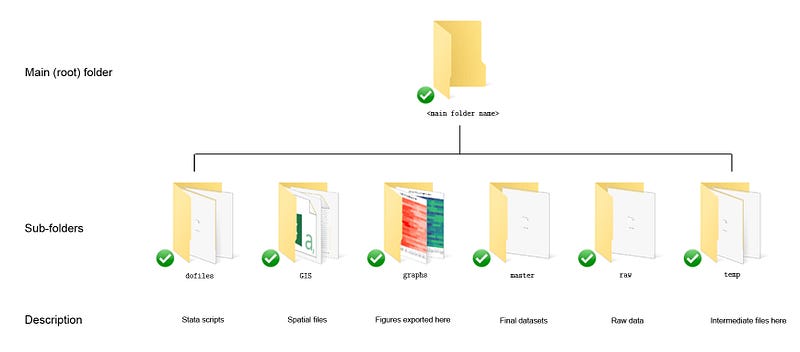
Here we can create a folder, maybe titled Eurostat, and add subfolders to it. For this guide, we need four subfolders: dofiles, master, raw, temp.

  • Install 7-zip. You can also install any other software as long as, (a) it allows .gz files to be uncompressed, and (b) can be accessed using some syntax (that you can also figure out!).
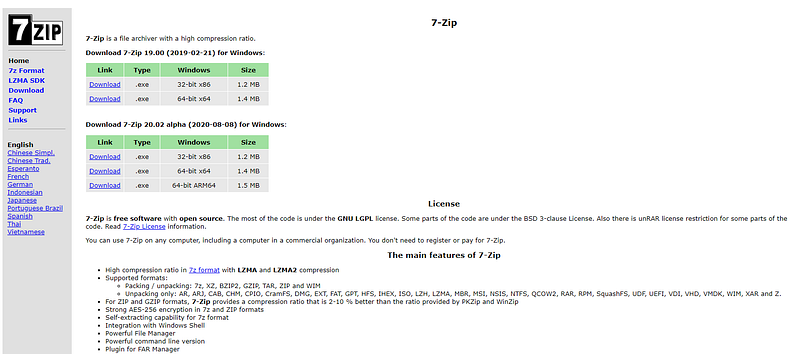
7-zip webpage. Download the right version of the file

For 7-zip, it is important to know where it is installed, since we need to find the right path to call the program. The path is typically the Program Files folder for Windows:
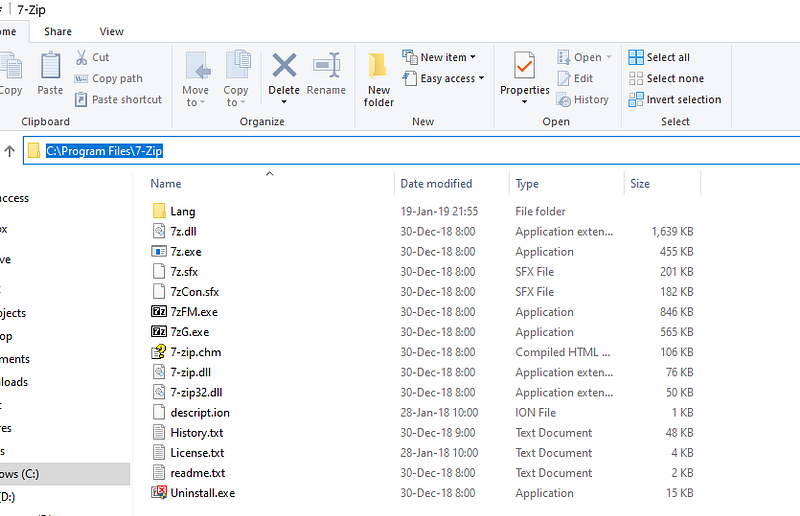
Note that if you install a 32-bit version, the it will mostly likely be in the folder ./Program Files (x86)/.

Step 2: Navigating Eurostat

Let’s say we want to download the file that contains the basic macro indicators, for example, GDP for Europe. We can view this dataset on the Eurostat database page:
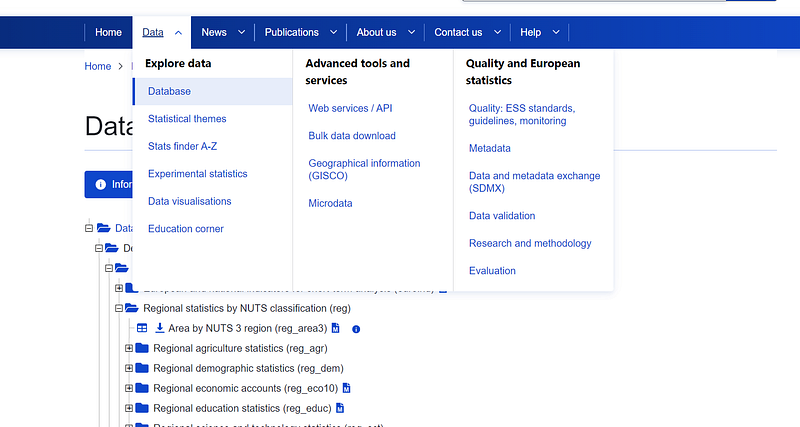
https://ec.europa.eu/eurostat/web/main/data/database

The GDP information is given under the Economy and Finance tree and the file is highlighted below:
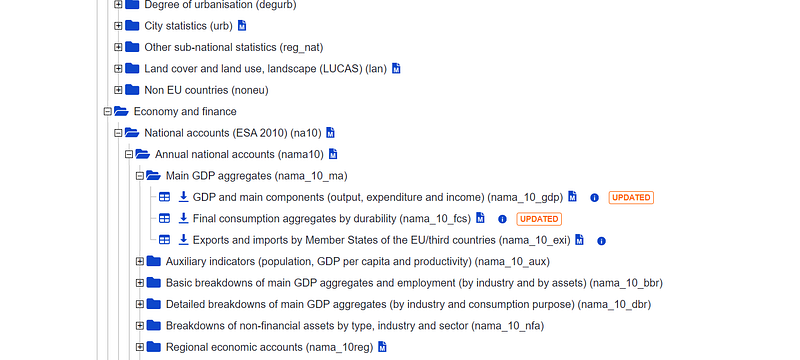
The name of the table nama_10_gdp is given in brackets at the end of the description. If you click on the file, it will open up something like this:
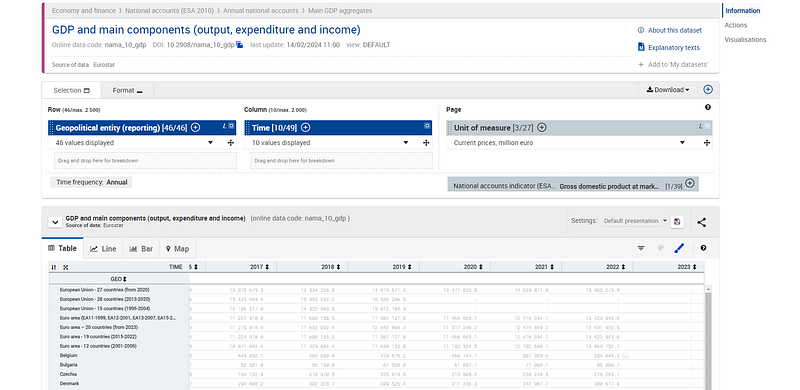
https://ec.europa.eu/eurostat/databrowser/view/nama_10_gdp/default/table?lang=en&category=na10.nama10.nama_10_ma

This page also allows us to download the dataset but one needs to manually defined the variables, and the format of the download, and the format is not very machine readable friendly. The downloaded files are mostly neatly formatted Excel sheets for easy data viewing. If we want the complete raw file, we have to make use of the Bulk Download Facility:
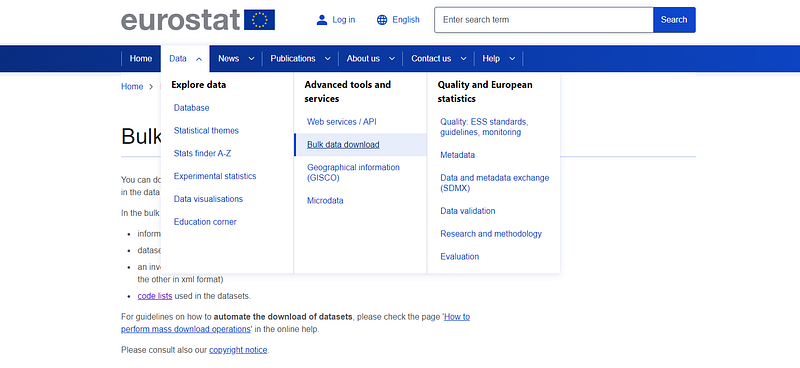
from where you can click on the bulk download facility link:
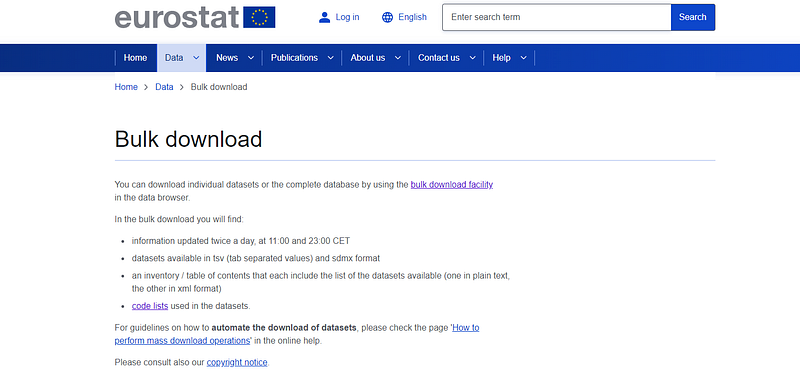
https://ec.europa.eu/eurostat/data/bulkdownload

and then further go into the data folder:
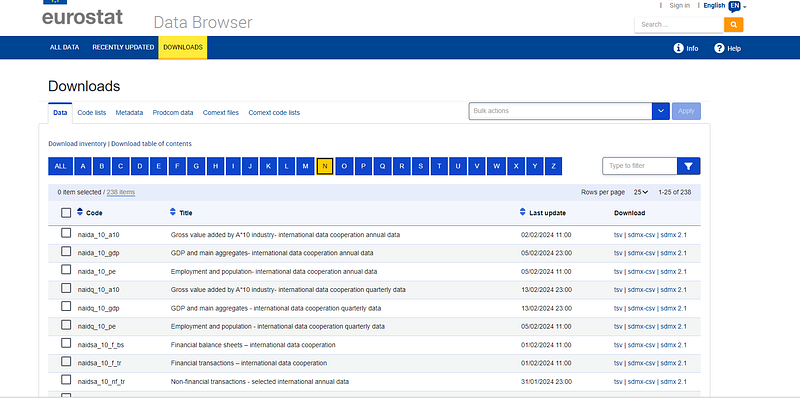
https://ec.europa.eu/eurostat/databrowser/bulk?lang=en&alphabeticalFilter=N

In the data folder, we end up in a very large directory of files:
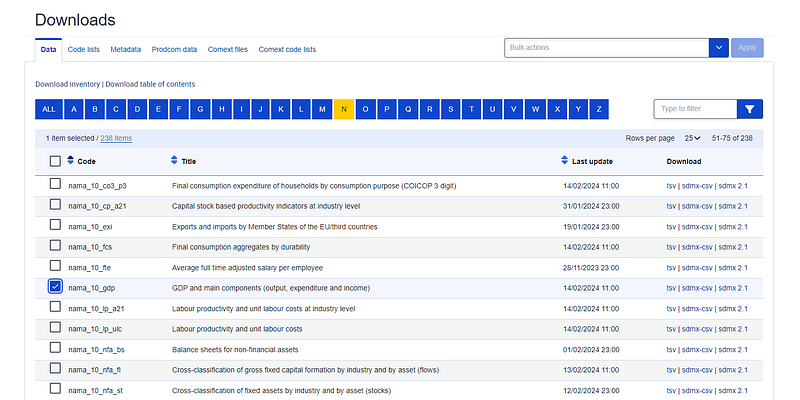
In summary, ALL public EU data is given here. Here you can navigate files by names and they are sorted by the first letter. To find our file, we go in the “N” tree, click on the filename, and copy its link address. While the address looks like this:

https://ec.europa.eu/eurostat/api/dissemination/sdmx/2.1/data/nama_10_nfa_fl/?format=TSV&compressed=true

From this address, we get a stable pattern that remains the same where we just have to change the file name.

Step 3: Setting up the data in Stata

The following set up of Stata commands initiate the download and the unzip procedure for the file:

clear

cd "<your directory>/raw"    // the path to the raw folder
copy "https://ec.europa.eu/eurostat/api/dissemination/sdmx/2.1/data/nama_10_gdp/?format=TSV&compressed=true" "`x'.tsv.gz", replace

The next line calls in the 7-Zip using the Stata shell command. As part of 7-zip syntax, e stands for extract and -y for replace file:

shell "C:\Program Files\7-Zip\7zG.exe" e -y "nama_10_gdp.tsv.gz"

If your directories are set up properly, the last two commands should download and extract the files correctly in the raw folder:
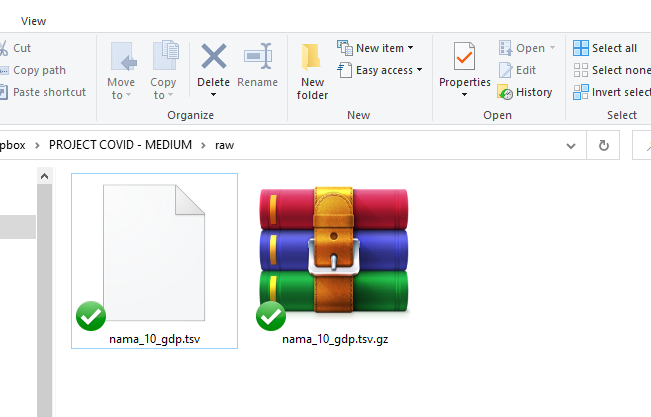
Note, that since we are using the Windows Shell to download and extract the files, there will be no error shown on the Stata window if anything goes wrong. Therefore, if the extracted file is not there, then something has gone wrong. In the syntax above, everything has be accurately and very carefully specified, especially the paths, or the code won’t work.

The extracted file nama_10_gdp.tsv file can be viewed in Excel, Notepad++ or any other software than can open generic files. tsv stands for Tab Separated file, which is another version of the more common .csv or Comma Separated files.

If you want to extend the set up to several other files a global macro followed by a loop should do the trick:

global filelist ///
 nama_10_gdp   /// // GDP and main components (ESA10)
 nama_10_a10   /// // GDP for 10 industry classifications
 demo_r_d2jan      // Population on 1 January by age, sex

foreach x of global filelist {
display "`x'"    // just show the file on the screen
local filename "`x'.tsv.gz"
copy "https://ec.europa.eu/eurostat/api/dissemination/sdmx/2.1/data/`x'/?format=TSV&compressed=true" "`x'.tsv.gz", replace

shell "C:\Program Files\7-Zip\7zG.exe" e -y `x'.tsv.gz
di "." _cont  // displays a dot for each file
}

You can keep expanding the list of files by selecting file names from the regular browser window in the Eurostat’s data browser page. File names are always given in brackets at the end of the data you want to download.

Step 4: Formatting data files

Once the Eurostat files have been downloaded using the procedures explained in the step above, the next step is to clean up the files to fix the following two issues:

  1. Names of variables
  2. Getting rid of text fields in numeric fields
  3. Getting the data structure right

For the cleaning I usually start with a new dofile. So just to be safe, I will start with setting the directory again and import the file as follows:

*** import the file. mind the paths

clear
cd "<your directory>"    // the path to the root

import delimited using ./raw/nama_10_gdp.tsv, delim(tab) clear

The data in the data browser looks like this:
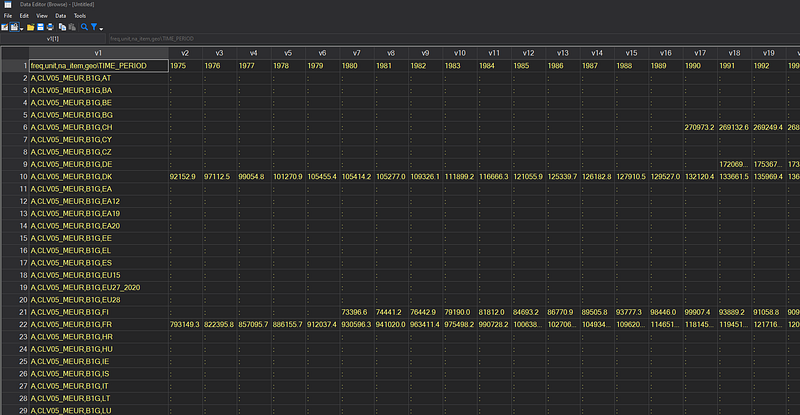
The variable v1 essentially contains three variables lumped together. The remain variables, v2 onwards, are the data points for every year. This pattern exists for each file.

We can clean up v1 split splitting it on the comma and generating new variables starting with a:

split v1, p(,) gen(a)
drop v1
order a* v*

We can also clean up with the a variable names by picking the value from the first row and using it to rename the a1, a2, a3 etc. variables:

// removing all non-numeric characters in the a's
 foreach j of varlist a* {
  replace `j'="geo" if `j'=="geo\TIME_PERIOD"
  local header = `j'[1]
  ren `j' `header'
  }

In the next step, we clean up the v columns which contain all the data. In Eurostat datasets, numeric variables sometimes also contain alphabets representing footnotes like p = provisional, c = confidential, etc. These should ideally exist in a separate column but when importing Eurostat data, they are padded in front of the values. We can get rid of these by performing a string search and replacing it with missing:

// removing all non-numeric characters in the v's
foreach i of varlist v* {
 cap replace `i' = ustrregexra(`i', "[a-z]", "")
 cap replace `i' = ustrregexra(`i', ":", "")
 cap replace `i' = ustrregexra(`i', "e", "")
 cap replace `i' = ustrregexra(`i', "p", "")
 cap replace `i' = ustrregexra(`i', "r", "")
 cap replace `i' = ustrregexra(`i', "s", "")
}

Note that, I usually loop over dozens of files to update the datasets, and the code above has evolved after new strings are found. The generic regular expression given by ustrregexra(`i', "[a-z]", "") should be sufficient. If you want to learn more about writing regular expressions, have a look at the Regular expressions (regex) in Stata guide.

Like the a variables, we can also fix the v variables by picking the year information from the first row, adding a y prefix to it (Stata does not allow just numeric variables as variable names):

// fixing the v columns

foreach k of varlist v* {
  local header = `k'[1]
  ren `k' y`header'
  }

Now the data is in order, so we can drop the first row and destring the variables:

drop in 1  // drop the first row
destring _all, replace

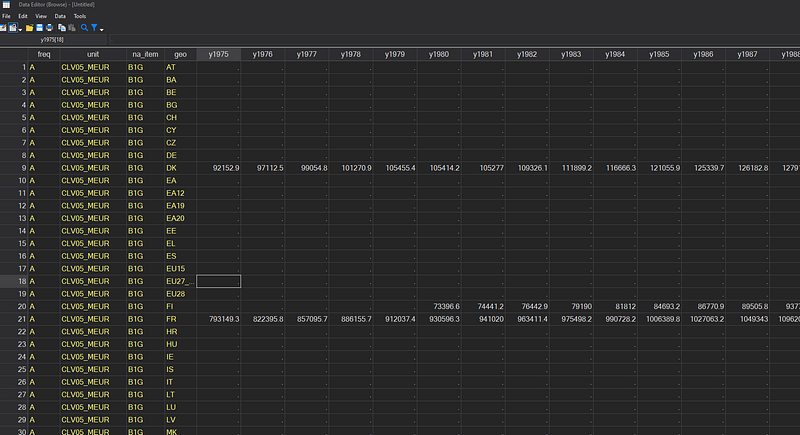
If everything is done correctly, this should give us a clean dataset:
Step 5: Reshaping the file

The downloaded and cleaned Eurostat files are usually not in the format that most Stata require to handle panel datasets. The panel (or long) format is usually of the form:

ID Year Var
      -
 1 2001 1
 1 2002 0
 1 2003 1
 2 2001 1
 2 2002 1
 2 2003 0

such that the ID (the panel identifier) and Year (the time identifier) combination has not duplicates. Eurostat files are given in the wide format where the columns represent the variables across time in the following format:

ID Var_2001 Var_2002 Var_2003
               -
 1 1 0 1
 2 1 1 0

I usually prefer to have the long format for the final file. For this we can use some tricks to write the code more efficiently.

First store the variable name in the label as well:

**** store variable names as variable labels
foreach x of varlist y* {  
lab var `x' "`x'"
}

Now use the describe ds command with the not option to say pick all variables that DO NOT have the variable label starting with any version of y. Store this information in a local ivars and use it dynamically in the reshape command.

ds, not(varl y*)   // pick variables labels that don't have y

local ivars `r(varlist)'
reshape long y, i(`ivars') j(year) string

Note here that this option is strictly not necessary here, but if you are looping over multiple files, there is a change that are different “a” columns that describe the data. The above option, is an automation feature, which lets the program decide on its own, what the panel variables are.

Once the data is reshaped, we can chose to drop empty rows. Since some datasets are very large, anything that makes data storage easier, should be preferred.

We can destring, label, compress, sort, order variables again if needed and save the final file:

drop if y==.   // there might also be zeros as errors or actual values. these need to be checked manually.

destring _all, replace
lab var year "Year"

compress
order geo year
sort geo year

save ./master/nama_10_gdp.dta, replace  // save the final file

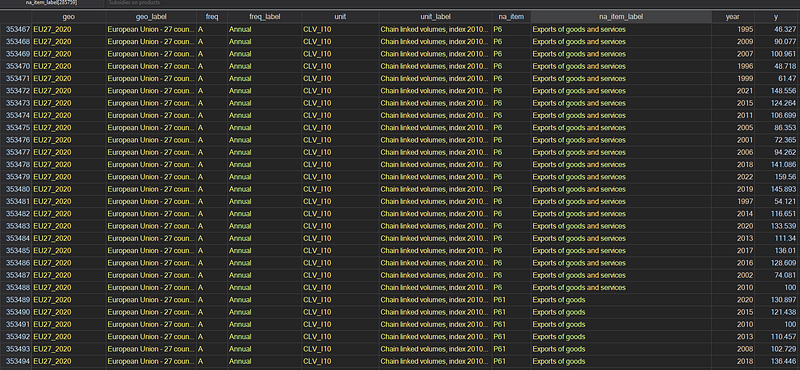
The final data in the long form should look like this:
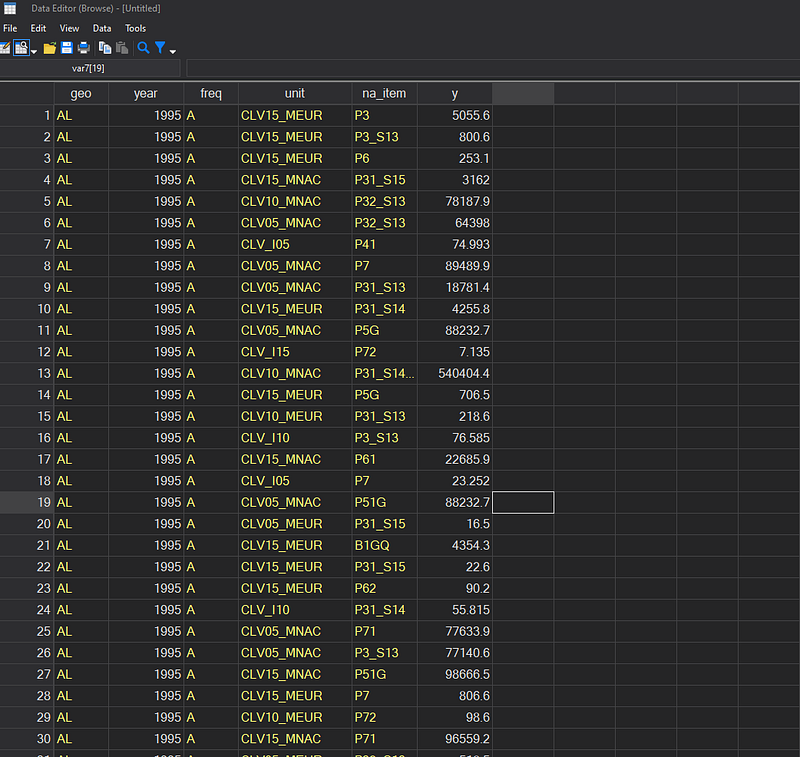
Where we have more than 800,000 data points in the file that are correctly labeled.

As mentioned earlier, the whole process can be looped over multiple files as well since the file structure is mostly the same. Some exceptions exist, for example in business and trade datasets.

Step 6: Adding the labels

The default data does not come with variable labels which can be a mess with very large files. Fortunately, the new Eurostat has the code structure sorted out which allows us to automate the complete process of adding labels to the files. So let’s get started!

Load the file we want:

use ./master/nama_10_gdp.dta, clear

Save the variable names in a local:

 ds
   local mylist  `r(varlist)'
   local droplist  year y     
   local mylist : list mylist - droplist
   
   di "`mylist'"
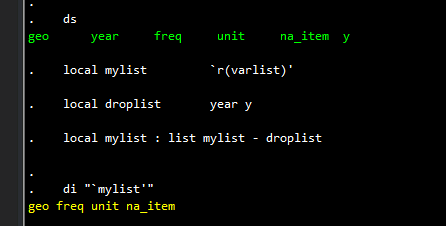
Here we are removing two variables from the list: “year” and “y” since these don’t need labels. Here we can add additional labels as well if needed.

Next we download the codelist file and save it locally as “metadata.txt”:

copy "https://ec.europa.eu/eurostat/api/dissemination/files/inventory?type=codelist" metadata.txt, replace

and we import it in Stata:

import delim using metadata.txt, clear  // master file

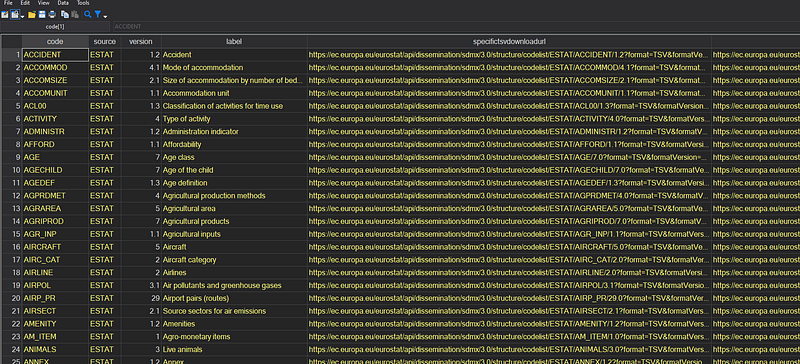
The file looks something like this:

It contains the variable name in “code” column, its variable label in the “label” column, and the code list in the “specifictsvdownloadurl” column.

First, let’s clean it up:

replace code = lower(code)
gen seq = _n                 // counter for pick rows

We change the “code” variable to lowercase to allow it to be match with the variable list we extracted earlier.

Next, we loop over our variable list, and store the information we require in a variable code-specific file:

foreach x of local mylist {


summ seq if code=="`x'", meanonly  // get the row of the variable
local mylab  = label[`=r(max)']


local path  = specifictsvdownloadurl[`=r(max)']  // get the path address
copy "`path'" `x'.tsv, replace  // get the file

preserve
import delim `x'.tsv, clear delim(tab)  // import the file

// check if the labels are correct in the file

cap ds v1 v2
   local length : word count `r(varlist)'
   di "`length'"

 if `length' > 0 {  // if messy file: fix it
  ren v1 code
  ren v2 labelenglish
  ren v3 labelfrench
  ren v4 labelgerman

  drop in 1
  drop v*
 }

keep code labelenglish
ren code `x'
ren labelenglish `x'_label
compress
tempfile temp_`x'   // save as a tempfile
save `temp_`x''.dta, replace    

cap erase `x'.tsv  // erase the raw file

restore
}

Next step, we merge the saved labels with our main file:

use "$splitdir/nama_10_gdp.dta", clear
foreach x of local mylist { 
 merge m:1 `x' using `temp_`x''.dta
 keep if inlist(_m,1,3)
 drop _m

 lab var `x'        "``x'_lab'"
 lab var `x'_label  "``x'_lab' label"
 
 local myorder `myorder' `x'* 
 
}

 
order `myorder' 
sort  `myorder'

which gives us our nearly formatted file with variable labels and keys for variable codes:
Miscellaneous

In classrooms, I usually start with the above cleaned file. Since the long form is not so easy to read, we can make the data more readable by reshaping it again.

First load the dataset

*** import the file. mind the paths
clear
cd "<your directory>"    // the path to the root

use ./master/nama_10_gdp, clear

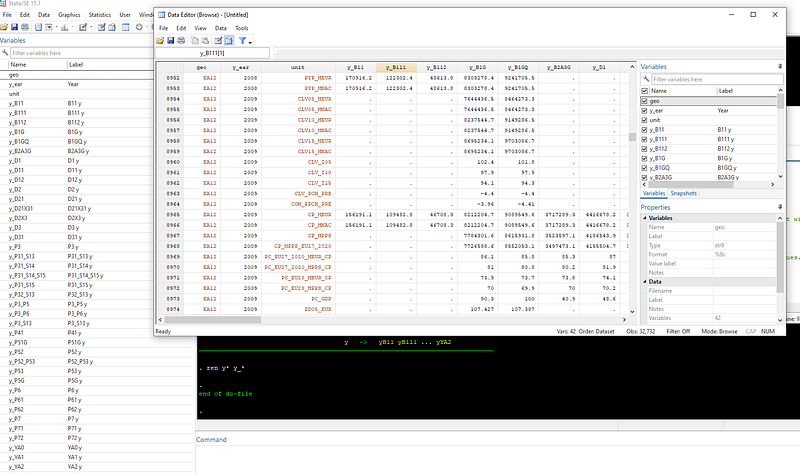
We can now reshape it anyway we want. For example, the command below makes the na_items, which has the identifiers of the European System of Accounts (ESA10):

*ssc install gtools, replace

greshape wide y, i(geo time unit) j(na_item) string 
ren y* y_*

Here I would strongly suggest to install the gtools package, which provides a suit of commands like greshape which are many times faster than the official commands. This is because gtools makes use of the very efficient C-language. Comparisons on the speed are also given on the website. Here we replace the official reshape command with greshape.

The last option is a generic renaming command to make the variables look neater. The above codes should give us:
Again depending on the purpose and use of the dataset, several datasets can be set up and merged using the processes described above. The codes for units, na_items, geo can be cleaned up as well but these will be covered in another guide.

About the author

I am an economist by profession and I have been using Stata since 2003. I am currently based in Vienna, Austria. You can see my profile, research, and projects on GitHub or my website. You can connect with me via Medium, Twitter, LinkedIn, Mastodon, or simply via email: [email protected]. If you have questions regarding the Guide or Stata in general post them on The Code Block Discord server.

The Stata Guide releases awesome new content regularly. Subscribe, Clap, and/or Follow the guide if you like the content!

Stata
Eurostat
Automation
Workflow
Recommended from ReadMedium