
Automatic Keyboard Handling With UIKit And Combine
Handle keyboard events automatically in any view using AutoLayout and Combine

Handling the keyboard is one of the annoying tasks that iOS developers have to do every time there is a screen with some input. It is also something that the platform should provide us for free.
At the end of the day, the keyboard is shown and hid by the system and the sizes and frames of the window and of the keyboard are known by the system.
However, we still need to manually listen to those events and react accordingly.
Today, I’d like to show a solution that will work out of the box for every view you are going to implement, with the single added cost of extending a different base class than UIView.
Note: With swift 5.5 and iOS 15, Apple delivered the tools to handle the keyboard automatically. Starting from those versions, every view has a keyboardLayoutGuide that is updated when the keyboard changes. It’s unlikely that we can write apps targeting iOS 15+ in the near future, so this article can still help for a while.
The Idea
We want to implement a base class that offers a new Layout Guide to all the future subclasses. This layout guide updates automatically when the keyboard is presented or is dismissed.
We want to animate those changes to give a nice look and feel to the users of our class.
Once we have the superview, we should change the parent view of all the views with inputs with this new one to use the new layout guide.
The final result we want to achieve is the following:
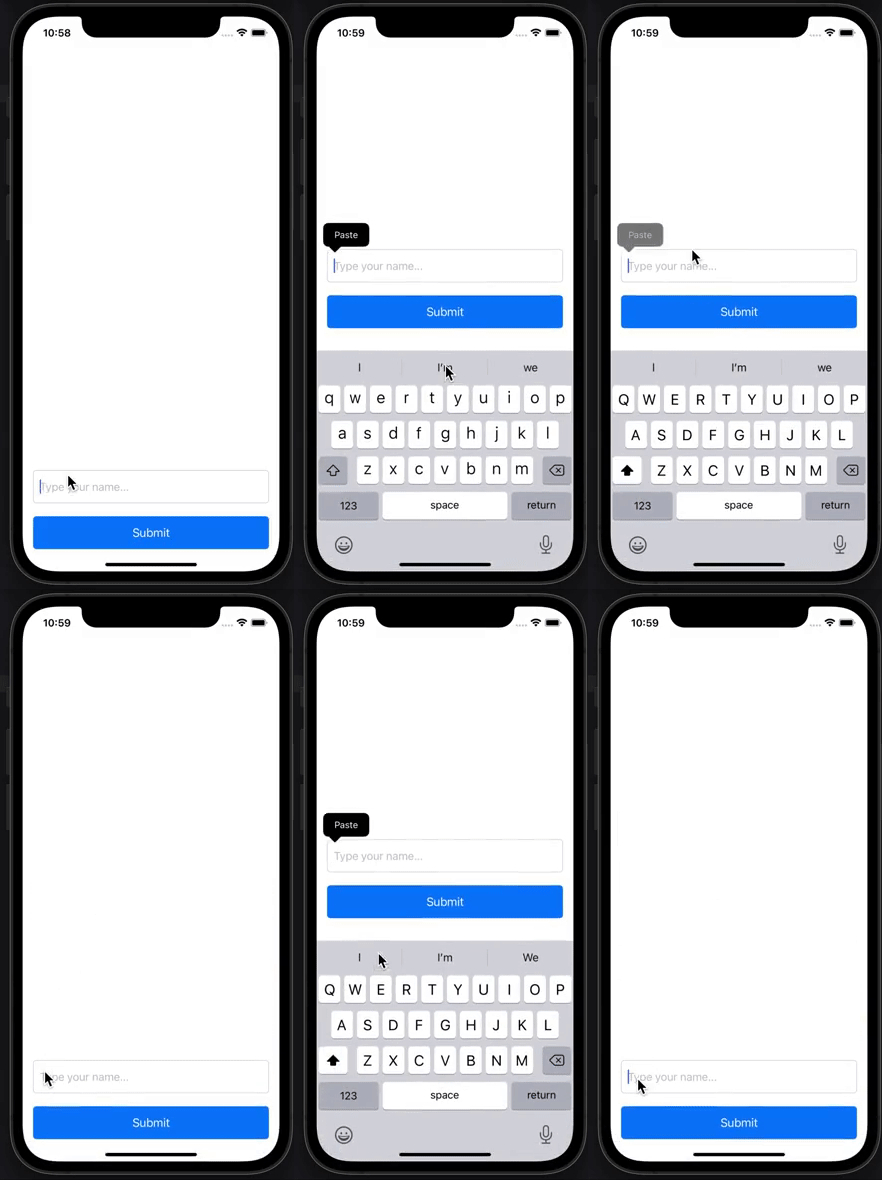
The Superview
The key ingredients we need in the superview are the following:
- A new layout guide that can be used by the subclasses
- An object that can contain the animation information
- A listener to the
keyboardWillHide/keyboardWillShowevents
And we will be good to go.
The Layout Guides
Let’s start by creating the Layout Guide that we need to expose to the subclasses.
The first thing we need to do is to define the base class and add the LayoutGuide. We can think of Layout Guides as placeholder views. From the documentation:
“Use layout guides to replace the placeholder views you may have created to represent inter-view spaces or encapsulation in your user interface. Traditionally, there were a number of Auto Layout techniques that required placeholder views. A placeholder view is an empty view that does not have any visual elements of its own and serves only to define a rectangular region in the view hierarchy.”
This suggests that we also need to apply some AutoLayout constraints to our new guide lay it out properly.
In this snippet, we define a new open class that other views may subclass. This class defines a new Layout Guide (at line 4) and, in the init, it adds the Layout Guide to the view. You can think about this step as the equivalent of the addSubview method that we use every time we want to add a subview in a view.
Finally, we lay out the guide using AutoLayout constraints. The guide is added when the view is created, so the keyboard should be closed: the guide has a height of zero.
The AnimationInfo Object
When the system fires notifications related to the keyboard, it also adds a few other information in their UseInfo property. The added information can be used to create a smooth animation that follows the movement of the keyboard when it appears and disappears.
To use them, we need to extract some information when the notification is fired. We want to extract that information only once, and we want to reuse the same object structure for both events: when the keyboard is shown and when it is hidden.
The information container has the following shape:
We added the NotificationKind enum to keep track of what kind of notification we are capturing. The frame property contains the final frame for the keyboard. The duration represents how long it takes to hide/show the keyboard and the curve property defines the kind of animation we need to use.
To simplify the creation of the object, we want to add a custom initializer that is able to extract the information from the UserInfo dictionary. Here’s the code:
This is a failable initializer: if there is no frame, we fail and we cannot use the animation info. Otherwise, we try to extract all the other data from the notification. If that is not possible, we use some sensible default value.
Finally, we add a few properties to extract and convert the data to the right types to simplify the future steps:
The most interesting property is the first one: the keyboardHeight is extracted from the frame when the keyboard appears, but we set it to zero when the keyboard disappears. For that event, the keyboardFrame property within the UserInfo dictionary assumes some weird values that do not provide the expected result.
The other properties map the animation curve from one domain (the UIView.AnimationCurve) to another one (the UIView.AnimationOptions)
Listening to the Events
Finally, we need to listen to the keyboard events. The NotificationCenter is the object that fires the events and we need to add some subscribers for those.
We want to use Combine to listen to those events. To achieve that we need to:
- add a set of
AnyCancellableto our view - add the subscriptions to the object
- handle the subscription
Step 1 and 2 can be seen together, and the code looks like this:
This is a pretty standard code for combine: we define the set of cancellable (line 3). Then, at the end of the init, we invoke a method to set up the subscriptions: in the setupKeyboardBinding method, we actually subscribe to the publishers.
Both subscriptions invoke the same handleKeyboardUpdate method: they pass in the notification and the kind of event we are observing.
Note: we could extract the notificationKind from the notification itself, by comparing the notification.name with the two notifications we are interested in. However, we already know the notification kind, so there is no need to perform this extra computation.
When handling the keyboard notification, we first try to create the AnimationInfo value. If we fail, we just do nothing. If we succeed, we have to do two things:
- Update the constraint that defines the keyboard’s height.
- Animate the change.
To execute step 1, we need to access the layoutGuide and search for the constraint that affects the height (lines from 12 to 16). Then, we change the constant value to the new height, extracted from the AnimationInfo value.
To animate the changes, we need first to lay out the current state (using the self.setNeedsLayout method). Then we call the UIView.animate method using the duration and animationOptions extracted from the AnimationInfo value. The animation closure is a single invocation to the self.layoutIfNeeded method.
How to Use It
We have our brand-new component that offers a new Layout Guide. This guide updates automatically when the keyboard frame changes.
The way to use it is extremely easy:
- Make your view a subclass of
ViewWithKeyboard. - Use the
keyboardLayoutGuideas any other layout guide.
To exemplify it, here is the layout code of the view I shown in the video above:
In this snippet, we create a new View, extending the ViewWithKeyboard base class.
We add a couple of subviews, and we connect the button with the action that dismisses the keyboard.
In setupConstraints, we lay out the views using AutoLayout. There are two interesting lines here:
- The
enableAutolayoutfunction (see the code below) is a function that sets thetranslatesAutoresizingMaskIntoConstraintsto false for all the subviews of the current view. - In line 25, we use the new
keyboardLayoutGuide. It is so natural that looks like any other constraint!
The enableAutoLayout function uses the Swift reflection to inspect the current view’s subviews, and it turns off the translatesAutoresizingMaskIntoConstraints property for all of them. Notice that this function is not recursive! If you need to also set the subview’s masks to false, it should be fairly easy to update the method.
Note: if the keyboard behaves weirdly in the simulator, make sure that the hardware keyboard of the mac is disconnected from the simulator. To disconnect it, you can use the simulator I/O menu in the toolbar, or you can use the ⇧+⌘+K shortcut.
Conclusion
In today’s article, we explored how to implement a new layout guide and how to use it in subclasses.
We also explored how to observe notifications using Combine and how to handle them.
Finally, we have seen how to automatically enable AutoLayout constraints for all the subviews of a specific view.
The full code of the project can be found at these links:
If you are wondering how the code will change when we need to update the minimum support to iOS 15, that’s fairly easy. We just have to remove the ViewWithKeyboard class from the codebase and change back the inheritance from ViewWithKeyboard to UIView.
If the app has a lot of user input, this last step can become cumbersome. An alternative could be to keep the ViewWithKeyboard superclass, removing all the code in the class body. We will end up having an empty ViewWithKeyboard class but we won’t have to change many inheritance clauses in the codebase.


