
Automatic Height for UITableView into UIScrollView Swift
Insert an UITableView that takes all the height of it’s content and will be scrollable through UIScrollView

Let’s see how to insert an UITableView into a UIScrollView and make the scrollView content height based on all of the UITableView items.
First we need to create our UITableView class that we will use into our storyboards or classes. It will be very simple:
import UIKitclass TableViewAdjustedHeight: UITableView {
override var intrinsicContentSize: CGSize {
self.layoutIfNeeded()
return self.contentSize
}override var contentSize: CGSize {
didSet {
self.invalidateIntrinsicContentSize()
}
}override func reloadData() {
super.reloadData()
self.invalidateIntrinsicContentSize()
}
}The trick here is the didSet of the contentSize that calls the invalidateIntrinsicContentSize which should be the same as the contentSize.
We also override the reloadData function because we need to call again the invalidateIntrinsicContentSize function when we refresh the data for our UITableView.
What invalidateIntrinsicContentSize() do?
Call this when something changes in your custom view that invalidates its intrinsic content size. This allows the constraint-based layout system to take the new intrinsic content size into account in its next layout pass.
The next thing that you should do is to configure your storyboard/xib with constraints and change the UITableView settings (those can be changed also from the file that we created)
Now let’s create a new UIViewController into your storyboard and add a UIScrollView. Inside your scrollView put your views and the TableViewAdjustedHeight that we have already created. You can check this article if you need information how to configure a UIScrollView using Content and Frame Layout Guide:
Our Layout may look like this (in our example with have a date, some buttons, a trasparent view in the middle and a UITableView in the bottom.
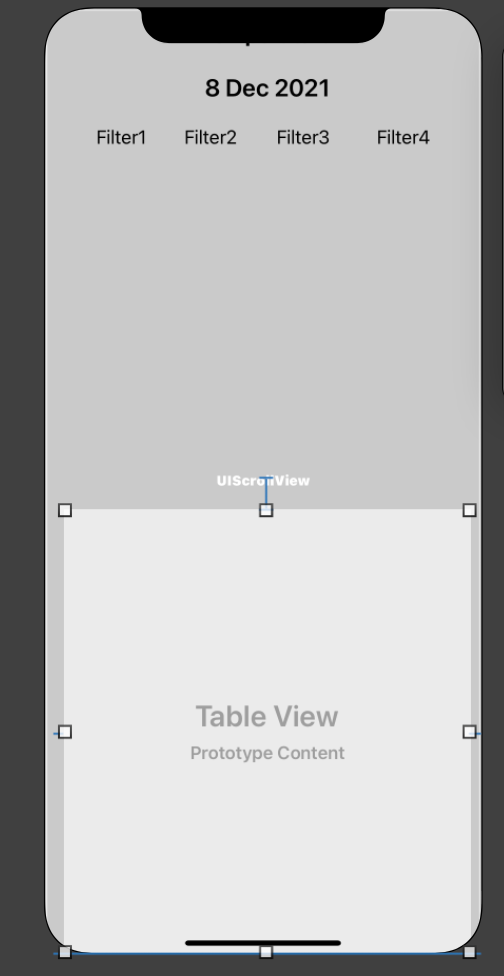
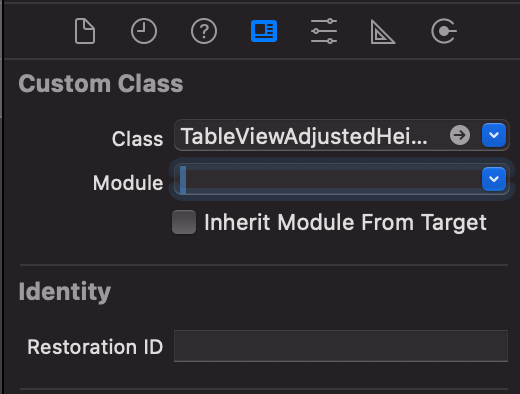
Tap on the UITableView and in the right panel you can set the Custom Class that you want to use. In our case just put TableViewAdjustedHeight. The module is usually automatically pre filled with your project’s name.
And here are the UITableView settings
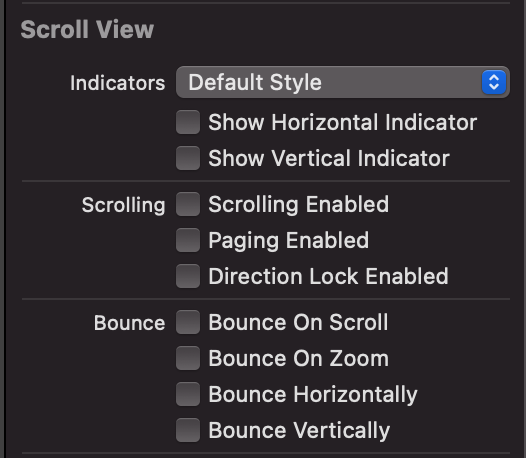
You need to disable all the scrolling options because now it will take the height that needs for all it’s cells and it will be scrollable through the UIScrollView and not the UITableView anymore.
Run project and you are ready! Your UITableView will have the height based on all the cells that it has and it will be scrollable through your scrollview that may contain other items too!
Support us by joining Medium through this link:
Also if you need learn about SwiftUI visit the following link:


