
AN ESSENTIAL PYTHON TIP
Automate Your Python Script with Process Manager 2 (PM2)
Step by Step Guide With an Example of COVID-19 Data Scraping

In Data Science, you may have to run or process your Python script periodically especially the data collection to make your workflow up-to-date as it directly related to your result accuracy. You may have a Python script to run every 1,2,…, xx minutes/hours or at 6 am, 9 pm, yy am/pm every day. And doing it yourself every time is tiresome and boring.
That is why automating or scheduling your script is important!!
When you google about it online, there might have already been several articles talking about it. If you are using Windows, you may consider using a Windows Task Scheduler which you can schedule your windows system to run any execute (.exe) or batch (.bat) file. Although it has a good-looking user interface, some people still don’t like it so much. (Source here)
Or if you are using macOS or Linux, you might consider using a Crontab. But you may find it difficult to manage when you have too many scripts or jobs to manage/logging.
So, let’s check this alternative solution >>>
PM2 as an Alternative!
PM2 is the Process Manager which is built for Node.js application.
As my experience in web development using Node.js. I had to schedule and manage several Node.js applications with CRON which give me a very hard time until I knew PM2!! My life is much better since then. The PM2 keeps my apps running forever and automatically reloads when I updated something to the app. Also, I can manually schedule the reload time with CRON or the restart delay on any application and it can run perfectly on all operation systems!!
Hey wait…, isn’t PM2 limited to the Node.js app?
NO! It is true that PM2 is intended to serve Node.js application but it is not limited to the Node.js runtime. After I used PM2 for some time, I realized that it can be used to manage any programming script/runtime! From that moment, I tried it with Python and it works just fine!
In this article, I will show an example of how you can schedule and automate your Python script using PM2!!
Let’s get started!
PM2 Installation
Installing can be also done in one line which you can either use npm or yarn .
$ npm install pm2@latest -g
# OR
$ yarn global add pm2
# Done!
# Check if program runs.
$ pm2 -v
vx.x.x
If you install PM2 on your Windows 10, the first time you run it you may face an error due to the current user having an undefined ExecutionPolicy. You can fix it by the following code:
$ Set-ExecutionPolicy -Scope CurrentUser -ExecutionPolicy UnrestrictedRunning Your Python Script with PM2
After installation is done, you can start any python script through the PM2 by using $ pm2 start <script name> command.
If you have multiple jobs to run, I also recommend naming each job meaningfully so that you won’t get confused later. You can name each job with --name <name>. By default, PM2 will run your script with Python when you start any .py file. However, if you have several versions of Python installed in your machine, you may select a specific Python version with--interpreter <interpreter name: node, python, python3, python3.x, ...>.
Overall, the command to start a python script would look like this:
$ pm2 start job1.py --name job1 --interpreter python3By PM2 default setting, it will try to make your app run forever which means your script will be automatically restarted immediately after it finishes.
Well, that may be too much for a machine! So, there are 2 ways to set your Python script to run periodically with PM2: 1. using restart-delay 2. using cron
Automate Restart with “restart-delay”
You can set your Python script to run periodically with--restart-delay <xxxx ms> option. This way, after your Python script finishes its job, it will wait(sleep) for xxxx ms until the next restart.
For example, if you want your script to restart every 10 seconds after each job, you may normally use while & time.sleep as follows in your Python:
while True:
...
   time.sleep(10)
With the PM2, you don’t need the while loop anymore, you can keep your code clean and left the restart job to PM2. The command to run your script with 10-second sleep after each job would look like this:
$ pm2 start job1.py --name job1-10s-delay --interpreter python3 --restart-delay 10000Automate Restart with “cron”
You can also use cron option to schedule your Python script with--cron <'cron pattern'> . It is also important for you to deactivate the PM2 auto-restart option with --no-autorestart so it won't automatically restart itself after complete a job and will only follow the cron expression.
For example, the command to restart your script every 1 hour (at minute 0) would look like this:
$ pm2 start .\testPm2.py --cron '0 * * * *' --no-autorestartA tip about cron: if you are new to cron. It is a time-based job scheduler in a Unix os. The cron schedule expression allows you to let your program restart periodically at a specific time. The format of cron is'<minutes 0:60> <hour 0:24> <day of month 1:31> <month 1:12> <day of week 0:6>'. I recommend that you may try to create your own cron expression through this website: here.
Let’s end this boring part and let’s go through a real-world example together!
Real-world Example
Scraping Global COVID-19 Data
Assume, you want to monitor and store the data of COVID-19 cases from Worldometer every 5 minutes. You can do it easily using Beautifulsoap4. For example, my Python script (getCovid19Data.py) will allow you to get the COVID-19 case data from Worldometer and store data to the CSV file (world_corona_case.csv).
Instead of using while loop and time.sleep()inside the script or using regular cron to restart the script every 5 minutes.
You can do it using PM2 with restart-delay (5 min=300000 msec):
$ pm2 start getCovid19Data.py --name covid19-5minInt restart-delay 300000Or, you can do it using PM2 with cron (5min = ‘*/5 * * * *’)
$ pm2 start getCovid19Data.py --name covid19-5minInt --cron '*/5 * * * *' --no-autorestartThat’s it! Now, the Python script gonna run every 5 minutes. Now you can check your logs with this command
$ pm2 lThe list table will show up. You can see here all the jobs that had been run with PM2 which will contain all your Node.js app or Python script running in the background.

You can use a commandpm2 log <id or name> to see the log of a specific job. In this example, you can use the following command:
$ pm2 log 0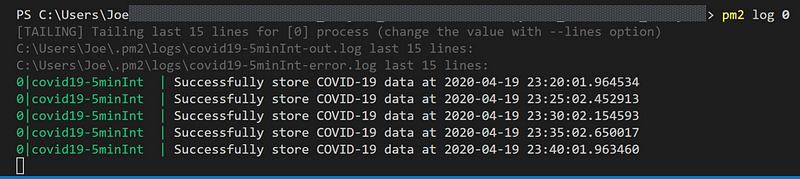
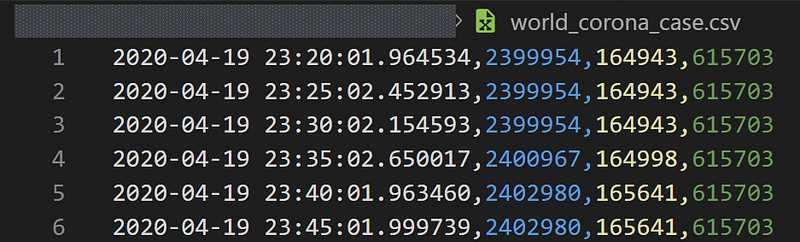
From the log status, you can see that the Python script stores COVID-19 data every 5 minutes and the residual of [~1.6 to 2.5 seconds] is the time that Python script used to request data and save add updated data to CSV file each time. Now, let’s check the result in the result CSV file below. The PM2 works well!
Some Other Useful PM2 Commands
When you have several processes running with PM2. You may want to manipulate each project differently. Here is a list of some useful commands I used most.
$ pm2 stop <name or id> #stop specific process
$ pm2 restart <name or id> #restart specific process
$ pm2 flush <name or id> #Clear logs of specific process
$ pm2 save #save list of all application
$ pm2 resurrect #brings back previously saved processes
$ pm2 startup #Command for running PM2 on startup
Author words
I hope you enjoy this article and it helps you schedule your Python script easier and apply it to your Python workflow. Feel free to share with me if you have some questions, comments, or suggestions.
About me & Check out all my blog contents: Link
Be Safe and Healthy! Thank you for Reading. 👋😄


