avatarIvan (이반) Porta

Free AI web copilot to create summaries, insights and extended knowledge, download it at here

3740

Abstract

h the app that you have previously registered in Azure AD and grant it the permission of <b>Admin</b>.</li></ul><figure id="4706"><img src="https://cdn-images-1.readmedium.com/v2/resize:fit:800/1*7uu07TZ2QdFjN0P1EwtuIQ.png"><figcaption></figcaption></figure><h1 id="1c86">Azure DevOps</h1><h2 id="5577">Install the extension</h2><p id="474d">These instructions will show you how to install the Power BI Action extension that we are going to use for this tutorial:</p><ul><li>Sign in to your Azure DevOps organization.</li><li>Go to <b>Organization Settings.</b></li><li>Select <b>Extensions.</b></li><li>Click on <b>Browse Marketplace</b> at the top right.</li></ul><figure id="cde8"><img src="https://cdn-images-1.readmedium.com/v2/resize:fit:800/1*_B9T-VT9SU_HnlIBhDI5iw.png"><figcaption>Extension page</figcaption></figure><ul><li>As the Marketplace opens, search for <b>Power BI Actions </b>and click on the respective result.</li><li>Click on the <b>Get it Free</b> button.</li></ul><figure id="42ac"><img src="https://cdn-images-1.readmedium.com/v2/resize:fit:800/1*_b2vynxY2No2YqgkKteIrg.png"><figcaption>Power BI Actions page</figcaption></figure><ul><li>Select your target organization from the dropdown and click on <b>Install</b> to complete the procedure.</li></ul><figure id="b62d"><img src="https://cdn-images-1.readmedium.com/v2/resize:fit:800/1*wf98ucLjJV_mZk2Yz5HA1Q.png"><figcaption>Installation process</figcaption></figure><h2 id="dd4b">Create a new service connection</h2><ul><li>Go to <b>Project Settings.</b></li><li>Select <b>Service connections.</b></li><li>Click the <b>New service connection</b> button and select<b> Power BI Service Connection</b>.</li><li>Fill in the parameters for the service connection and allow all pipelines to use this connection option.</li><li>Click <b>OK </b>to create the connection.</li></ul><figure id="0500"><img src="https://cdn-images-1.readmedium.com/v2/resize:fit:800/1*HqnFtFt9smkhvzmxNfUkkQ.png"><figcaption>Creation of a new Power BI service connection</figcaption></figure><h2 id="cc78">Creating the Build Pipeline</h2><p id="d167">It is time to create your build pipeline.</p><ul><li>From the dashboard, select <b>Pipelines.</b></li><li>Click the <b>New pipeline</b> button.</li><li>Select <b>Azure Git Repos</b> as a source that will trigger our pipeline.</li><li>Azure DevOps will suggest several templates, select the <b>Starter Pipeline, </b>to begin with a bare bone pipeline.</li><li>Add the following YAML snippet to your pipeline.</li></ul><div id="d668"><pre><span class="hljs-attribute">trigger</span>: <span class="hljs-literal">-</span> master</pre></div><div id="358a"><pre><span class="hljs-attribute">pool</span><span class="hljs-punctuation">:</span> <span class="hljs-attribute">vmImage</span><span class="hljs-punctuation">:</span> <span class="hljs-string">'windows-latest'</span></pre></div><div id="bb0a"><pre>steps:

  • task: <span class="hljs-keyword">CopyFiles</span>@<span class="hljs-number">2</span> inputs: SourceFolder: <span class="hljs-string">'<span class="hljs-variable">(Build.SourcesDirectory)</span>'</span> Contents: <span class="hljs-string">'**.pbix'</span> TargetFolder: <span class="hljs-string">'<span class="hljs-variable">(Agent.TempDirectory)</span>/<span class="hljs-variable">$(Build.BuildId)</span>'</span>
  • task: <span class="hljs-params">Archive</span>Files@<span class="hljs-number">2</span> inputs: rootFolderOrFile: <span class="hljs-string">'<span class="hljs-variable">(Agent.TempDirectory)</span>/<span class="hljs-variable">(Build.BuildId)</span>'</span> includeRootFolder: <span class="hljs-literal">false</span> <span class="hljs-params">archive</span>Type: <span class="hljs-strin

Options

g">'zip'</span> <span class="hljs-params">archive</span><span class="hljs-keyword">File</span>: <span class="hljs-string">'<span class="hljs-variable">(Build.ArtifactStagingDirectory)</span>/<span class="hljs-variable">(Build.BuildId)</span>.zip'</span> replaceExisting<span class="hljs-params">Archive</span>: <span class="hljs-literal">true</span>

  • task: PublishBuildArtifacts@<span class="hljs-number">1</span> inputs: PathtoPublish: <span class="hljs-string">'<span class="hljs-variable">$(Build.ArtifactStagingDirectory)</span>'</span> ArtifactName: <span class="hljs-string">'PowerBIArtifact'</span> publishLocation: <span class="hljs-string">'Container'</span></pre></div><h1 id="cf9c">Create a Release pipeline</h1><p id="b3ec">To automatically deploy your report on Power BI, create a new release pipeline.</p><ul><li>From the dashboard, select <b>Pipelines </b>and then <b>Releases.</b></li><li>Click the <b>New pipeline</b> button.</li><li>Select <b>Empty Job.</b></li></ul><figure id="024d"><img src="https://cdn-images-1.readmedium.com/v2/resize:fit:800/0*xDtwQKj0jGQKj5Af.jpeg"><figcaption>Empty job</figcaption></figure><ul><li>Add the <b>Extract Files</b> task and configure it as follows.</li></ul><figure id="4f90"><img src="https://cdn-images-1.readmedium.com/v2/resize:fit:800/1*mE3nJ4nDgs4LGKn9apQ5Zw.png"><figcaption>Extraction task configuration</figcaption></figure><ul><li>Finally, add a <b>Power BI Action</b> task, select <b>Upload Power BI Report</b> as Action, enter the target workspace, and add the <b>Source file </b>(path where there will be your report)</li></ul><figure id="40f5"><img src="https://cdn-images-1.readmedium.com/v2/resize:fit:800/1*tjtX-Wm_8vHsUK5Iw_SMTQ.png"><figcaption>Power BI Action task</figcaption></figure><p id="bee9">You need to specify the deployable component that will be built through the build pipeline and then released by the release pipeline.</p><ul><li>Click <b>Add an Artifact.</b></li><li>Select <b>Build</b> as <b>Source type.</b></li><li>In the<b> Source </b>dropdown, select the<b> Training </b>repository.</li><li>Click<b> Add </b>to save.</li></ul><p id="cb70">To finalize your release pipeline, instruct the pipeline to automatically create a new release every time a build is available. Apply this feature by enabling the <b>Continuous deployment </b>trigger.</p><figure id="b7b7"><img src="https://cdn-images-1.readmedium.com/v2/resize:fit:800/1*I6oMXdpnyl865OrjWawZcg.png"><figcaption>Continuous deployment trigger</figcaption></figure><p id="536a">It is now time to push your local code to your repository and start the pipelines.</p> <figure id="8f08"> <div> <div> <img class="ratio" src="http://placehold.it/16x9"> <iframe class="" src="https://cdn.embedly.com/widgets/media.html?src=https%3A%2F%2Fwww.youtube.com%2Fembed%2FyWM2wbwntCQ%3Ffeature%3Doembed&amp;display_name=YouTube&amp;url=https%3A%2F%2Fwww.youtube.com%2Fwatch%3Fv%3DyWM2wbwntCQ&amp;image=https%3A%2F%2Fi.ytimg.com%2Fvi%2FyWM2wbwntCQ%2Fhqdefault.jpg&amp;key=a19fcc184b9711e1b4764040d3dc5c07&amp;type=text%2Fhtml&amp;schema=youtube" allowfullscreen="" frameborder="0" height="480" width="854"> </div> </div> </figure></iframe></div></div></figure><h1 id="6564">References</h1><ul><li><b>Power BI Actions extension: <a href="https://marketplace.visualstudio.com/items?itemName=maikvandergaag.maikvandergaag-power-bi-actions"></a></b><a href="https://marketplace.visualstudio.com/items?itemName=maikvandergaag.maikvandergaag-power-bi-actions">https://marketplace.visualstudio.com/items?itemName=maikvandergaag.maikvandergaag-power-bi-actions</a></li></ul></article></body>

Automate your Power BI reports deployment using Azure DevOps

This article will guide you through the implementation of CI/CD pipelines using Azure DevOps. This will enable you to deploy your local report to your Power BI service automatically. To show you how it works, I will use an extension called Power BI Actions, available for free on the Visual Studio marketplace.

Azure Portal

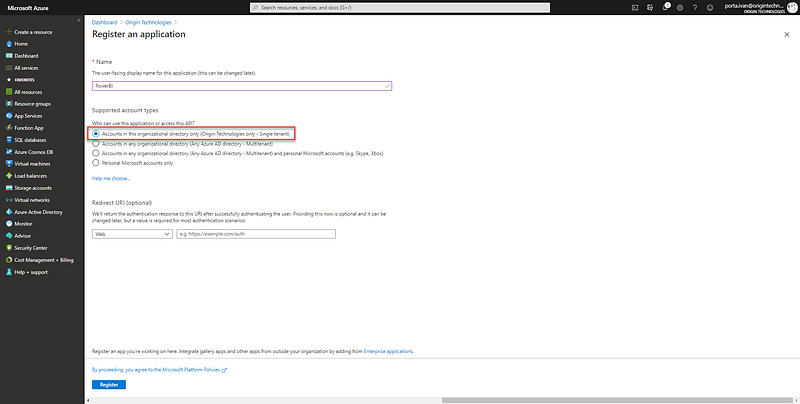
Create a new app registration

To access Power BI service content and APIs, you need to register an application that will authenticate against your Azure Active Directory. To do so, follow these instructions:

  • Sign in to the Azure portal.
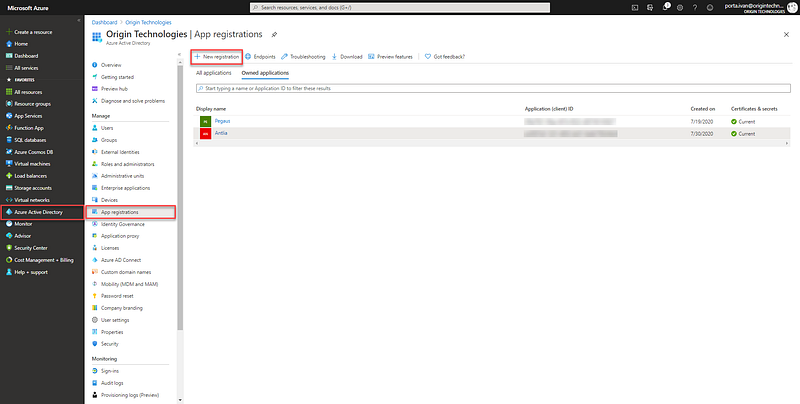
  • Select Azure Active Directory and then App Registration.
  • Click the New Registration.
App registration page
  • Provide a Name that describes your application’s purpose, select a supported Account type, and click on Register.
Once the registration is completed, you will be redirected to the app overview page. Copy the application ID’s value as you will need to specify this later in Azure DevOps.
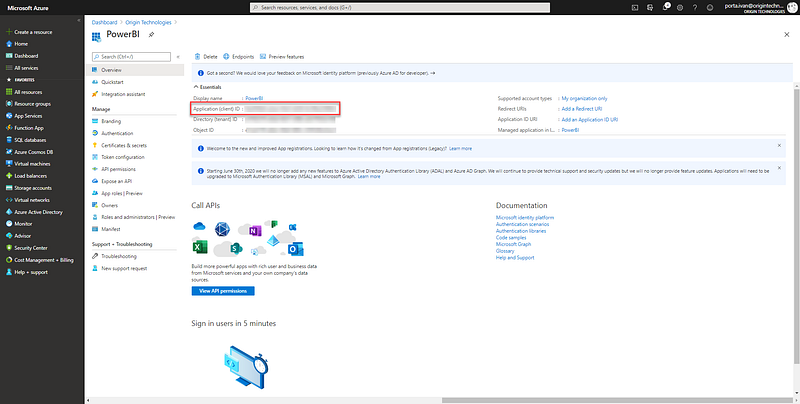
App Overview page
  • Select Certificate & Secrets tab, generate a new client secret, and copy its value.
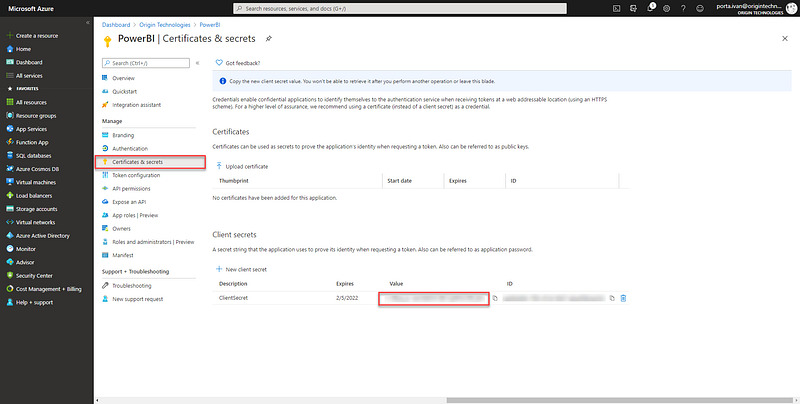
Certificates and secrets page

You need to give some permission to your app to conclude the configuration of your application.

  • Click on the App permission tab and then Add a permission.
  • Select Application permissions.
  • Click Power BI services.
  • Check the Tenant.ReadAll and Tenant.ReadWriteAll checkbox.
  • Click add permission to confirm your updates.
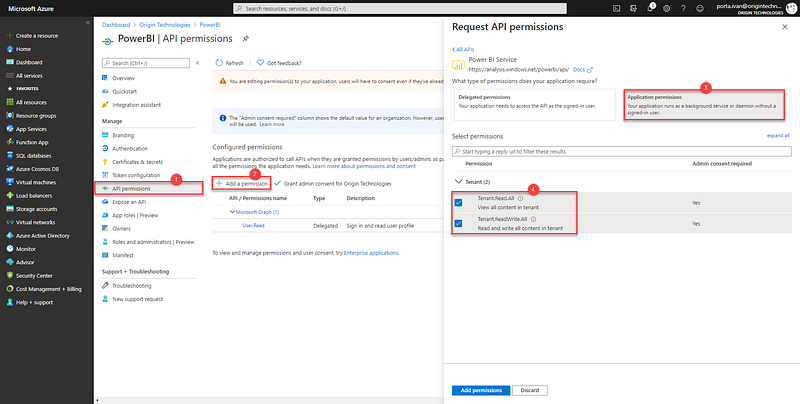
API permissions

Power BI

Setting up the tenant

The next step is to configure your Power BI;

  • Sign in to the Power BI portal.
  • Click the gear icon on the top right and select Admin portal.
  • Select the Tenant settings tab and allow service principals to use Power BI APIs
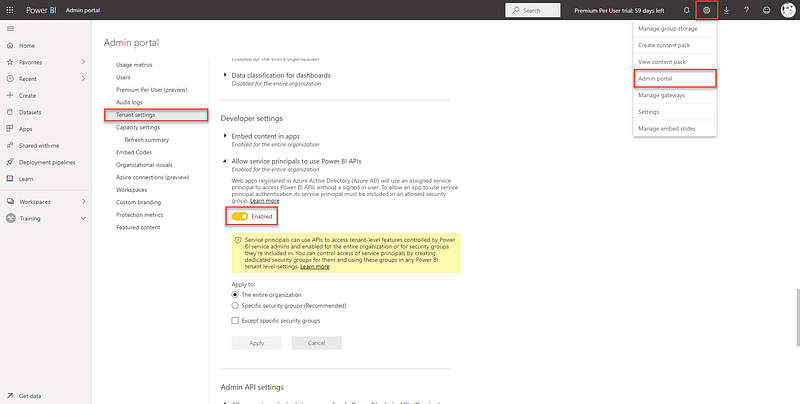
Tenant settings tab

Configure a workspace

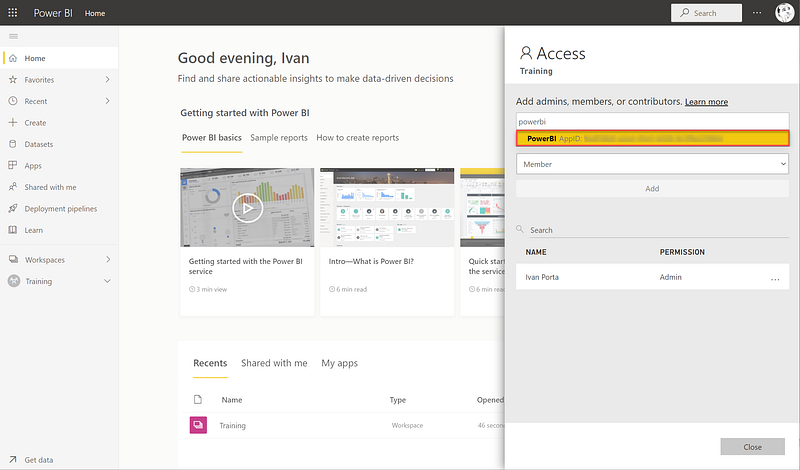
Now create the workspace where your pipeline will publish the reports and grant permission to your Azure AD App to do this:

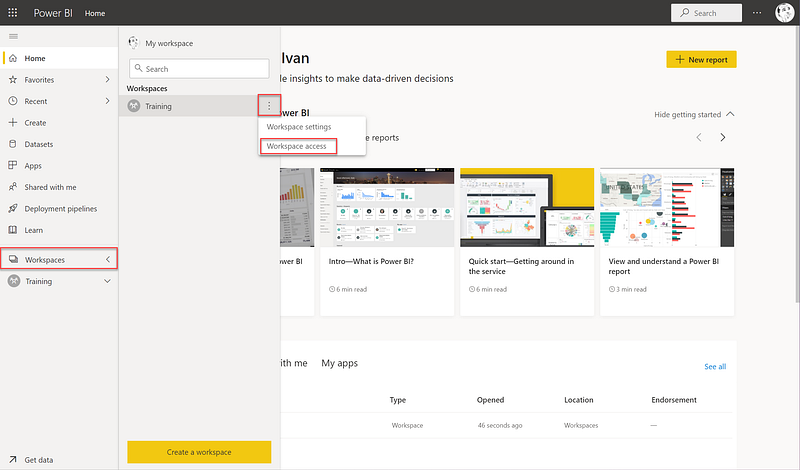
  • Select Workspaces tab.
  • Click the three vertical dots on the right of your new workspace.
  • Click Workspace access.
  • Search the app that you have previously registered in Azure AD and grant it the permission of Admin.
Azure DevOps

Install the extension

These instructions will show you how to install the Power BI Action extension that we are going to use for this tutorial:

  • Sign in to your Azure DevOps organization.
  • Go to Organization Settings.
  • Select Extensions.
  • Click on Browse Marketplace at the top right.
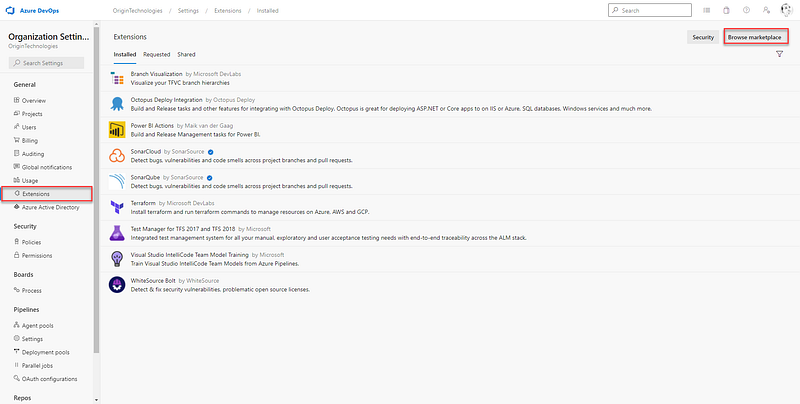
Extension page
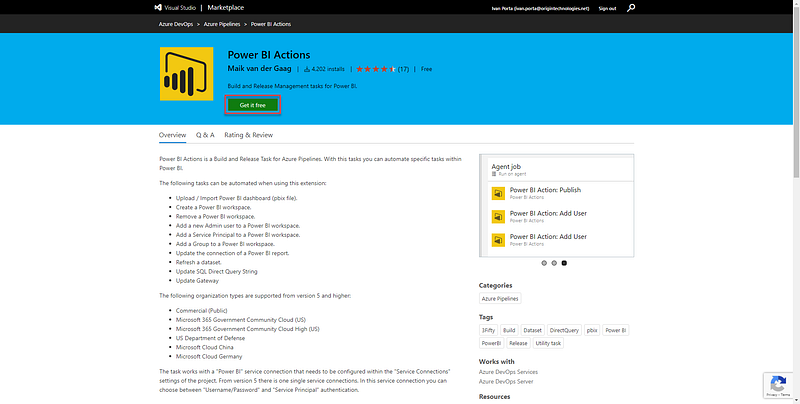
  • As the Marketplace opens, search for Power BI Actions and click on the respective result.
  • Click on the Get it Free button.
Power BI Actions page
  • Select your target organization from the dropdown and click on Install to complete the procedure.
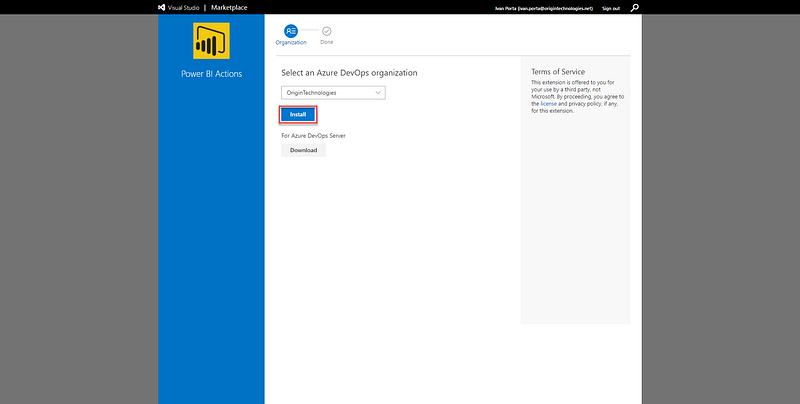
Installation process

Create a new service connection

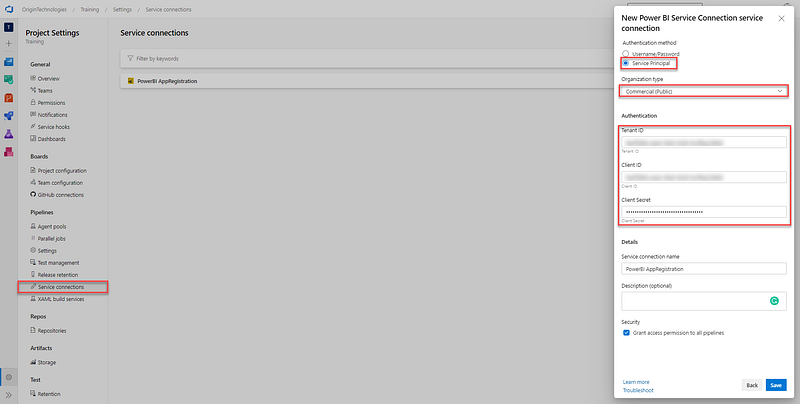
  • Go to Project Settings.
  • Select Service connections.
  • Click the New service connection button and select Power BI Service Connection.
  • Fill in the parameters for the service connection and allow all pipelines to use this connection option.
  • Click OK to create the connection.
Creation of a new Power BI service connection

Creating the Build Pipeline

It is time to create your build pipeline.

  • From the dashboard, select Pipelines.
  • Click the New pipeline button.
  • Select Azure Git Repos as a source that will trigger our pipeline.
  • Azure DevOps will suggest several templates, select the Starter Pipeline, to begin with a bare bone pipeline.
  • Add the following YAML snippet to your pipeline.
trigger:
- master
pool:
  vmImage: 'windows-latest'
steps:
- task: CopyFiles@2
  inputs:
    SourceFolder: '$(Build.SourcesDirectory)'
    Contents: '**.pbix'
    TargetFolder: '$(Agent.TempDirectory)/$(Build.BuildId)'
- task: ArchiveFiles@2
  inputs:
    rootFolderOrFile: '$(Agent.TempDirectory)/$(Build.BuildId)'
    includeRootFolder: false
    archiveType: 'zip'
    archiveFile: '$(Build.ArtifactStagingDirectory)/$(Build.BuildId).zip'
    replaceExistingArchive: true
- task: PublishBuildArtifacts@1
  inputs:
    PathtoPublish: '$(Build.ArtifactStagingDirectory)'
    ArtifactName: 'PowerBIArtifact'
    publishLocation: 'Container'

Create a Release pipeline

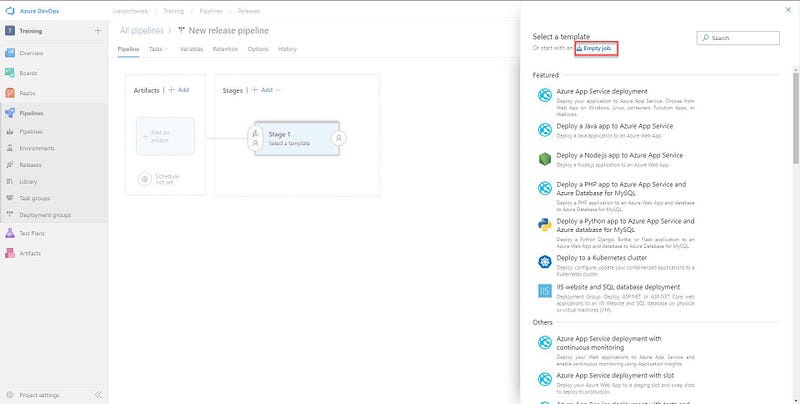
To automatically deploy your report on Power BI, create a new release pipeline.

  • From the dashboard, select Pipelines and then Releases.
  • Click the New pipeline button.
  • Select Empty Job.
Empty job
  • Add the Extract Files task and configure it as follows.
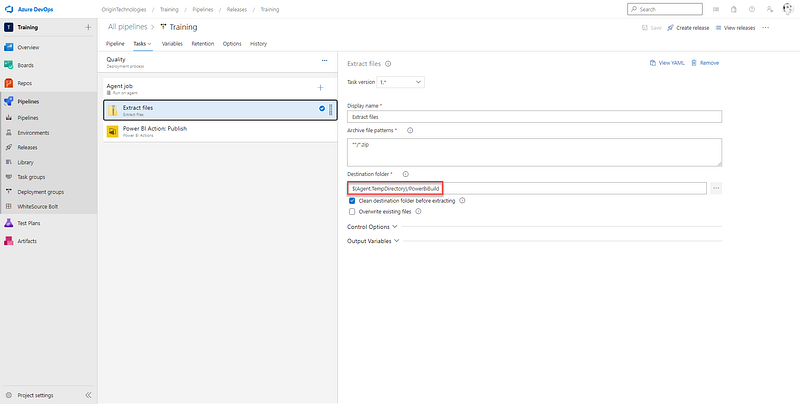
Extraction task configuration
  • Finally, add a Power BI Action task, select Upload Power BI Report as Action, enter the target workspace, and add the Source file (path where there will be your report)
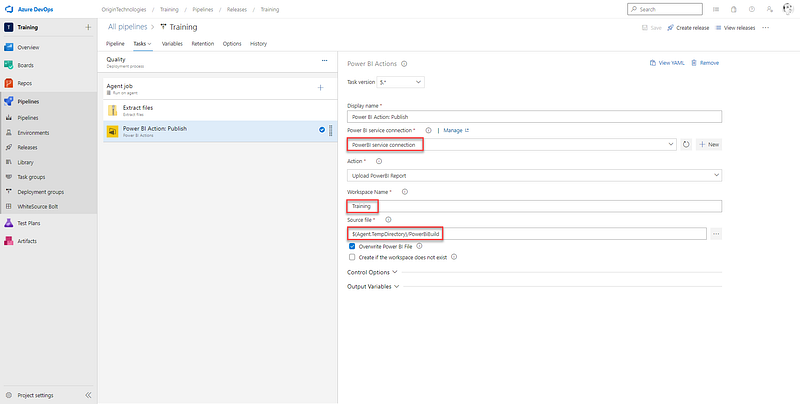
Power BI Action task

You need to specify the deployable component that will be built through the build pipeline and then released by the release pipeline.

  • Click Add an Artifact.
  • Select Build as Source type.
  • In the Source dropdown, select the Training repository.
  • Click Add to save.

To finalize your release pipeline, instruct the pipeline to automatically create a new release every time a build is available. Apply this feature by enabling the Continuous deployment trigger.
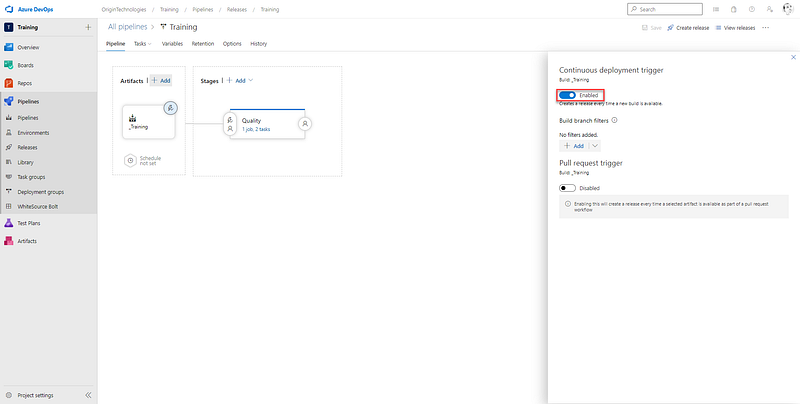
Continuous deployment trigger

It is now time to push your local code to your repository and start the pipelines.

References

Power Bi
Continuous Integration
Continuous Delivery
DevOps
Azure
Recommended from ReadMedium