avatarBetter Everything

Free AI web copilot to create summaries, insights and extended knowledge, download it at here

7148

Abstract

<span class="hljs-keyword">import</span> requests <span class="hljs-keyword">import</span> time

price_level_per_stock = { <span class="hljs-string">'IBM'</span>: {<span class="hljs-string">'level'</span>: <span class="hljs-number">126.0</span>, <span class="hljs-string">'operator'</span>: <span class="hljs-string">'<'</span>}, <span class="hljs-string">'F'</span>: {<span class="hljs-string">'level'</span>: <span class="hljs-number">13.0</span>, <span class="hljs-string">'operator'</span>: <span class="hljs-string">'>'</span>} }

current_stock_prices = {} api_url = <span class="hljs-string">"https://www.alphavantage.co/query?function=TIME_SERIES_INTRADAY"</span> token = <span class="hljs-string">"secret"</span> <span class="hljs-keyword">for</span> stock <span class="hljs-keyword">in</span> price_level_per_stock: url = <span class="hljs-string">f"<span class="hljs-subst">{api_url}</span>&symbol=<span class="hljs-subst">{stock}</span>&interval=1min&apikey=<span class="hljs-subst">{token}</span>&datatype=csv"</span> r = requests.get(url) price = <span class="hljs-built_in">float</span>(r.text.split(<span class="hljs-string">'\r\n'</span>)[<span class="hljs-number">1</span>].split(<span class="hljs-string">','</span>)[-<span class="hljs-number">2</span>]) current_stock_prices[stock] = price time.sleep(<span class="hljs-number">15</span>)</pre></div><p id="2038">Instead of using <code>token = "secret"</code> you can specify your own token. To get a token for the Alpha Vantage API you can go to <a href="https://www.alphavantage.co/support/#api-key">this page</a>.</p><p id="aaef">The price is the second to last value of the second line in the CSV formatted response data. And so it can be extracted with: <code>float(r.text.split('\r\n')[1].split(',')[-2])</code>.</p><p id="cf74">With <code>time.sleep(15)</code> we wait 15 seconds in between the requests to not exceed the rate limit of 5 requests per minute.</p><p id="aeca">For a full guide of getting data from APIs with Python you can read this:</p><div id="9128" class="link-block"> <a href="https://readmedium.com/automate-data-collection-from-apis-with-python-292b6eb80cb3"> <div> <div> <h2>Automate Data Collection from APIs with Python</h2> <div><h3>Learn to automate the collection of data from APIs by using Python.</h3></div> <div><p>medium.com</p></div> </div> <div> <div style="background-image: url(https://miro.readmedium.com/v2/resize:fit:320/1*paDSonfyjV8X-q0DUESEbw.jpeg)"></div> </div> </div> </a> </div><h1 id="92dd">The Output: Sending Price Alert Notifications</h1><p id="b311">In the section above we generated a variable <code>check</code> that tells us whether we should send a notification in the loop over the stocks which prices are watched.</p><p id="d09c">But how can we send a notification?</p><p id="c808">With the <code>notify-py</code> package. That package makes sending desktop notifications really easy.</p><p id="c501">To use it, you can begin by installing it with the command: <code>pip install notify-py</code>.</p><p id="e3a4">Then we can import the <code>Notify</code> class from it. In case <code>check</code> is <code>True</code> we can make a notification object and customize its attributes. The notification can be send by invoking its <code>send</code> method.</p><div id="3978"><pre><span class="hljs-keyword">from</span> notifypy <span class="hljs-keyword">import</span> Notify

<span class="hljs-keyword">for</span> stock, current_price <span class="hljs-keyword">in</span> current_stock_prices.items(): level = price_level_per_stock[stock][<span class="hljs-string">'level'</span>] operator = price_level_per_stock[stock][<span class="hljs-string">'operator'</span>] check = <span class="hljs-built_in">eval</span>(<span class="hljs-string">f"<span class="hljs-subst">{current_price}</span> <span class="hljs-subst">{operator}</span> <span class="hljs-subst">{level}</span>"</span>) <span class="hljs-keyword">if</span> check: price_notification = Notify() price_notification.application_name = <span class="hljs-string">"Stock Price Watcher"</span> price_notification.title = <span class="hljs-string">"Price Alert"</span> price_notification.message = <span class="hljs-string">f"<span class="hljs-subst">{stock}</span>'s price is: <span class="hljs-subst">{current_price}</span>"</span> price_notification.send()</pre></div><p id="3403">And here is what a desktop notifictation looks like — on Windows — when popping up on the bottom right of the screen. The icon can also be customized.</p><figure id="f123"><img src="https://cdn-images-1.readmedium.com/v2/resize:fit:800/1*qziltDodS6egYjzfiMoTQQ.png"><figcaption>An example desktop notification that our stock price watcher could send. Source: own screenshot.</figcaption></figure><p id="fbb8">For a full guide of sending desktop notifications with Python you can read this:</p><div id="79f8" class="link-block"> <a href="https://readmedium.com/desktop-notifications-with-python-notify-py-c6c21b408b44"> <div> <div> <h2>Desktop Notifications with Python notify-py</h2> <div><h3>Learn to use Python’s notify-py package to send notifications.</h3></div> <div><p>medium.com</p></div> </div> <div> <div style="background-image: url(https://miro.readmedium.com/v2/resize:fit:320/1*A5IC443Rg2X0ygOHwA0M3A.png)"></div> </div> </div> </a> </div><h1 id="4401">Running the Stock Price Watcher</h1><p id="5fd3">To make the code automatically run at set times we can schedule it. There are several schedulers that can be used, for example, cron on Linux and Task Scheduler on Windows.</p><p id="81d9">But there also are Python packages to schedule code to run at specific times, intervals or days.</p><p id="5780">The package I will use is called <code>schedule</code> and can be installed with <code>pip install schedule</code>.</p><p id="8513">It has a really easy to understand syntax. Here is some code to schedule the code to run every day from Monday through Friday on 9:30, 12:30, 15:30 and 18:30:</p><div id="abe0"><pre><span class="hljs-keyword">for</span> hour <span class="hljs-keyword">in</span> [<span class="hljs-number">9</span>, <span class="hljs-number">12</span>, <span class="hljs-number">15</span>, <span class="hljs-number">18</span>]: time_str = <span class="hljs-string">f"<span class="hljs-subst">{<span class="hljs-built_in">str</span>(hour).zfill(<span class="hljs-number">2</span>)}</span>:30"</span> schedule.every().monday.at(time_str).do(run_price_checks) schedule.every().tuesday.at(time_str).do(run_price_checks) schedule.every().wednesday.at(time_str).do(run_price_checks) schedule.every().thursday.at(time_str).do(run_price_checks) schedule.every().friday.at(time_str).

Options

do(run_price_checks)</pre></div><p id="0dba">With <code>zfill(2)</code> we get <code>09:30</code> instead of <code>9:30</code>.</p><p id="75f8">The code that we want to run each time needs to be put in a function called <code>run_price_checks</code>, because we passed that function’s name to the <code>do</code> method.</p><p id="48d6">And to actually run the scheduled code we need to call the <code>run_pending</code> function. That function checks which scheduled jobs are pending at the time the function is called and runs them.</p><p id="8b1e">We put that function call inside a <code>while True</code> loop with a <code>time.sleep(60)</code> call. Such a loop keeps running forever and due to the <code>sleep</code> it will pause 60 seconds before checking again whether it is time for scheduled jobs to run.</p><p id="043a">Here is the full code of our Stock Price Watcher in Python, including scheduling:</p><div id="6b4a"><pre><span class="hljs-keyword">import</span> requests <span class="hljs-keyword">from</span> notifypy <span class="hljs-keyword">import</span> Notify <span class="hljs-keyword">import</span> schedule <span class="hljs-keyword">import</span> time

PRICE_LEVEL_PER_STOCK = { <span class="hljs-string">'IBM'</span>: {<span class="hljs-string">'level'</span>: <span class="hljs-number">126.0</span>, <span class="hljs-string">'operator'</span>: <span class="hljs-string">'<'</span>}, <span class="hljs-string">'F'</span>: {<span class="hljs-string">'level'</span>: <span class="hljs-number">13.0</span>, <span class="hljs-string">'operator'</span>: <span class="hljs-string">'>'</span>} }

API_URL = <span class="hljs-string">"https://www.alphavantage.co/query?function=TIME_SERIES_INTRADAY"</span> TOKEN = <span class="hljs-string">"secret"</span>

<span class="hljs-keyword">def</span> <span class="hljs-title function_">run_price_checks</span>(): current_stock_prices = {} <span class="hljs-keyword">for</span> stock <span class="hljs-keyword">in</span> PRICE_LEVEL_PER_STOCK: url = <span class="hljs-string">f"<span class="hljs-subst">{API_URL}</span>&symbol=<span class="hljs-subst">{stock}</span>&interval=1min&apikey=<span class="hljs-subst">{TOKEN}</span>&datatype=csv"</span> r = requests.get(url) price = <span class="hljs-built_in">float</span>(r.text.split(<span class="hljs-string">'\r\n'</span>)[<span class="hljs-number">1</span>].split(<span class="hljs-string">','</span>)[-<span class="hljs-number">2</span>]) current_stock_prices[stock] = price time.sleep(<span class="hljs-number">15</span>)

<span class="hljs-keyword">for</span> stock, current_price <span class="hljs-keyword">in</span> current_stock_prices.items():
    level = PRICE_LEVEL_PER_STOCK[stock][<span class="hljs-string">'level'</span>]
    operator = PRICE_LEVEL_PER_STOCK[stock][<span class="hljs-string">'operator'</span>]
    check = <span class="hljs-built_in">eval</span>(<span class="hljs-string">f"<span class="hljs-subst">{current_price}</span> <span class="hljs-subst">{operator}</span> <span class="hljs-subst">{level}</span>"</span>)
    <span class="hljs-keyword">if</span> check:
        price_notification = Notify()
        price_notification.application_name = <span class="hljs-string">"Stock Price Watcher"</span>
        price_notification.title = <span class="hljs-string">"Price Alert"</span>
        price_notification.message = <span class="hljs-string">f"<span class="hljs-subst">{stock}</span>'s price is: <span class="hljs-subst">{current_price}</span>"</span>
        price_notification.send()

<span class="hljs-keyword">for</span> hour <span class="hljs-keyword">in</span> [<span class="hljs-number">9</span>, <span class="hljs-number">12</span>, <span class="hljs-number">15</span>, <span class="hljs-number">18</span>]: time_str = <span class="hljs-string">f"<span class="hljs-subst">{<span class="hljs-built_in">str</span>(hour).zfill(<span class="hljs-number">2</span>)}</span>:30"</span> schedule.every().monday.at(time_str).do(run_price_checks) schedule.every().tuesday.at(time_str).do(run_price_checks) schedule.every().wednesday.at(time_str).do(run_price_checks) schedule.every().thursday.at(time_str).do(run_price_checks) schedule.every().friday.at(time_str).do(run_price_checks)

<span class="hljs-keyword">while</span> <span class="hljs-literal">True</span>: schedule.run_pending() time.sleep(<span class="hljs-number">60</span>)</pre></div><p id="8ea8">We can use the approaches explained in this article to make the script start running automatically after starting up our computer:</p><div id="b898" class="link-block"> <a href="https://readmedium.com/run-python-scripts-on-windows-startup-cec5e177db59"> <div> <div> <h2>Run Python Scripts On Windows Startup</h2> <div><h3>Learn to make Python scripts run automatically when starting a Windows computer!</h3></div> <div><p>medium.com</p></div> </div> <div> <div style="background-image: url(https://miro.readmedium.com/v2/resize:fit:320/1*V4id4TaxclQXAdLOdXUrhA.png)"></div> </div> </div> </a> </div><p id="ddd6">For a full guide of using the <code>schedule</code> Python package to schedule code you can read this:</p><div id="bfe0" class="link-block"> <a href="https://readmedium.com/run-python-code-at-specific-times-days-intervals-with-the-schedule-package-e8a6b290ec31"> <div> <div> <h2>Run Python Code at Specific Times, Days & Intervals with the Schedule Package</h2> <div><h3>Learn to use the Schedule package to run Python code at specific times, intervals and dates!</h3></div> <div><p>medium.com</p></div> </div> <div> <div style="background-image: url(https://miro.readmedium.com/v2/resize:fit:320/1*eoMSs5vKqdWfbcmsPIqHXA.jpeg)"></div> </div> </div> </a> </div><h1 id="f946">Thank you for reading!</h1><p id="91bc">I hope my post was helpful to you!</p><p id="8ee0">You can <b>get full access to all my posts by joining Medium</b>. Your membership fee directly supports me and other writers you read. You’ll also get full access to every story on Medium:</p><div id="80fc" class="link-block"> <a href="https://medium.com/@BetterEverything/membership"> <div> <div> <h2>Join Medium with my referral link — Better Everything</h2> <div><h3>Read every story from Better Everything (and thousands of other writers on Medium). Your membership fee directly…</h3></div> <div><p>medium.com</p></div> </div> <div> <div style="background-image: url(https://miro.readmedium.com/v2/resize:fit:320/0*aa4Y_6MHVoY6Wl-9)"></div> </div> </div> </a> </div></article></body>

Automate Stock Price Alerts with Python

Learn to make a Python program that sends a price alert notification when a stock price is above or below a certain level.

Learn to make a Python program that sends a price alert notification when a stock price is above or below a certain level. Image by catalyststuff on Freepik

Let’s automate Stock Price Alerts with Python!

A stock price watcher is a program that runs every once in a while to load the current prices of stocks. Those prices are then compared with previously set levels. If a price is below or above the set level, a price alert notification gets sent.

Price watchers are useful for people that want to buy or sell something but wait for the price to be right. By letting a program automatically check the prices you don’t have to keep checking the prices yourself. And you still won’t miss opportunities to sell or buy at a good price.

We will go through these steps to code the stock price watcher and get it running:

  • The Input: Stocks and Price Levels
  • The Process: Getting Prices and Comparing Them With Price Levels
  • The Output: Sending Price Alert Notifications
  • Running the Stock Price Watcher

The Input: Stocks and Price Levels

For this project we will hardcode the stocks and their price levels in a dictionary named price_level_per_stock.

The stock symbols that are used on stock markets will be the keys in the dictionary. And the corresponding value will be a dictionary with 2 key-value pairs. One for level and one for operator.

Here is an example of a hardcoded price_level_per_stock dictionary.

price_level_per_stock = {
    'IBM': {'level': 126.0, 'operator': '<'},
    'F': {'level': 13.0, 'operator': '>'}
}

As an example, 'IBM': {'level': 126.0, 'operator': '<'} means that a notification needs to be send if IBM’s stock price is below 126.0.

And 'F': {'level': 13.0, 'operator': '>'} means that a notification needs to be send if Ford’s stock price is greater than 13.0.

We can also use <= and >= as operators.

The Process: Getting Prices and Comparing Them With Price Levels

Before looking at getting the current stock prices in Python we will skip to the part where we compare them.

Comparing the current stock prices with the specified price levels

When we have the current stock prices inside of a Python dictionary like this:

current_stock_prices = {
    'IBM': 124.75,
    'F': 13.0
}

we can loop over the keys and values in that dictionary by using the items method. That way we will get both a stock and current_price in each iteration.

By looking up each stock in price_level_per_stock we can get the level and operator.

We can combine current_price, operator and level in a string and assign it to a variable check:

for stock, current_price in current_stock_prices.items():
    level = price_level_per_stock[stock]['level']
    operator = price_level_per_stock[stock]['operator']
    check = f"{current_price} {operator} {level}"

If we print check in each iteration we see these strings:

124.75 < 126.0
13.0 > 13.0

The checks in those strings can be evaluated by passing them to the eval function.

for stock, current_price in current_stock_prices.items():
    level = price_level_per_stock[stock]['level']
    operator = price_level_per_stock[stock]['operator']
    check = eval(f"{current_price} {operator} {level}")
    print(check)

In this case the eval function returns either True or False. Those values will be assigned to check. In the next section we will use that variable to decide whether to send a notification or not.

The strings of our example — 124.75 < 126.0 and 13.0 > 13.0 — are of course transformed to True and False.

Getting the current stock prices in Python

But how to get the current stock prices in a dictionary?

We can use an API for that. For example, the Alpha Vantage API.

That API offers all kinds of financial data. The most up-to-date stock prices are shared with its TIME_SERIES_INTRADAY API if I’m correct.

So for each stock which price is being watched we can call that API. Then we can extract the latest price from the response and store it in dictionary current_stock_prices with the stock symbol as the corresponding key.

Here is the python code to do all of that. You need to install the requests package for it to work, that can be done with the command pip install requests:

import requests
import time

price_level_per_stock = {
    'IBM': {'level': 126.0, 'operator': '<'},
    'F': {'level': 13.0, 'operator': '>'}
}

current_stock_prices = {}
api_url = "https://www.alphavantage.co/query?function=TIME_SERIES_INTRADAY"
token = "secret"
for stock in price_level_per_stock:
    url = f"{api_url}&symbol={stock}&interval=1min&apikey={token}&datatype=csv"
    r = requests.get(url)
    price = float(r.text.split('\r\n')[1].split(',')[-2])
    current_stock_prices[stock] = price
    time.sleep(15)

Instead of using token = "secret" you can specify your own token. To get a token for the Alpha Vantage API you can go to this page.

The price is the second to last value of the second line in the CSV formatted response data. And so it can be extracted with: float(r.text.split('\r\n')[1].split(',')[-2]).

With time.sleep(15) we wait 15 seconds in between the requests to not exceed the rate limit of 5 requests per minute.

For a full guide of getting data from APIs with Python you can read this:

The Output: Sending Price Alert Notifications

In the section above we generated a variable check that tells us whether we should send a notification in the loop over the stocks which prices are watched.

But how can we send a notification?

With the notify-py package. That package makes sending desktop notifications really easy.

To use it, you can begin by installing it with the command: pip install notify-py.

Then we can import the Notify class from it. In case check is True we can make a notification object and customize its attributes. The notification can be send by invoking its send method.

from notifypy import Notify

for stock, current_price in current_stock_prices.items():
    level = price_level_per_stock[stock]['level']
    operator = price_level_per_stock[stock]['operator']
    check = eval(f"{current_price} {operator} {level}")
    if check:
        price_notification = Notify()
        price_notification.application_name = "Stock Price Watcher"
        price_notification.title = "Price Alert"
        price_notification.message = f"{stock}'s price is: {current_price}"
        price_notification.send()

And here is what a desktop notifictation looks like — on Windows — when popping up on the bottom right of the screen. The icon can also be customized.
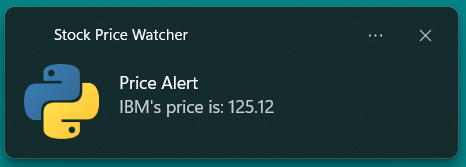
An example desktop notification that our stock price watcher could send. Source: own screenshot.

For a full guide of sending desktop notifications with Python you can read this:

Running the Stock Price Watcher

To make the code automatically run at set times we can schedule it. There are several schedulers that can be used, for example, cron on Linux and Task Scheduler on Windows.

But there also are Python packages to schedule code to run at specific times, intervals or days.

The package I will use is called schedule and can be installed with pip install schedule.

It has a really easy to understand syntax. Here is some code to schedule the code to run every day from Monday through Friday on 9:30, 12:30, 15:30 and 18:30:

for hour in [9, 12, 15, 18]:
    time_str = f"{str(hour).zfill(2)}:30"
    schedule.every().monday.at(time_str).do(run_price_checks)
    schedule.every().tuesday.at(time_str).do(run_price_checks)
    schedule.every().wednesday.at(time_str).do(run_price_checks)
    schedule.every().thursday.at(time_str).do(run_price_checks)
    schedule.every().friday.at(time_str).do(run_price_checks)

With zfill(2) we get 09:30 instead of 9:30.

The code that we want to run each time needs to be put in a function called run_price_checks, because we passed that function’s name to the do method.

And to actually run the scheduled code we need to call the run_pending function. That function checks which scheduled jobs are pending at the time the function is called and runs them.

We put that function call inside a while True loop with a time.sleep(60) call. Such a loop keeps running forever and due to the sleep it will pause 60 seconds before checking again whether it is time for scheduled jobs to run.

Here is the full code of our Stock Price Watcher in Python, including scheduling:

import requests
from notifypy import Notify
import schedule
import time

PRICE_LEVEL_PER_STOCK = {
    'IBM': {'level': 126.0, 'operator': '<'},
    'F': {'level': 13.0, 'operator': '>'}
}

API_URL = "https://www.alphavantage.co/query?function=TIME_SERIES_INTRADAY"
TOKEN = "secret"

def run_price_checks():
    current_stock_prices = {}
    for stock in PRICE_LEVEL_PER_STOCK:
        url = f"{API_URL}&symbol={stock}&interval=1min&apikey={TOKEN}&datatype=csv"
        r = requests.get(url)
        price = float(r.text.split('\r\n')[1].split(',')[-2])
        current_stock_prices[stock] = price
        time.sleep(15)


    for stock, current_price in current_stock_prices.items():
        level = PRICE_LEVEL_PER_STOCK[stock]['level']
        operator = PRICE_LEVEL_PER_STOCK[stock]['operator']
        check = eval(f"{current_price} {operator} {level}")
        if check:
            price_notification = Notify()
            price_notification.application_name = "Stock Price Watcher"
            price_notification.title = "Price Alert"
            price_notification.message = f"{stock}'s price is: {current_price}"
            price_notification.send()


for hour in [9, 12, 15, 18]:
    time_str = f"{str(hour).zfill(2)}:30"
    schedule.every().monday.at(time_str).do(run_price_checks)
    schedule.every().tuesday.at(time_str).do(run_price_checks)
    schedule.every().wednesday.at(time_str).do(run_price_checks)
    schedule.every().thursday.at(time_str).do(run_price_checks)
    schedule.every().friday.at(time_str).do(run_price_checks)


while True:
    schedule.run_pending()
    time.sleep(60)

We can use the approaches explained in this article to make the script start running automatically after starting up our computer:

For a full guide of using the schedule Python package to schedule code you can read this:

Thank you for reading!

I hope my post was helpful to you!

You can get full access to all my posts by joining Medium. Your membership fee directly supports me and other writers you read. You’ll also get full access to every story on Medium:

Python
Programming
Stock Market
Automation
Software Development
Recommended from ReadMedium