
Automate repetitive tasks with Flask and Python
How to build simple web applications to automate repetitive and boring tasks at work
One of my favorite books to read about Python is “Automate the boring stuff with Python” by Al Sweigart. His books are well written, engaging and cover a lot of different topics that relate not only to software developers but a lot of people who like to tinker with code and build fun stuff. I would recommend anyone who thinks to start programming in Python or in general to take a look at them. A lot could be learnt from them. On a side note. I am not sponsored or payed to reference the books, I just think they are a nice read to have at your disposal. Okay, back to business.

Why I even referenced that book. Firstly, the name is very catchy and has something very fundamental in its name and that is “boring”. I am not saying that developers, system or network admins have a boring job/tasks, but sometimes we might do so much repetitive stuff that you just get bored in the process. This is where Python comes into play. Several lines of code later and you have successfully automated some part of your daily work/tasks.
It all sounds good right? Yep it is, but imagine couple months down the road. You’ve got tens of separate scripts that do particular job and you are just the trigger. A request comes to your desk, you see what it is about and start the script related to that request. It’s all good but at some point that process start to get repetitive, you are overwhelmed by other work and start thinking of a way to offload that work to someone else. But you cannot hand the scripts that you have written to your HR department and expect they could run them. Its not even on their job description. So you decide to build another layer of abstraction, build a fancy UI around it and give the final product to your colleagues.
In this article I will go over some basic concepts and provide you with a boilerplate to build your own apps.
The back-end script(s)
At the heart of such applications always lies a scripts that executes particular commands. Our case is no different. The script that we will be working is shown below. The basic idea of the script is to onboard a new member to the team.
Nothing difficult about the script, just couple of lines indicating that something is happening in the background. As you would expect you we were to run the code we would get return status zero, which means the script has executed successfully.
The front-end
Since we want to delegate our tasks to someone who is not that technically inclined, we would like to build a fancy UI for them, where they would just plug-in new team member email and the rest would be done by our script. Easy-peasy I would say, just couple of HTML tags and we are done. Here is how our UI looks like.
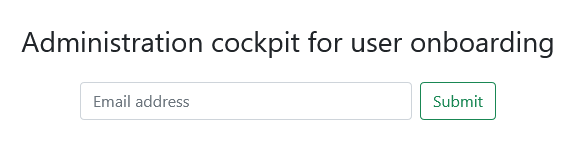
Even though the UI does not seem that impressive, some logic behind it. When a user types someone email and click Submit, an API call is registered to our back-end server (we will take a look at it shortly) to execute our onboard.py script.
First, we have got a function that is listening on our button. The function is shown below.
When function is executed, it grabs email address input field’s value an checks if it is empty. If it is, we simply update a modal window and return from the function. Otherwise a function call userOnboarding() is made to our API back-end.
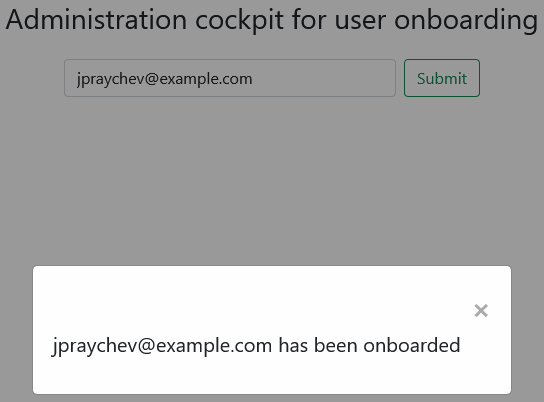
The API call is a POST request with user’s email provided as a payload. Since we are using async/await syntax to create an asynchronous call to the API we have to await the fetch request which has to return a Promise object. We then have to await once more in order to retrieve the value of the Promise. If everything works as it should we should receive HTTP status code 200 from our initial fetch request and after awaiting for the actual data from our Promise object, we should receive 0 , which is the returned status of our script, Fig. 2.
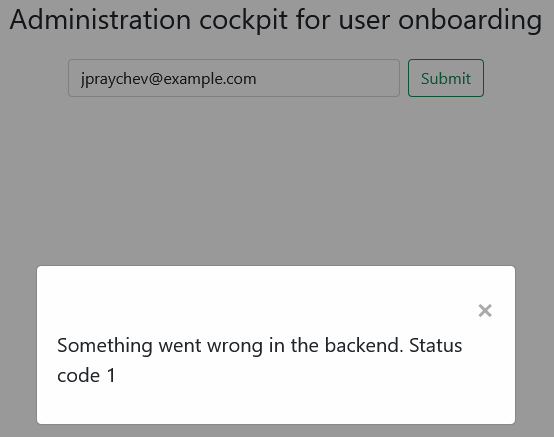
If for example, there is a issue with our script, we would get an error with status code of 1.
The back-end API
In this section, we are going to take a look at what is actually happening in the back-end and how our API is constructed. For this purpose I have decided to use a lightweight framework called Flask. If you are not familiar with it, I suggest to take a quick look at their documentation for more information.
The first thing to do is create an index page where our colleagues would be redirected if they want to onboard a new team member. Below is a snippet of code that is doing exactly that.
After importing all relevant modules to our app, we instantiate a Flask app object called app and then we defined index function that will be the root of our application. The function is decorated by a route decorator, which decorates a view function to register it with the given URL. In our case that would be the / or http://127.0.0.1:5000/ . If you are not familiar with decorators I have separate articles related only to that topic — basic tutorial and a bit more advanced one. The view return a HTML template, which is our UI covered in the previous section.
The next view that we have to build is an API view that has to accept only POST request, accept a single parameter (user’s email address) and execute our back-end script.
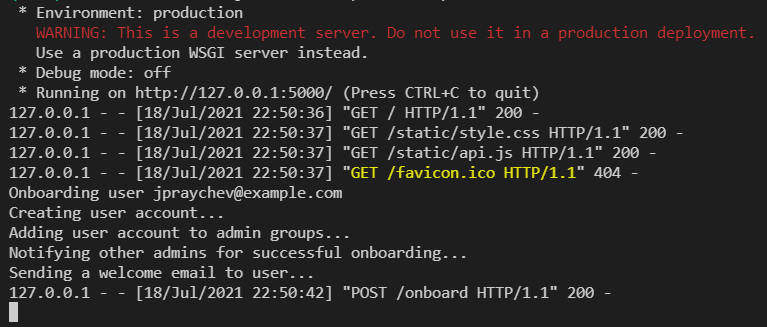
As you can see from our onboard view, we have registered it with a path /onboard that accepts only POST request. If we were to make a GET request, we would receive an error right off the bat. View logic is pretty simple — it accepts the JSON data we have sent from our fetch request and extracts user’s email. Then that email is passed as an argument to a subprocess call which actually executed the script mention in the first section of the article. After script execution, we grab the returned status code and send it back to the user. If everything went as expected we should see the following output at the console of our server.
Conclusion
That’s it pretty much for this tutorial. If you are interested in replicating the results and experimenting on your own, you can find the project files at me github page. As always I hope this has been informative to you and I would like to thank you for reading!
Happy automating!


