
Automate and Supercharge Google Colab with JavaScript
Run prescheduled Python scripts on Colab and access the results on your own drive

Introduction
Cloud computing is quickly becoming the weapon of choice for data scientists and firms alike, for all the right reasons too. With the resources that you are afforded and the granularly small fees associated with them, it’s really just a matter of basic arithmetic to discern between cloud and local computing. Over the years platforms, the likes of Amazon Web Services, Microsoft Azure, Google Cloud Platform, and others have competed to offer the most sophisticated, cutting-edge, and yet most affordable services to their customers. Ironically Google as one of the pioneers of the tech industry was somewhat late to the game and they are still making up for the lost time. But with the induction of Google Colab several years ago, they have offered the world at large, a service that is simply unmatched for what you’re not paying for it.
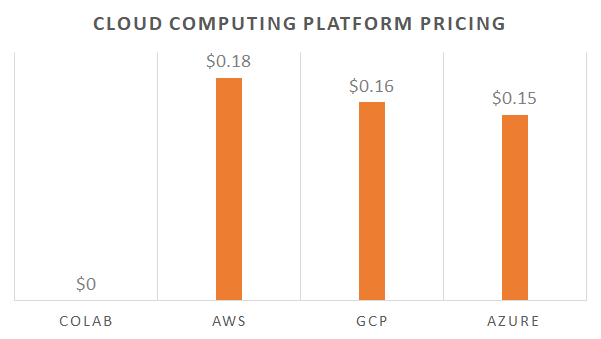
A quick look at the nearest products in terms of resource allocation, reveals that for every hour of using Colab you are saving an average of 16.3 cents. In fact, the actual virtual machine that is provisioned for each Colab session would set you back $0.16 an hour itself if you were to provision it yourself. The following table displays the most comparable virtual machines to Colab with their respective specifications and prices offered by Amazon Web Services, Microsoft Azure, and Google Cloud Platform.
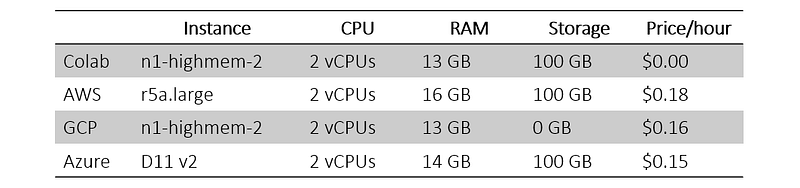
In other words, Colab is a lot of bang for no buck. Not to mention that Colab provides you with access to a GPU and TPU as well, which means that you are actually saving more than 16 cents an hour. And the best part about it is that literally, anyone, anywhere in the world can access it on demand. Mind you that such goodness does come with limitations too. You are allowed to run sessions up to 12 hours maximum with an idle timeout of around half an hour. In addition, you may face programmatic bottlenecking if you are found to be overutilizing some of Colab’s resources such as its GPU and TPU. Even still, such restrictions are beyond lenient. Yet for good measure, you are encouraged to use resources efficiently and without excess to avoid any service interruptions.
Colab Automation
There is a multitude of reasons why one would want to automate Colab:
- Run your Python scripts with time gaps to avoid overutilizing the available resources.
- Your script is a time-critical program that needs to run at prescheduled times.
- Ensure that your program is closed upon completion or before a system timeout/shutdown.
Regardless of the casus belli, you can indeed automate Colab by writing small snippets of JavaScript that will run on your browser’s console to interact and mimic button presses on the Colab interface in order to start and/or stop your session at certain times or with certain triggers.
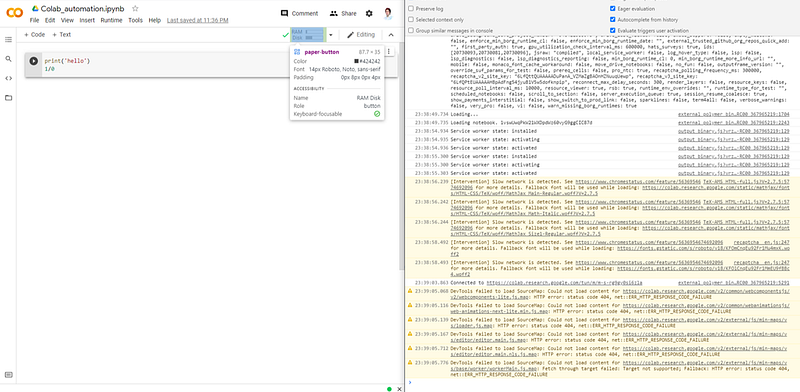
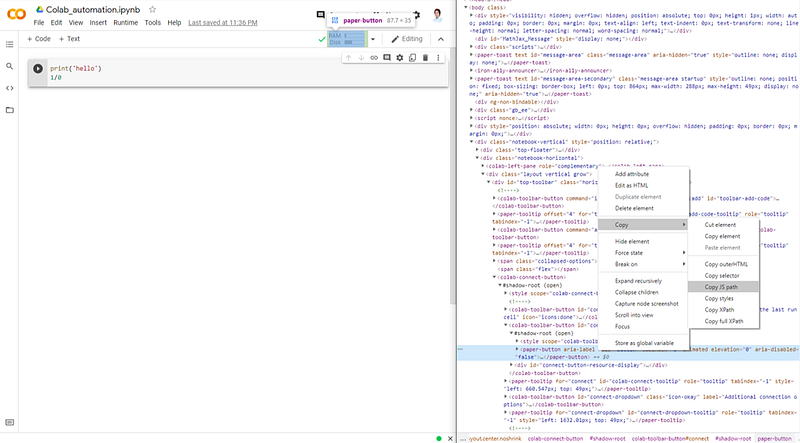
To insert and run the JavaScript snippets, please hit F12 on a browser of your choice to open the console. Then paste the JavaScript snippet into the command window and press enter. Subsequently, the browser will run the code to automate Google Colab by simulating button clicks. To find the JavaScript paths of the buttons that need to be clicked on, please right-click on the button and select ‘Inspect’ or alternatively use the ‘Select an element’ cursor in the browser console to find the associated paths as shown below. Please note that Google may dynamically change these paths.
Scenario 1: Running/terminating session at a prescheduled time
For our first scenario, we will run our Python script immediately (or after a certain number of seconds if required), and then we will terminate the session after a specified number of seconds. For this we will implement the following steps:
- Activate Colab session
- Run script (at a prescheduled time)
- Terminate session (at a prescheduled time)
The video below shows the JavaScript code automating Google Colab.
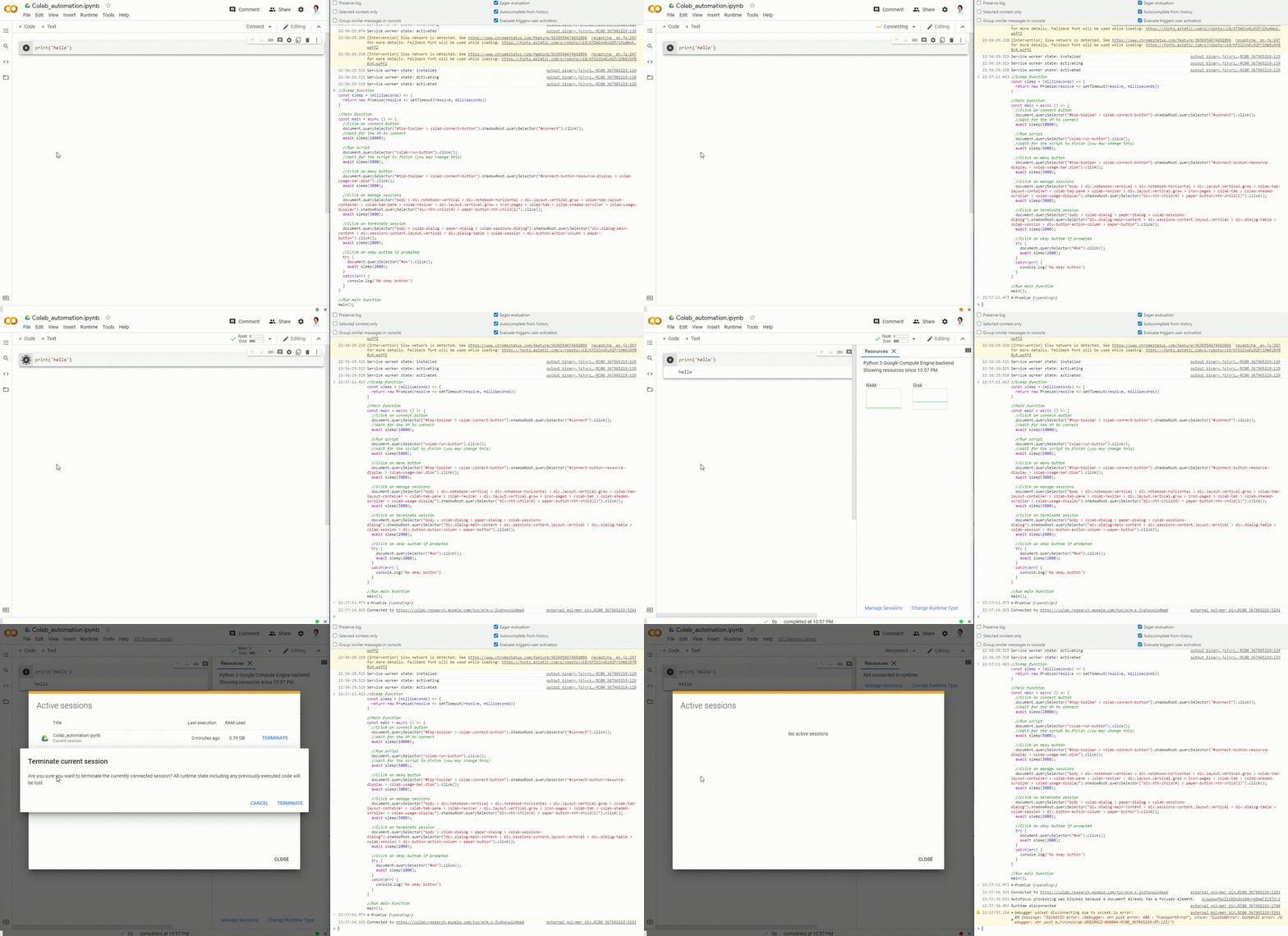
Please find below the JavaScript code for this scenario:
Scenario 2: Running/terminating sessions iteratively
For our second scenario, we will run our Python script iteratively for as many iterations as required using the following steps:
- Activate Colab session
- Run script if the number of iterations is less than the specified number
- Terminate session
Please find below the JavaScript code for this scenario:
Scenario 3: Running/terminating session dynamically
For our final scenario, we will run our Python script dynamically until it prompts us to terminate it. This is useful for scripts that have a dynamic or unknown runtime. The following steps will be implemented for this use case:
- Activate Colab session
- Run script until execution is finished
- Send a message to the console log to trigger termination
- Terminate session
To prompt our JavaScript program to terminate the session, we will append a line to the end of our Python script that will create an error. For instance, we can attempt to divide by 0 which will prompt Colab to display an error message that will also be logged in the browser’s console. We can then use the same JavaScript program to continuously check to see if the length of the log exceeds 0, and as soon as it does it will terminate the session.
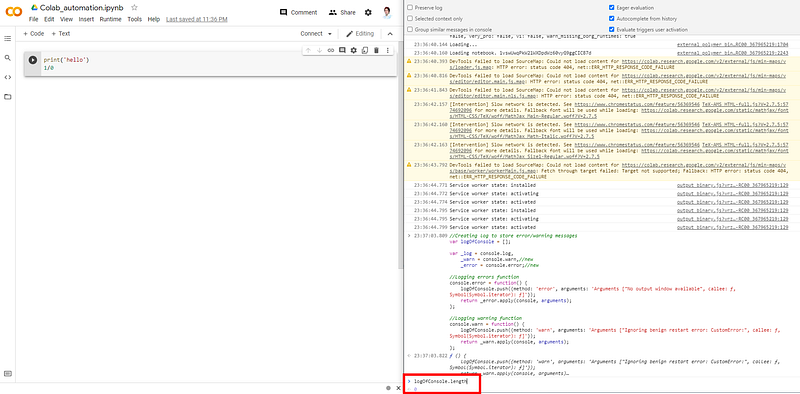
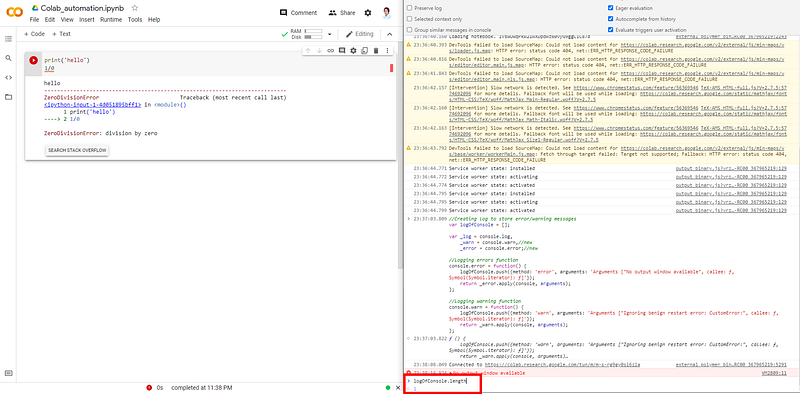
Please find below the JavaScript code for this scenario:
Saving Results Persistently
Google Colab connects seamlessly to Google Drive and this enables us to save the results of our execution persistently to our own drive. In addition, you can further automate your program by having your Python script read from a csv file in your Google Drive that can guide it to execute certain actions. For instance, each time you run your script, it will initially check the first line in a Google Drive spreadsheet that tells it which column in a dataframe to manipulate, once the execution is complete the Python script deletes the first row and resaves the spreadsheet so that the next time it runs it will move on to the next column in your dataframe.
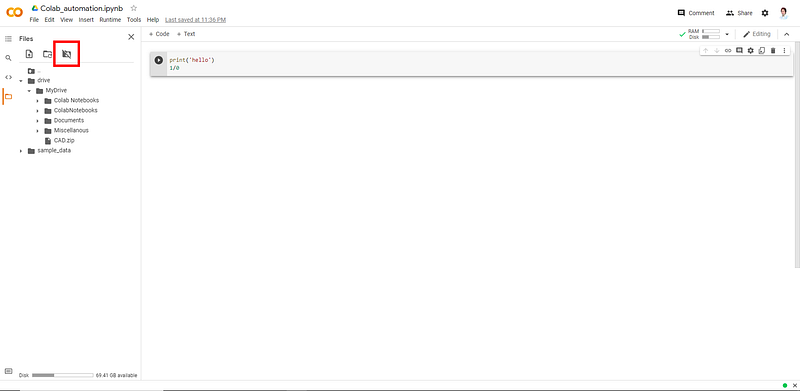
Use the following code to access the ‘guide’ file from your Google Drive.
guide = pd.read_csv('drive/MyDrive/ColabNotebooks/guide.csv')
column_to_manipulate = guide.iloc[0][0]
Once your execution is complete, simply omit the first row and resave the file to your Google Drive:
guide = guide.iloc[1:]
guide.to_csv('drive/MyDrive/ColabNotebooks/guide.csv',index=False)
Conclusion
Google Colab and cloud computing in general offer unparalleled access to extensive computing resources that until recently were inaccessible to many. Such capabilities coupled with some automation using JavaScript can create endless opportunities while utilizing resources in a more efficient manner. Specifically, in the case of Colab such an excellent product is best used without any excess to enable everyone in the community to benefit from such a bundle of goodness equally.


